Download AnyUnlock to Remove Various Locks from iOS Device.
Free Download For Win & Mac | 100% Clean & Secure
 Basic Information
 Unlock Screen Passcode
 Unlock Apple ID
  Bypass iCloud Activation
  Bypass MDM
 Remove SIM Lock
 Unlock Screen Time Passcode
 Remove iTunes Backup Encryption
 Turn Off Camera Sound
 iOS Password Manager
 iTunes Backup Password Recovery
 Find Apple ID
 iDevice Verification
 Turn off Find My iPhone
  FAQs
FAQs Need Further Help?
Bypass MDM (Mobile Device Management) Lock
What Is MDM?
MDM is abbreviation for “Mobile Device Management”, which is the administration of mobile devices, such as smartphones, tablet computers and laptops. Most small business, large enterprises, organizations and educational institutions control their devices using the MDM profile on Apple devices, including iPhone and iPad.
What Is MDM Restrictions?
Restrictions can be enabled, or in some cases disabled, to prevent users from accessing a specific app, service or function of an iPhone, iPad, Mac or Apple TV that’s enrolled in a mobile device management (MDM) solution.
We would like to share some problems we collected about MDM lock.
“Hi, I am trying to bypass the MDM screen on my iPad, which has an MDM screen before I can reach Settings to turn off Find My iPad. Please advise how to turn off Find my iPad in Settings. Thanks.”
“I don't have the credentials to login into device management, in order to remove from my iPad.”
“I was able to bypass MDM after phone was on, went through an iOS update. Now I am unable to use it since it stacks on MDM screen again. Please advise?”
If you encounter the similar situation above (forget the login information, stuck on the Remote Management login screen and unable to access your phone), please don’t worry, “Bypass MDM” mode can help you bypass the MDM lock without a username and password. Please refer to the detailed instructions to bypass MDM lock or remove MDM lock easily.
Two Supervision Ways of MDM
| Bypass MDM Remote Management | Remove MDM Local Management |
These two supervision ways to get out of MDM lock require “Find My iPhone” option disabled on your iPhone.
Compatibility of Computer System
| Windows OS | Windows 11, 10, 8, 7, Vista, both 32bit and 64bit |
| macOS | macOS 10.13 (High Sierra) and above |
Supported iOS Device Systems
| iOS | All iOS Devices with iOS Version 5 and above |
1. Before running AnyUnlock, you're supposed to download iTunes to help detect iPhone/iPad/iPod touch. (iTunes 9.0 or above, including the latest iTunes.)
2. If you want to get more info about the tech specs, please refer to this page.
Supported Device Models
| iPhone Series | iPhone 3G - iPhone 18 Series |
| iPad Series | iPad - iPad 11 |
| iPod touch Series | iPod touch 2 - iPod touch 7 |
Differences between Free & Activated Version
| Benefits | Free Version | Activated Version |
| Bypass MDM Lock |  |
 |
Part 1. Bypass MDM (Mobile Device Management) Lock.
Step 1. Download AnyUnlock - iPhone Password Unlocker on Your Computer.
Before you start bypassing MDM Lock, get the tool downloaded on your computer. Please make sure the network is stable while downloading and installing AnyUnlock on your computer.
Step 2. Connect your iOS Device to Computer via a USB Cable.
After downloading and installing AnyUnlock successfully, please launch it on your computer and choose “Bypass MDM” mode.
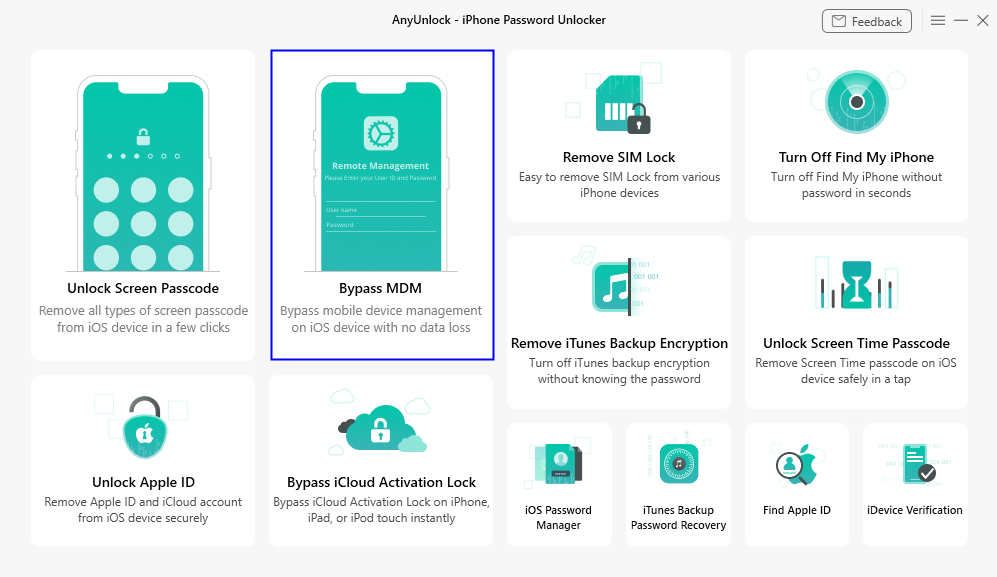
Choose Choose Bypass MDM Mode
After choosing “Bypass MDM” mode, the following interface will be displayed. Please choose “Bypass MDM” mode again and click “Start” button.
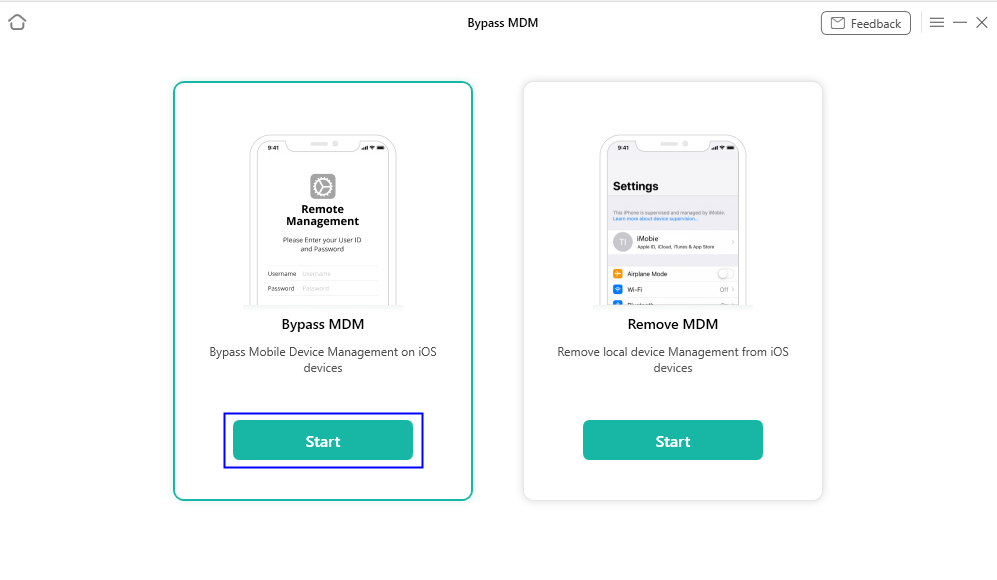
Click Start Button
Then, please connect your iPhone/iPad/iPod touch to your computer via a USB cable. Once AnyUnlock detects your device, you will see this interface as below.
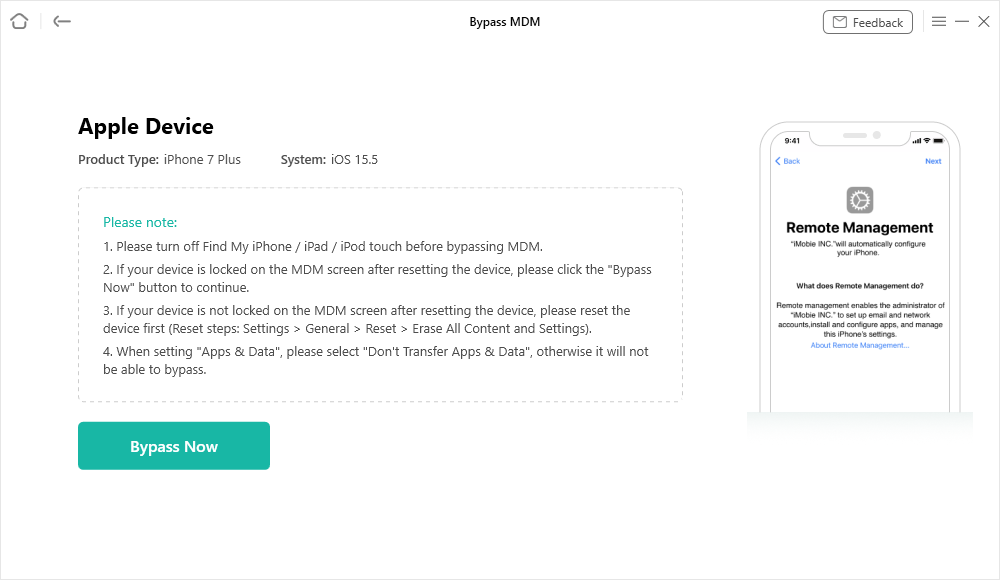
Connect Your Device to Computer
If AnyUnlock is unable to detect your iOS device, you can try to fix this issue by following troubleshooting steps:
① Please download the latest version of AnyUnlock.
② Check whether your USB cable is loose. If it is, please reconnect it. If USB cable is broken, please give new one a try.
③ Reinstall iTunes.
④ If problem persists, please contact our Support Team for further diagnosis.
Step 3. Select “Bypass Now” Option to Start Bypassing Process.
After clicking “Start” button, please select “Bypass Now” option.
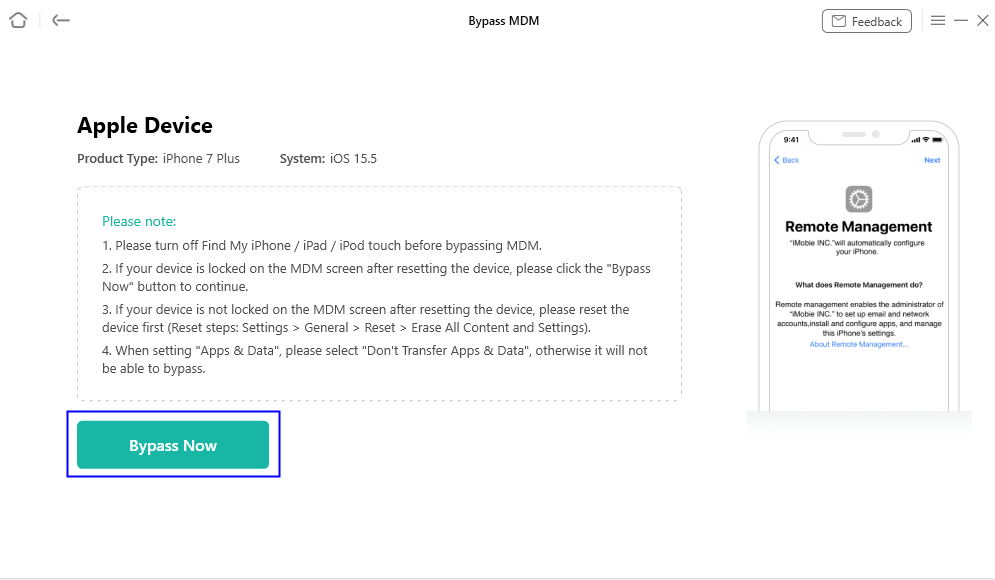
Select Bypass Now Option
Before starting the MDM bypass process, please ensure your iOS device is on the "Remote Management" screen. If it is, click the "Continue" button to proceed.
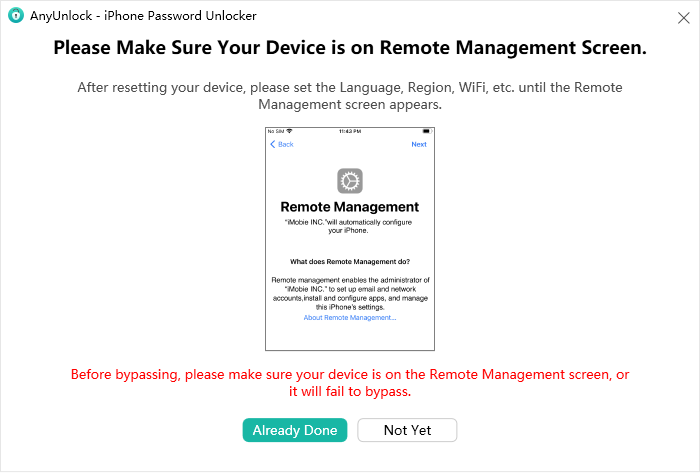
Click Continue Button
If not, click the "Please click to view" button in the note section to follow the setup instructions. Once done, please click the "Already Done" button to proceed.
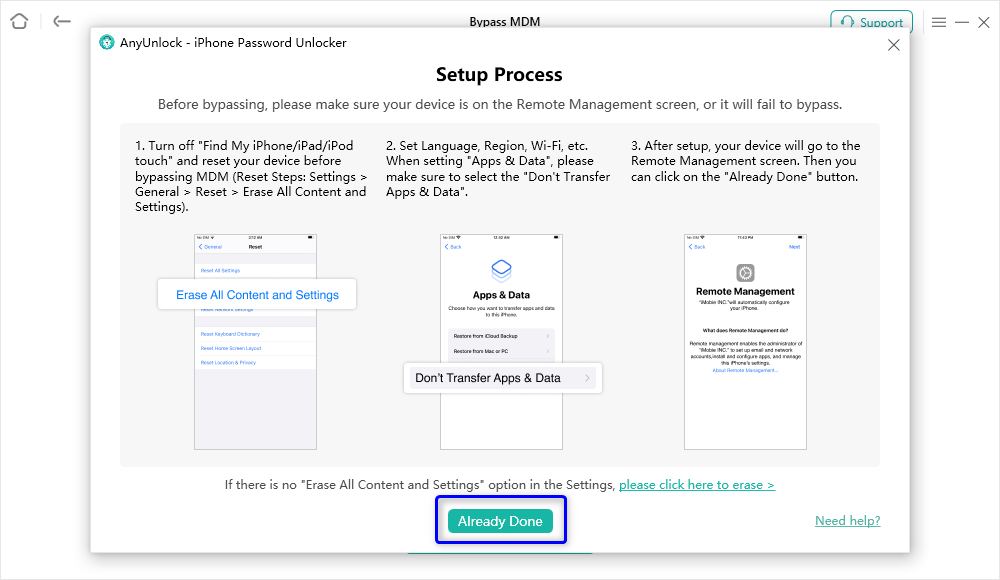
Click the Already Done Button
After clicking the "Continue" button, please confirm that your device is still on the "Remote Management" screen. If not, the bypass process will fail. Once confirmed, click the "Confirmed" button to begin the MDM Bypass process.
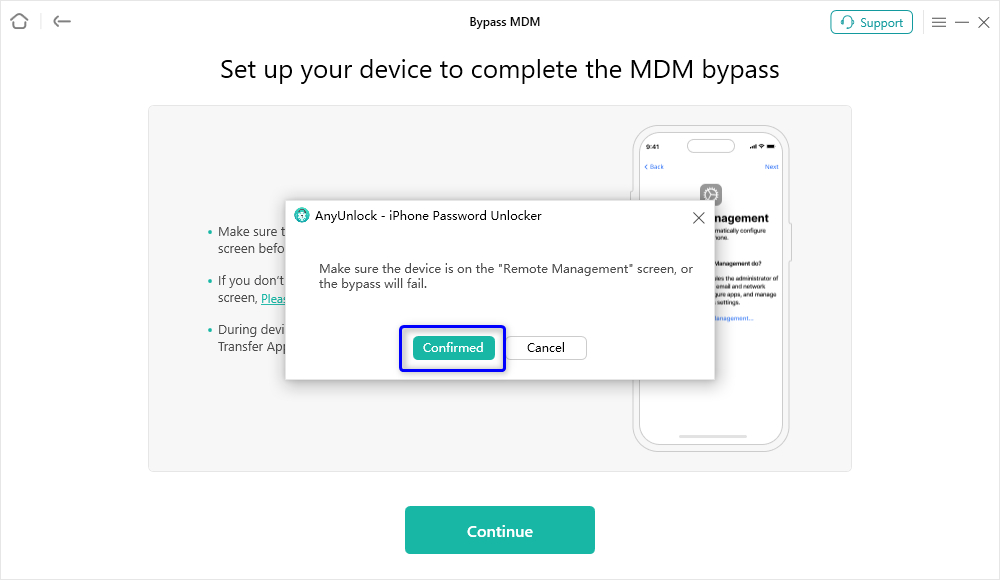
Start to Bypass MDM
Step 4. Succeed in Bypassing MDM.
Then, AnyUnlock will start to bypass MDM lock automatically. Please wait for it patiently. Meanwhile, please keep your device connected during the process.
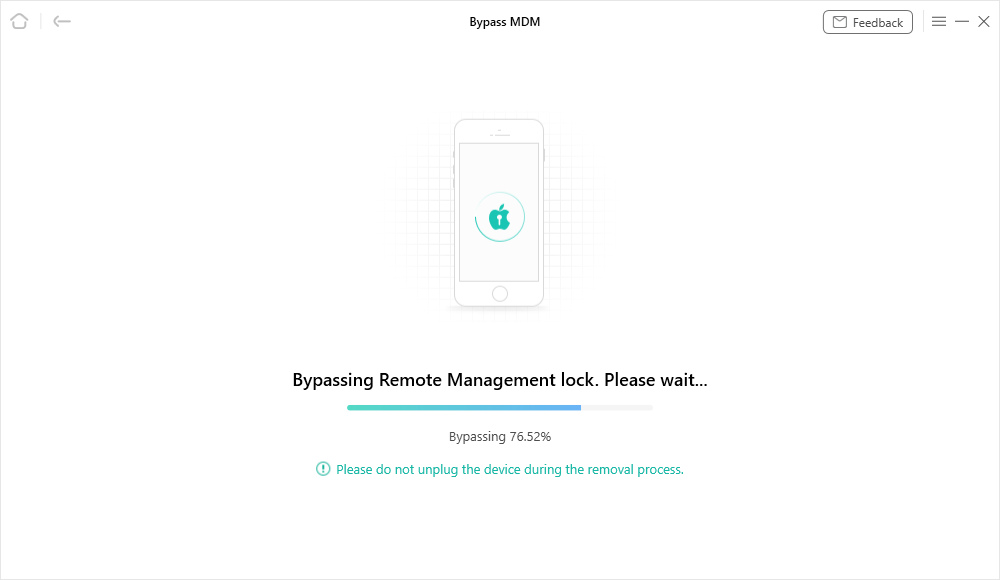
Bypass MDM Lock
1. After resetting device, please set up the Language, Region, Wi-Fi, etc. until it’s on the “Remote Management” lock screen.
2. Please make sure that your device is on MDM screen before you start to bypass. Otherwise, the MDM bypassing process will fail.
In just a few seconds, the MDM lock screen on your device will be bypassed successfully.
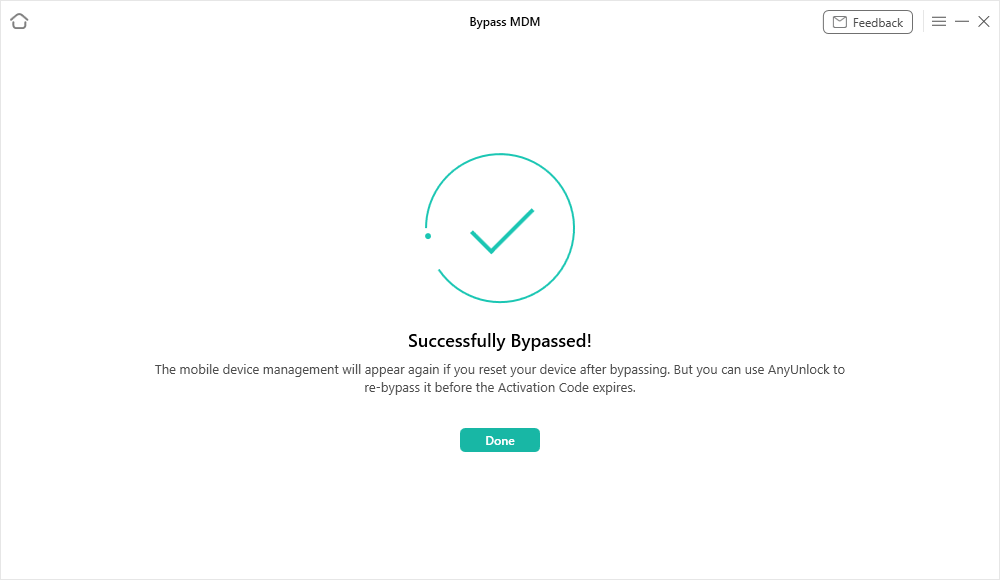
Bypass MDM Lock Successfully
Part 2. Remove MDM.
Except Bypassing MDM Lock, AnyUnlock also supports to Remove MDM, which will help remove the local device management from iOS devices without losing data.
Step 1. Download AnyUnlock - iPhone Password Unlocker on Your Computer.
Before you start removing MDM, get the tool downloaded on your computer. Please make sure the network is stable while downloading and installing AnyUnlock on your computer.
Step 2. Connect Your iPhone/iPad to Computer via a USB Cable.
When the installing process is completed, please launch the software on your computer and choose “Bypass MDM” mode.
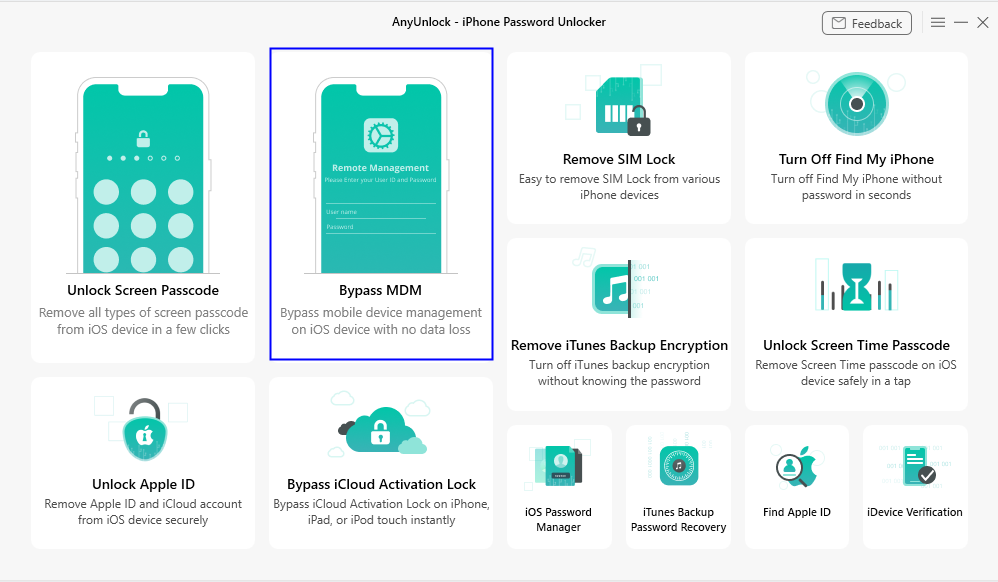
Choose Bypass MDM Mode
Then, please choose “Remove MDM” mode and click “Start” button.
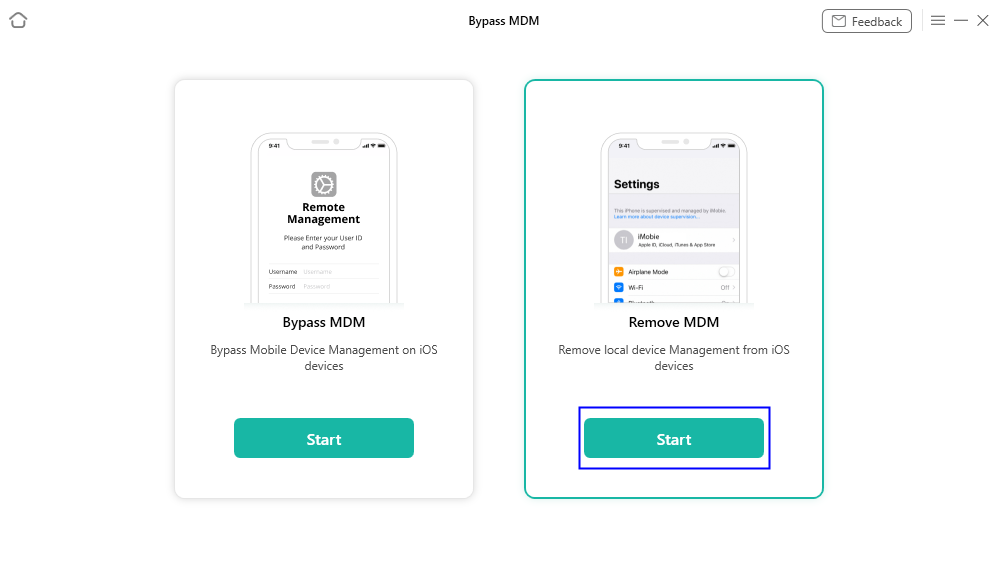
Click Start Button
Then, please connect your iPhone/iPad/iPod touch to your computer via a USB cable. Once our software detects your device, you will see this interface as below.
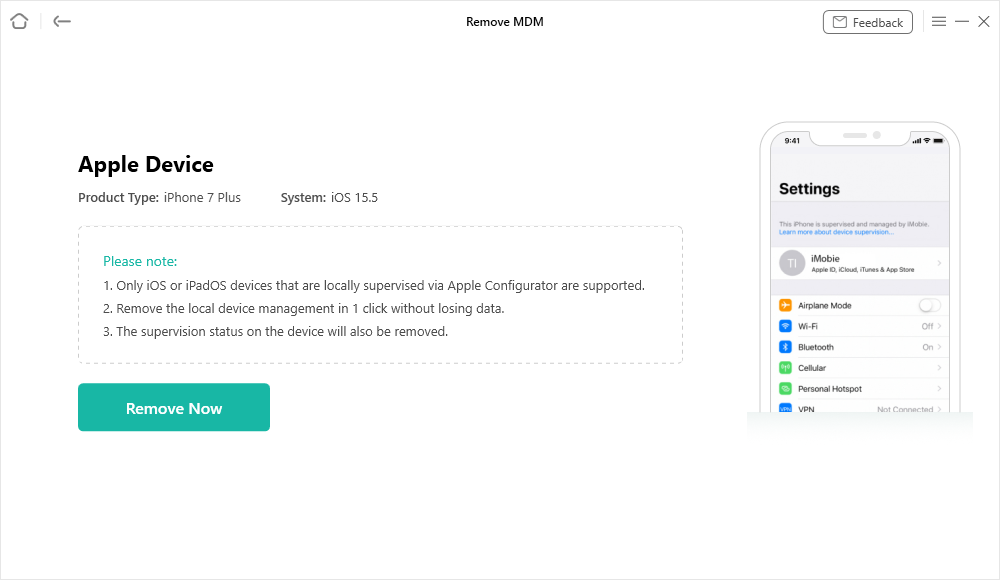
Connect Your Device to Computer
Step 3. Select “Remove Now” Option to Start Removing Process.
After clicking “Start” button, please select “Remove Now” option.
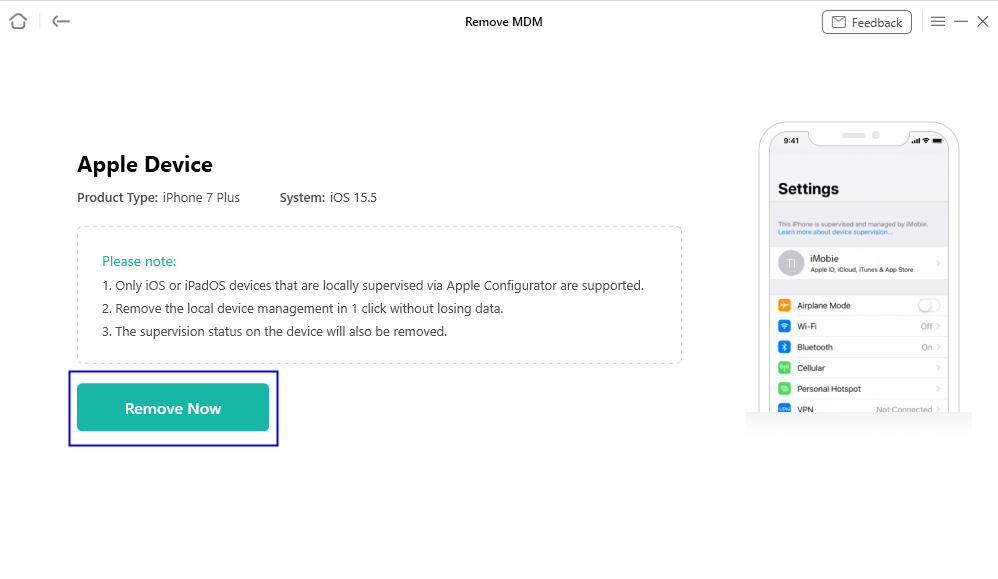
Select Remove Now Option
Step 4. Succeed in Removing MDM.
Then, AnyUnlock will start to remove MDM automatically. Please wait. Meanwhile, please keep your device connected during the process.
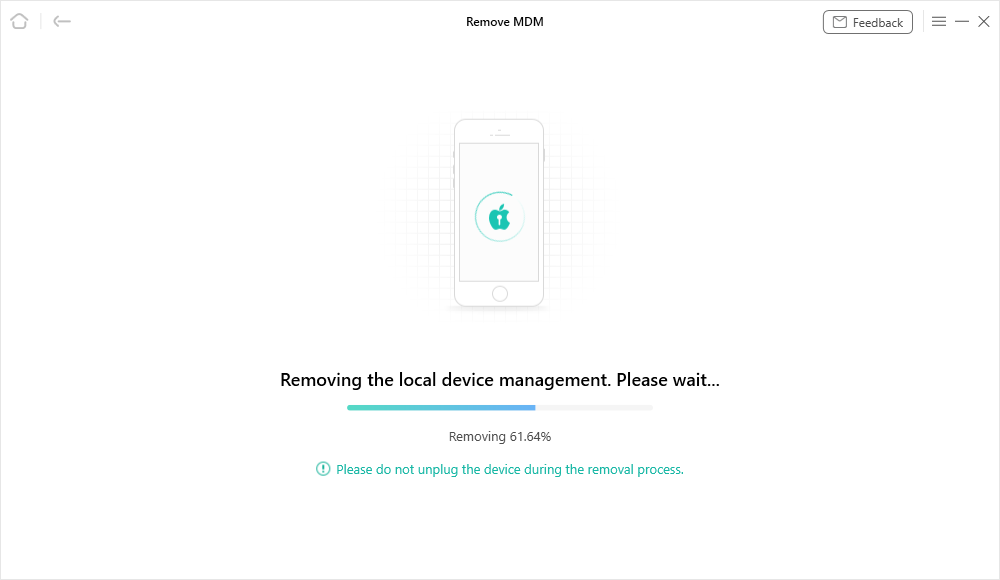
Start to Remove MDM
In just a few seconds, the MDM lock on your device will be removed successfully.
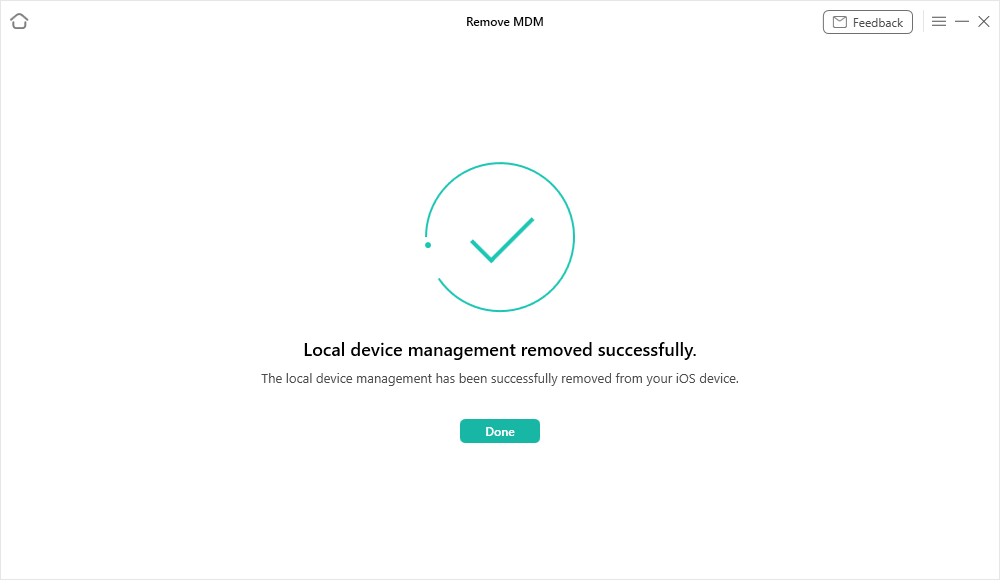
Remove MDM Lock Successfully
If you still have questions after reading this guide, please refer to FAQs page to check more solutions. Or you can contact our Support Team to get further help. We are here to help you!
AnyUnlock Bypass MDM Lock FAQs
1. What is MDM lock on an iPhone or iPad?
MDM (Mobile Device Management) is a technology used by organizations to manage Apple devices and enforce security policies. An MDM lock may appear during device setup or when a management profile restricts access to certain settings and features.
2. What is the difference between bypassing remote MDM and removing local MDM?
Remote MDM bypass helps users bypass the Remote Management screen that appears during device setup. Local MDM removal is designed to remove an existing device management profile from an accessible iPhone or iPad. AnyUnlock provides separate options for these two situations, so select the one that matches your device.
3. Can AnyUnlock bypass MDM without a username or password?
Yes. AnyUnlock is designed to bypass supported remote MDM restrictions without requiring an MDM username or password. However, the device must meet the requirements of the selected operation for the process to work.
4. Which iOS versions are supported by AnyUnlock's Bypass MDM feature?
AnyUnlock supports MDM bypass and removal on devices running iOS 7 and later, according to the official product information. However, compatibility may vary depending on the device model, operating system, and type of MDM lock. Check the latest compatibility information before proceeding.
5. Will bypassing remote MDM erase my iPhone or iPad data?
Yes. Bypassing remote MDM resets the device and erases all content and settings. Back up any accessible data before proceeding. In contrast, AnyUnlock's local MDM removal feature is designed to preserve existing data and settings.
6. Do I need to turn off Find My iPhone before using AnyUnlock to bypass MDM?
Yes. It's recommended to turn off Find My iPhone/iPad before starting either remote MDM bypass or local MDM removal. Make sure you can access the necessary device settings before beginning the process.
7. Do I need to jailbreak my iPhone to bypass MDM with AnyUnlock?
No jailbreak is required for the supported MDM operations described by AnyUnlock. You can connect your device to a computer and follow the software's on-screen instructions to perform the applicable operation.
8. How do I bypass MDM lock using AnyUnlock?
First, download and launch AnyUnlock on your Windows or Mac computer. Select Bypass MDM, connect your iPhone or iPad using a USB cable, and choose either Bypass MDM for remote management or Remove MDM for local device management. Follow the on-screen instructions and click the corresponding action button to begin.
9. Will MDM lock reappear after I reset or update my iPhone?
It depends on the type of MDM operation. After bypassing remote MDM, resetting the device or flashing its firmware may cause the Remote Management screen to reappear. Local MDM removal is designed to remove the management profile more permanently. Follow the instructions for your selected operation before resetting or updating your device.
10. What should I do if AnyUnlock is unable to bypass or remove MDM?
First, confirm that your device meets the requirements for the selected operation. Check the USB connection, make sure Find My iPhone/iPad is turned off, and follow the on-screen instructions carefully. If the problem persists, contact the iMobie Support Team with your device model, iOS version, and a screenshot of the error message for further assistance.

Try It Out & Share Your Feedback!

We'd love to hear how AnyUnlock is working for you.
Give it a try and share your thoughts—your feedback helps us keep improving.
If you're enjoying AnyUnlock, we'd be so grateful if you could leave us a review on Trustpilot. Your support helps others discover AnyUnlock and motivates our team!

Thank you for being part of the iMobie community — we couldn’t do it without you!
Try It Out & Share Your Feedback!
We'd love to hear how AnyUnlock is working for you.
Give it a try and share your thoughts—your feedback helps us keep improving.
If you're enjoying AnyUnlock, we'd be so grateful if you could leave us a review on Trustpilot. Your support helps others discover AnyUnlock and motivates our team!
Thank you for being part of the iMobie community — we couldn’t do it without you!