Download AnyUnlock to Remove Various Locks from iOS Device
Free Download For Win & Mac | 100% Clean & Secure
 Basic Information
 Unlock Screen Passcode
 Unlock Apple ID
  Bypass iCloud Activation
  Bypass MDM
 Remove SIM Lock
 Unlock Screen Time Passcode
 Remove iTunes Backup Encryption
 Turn Off Camera Sound
 iOS Password Manager
 iTunes Backup Password Recovery
 Find Apple ID
 iDevice Verification
 Turn off Find My iPhone
  FAQs
FAQs Need Further Help?
Turn Off Find My iPhone
What Is AnyUnlock - Turn Off Find My iPhone Function?
Turning off Find My iPhone means disabling Apple's security feature that helps locate, lock, or erase your device remotely through your Apple account. Once this feature is turned off, the device can no longer be tracked, remotely locked, or erased using Find My iPhone. This is often required before restoring, erasing, selling, or transferring an iPhone to another person.
Applicable Scenarios
• Your iPhone battery drains quickly after using the Find My iPhone feature to track the device’s location, and you want to reduce unnecessary power consumption and improve battery life.
• You forgot your password and need to restore your iPhone, but Find My iPhone is preventing the restoration process.
• You want to erase all data from your iPhone before giving it away or selling it to a friend or family member, but the Find My iPhone feature is preventing or blocking the erase process from completing.
Computer System Requirements
To ensure smooth performance when using AnyUnlock, please make sure your computer meets the following system requirements.
Windows
• Operating System: Windows 11, 10, 8, 7, Vista, both 32bit and 64bit
Mac
• Operating System: macOS 10.13 (High Sierra) and above
Supported iOS Device System
To ensure compatibility when using AnyUnlock - Turn Off Find My iPhone function, please make sure your device meets the following requirements.
• iOS: All iOS Devices with iOS Version 12 and above
1. Before running AnyUnlock, you're supposed to download iTunes on your computer to help detect iPhone/iPad/iPod touch. (iTunes 9.0 or above, including the latest iTunes.)
2. If you want to get more info about the tech specs, please refer to this page.
Differences between Free & Pro Version
• Free Version: Not Available
• Pro Version: Available
Step 1. Download AnyUnlock - iPhone Password Unlocker on Your Computer.
Before you start turning off Find My iPhone, get the tool downloaded on your computer. Please make sure the network is stable while downloading and installing AnyUnlock on your computer.
Step 2. Choose Turn Off Find My iPhone Function.
After you open AnyUnlock, please choose More Tools Mode and choose Turn Off Find My iPhone Function.
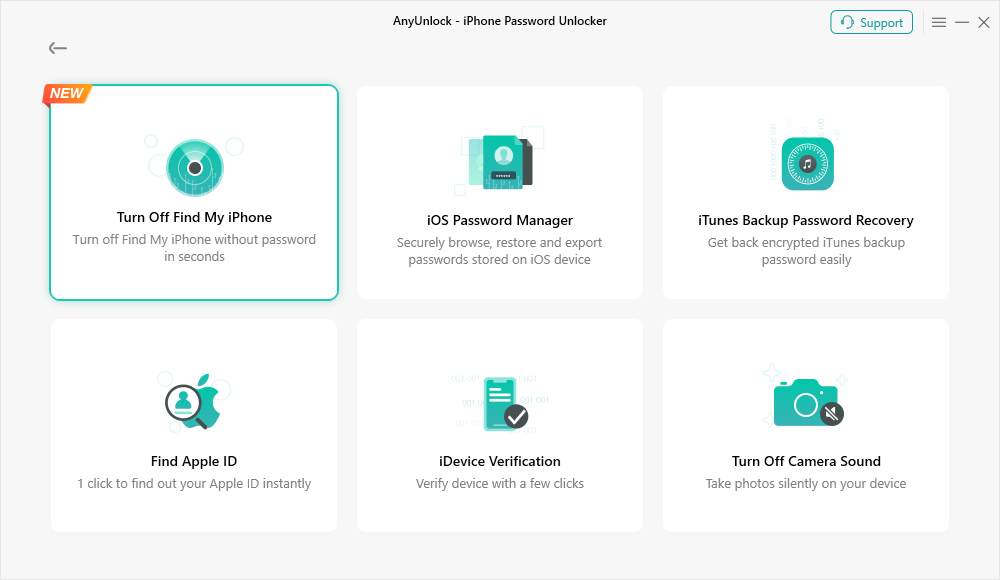
Choose Turn Off Find My iPhone Function
After choosing Turn Off Find My iPhone Function, the following interface will be displayed. Then, please click Start Now button.
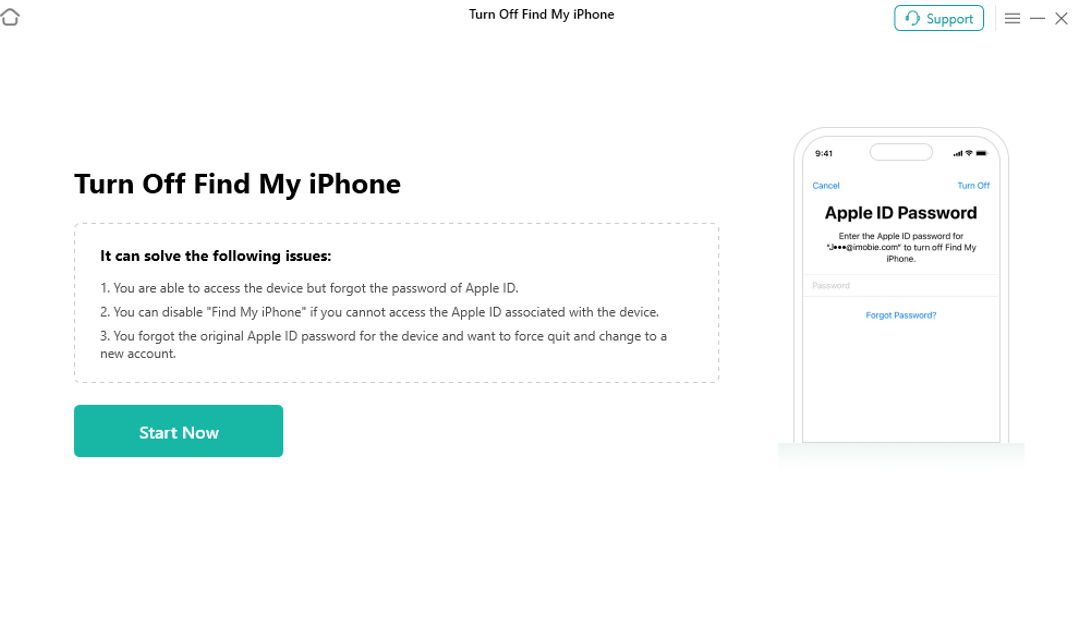
Click Start Now Button
Step 3. Connect Your iOS Device to Computer with a USB Cable.
Please connect your iOS device to the computer via a USB cable, unlock the iOS device screen, and select Trust from your iPhone screen if you have not trusted the computer in the past.
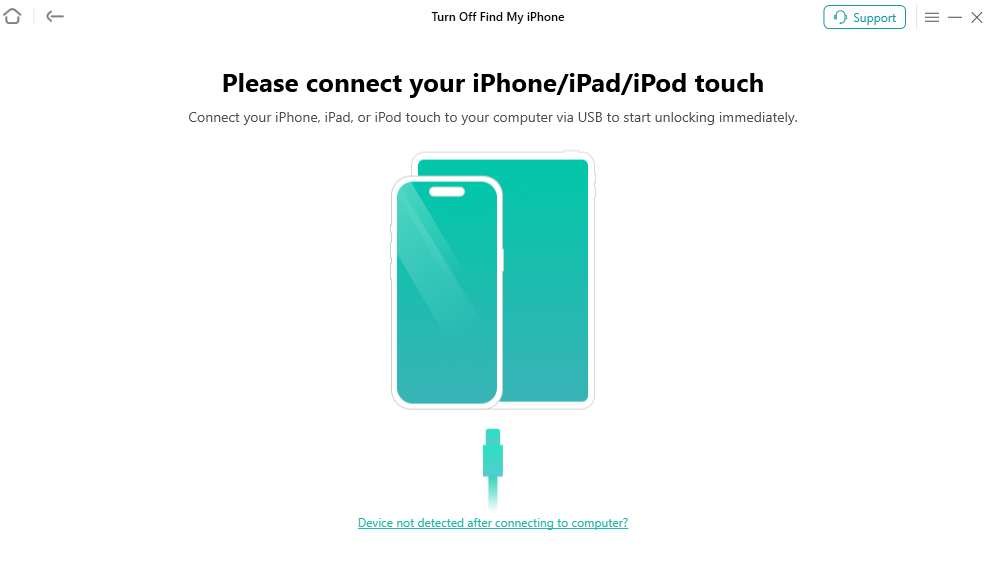
Connect Your Device
If AnyUnlock is unable to to detect your iOS device, you can try to fix this issue by following troubleshooting steps:
① Please download the latest version of AnyUnlock.
② Check whether your USB cable is loose. If it is, please reconnect it. If USB cable is broken, please give new one a try.
③ Reinstall iTunes.
④ If problem persists, please contact our Support Team for further diagnosis.
Once your device is detected, you will see the following interface. Then, please click the Turn Off Now button.
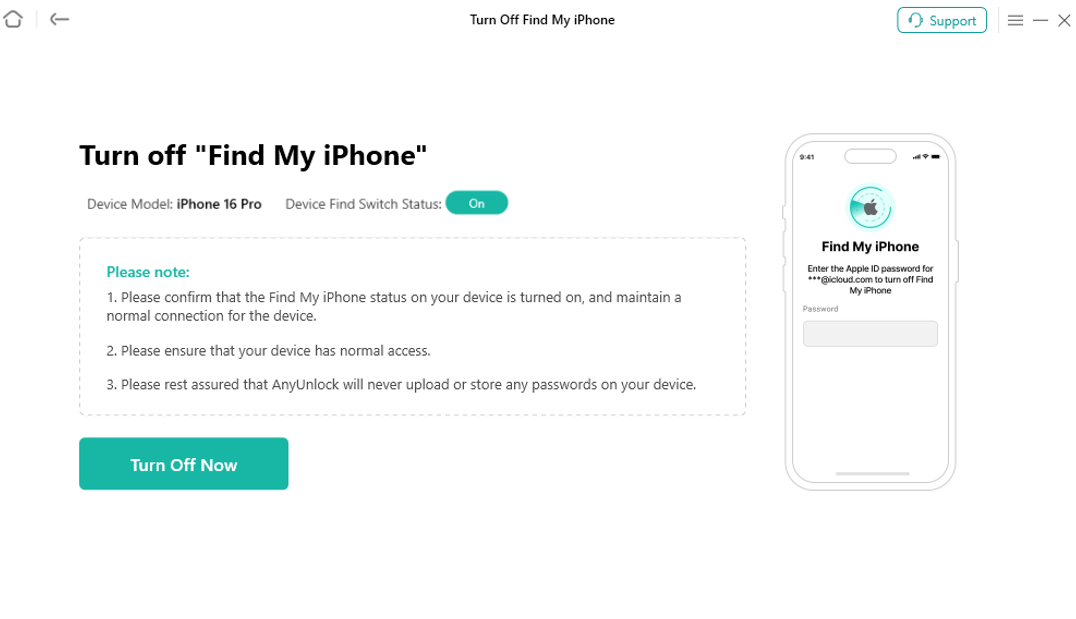
Click the Turn Off Now Button
Step 4. Follow Instructions on AnyUnlock to Operate Your Device.
Please strictly follow the instructions below to operate the device.
1. Ensure the device has a screen lock password set.
2. Go to Settings > Safari > Advanced, and turn on the [Web Inspector] switch.
3. Access "https://www.icloud.com" in the Safari browser on your phone.
4. Please ensure you have signed out of iCloud on the web before removal.
5. When the program pops up a prompt window, follow the instructions to operate the device.
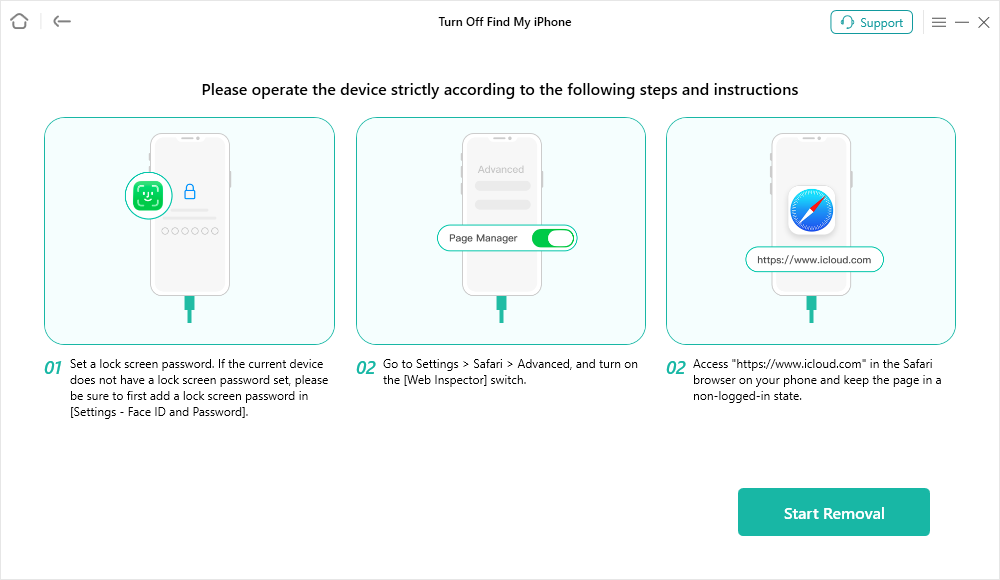
Operate Your Device
Step 5. Start Turning Off Find My iPhone.
After completing the relevant operations on your device, please click the Start Removal button. Then please visit the iCloud login page in your device's Safari browser and enter your lock screen password as prompted to complete identity verification.
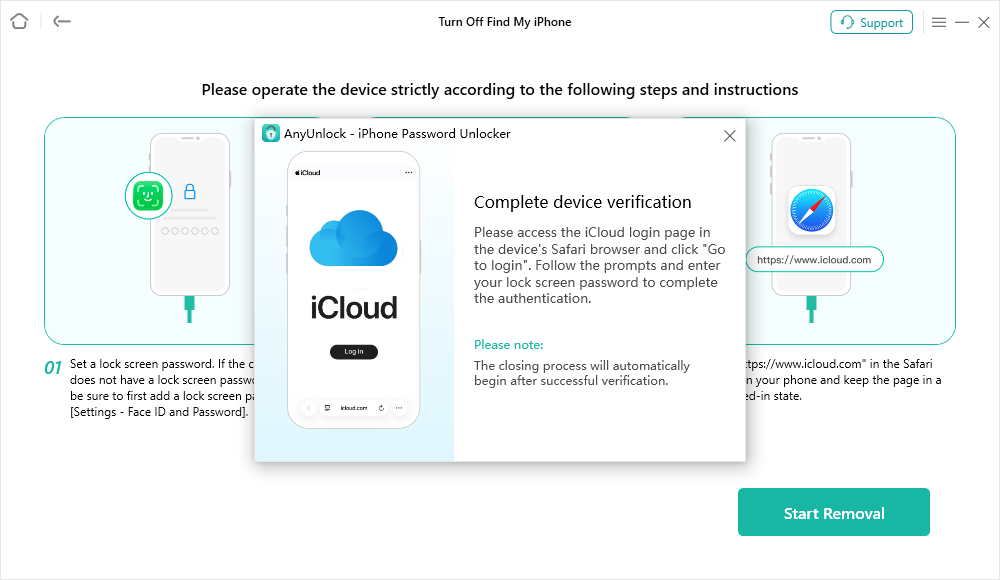
Click Start Removal Button
Before turning off, please disconnect your phone from the network and ensure your computer remains connected.
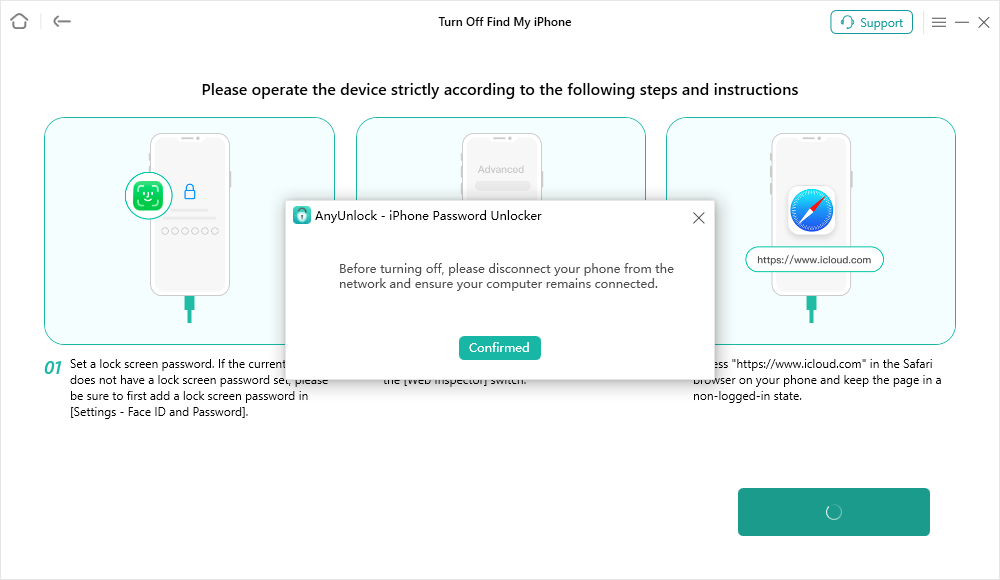
Wait for Removal Process
Step 6. Verify Find My iPhone Status.
When the process completed, you will see "Successfully turned off "Find My iPhone"." interface.
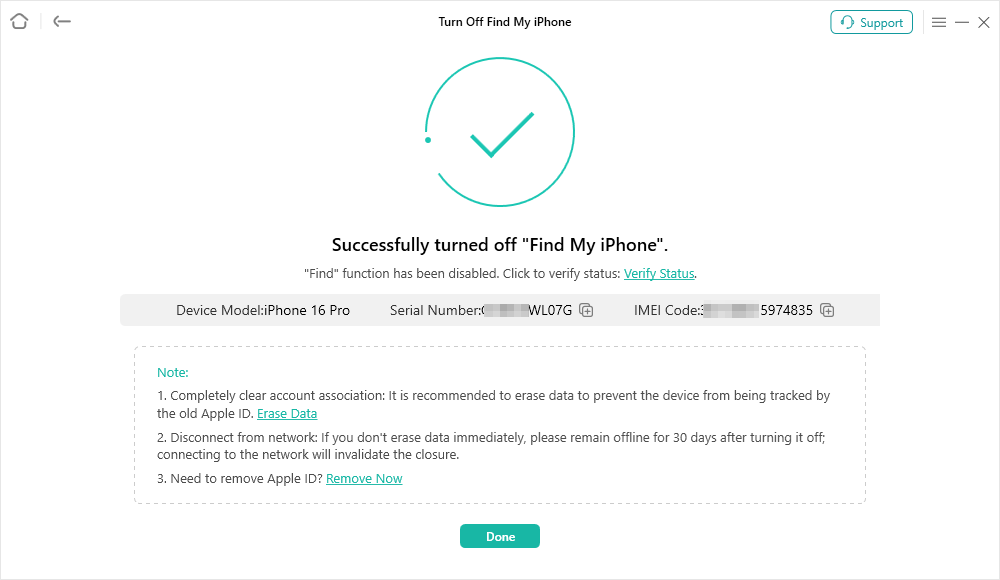
Turn off FInd My iPhone
You can check "Find My iPhone" status by following these steps:
1. Select the Verify Status option
2. Copy your IMEI number
3. Paste the IMEI into the verification page to view the status.
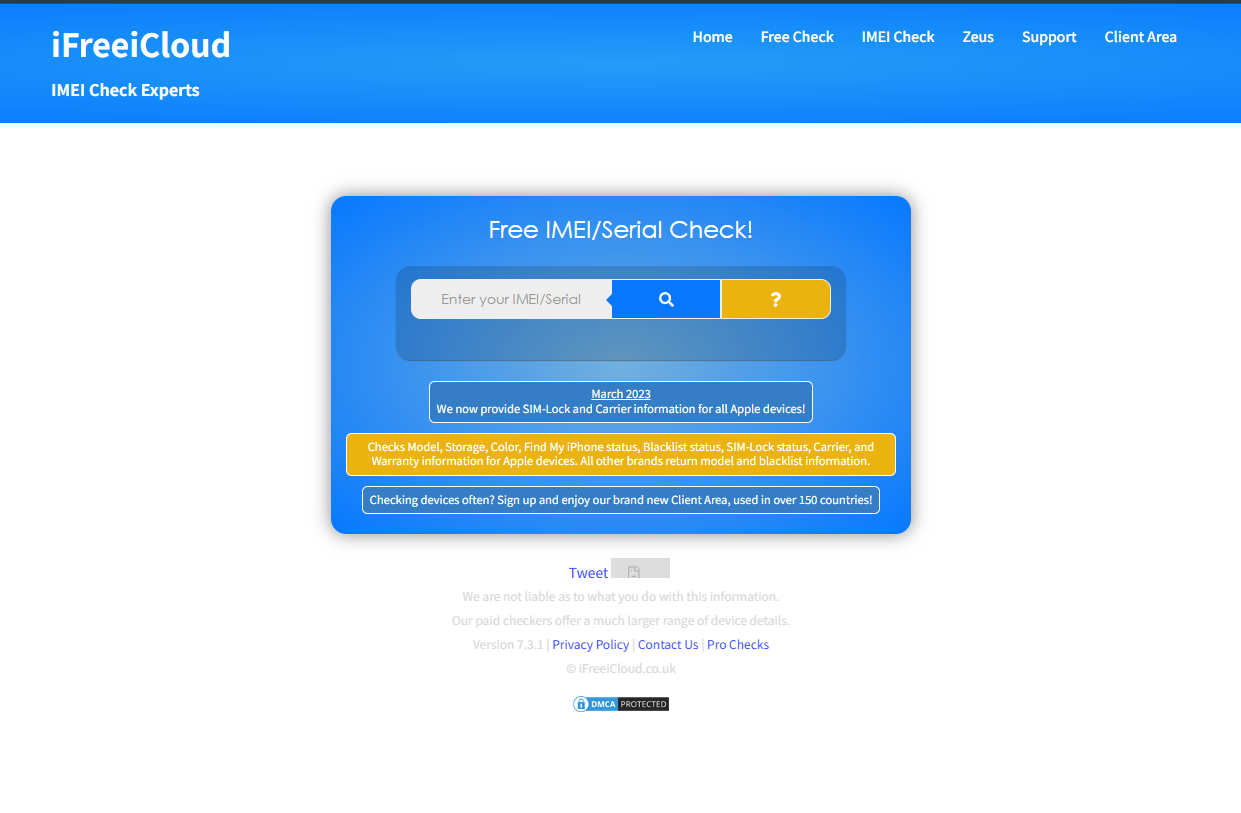
Verify FMI Status
If you would like to completely clear Apple account data or prevent the device from being tracked via Find My iPhone, you may choose the Erase Data option. (Optional) Once Find My iPhone has been disabled, your device can be activated and used as usual.
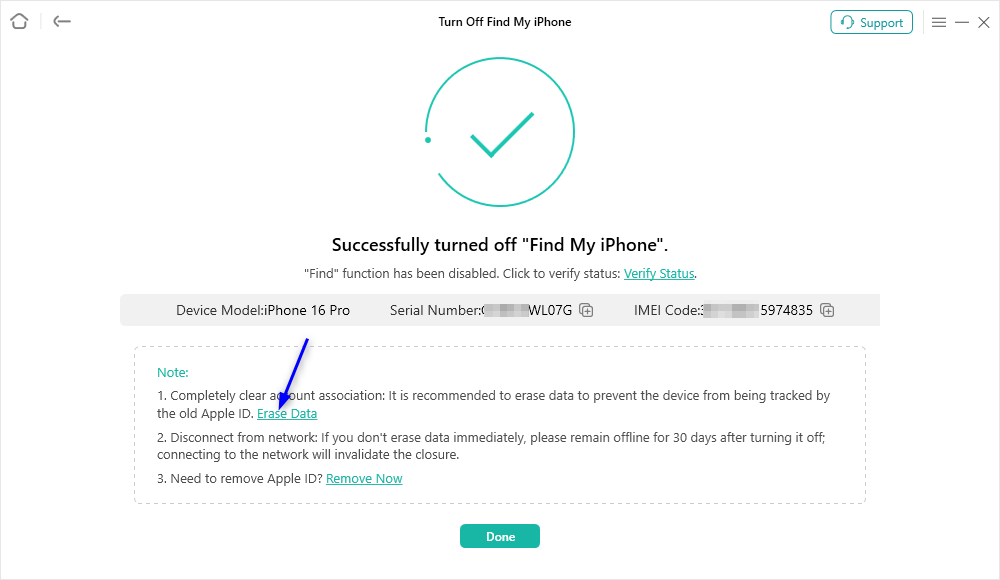
Erase Data
1. The Erase Data option will permanently delete all content from the device. Please make sure to back up any important data before proceeding.
2. If you still have questions after reading this guide, please refer to FAQs page to check more solutions. Or you can contact our Support Team to get further help. We are here to help you!
AnyUnlock Turn Off Find My iPhone FAQs
1. What devices and iOS versions are supported for turning off Find My iPhone?
AnyUnlock – Turn Off Find My iPhone supports all iOS devices running iOS 12 and above. Your computer should also meet the required system specifications, including Windows 7 or later, or macOS 10.13 and above.
2. Do I need to install iTunes before using AnyUnlock?
Yes. Before using AnyUnlock, please install iTunes 9.0 or later (including the latest version) on your computer. This helps your computer properly recognize and detect your iPhone, iPad, or iPod touch.
3. What should I do if AnyUnlock cannot detect my device?
If your device is not detected, try these troubleshooting steps:
• Update AnyUnlock to the latest version
• Reconnect or replace the USB cable
• Reinstall iTunes
• Restart the device and computer
If the issue continues, please contact the Support Team for further assistance.
4. Why do I need to use Safari and iCloud during the process?
Safari and iCloud verification are required to confirm device ownership and complete identity verification. Please make sure Web Inspector is enabled in Safari and that you have signed out of iCloud on the web before starting the removal process.
5. How can I verify whether Find My iPhone has been successfully turned off?
After the process is completed, you can verify the status by:
• Selecting Verify Status
• Copying your IMEI number
• Pasting the IMEI into the verification page to check the result.
6. What does the Erase Data option do?
The Erase Data option permanently removes all content and Apple account information from the device, preventing it from being tracked through Find My iPhone. Since this action cannot be undone, please back up important data before using this feature.

Try It Out & Share Your Feedback!

We'd love to hear how AnyUnlock is working for you.
Give it a try and share your thoughts—your feedback helps us keep improving.
If you're enjoying AnyUnlock, we'd be so grateful if you could leave us a review on Trustpilot. Your support helps others discover AnyUnlock and motivates our team!

Thank you for being part of the iMobie community — we couldn’t do it without you!
Try It Out & Share Your Feedback!
We'd love to hear how AnyUnlock is working for you.
Give it a try and share your thoughts—your feedback helps us keep improving.
If you're enjoying AnyUnlock, we'd be so grateful if you could leave us a review on Trustpilot. Your support helps others discover AnyUnlock and motivates our team!
Thank you for being part of the iMobie community — we couldn’t do it without you!