Download AnyUnlock to Remove Various Locks from iOS Device.
Free Download For Win & Mac | 100% Clean & Secure
 Basic Information
 Unlock Screen Passcode
 Unlock Apple ID
  Bypass iCloud Activation
  Bypass MDM
 Remove SIM Lock
 Unlock Screen Time Passcode
 Remove iTunes Backup Encryption
 Turn Off Camera Sound
 iOS Password Manager
 iTunes Backup Password Recovery
 Find Apple ID
 iDevice Verification
 Turn off Find My iPhone
  FAQs
FAQs Need Further Help?
Turn Off Camera Sound
Whether you encountered the similar situations below?
"Anyway to remove camera shutter sound from Korean, Japanese iPhones?"
"I bought a Japanese iPhone with the forced camera shutter sound. If I leave Japan, is there a way to disable this?"
If you have purchased an iPhone from Japan or South Korea and find the camera sound bothersome when taking pictures, there's no need to worry. You can use the "Turn Off Camera Sound" mode to disable the camera sound on your iOS device.
Tech Specs
| Windows OS | Windows 11, 10, 8.1, 8, 7 |
| macOS | macOS 10.13 (High Sierra) and above |
| iOS | iOS 12-16.7.7 (For Japanese and Korean devices only) |
Supported Device Models
| iPhone Series | iPhone 5S, iPhone 6/6 Plus, iPhone 6S/6S Plus, iPhone 7/7 Plus, iPhone 8/8 Plus, iPhone X |
| iPad Series | 5th Generation iPad (2017), 6th Generation iPad (2018), 7th Generation iPad (2019), iPad mini 2-4, iPad Air,iPad Air 2 |
| iPad Pro Series | 12.9-inch 1st Generation iPad Pro (2015), 12.9-inch 2nd Generation iPad Pro (2017), 9.7-inch iPad Pro (2016), 10.5-inch iPad Pro (2017) |
| iPod Series | iPod touch 6, iPod touch 7 |
Differences between Trial & Activated Version
| Benefits | Trial Version | Activated Version | Turn Off Camera Sound |  |
 |
Part 1. Turn Off Camera Sound for iOS 12.0 - iOS 15.0
Step 1. Download AnyUnlock - iPhone Password Unlocker on Your Computer.
Before you start turning off camera sound, get the tool downloaded onto your computer. Please make sure the network is stable while downloading and installing AnyUnlock on your computer.
Step 2. Connect Your iOS Device to Computer via a USB Cable.
After downloading and installing AnyUnlock on your computer successfully, please launch it on your computer and choose “More Tools” mode.
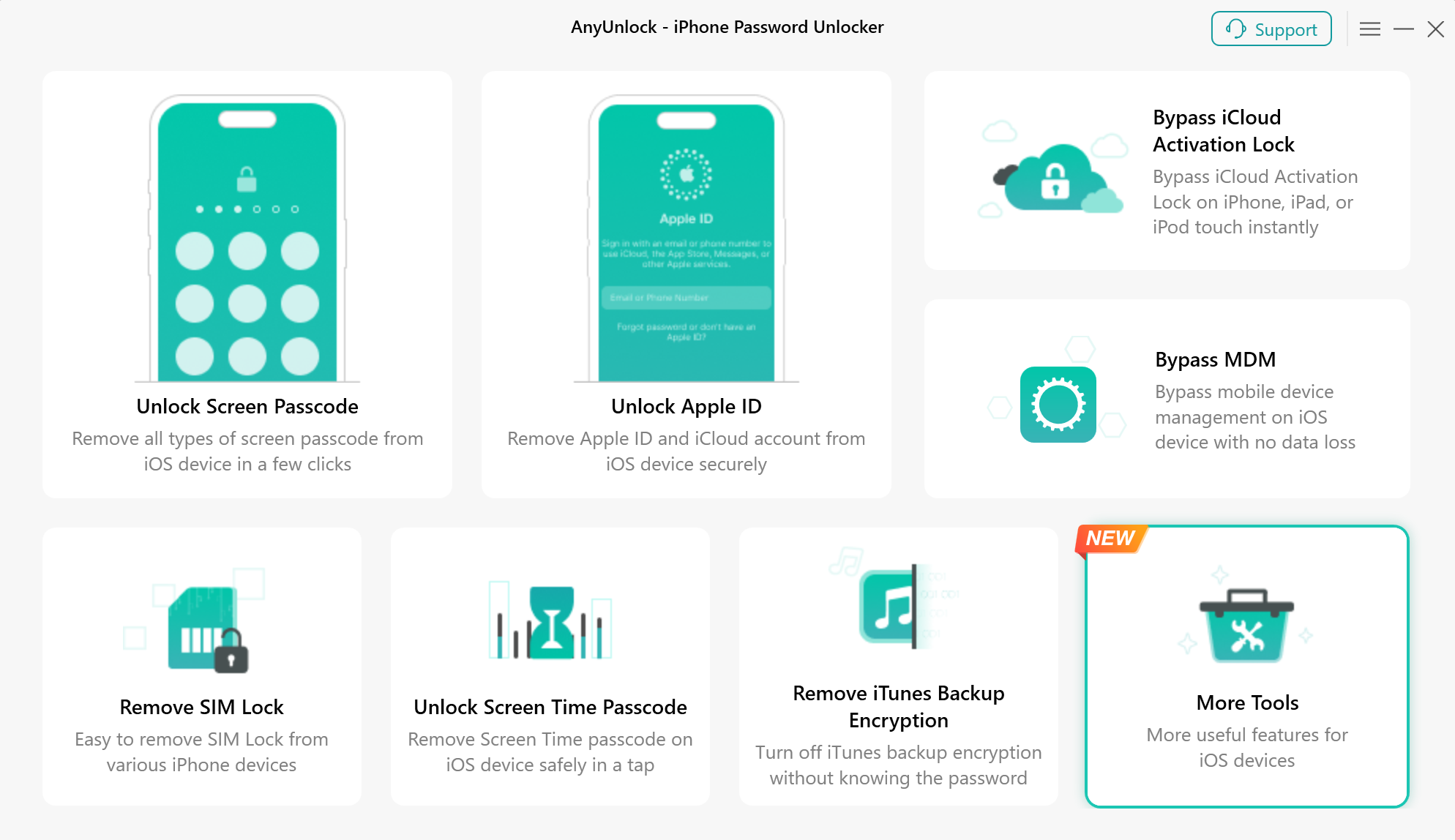
Choose More Tools Mode
Then, you will see the below interface. Please choose “Turn Off Camera Sound” Mode directly.
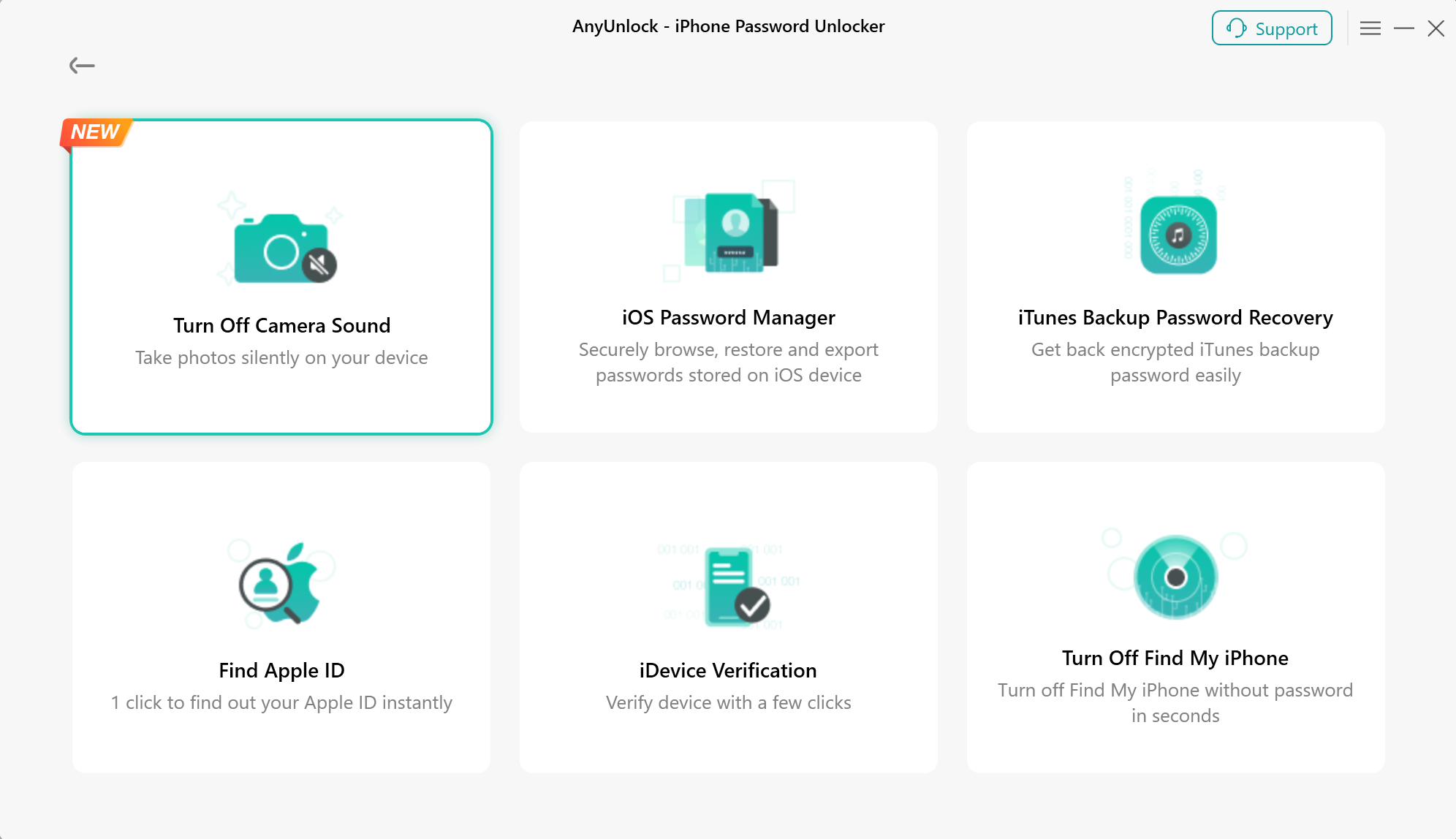
Choose Turn Off Camera Sound Mode
Please click the "Start Now" button, and connect your iOS device to computer via a USB cable.
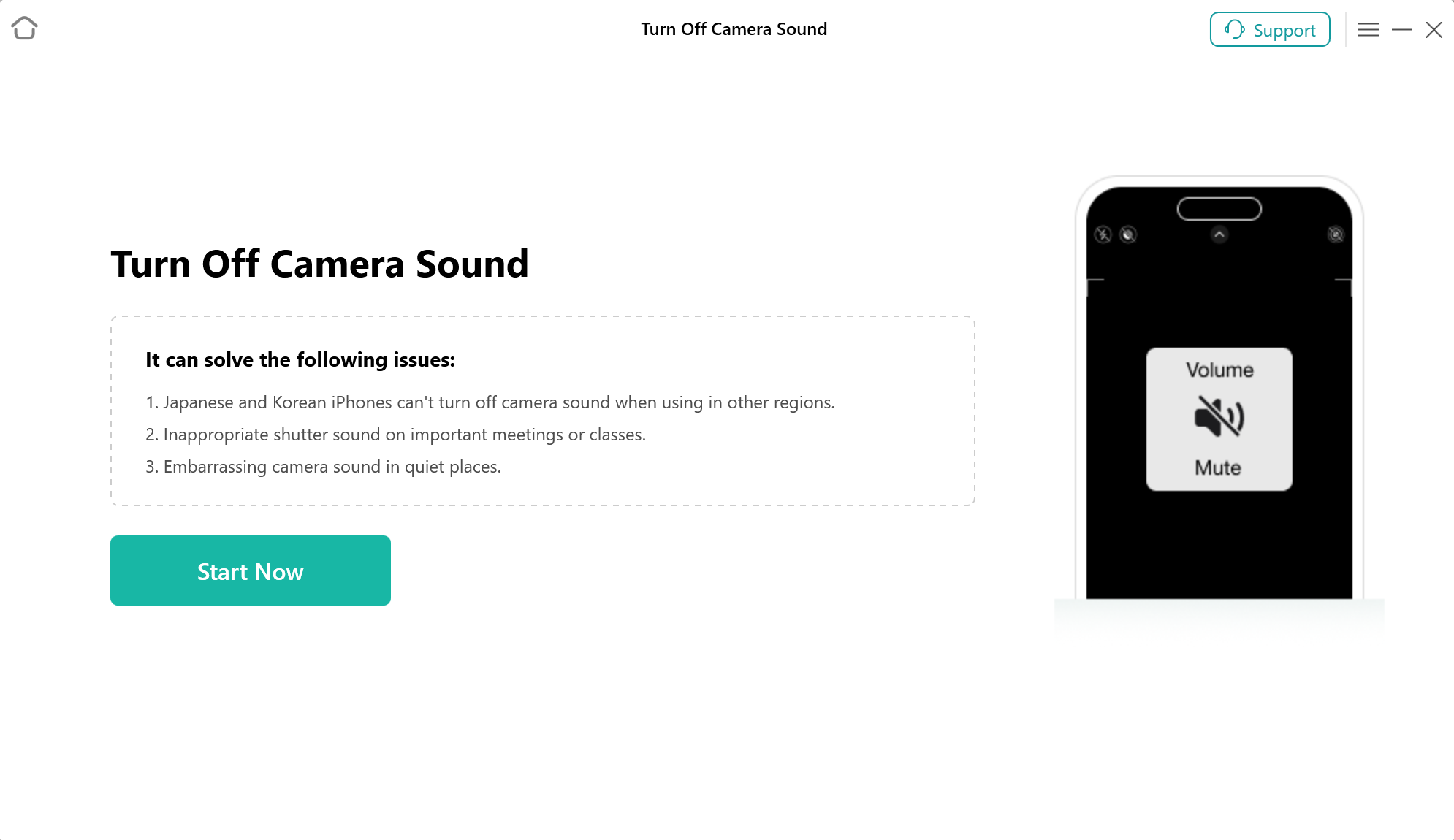
Click Start Now button
Once your device is connected, you will see the interface below.
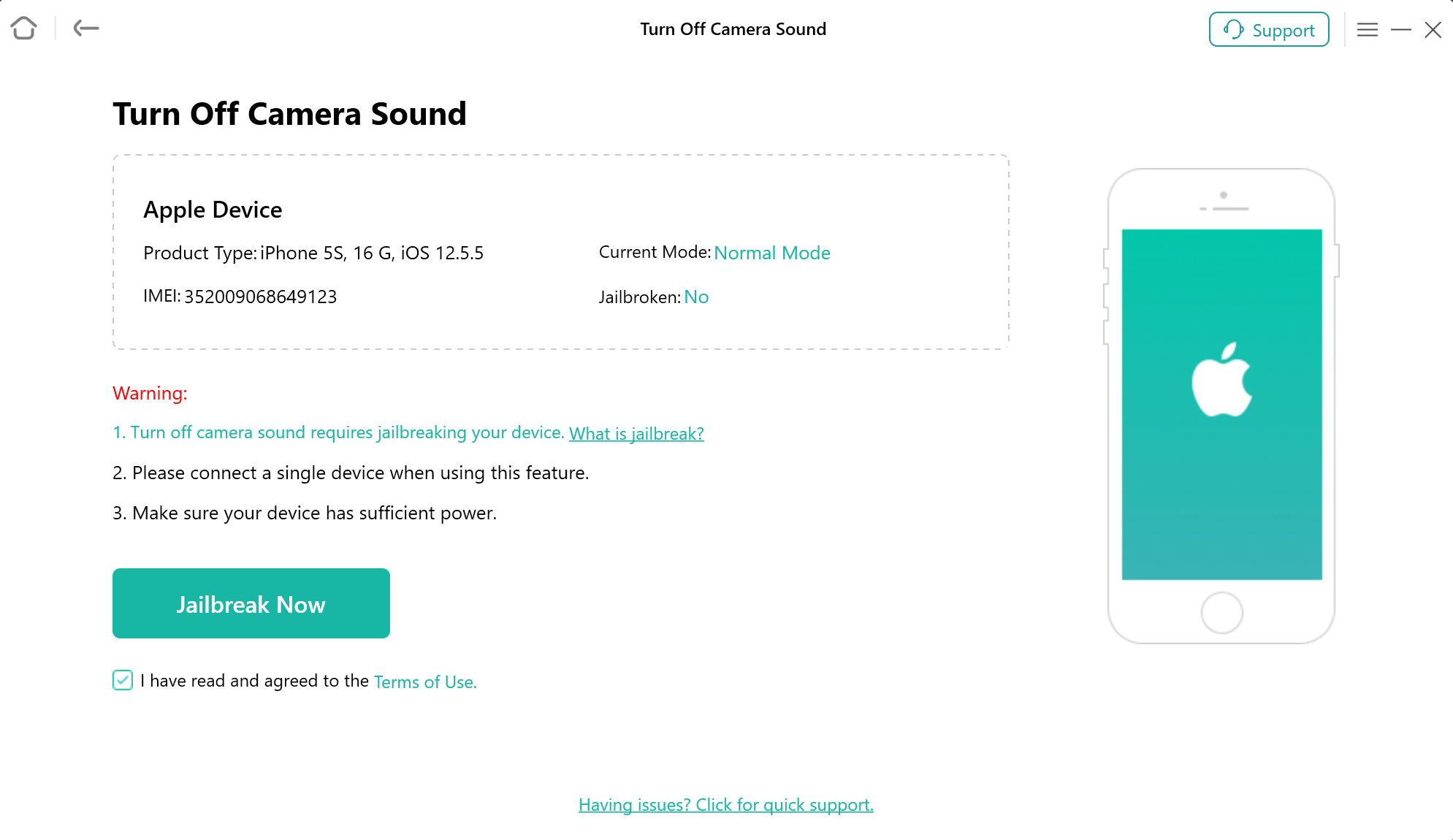
Your Device is Detected
Step 3. Jailbreak Your iOS Device.
Next, please click on the “Jailbreak Now" button and take a moment to carefully read through the "Terms of Use" before proceeding. If you agree to the terms, please ensure to check the option.
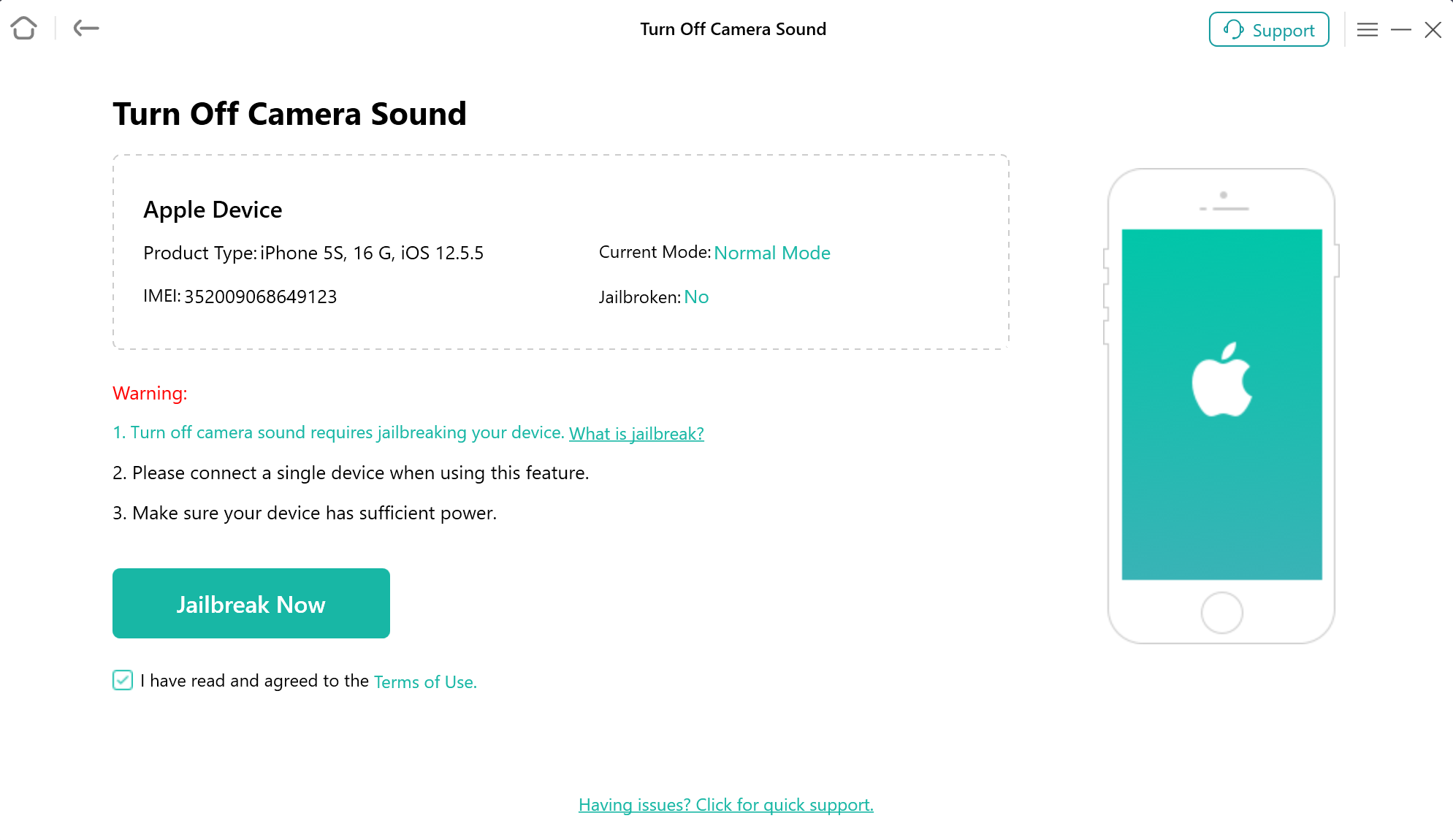
Click Jailbreak Now Button
After that, you will see the interface below. If you are using a Windows computer, please refer to the jailbreak tutorial or explore alternative methods to jailbreak your device.
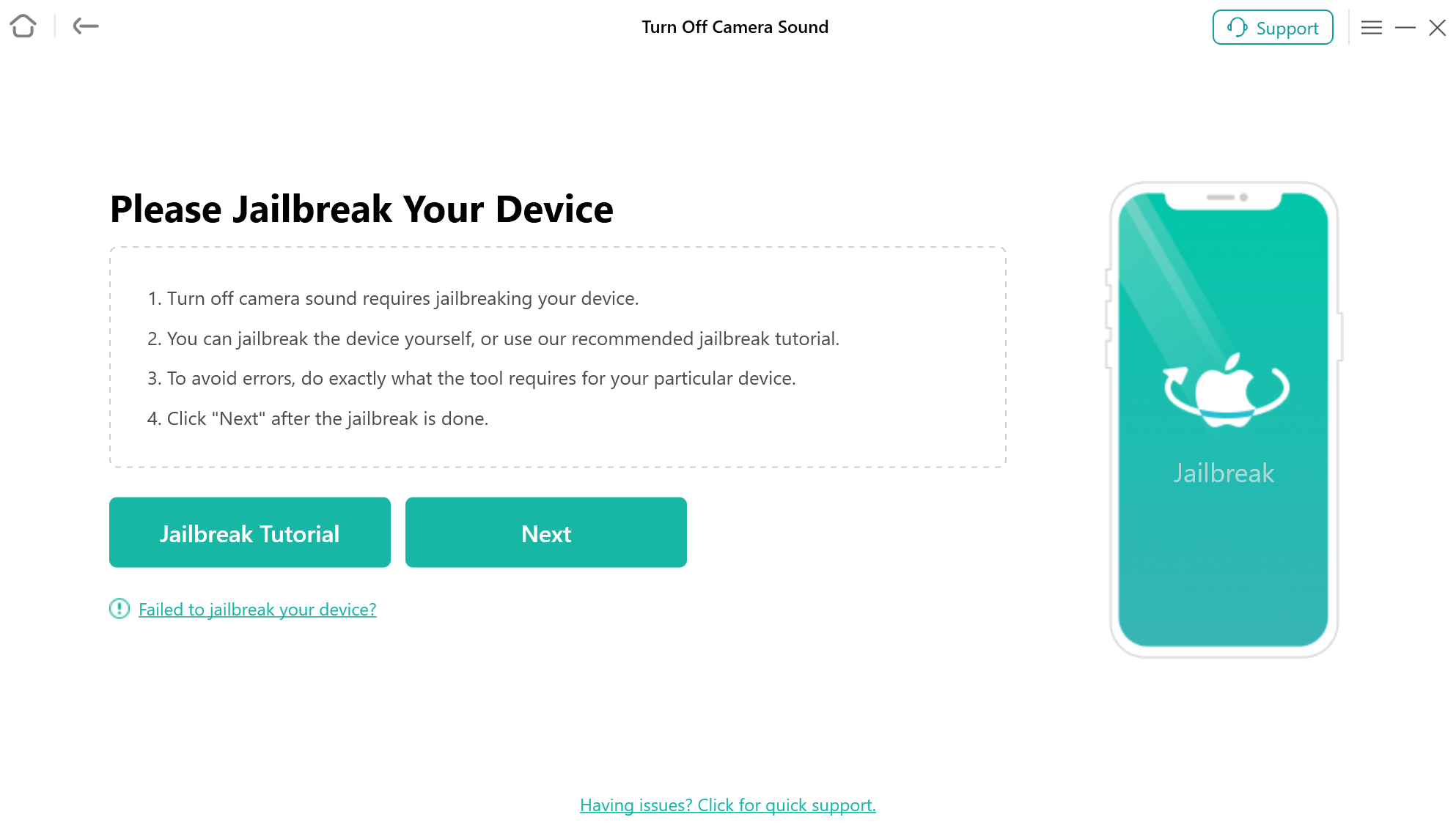
Jailbreak Interface
If you are using a Mac computer, you need to put your device into the DFU mode, and the app will automatically download the jailbreak tool. Please ensure a good network connection during the download process.
After the jailbreak process is done, please click “Next” button.
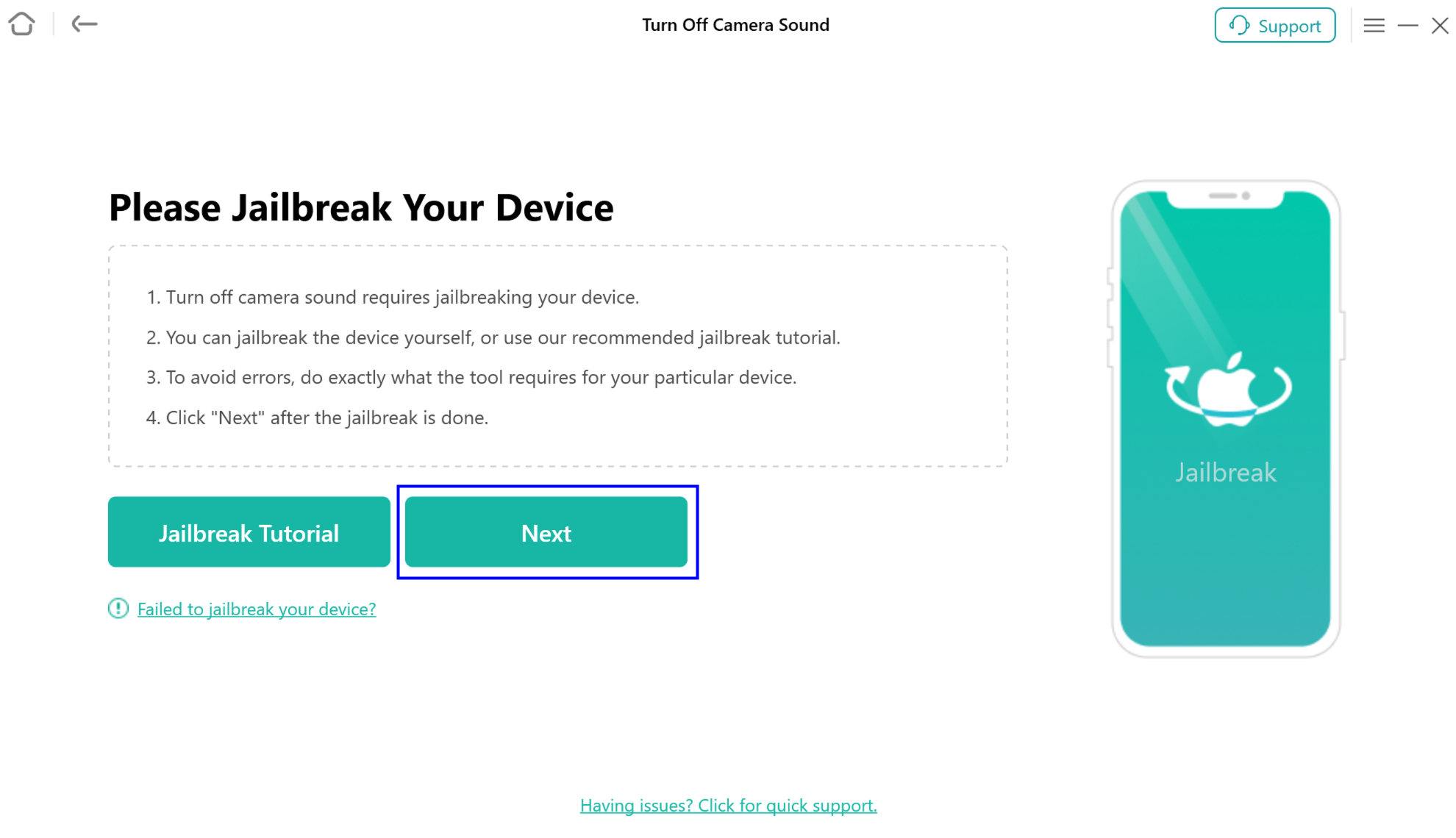
Click Next Button
The possible effects after the jailbreaking:
a. Cannot use the iOS device's function of Phone Call, Cellular Data.
b. Cannot make FaceTime calls or send iMessages.
c. Cannot sign in to iCloud with your new Apple ID from Settings.
d. Cannot be used with iTunes.
Step 4. Start to Turn Off Camera Sound.
After you click the “Next” button, you will see the interface as below. And you can view the basic info about your device. Then, please click “Turn Off Now” button.
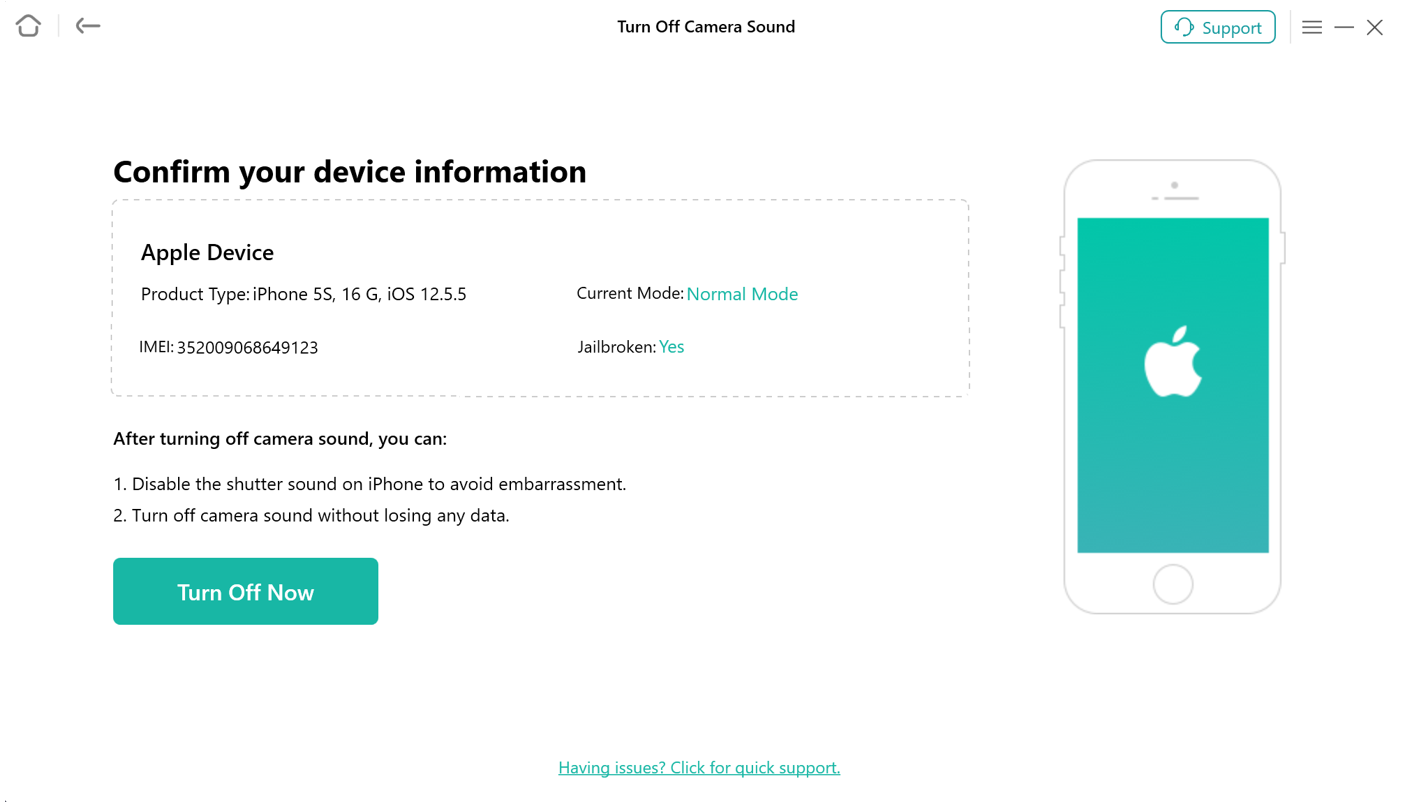
Click Turn Off Now Button
Once tapped the icon, our software will initiate the automatic process of disabling the camera sound. Please keep your device connected to computer via the USB cable during the turning off process.
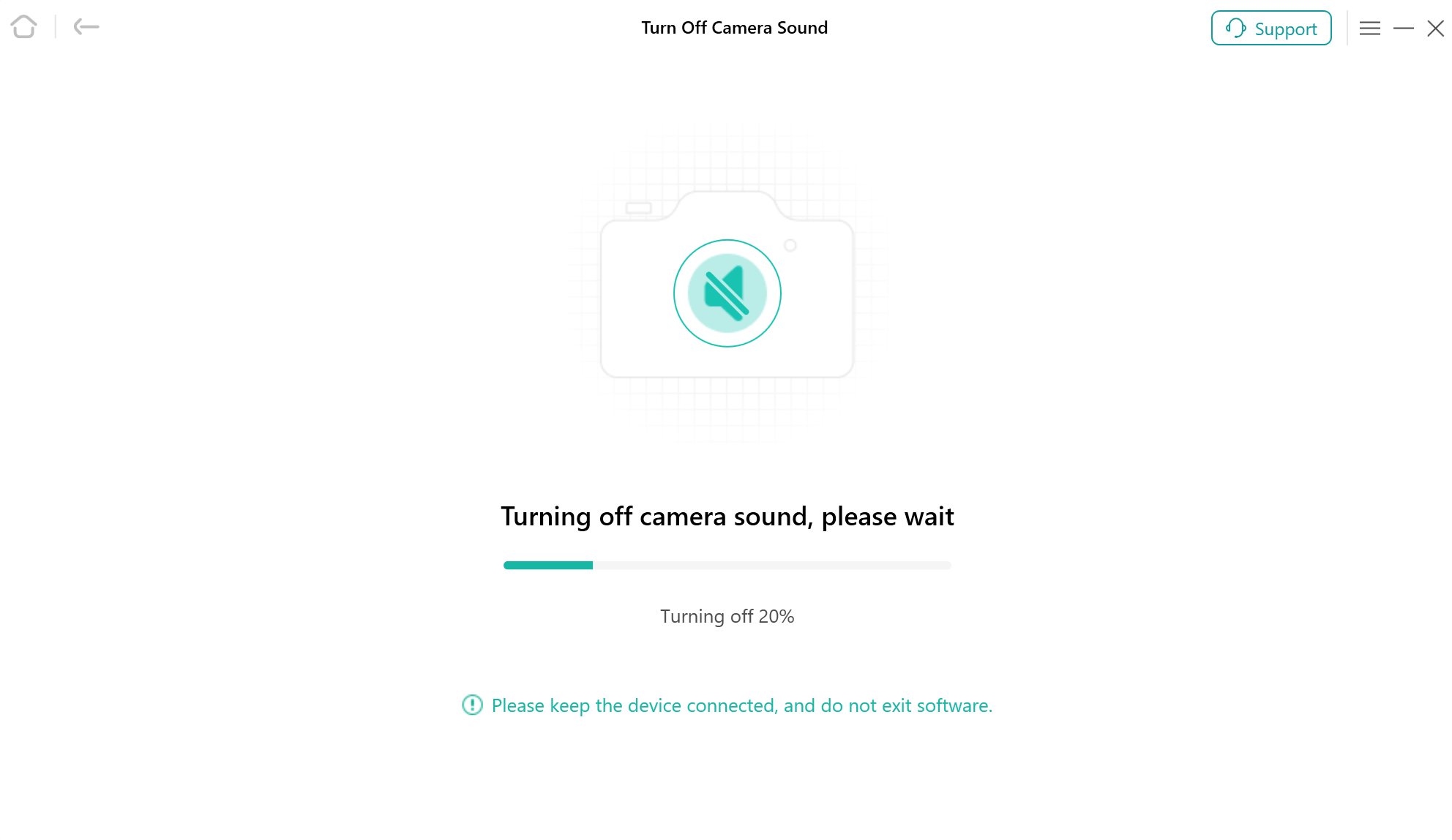
Turning Off Camera Sound
Step 5. Succeed in Turning Off Camera Sound.
When the turning off process is completed, you will see the interface as below. And you can go to the home page by clicking “Done” button.
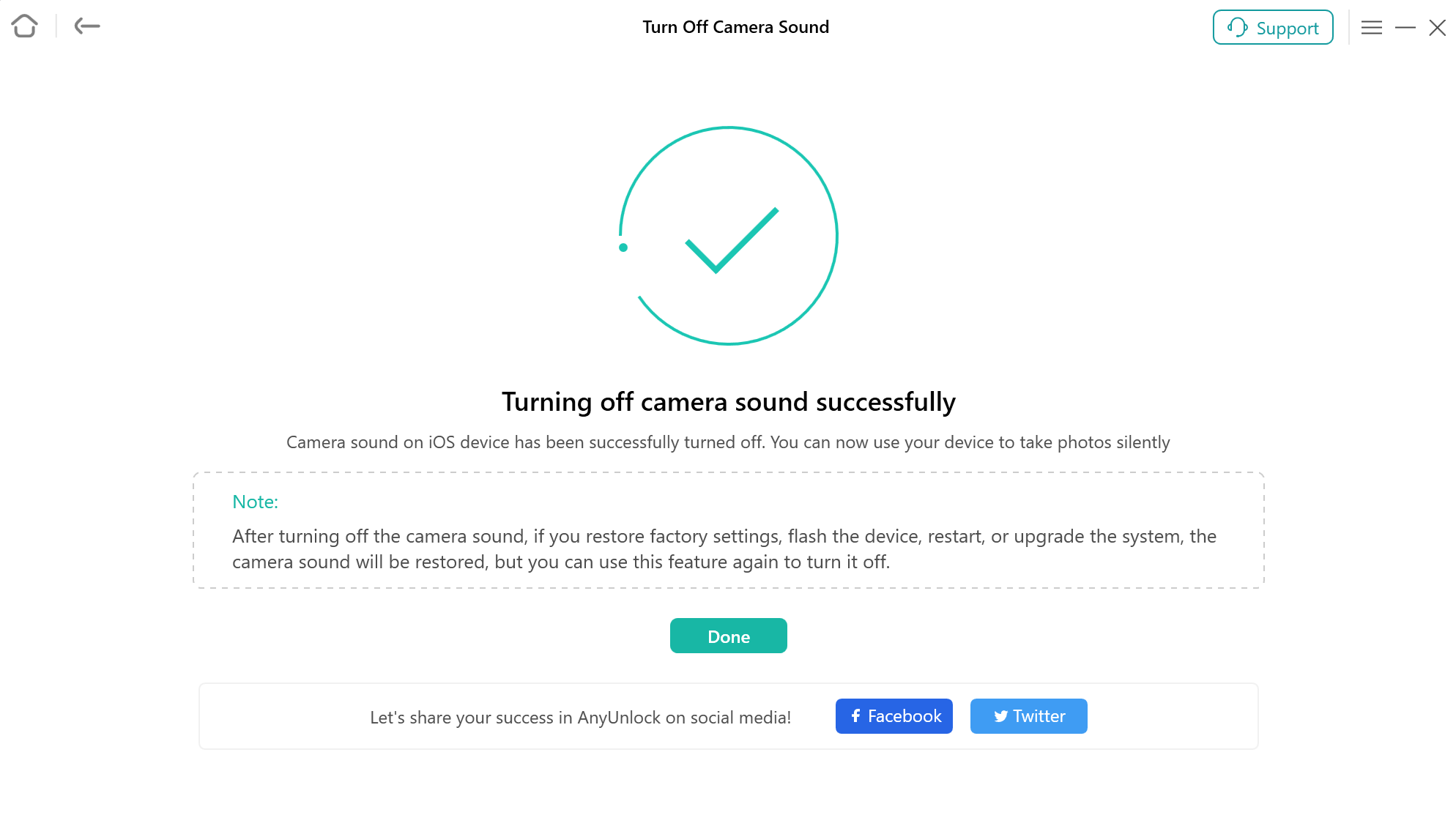
Turning Off Process Completed
If you restore factory settings, flash the device, restart it, or upgrade the system, the camera sound will be restored. However, you can utilize this feature again to turn off the camera sound as needed.
Part 2. Turn Off Camera Sound for iOS 15.0 - 16.7.7
Step 1. Download AnyUnlock - iPhone Password Unlocker on Your Computer.
Before you start turning off camera sound process, get the tool downloaded onto your computer. Please make sure the network is stable while downloading and installing AnyUnlock on your computer.
Step 2. Connect Your iOS Device to Computer via a USB Cable.
After downloading and installing AnyUnlock on your computer successfully, please launch it on your computer and choose “More Tools” mode.
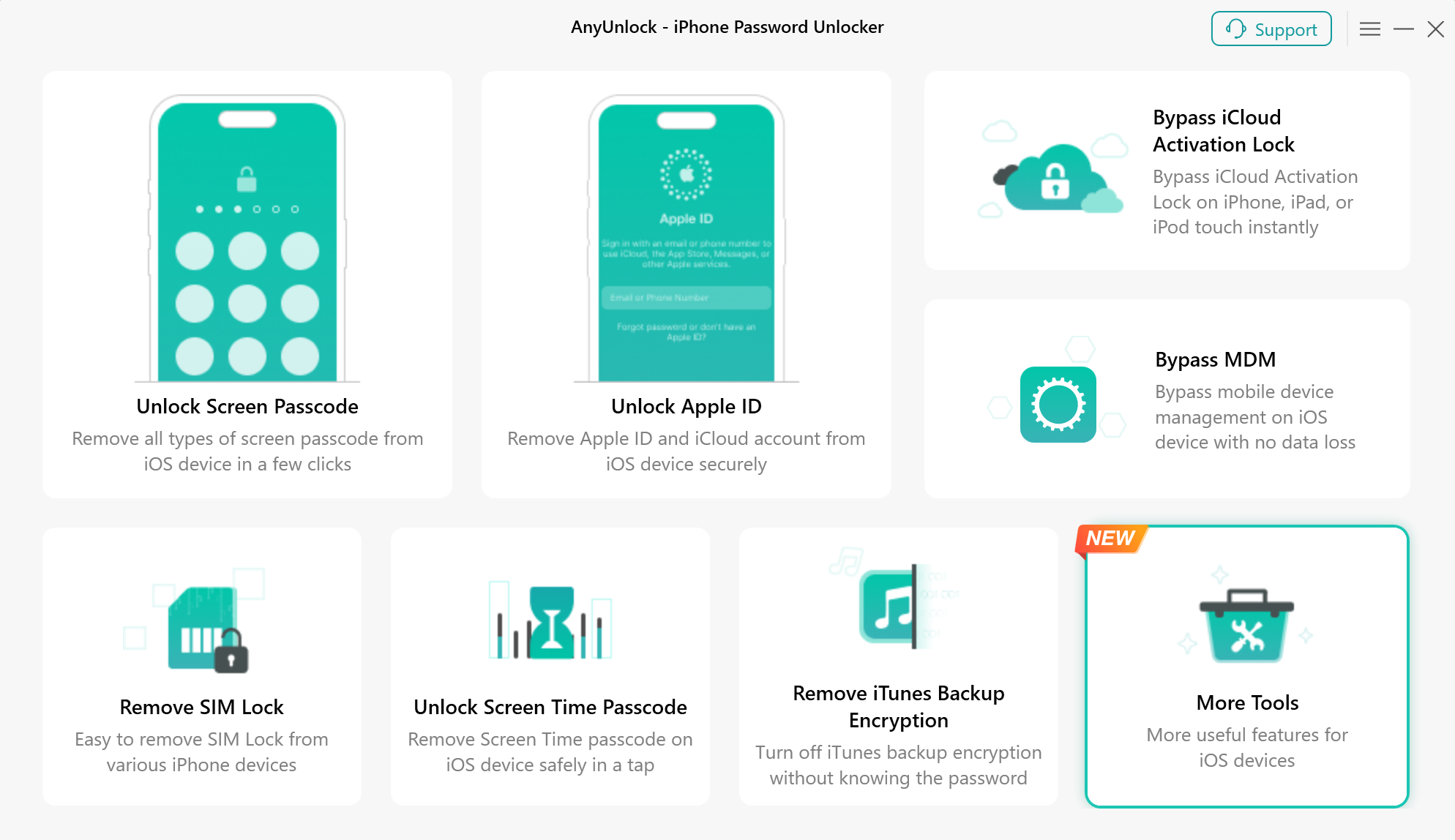
Choose More Tools Mode
Then, you will see the below interface, please choose “Turn Off Camera Sound” Mode directly.
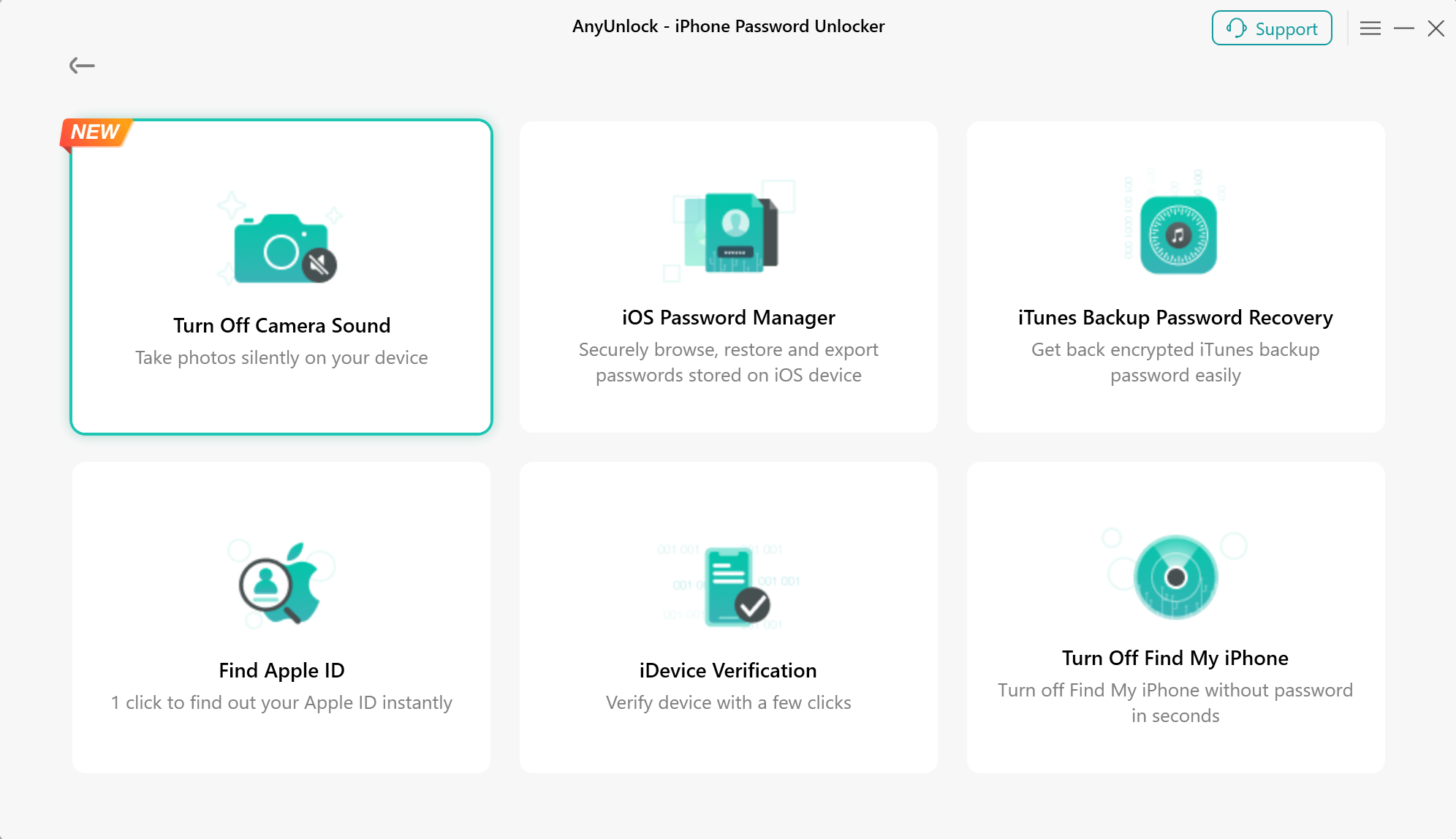
Choose Turn Off Camera Sound Mode
Please connect your iOS device to computer via a USB cable. Then, please click “Start Now” button.
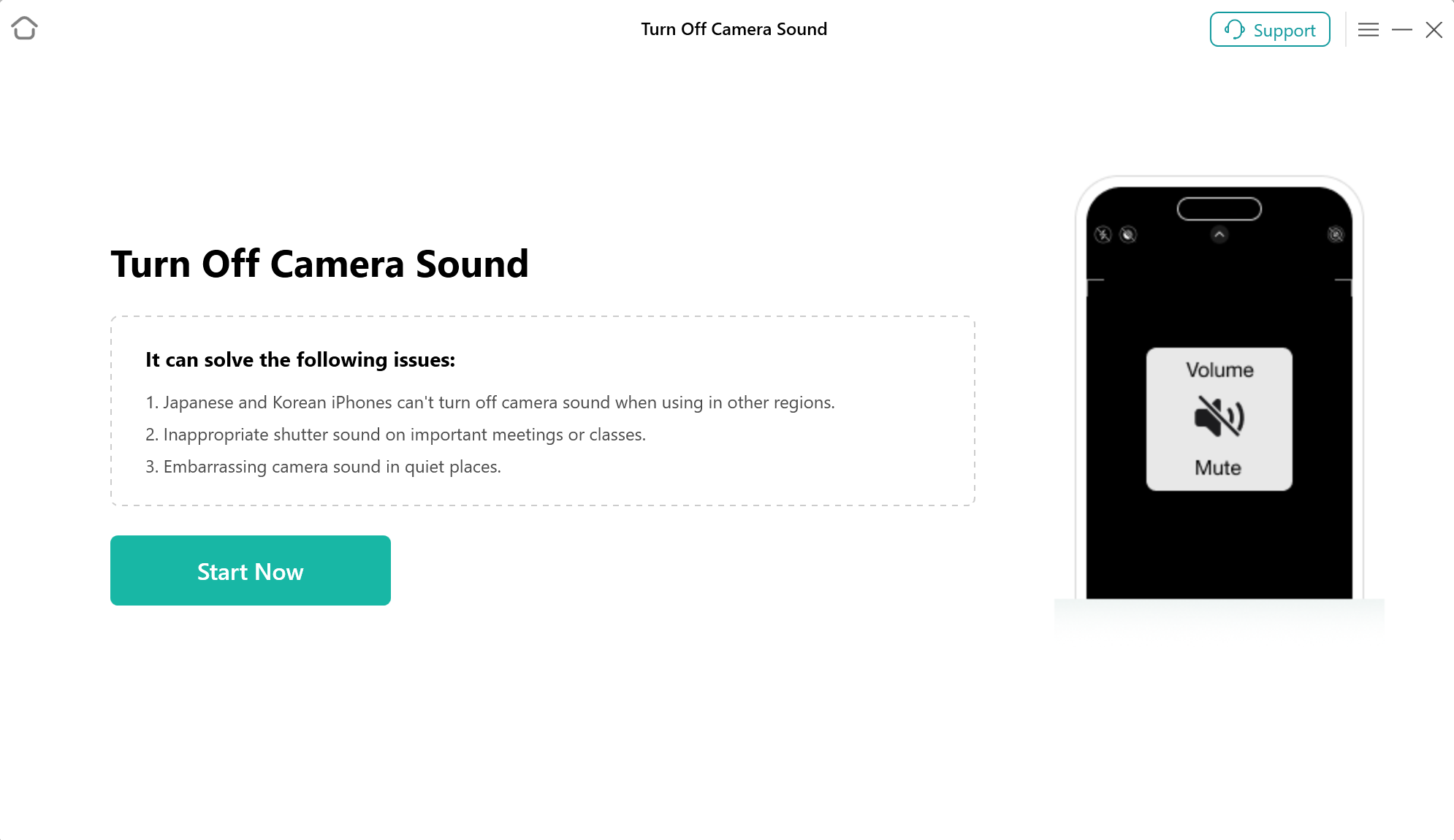
Click Start Now Button
Step 3. Jailbreak Your iOS Device.
Next, please click on the “Jailbreak Now" button and take a moment to carefully read through the "Terms of Use" before proceeding. If you agree to the terms, please ensure to check the option.
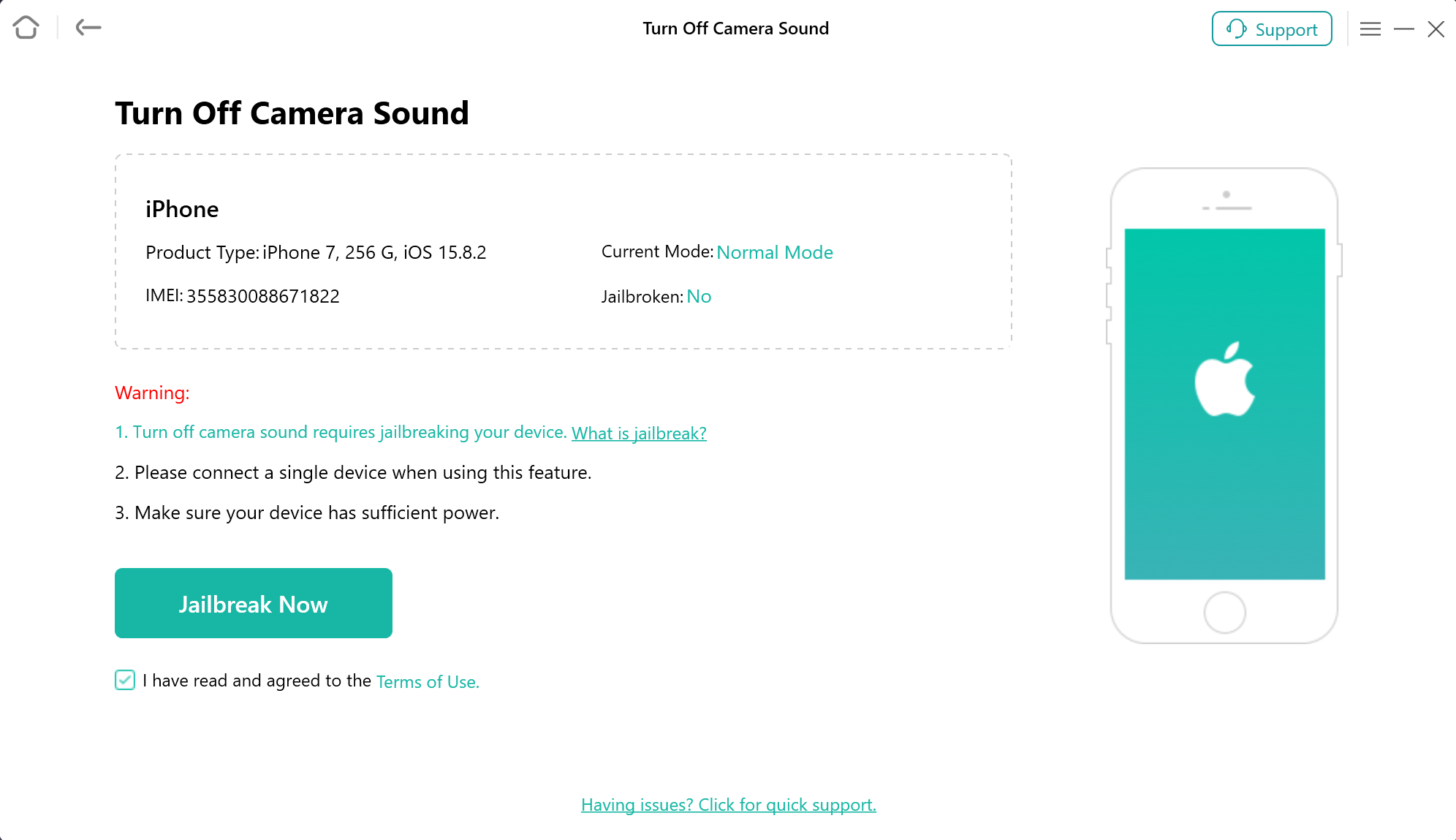
Click Jailbreak Now Button
Please follow the instruction to restore the device to an unactivated state first. Then, please click “Completed” button.
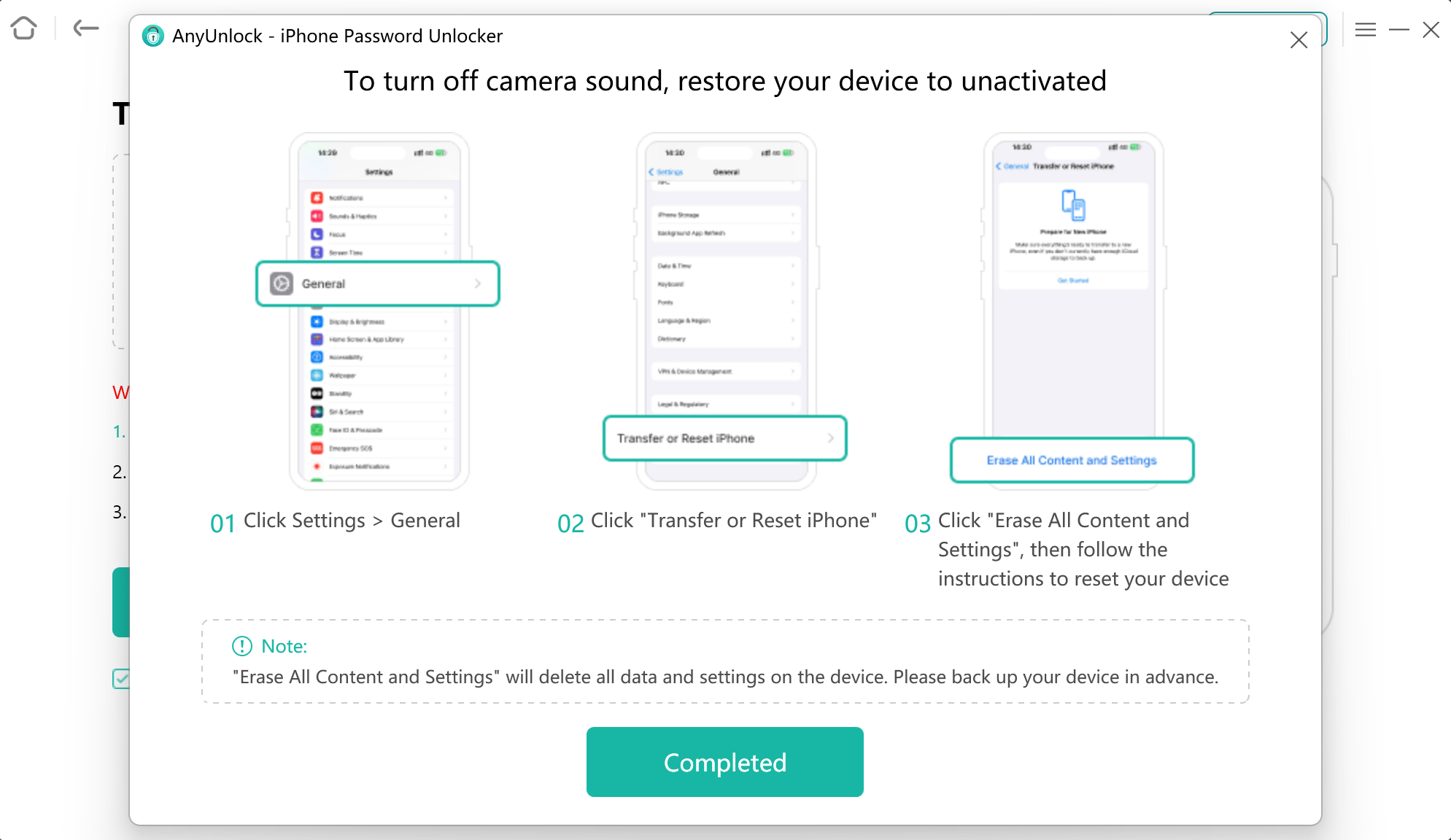
Restore the Device to an Unactivated State
If you are using a Windows computer, it will help you download the image file. It may take some time, please keep patient.
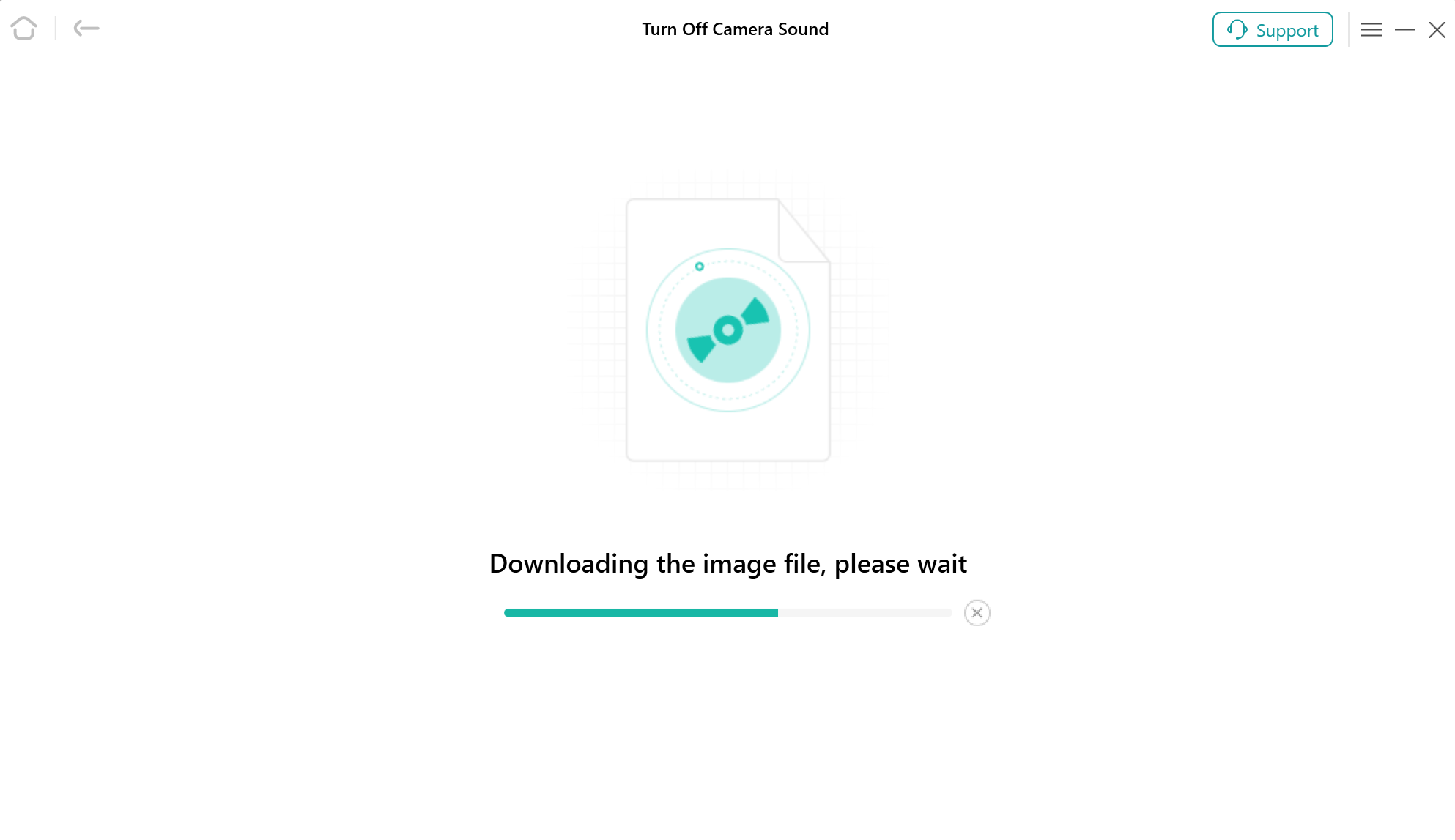
Download Image File
If you have trouble downloading image file on Windows computer, you can use the browser to download and then import the file.
Once the download process completed, please plug a USB flash drive and select one to install the jailbreak environment. Then, please click the "Start" button to proceed.
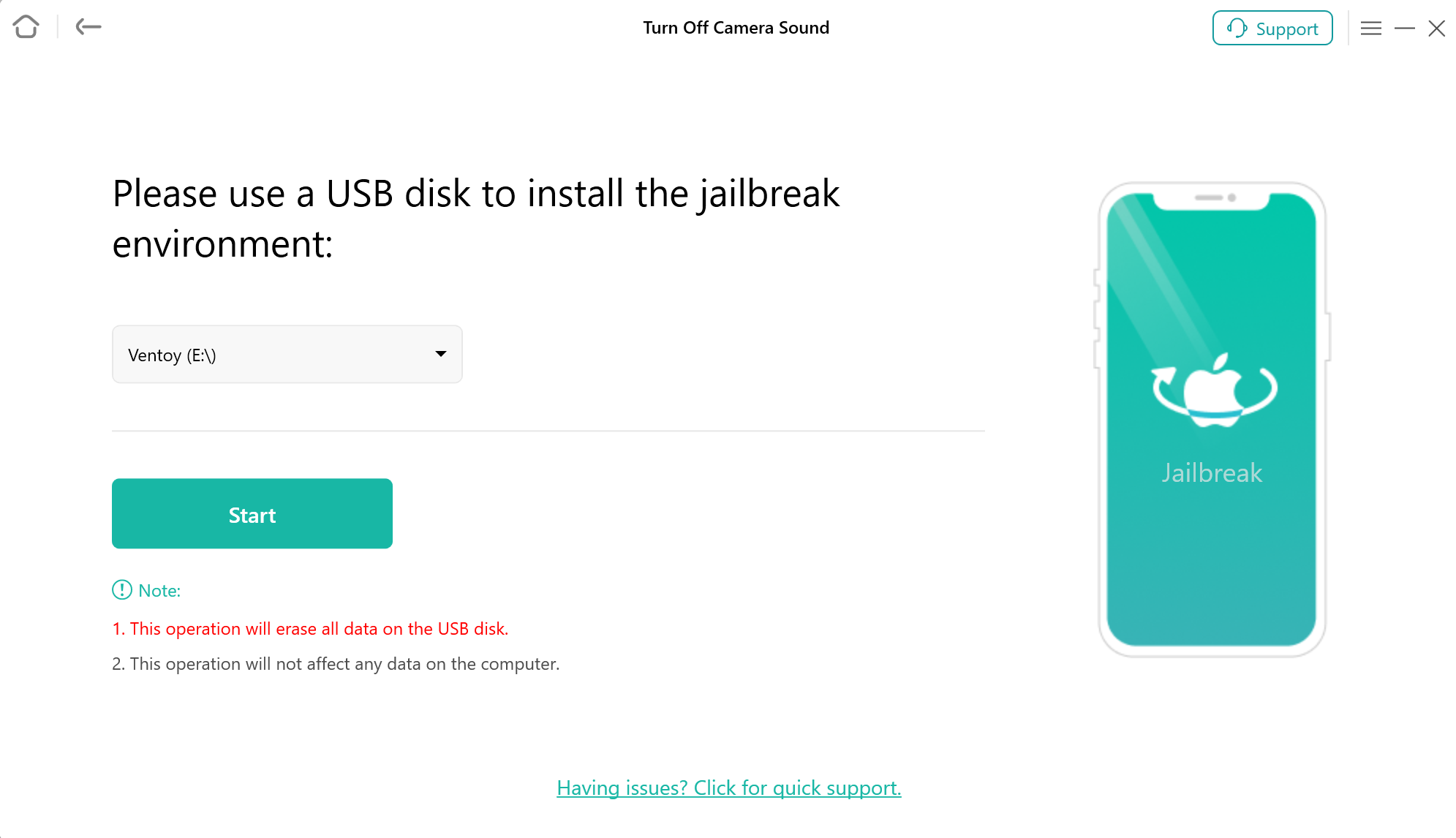
Install Jailbreak Process
Installing jailbreak environment will erase all the data on the USB disk.
After installing the jailbreak environment successfully, please scan the QR code to view the jailbreak tutorial on the other available mobile phone. And please restart your computer to start the jailbreak process.
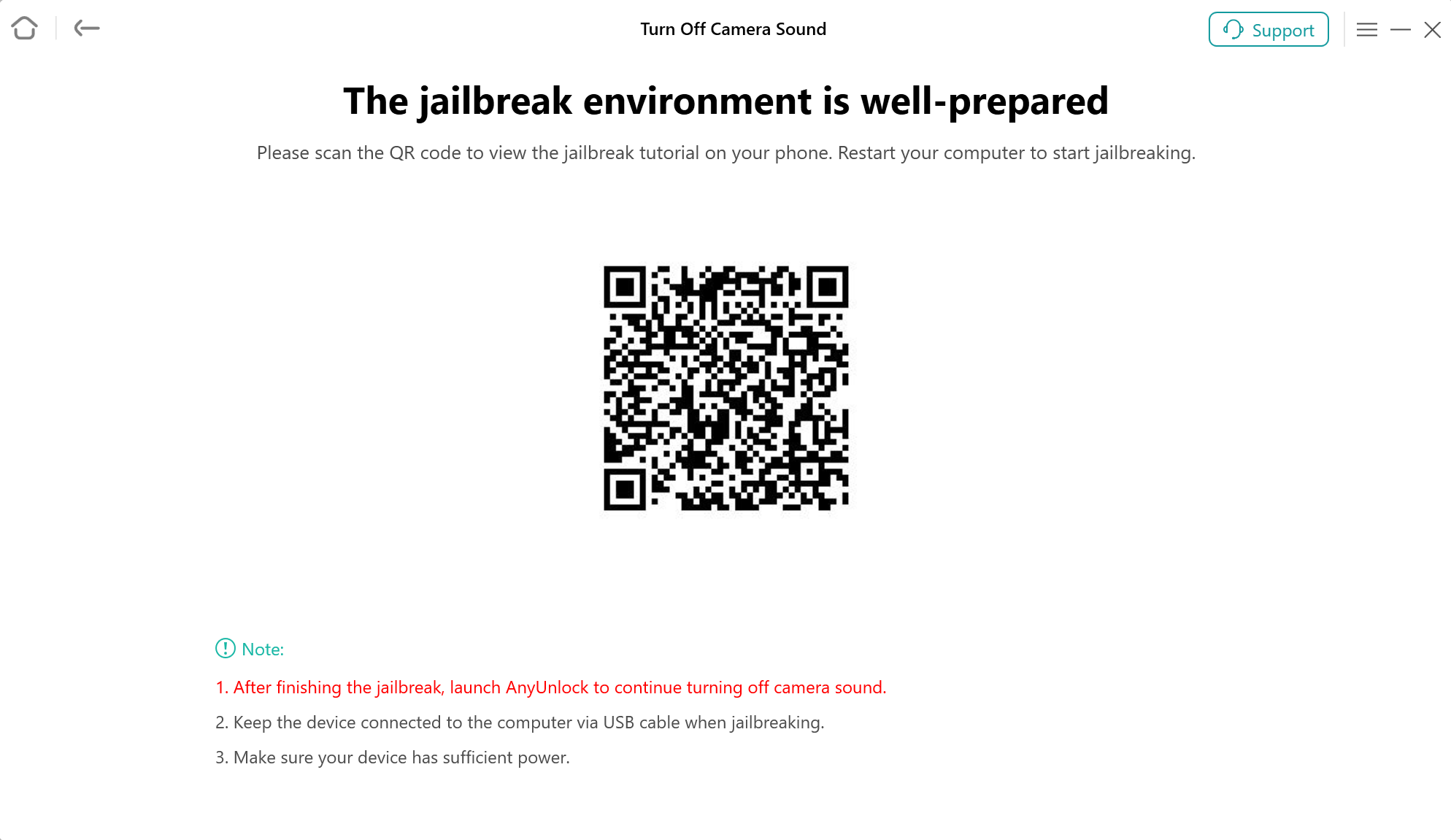
Scan QR Code to View Jailbreak Tutorial
If you are using a Mac computer, the device will be into the Recovery mode automatically. Then, please follow the instruction to put your device into DFU Mode. After that, the program will jailbreak your device.
Step 4. Start to Turn Off Camera Sound.
Once finishing the jailbreak process, please restart the computer and relaunch the program. Choose “More Tools” and click “Turn Off Camera Sound” function to start mute it. Then, you will see the interface below, please click “Start Now” option.
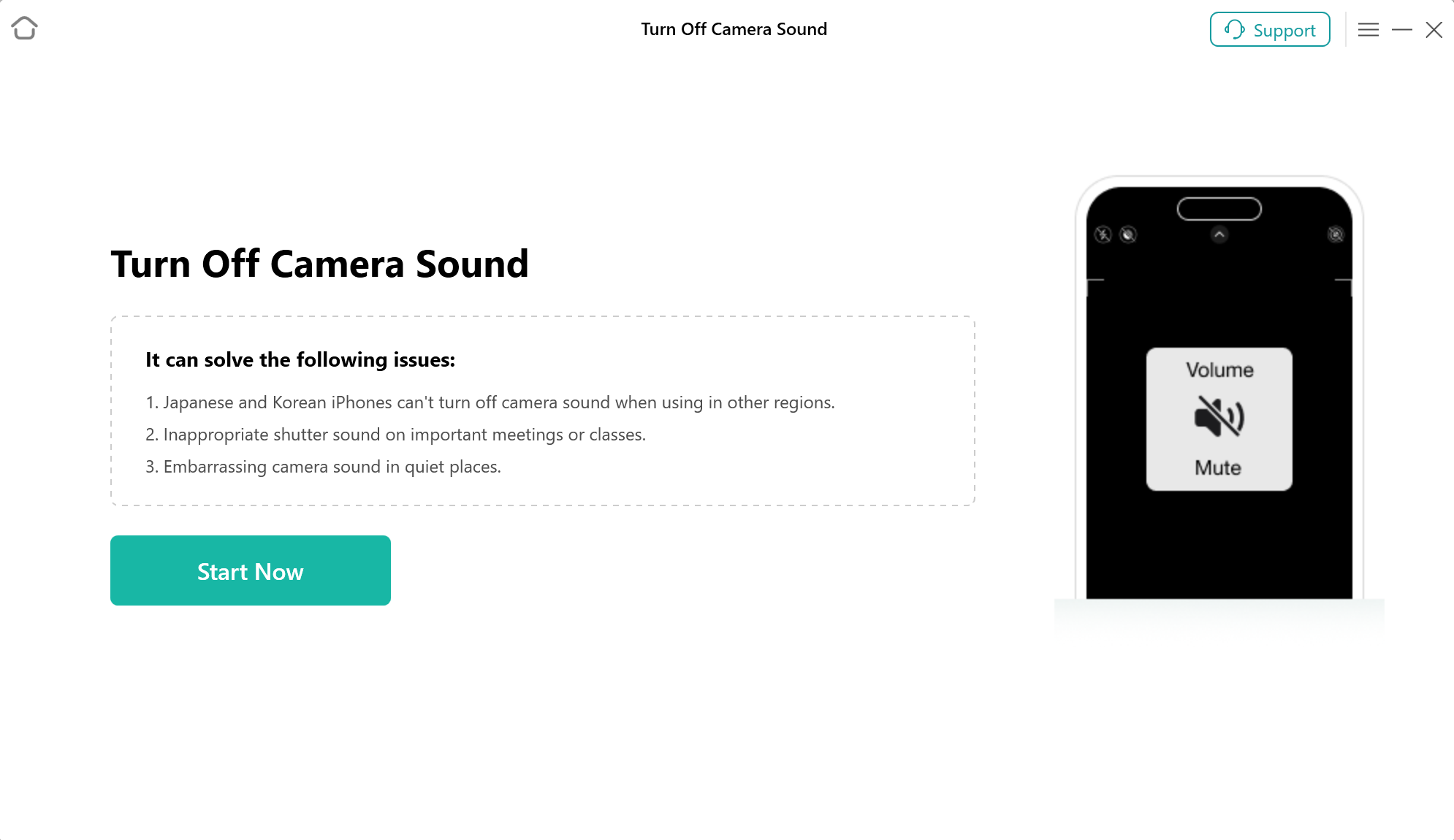
Click Start Now Option
Then, you will see the below page, please click “Turn Off Now” option to turn off camera sound.
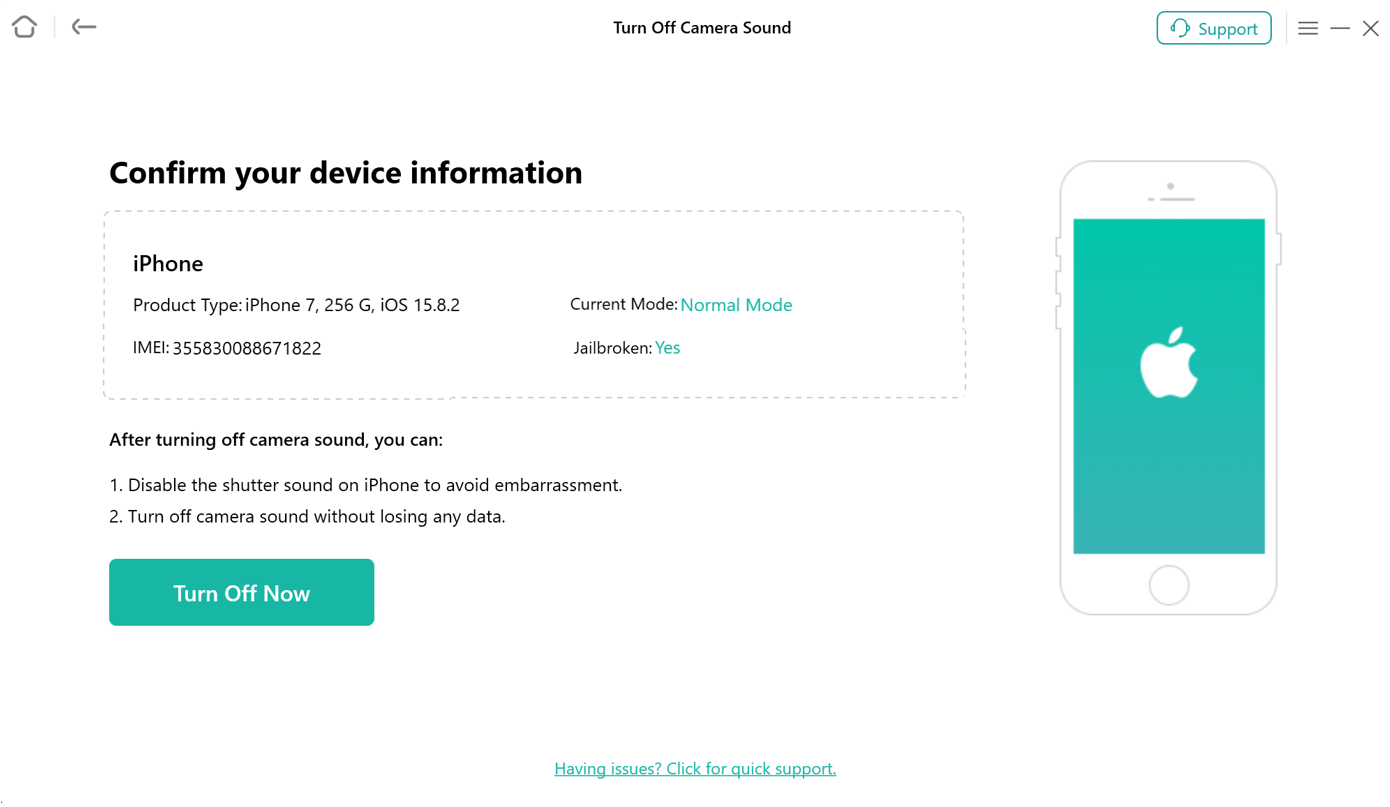
Click Turn Off Now Option
After that, our software will start to turn off camera sound automatically. Please keep your device connected to computer via the USB cable during the turning off process.
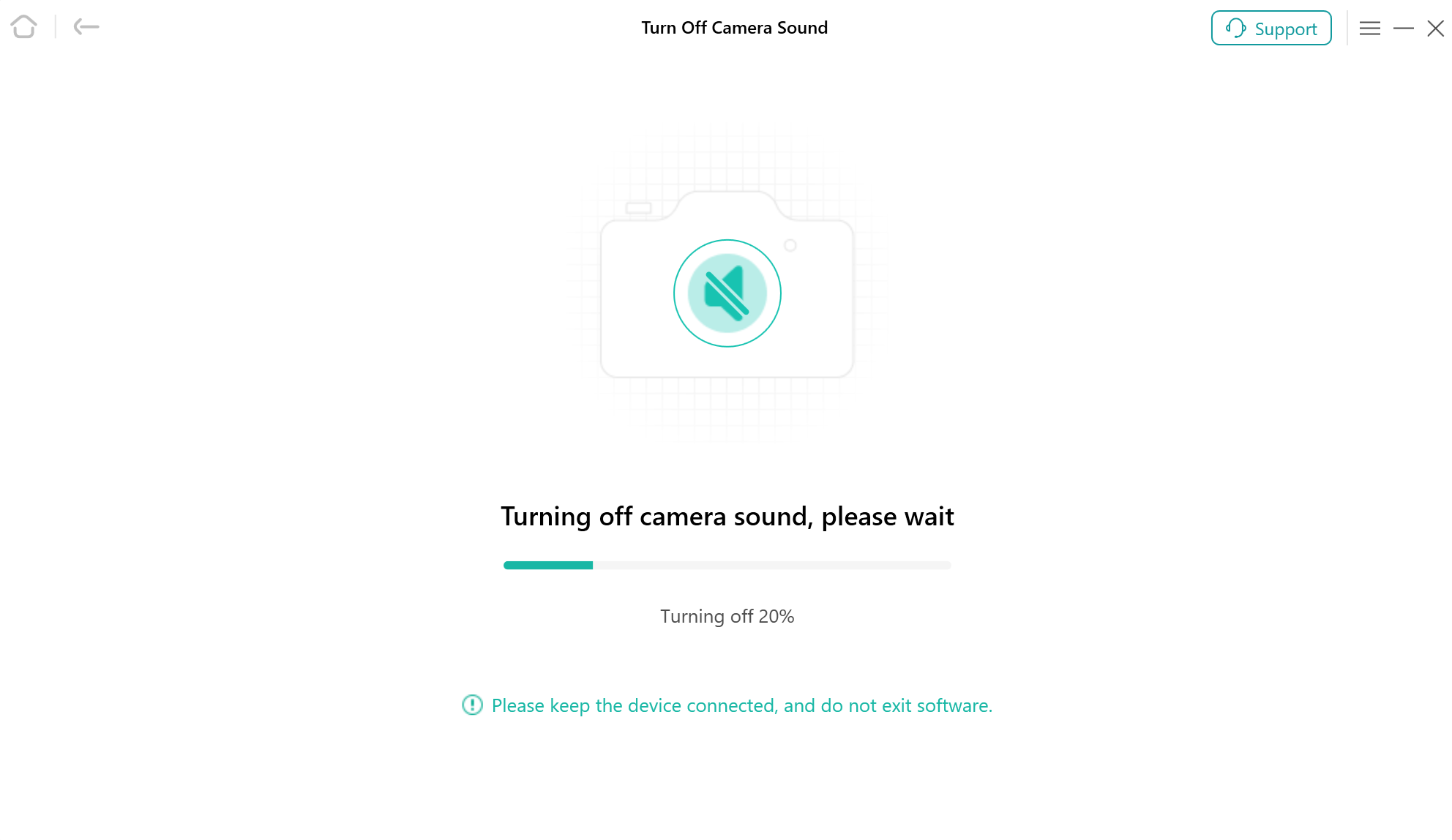
Start Turning off Camera Sound
Step 5. Succeed in Turning Off Camera Sound.
When the turning off process is completed, you will see the interface as below. And you can go to the home page by clicking “Done” button.
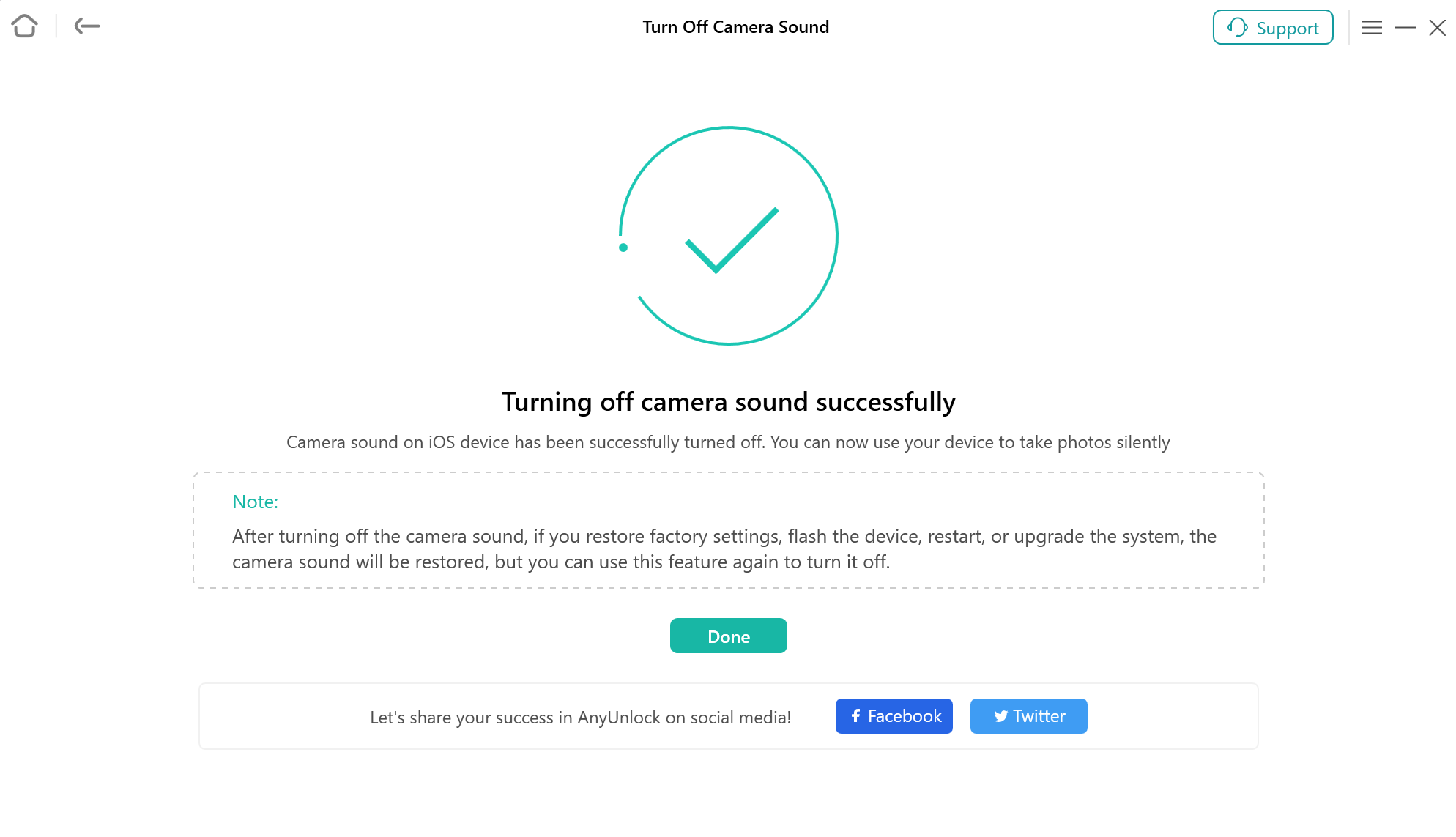
Turning Off Process Completed
1. If you restore factory settings, flash the device, restart it, or upgrade the system, the camera sound will be restored. However, you can utilize this feature again to turn off the camera sound as needed.
2. If you still have questions after reading this guide, please refer to FAQs page to check more solutions. Or you can contact our Support Team to get further help. We are here to help you!
AnyUnlock Turn Off Camera Sound FAQs
1. Why can't I turn off the camera shutter sound on my iPhone?
On some iPhones, particularly devices configured for regions such as Japan and South Korea, the camera shutter sound may be enforced by regional requirements. As a result, switching to silent mode or lowering the volume may not disable the shutter sound. AnyUnlock offers a feature designed to turn off the camera sound on supported devices.
2. Can AnyUnlock turn off the iPhone camera sound without muting other sounds?
Yes. AnyUnlock is designed to disable the camera shutter sound without muting other sounds, such as ringtones, notifications, and media playback. This allows you to take photos quietly while keeping other audio functions available.
3. Which iPhone models and iOS versions does AnyUnlock support for turning off camera sound?
It supports iOS devices running iOS 12 through iOS 16 with A7 to A11 processors. Compatibility depends on your device model and iOS version, so check the official compatibility information before proceeding.
4. Do I need to jailbreak my iPhone to turn off the camera sound with AnyUnlock?
Yes. It requires jailbreaking your iPhone. Follow the on-screen instructions carefully and understand the potential risks before proceeding, as jailbreaking may affect device stability and security.
5. Will turning off the camera sound with AnyUnlock erase my iPhone data?
The feature is designed to turn off the camera shutter sound without erasing your data. However, because jailbreaking is required, unexpected device issues are possible. We recommend backing up your iPhone before starting the process.
6. How do I turn off the camera sound using AnyUnlock?
Launch AnyUnlock on your computer and select More Tools from the home screen. Choose Turn Off Camera Sound, follow the on-screen instructions to jailbreak your iPhone, and then click Turn Off Now to complete the process.
7. Will the camera sound return after restarting or updating my iPhone?
The camera sound may return if you restart, reset, update, or restore your device. According to the official guide, a valid license may be required to maintain the change after certain device operations. Check the latest instructions before restarting or updating your iPhone.
8. What should I do if AnyUnlock cannot detect my iPhone?
Make sure your iPhone is connected to your computer with a working USB cable. Unlock your device and tap Trust if prompted. If the problem continues, try another USB port or cable, check that the necessary Apple device drivers are installed, and restart AnyUnlock.
9. What should I do if the camera sound is still audible after using AnyUnlock?
First, confirm that your device model and iOS version are supported. Make sure the jailbreak and camera sound removal processes have completed successfully. If the sound remains, follow the instructions in AnyUnlock again. If the issue persists, contact the iMobie Support Team and provide your device model, iOS version, and a screenshot of any error message.
10. Is it legal to turn off the camera shutter sound on an iPhone?
The applicable rules depend on your location and how you use the camera. Some regions enforce camera shutter sounds to discourage unauthorized photography. Before disabling the sound, make sure you comply with local laws and respect other people's privacy. AnyUnlock should only be used on devices you legally own or are authorized to manage.

Try It Out & Share Your Feedback!

We'd love to hear how AnyUnlock is working for you.
Give it a try and share your thoughts—your feedback helps us keep improving.
If you're enjoying AnyUnlock, we'd be so grateful if you could leave us a review on Trustpilot. Your support helps others discover AnyUnlock and motivates our team!

Thank you for being part of the iMobie community — we couldn’t do it without you!
Try It Out & Share Your Feedback!
We'd love to hear how AnyUnlock is working for you.
Give it a try and share your thoughts—your feedback helps us keep improving.
If you're enjoying AnyUnlock, we'd be so grateful if you could leave us a review on Trustpilot. Your support helps others discover AnyUnlock and motivates our team!
Thank you for being part of the iMobie community — we couldn’t do it without you!