WiFi Not Working on Phone But Working on Other Devices? 9 Easy Fixes
Is WiFi not working on phone but working on other devices? This article offers nine easy fixes to resolve the issue, from reconnecting the network to updating your phone’s system. Follow these steps to get your phone back online.
Is your WiFi not working on your phone but working on other devices? If yes, you’re not alone!
Undoubtedly, this common issue can be frustrating and disturb your daily routine. But worry not! We are here to help you to come out of this annoying situation.
Understanding the issue is the first step in fixing it. The problem could be due to multiple reasons, such as incorrect settings, software bugs, or simple oversights. This article will explore nine easy fixes to get your phone back online.
These solutions are simple yet practical. Let’s get started and solve the problem together!
Part.1 Why Is My WiFi Working on One Device But Not Another?
There could be several reasons for WiFi not working on your phone but working on other devices. You need to find out which one of these is to blame in your case:
- Incorrect WiFi password entered on the phone.
- Weak WiFi signal on the phone due to the distance between the route and the phone.
- Incorrect network settings on the phone.
- Network issues are due to router, modem, and ISP problems.
- Airplane mode is enabled on the phone.
- Phone WiFi is being turned off.
- Congestion in the WiFi network.
- Unsupported router security protocols by the phone.
- The smartphone is enabled to use the power-saving mode.
- The DHCP server is not assigning an IP address to the phone.
If this seems like a lot! Worry not! You’ll be happy with the easy fixes below.
Part2. Fixes to WiFi Not Working on Phone But Working on Other Devices
There are different ways to fix the issue of WiFi not working on a phone but working on other devices. Below, we will discuss 09 easy fixes to resolve this issue. Let’s start with the basic solution.
Way 1. Reconnect after Forgetting the WiFi Network
The first method is reconnecting the WiFi after forgetting it. Just follow the steps mentioned below.
Step 1. Open the Settings application on your device.
Step 2. Next, go to the Network & Internet section.
Step 3. Then, click the Internet option to check the list of available WiFi networks.
Step 4. Now, click on the gear icon beside the connected network name.
Step 5. Click on Forget to let the device forget the password and other related information about the network.
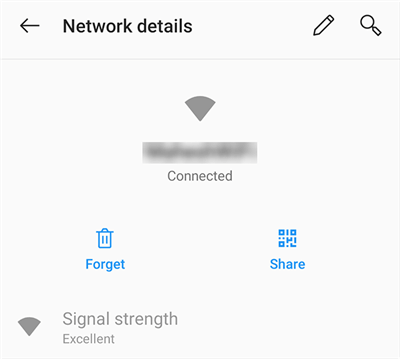
Forget the Details for WiFi Network
Step 6. Finally, reenter the password to reconnect to the WiFi password.
That’s all about reconnecting WiFi after forgetting the password. Let’s move to the second potential fix to resolve the issue.
Way 2. Force Restart Phone
Are you an iPhone user and having the same issue on your phone?
Don’t worry anymore! You can quickly solve the problem of WiFi not working on a phone but working on other devices.
There are different ways to resolve the issue, but force restarting your iPhone is preferred.
How to Force Restart iPhone?
The steps below will help you force restart your iPhone.
- First, press and quickly release the volume-up button on your iPhone.
- The second step is to press and quickly release the volume-down button.
- Next, press and hold the side button.
- Now, release the side button as the Apple logo appears.
- Wait for it to restart your iPhone completely, then check whether the WiFi is working.
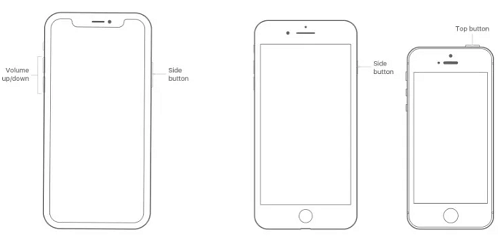
Restart Your iPhone
Hopefully, you now know how to force restart your iPhone. Now, let’s discuss the next easy fix to resolve the issue.
Way 3. Turn Airplane Mode On & Off
The WiFi connection impacts Airplane Mode. Whenever you turn on airplane mode, the WiFi turns off. Therefore, turning on and off the airplane mode might solve the issue.
Below are two methods for turning on and off the airplane mode: one for Android and the other for iPhone.
For Android
Follow the steps below to get on and off the airplane mode.
- Swipe down on the main menu.
- Turn on airplane mode by tapping on the icon.
- After a few seconds, turn it off, and then turn on the WiFi.
- Now, check the WiFi connection to see whether it is working.
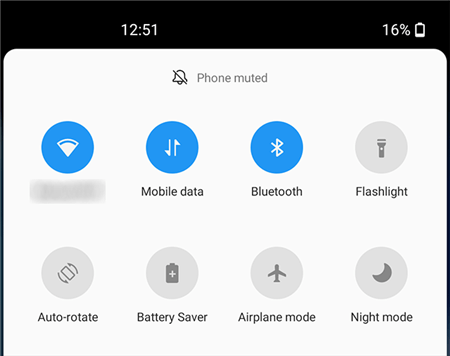
Turn Android Airplane Mode on and off
For iPhone
- To open the Control Center, swipe down from the top right corner of the screen (on iPhone X and later models).
- Or you can swipe up from the bottom (on older iPhone models).
- Tap the Airplane mode icon, which looks like a small airplane.
- That’s it about turning on and off about Airplane mode. Let’s move to the next potential solution!
Way 4. Check WiFi Router
Checking the WiFi Router is another cause of WiFi not working on phones but working on other devices. Let’s suppose there is a little glitch with your WiFi router. You will have to reboot it.
Rebooting your WiFi will rewrite all settings and clear the cache. It helps your router get the correct IP address, and you will get the Internet back.
There are two ways to restart the router: The first one involves pressing the On/off button, and the second one is unplugging the power cable.
Method 1:
To apply way one, find your router and unplug the power cable. Plug it back in after 15 seconds (or 1 minute).
Method 2:
For some routers with an on/off button, press the router to shut down the device. Then, press again after 15 seconds.
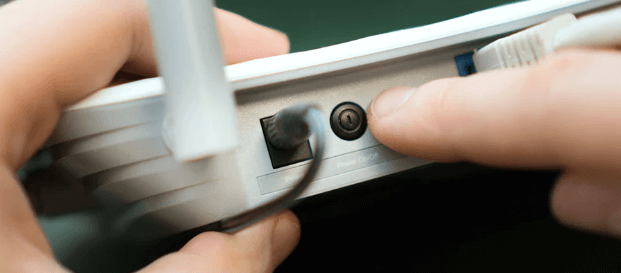
Check your WiFi Router
You can use any of the above methods to check the WiFi router. Let’s move on to the next practical solution.
Way 5. 1- Click Fix System
Are you still having the issue of WiFi not working on your phone but working on other devices? If yes, there might be bugs in your phone that you need to eliminate.
Thorny bugs can cause your phone to malfunction or lag. To fix the iOS system, you must use efficient third-party solutions like AnyFix. First, let’s see how to use this useful tool for iPhone.
1. For iPhone
Below are the steps to follow to fix the iOS system using AnyFix.
Step 1. First of all, download and install AnyFix on your computer.
Free Download* 100% Clean & Safe
Step 2. Launch the AnyFix on your computer and select System Repair Mode. Next, choose Repair Now.
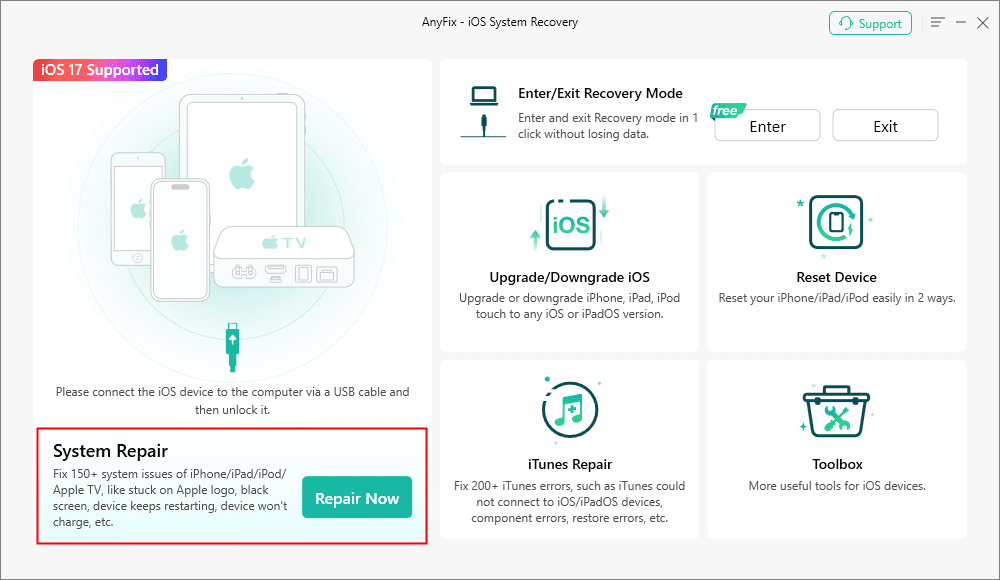
Choose System Repair > Repair Now
Step 3 . AnyFix will start detecting your iPhone. Once your iPhone is detected, you will see the below interface. Here, choose Device Cannot Connect, then Start Now.
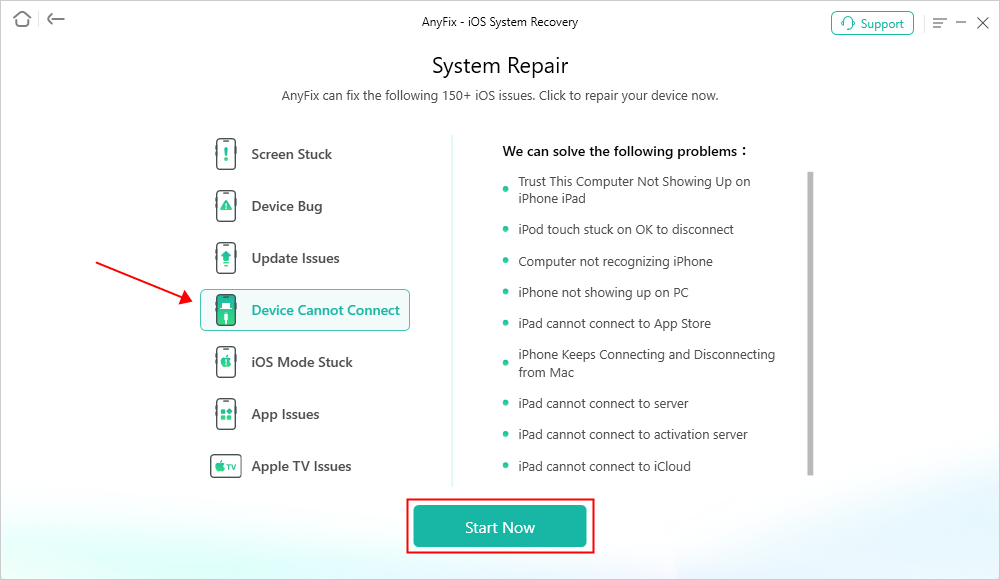
Choose Device Cannot Connect >Start Now
Step 4. Next, select a mode to repair your iOS device. Now choose the Standard Repair option (taking the Standard Repair as an example), then click the Standard Repair button.
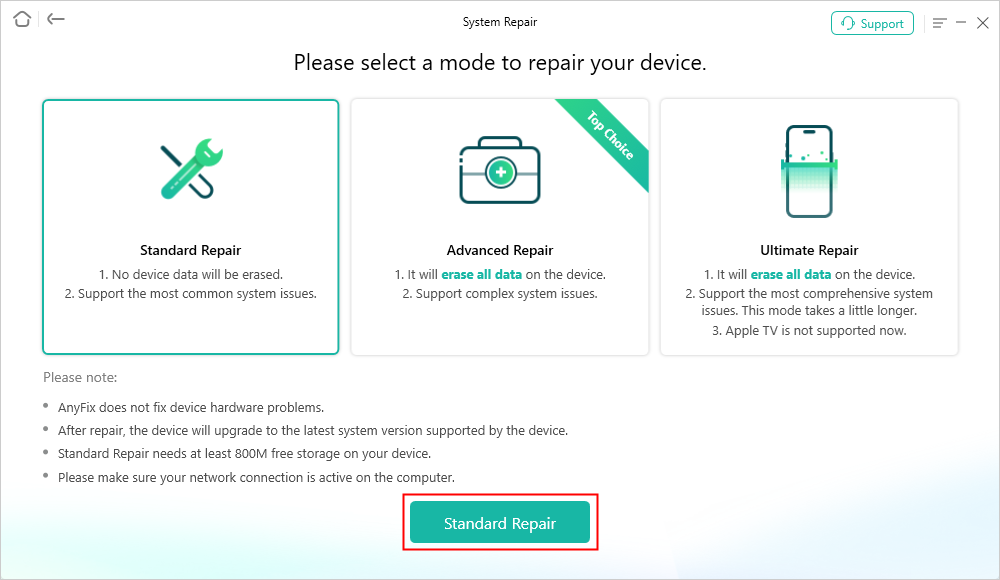
Click Standard Repair Mode > Standard Repair Button
Step 5. You will see the interface below as you enter the standard repair mode. Now, check your device information and click “Download” to download the firmware for the iOS device.
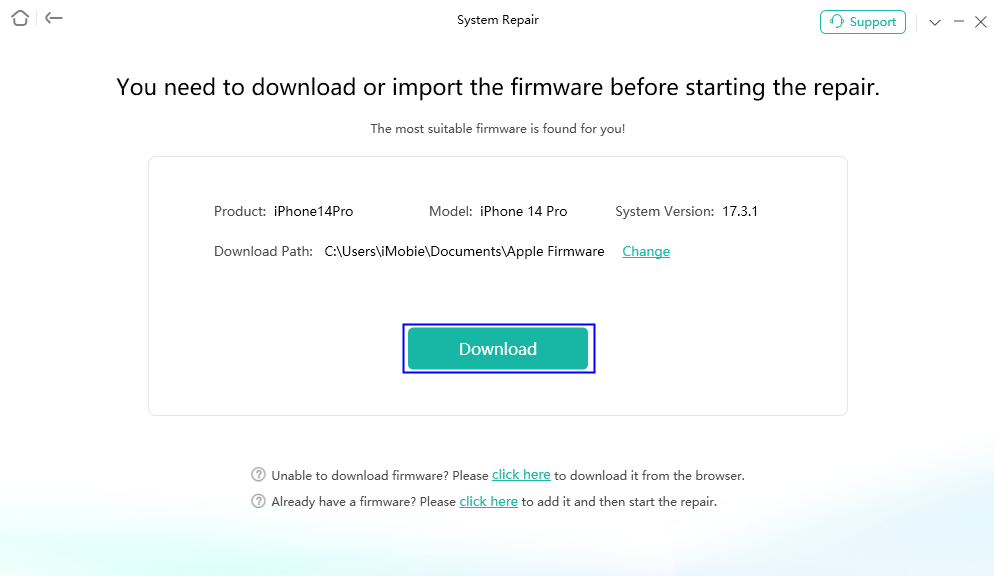
Download your Device’s Firmware
Step 6. Once the firmware package download is completed, you will see the interface below. Click the “Start Standard Repair” button.
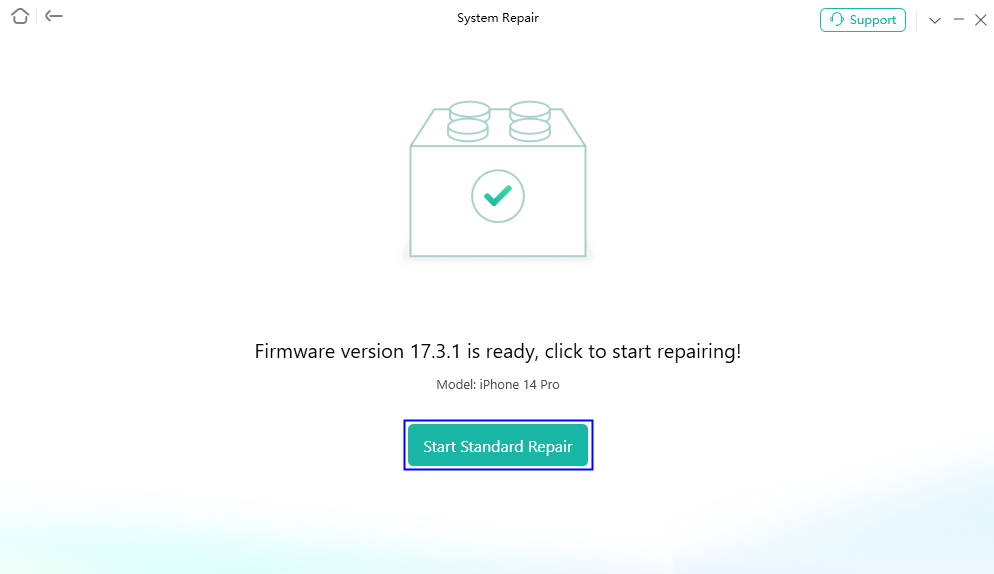
Hit Standard Repair Button
Step 7. Now, AnyFix will start repairing your iPhone. Do not disconnect your device until it restarts. Once the repair process is completed, you will see the below interface. Click “OK.”
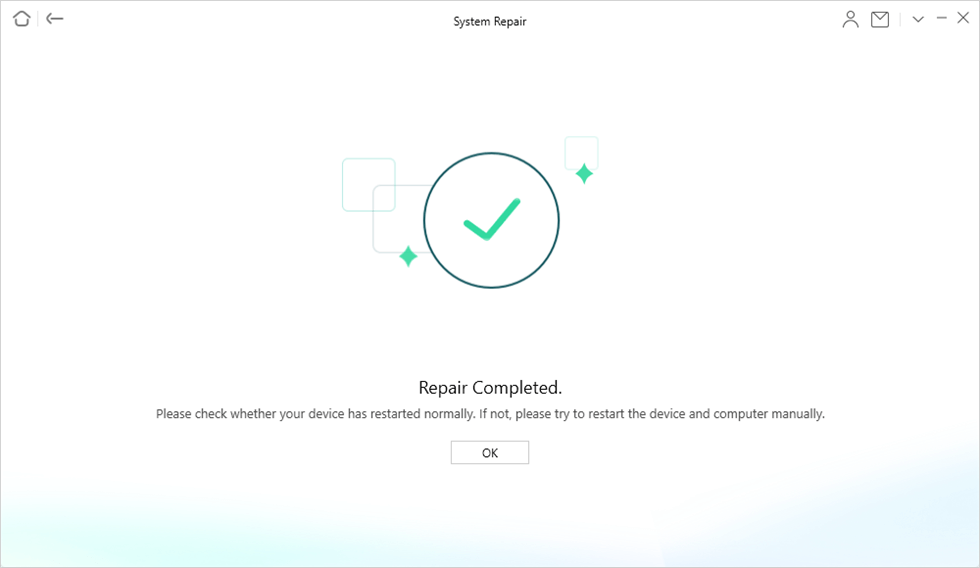
Repair Completed Successfully
You’ve seen how simple it is to fix an iOS system using AnyFix. But what if you are not an iPhone user? Fret not! We have enlisted the solution for you, too.
2. For Android
DroidKit offers the best solution for fixing the Android OS. The tool safely fixes system issues for Samsung, Xiaomi, Redmi, and POCO devices. It also helps you recover lost photos, WhatsApp chats, messages, and more without rooting.
Free Download* 100% Clean & Safe
Let’s see how it helps you fix the Android OS issue! We will break down the complete process into simple steps.
How To Use DroidKit To Fix Android OS Issue?
Here are the steps to follow to fix the Android OS issues when the USB debugging option is enabled.
Step 1. The first step is to download and install DroidKit on your computer. Next, launch it on your computer and select System Fix mode.
Ensure the Android device has turned on the USB debugging option before.
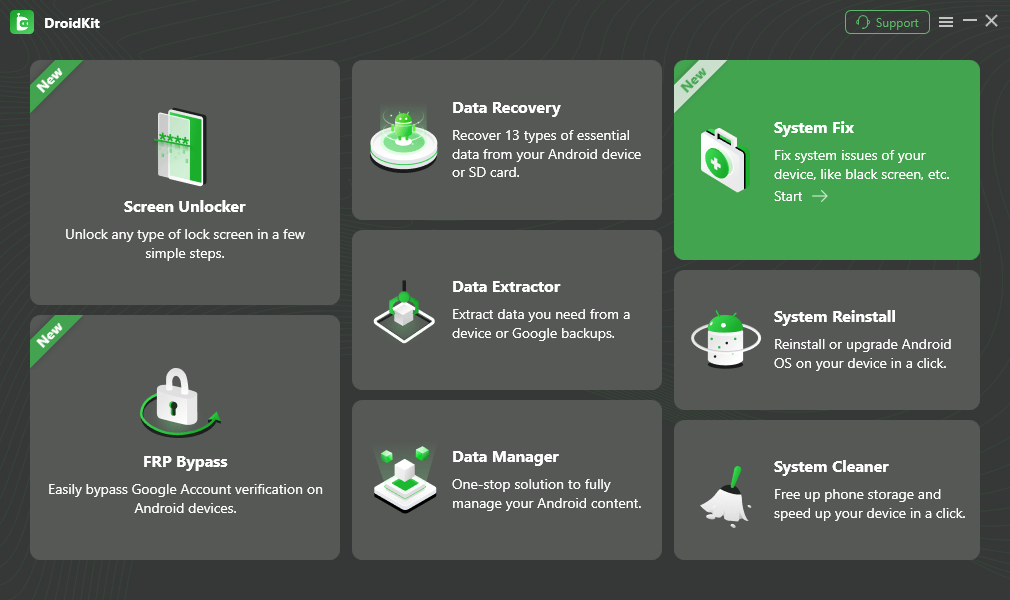
Click System Fix Function
Step 2. Once DroidKit detects your Android device, Click on the Start button.
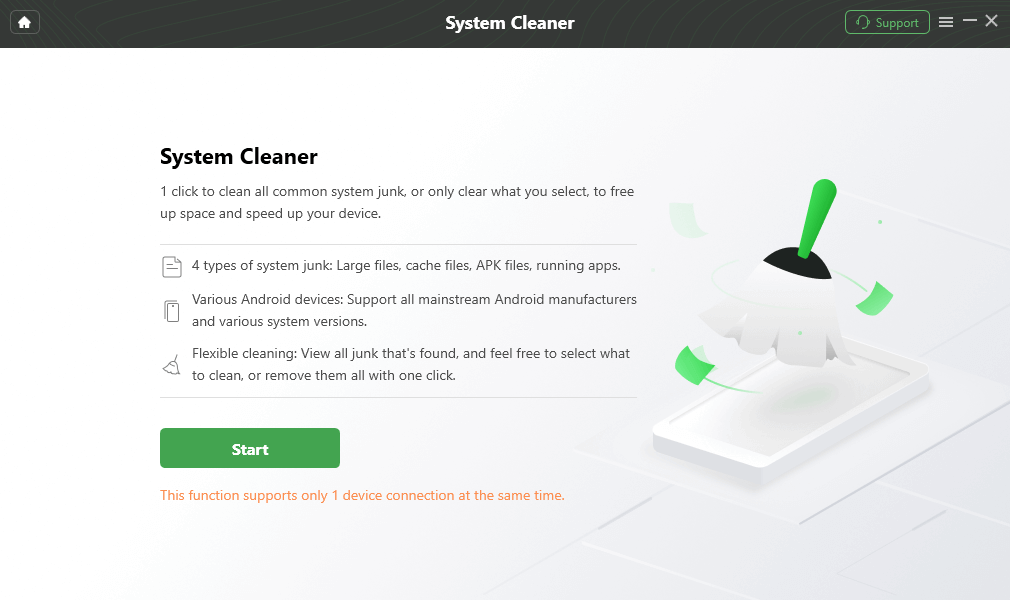
Hit Start to Initiate the Clean Process
Currently, this function supports Xiaomi, Samsung, Redmi, and POCO devices.
Step 3. The program starts downloading the firmware package. As the download process completes, click the Fix Now button.
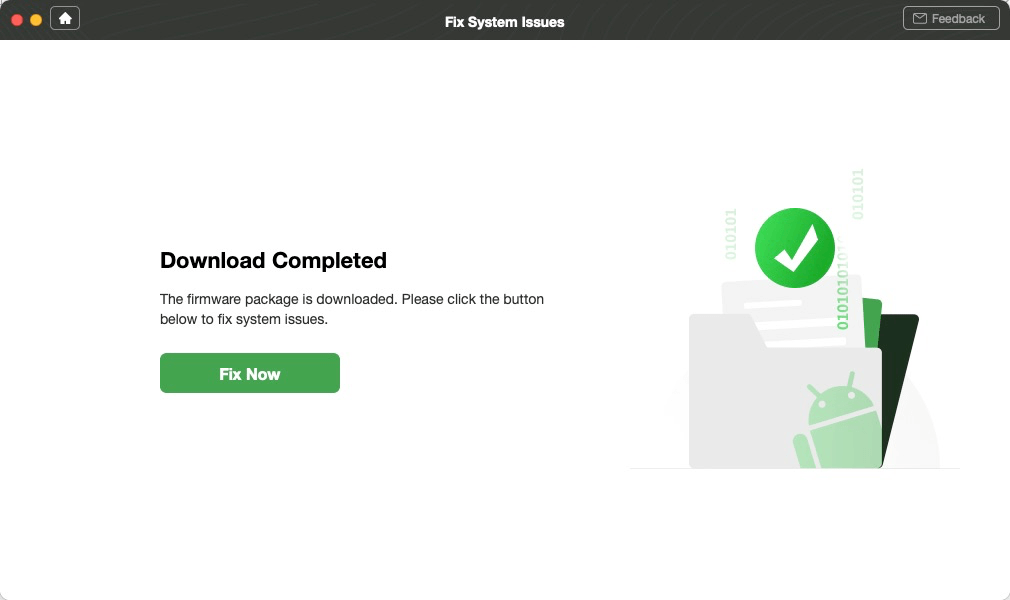
Click Fix Now
Step 4. Now follow the onscreen instructions to put your device in download mode and click Next.
If your device fails to be detected, the software will ask you to disconnect and reconnect your device to the computer and put your device in the Download mode again.
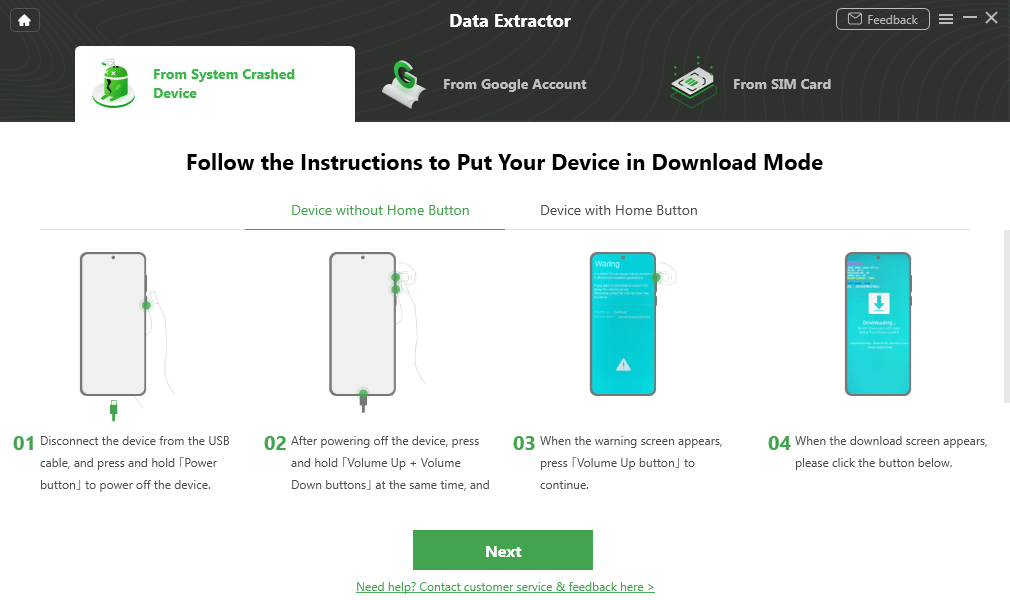
Put your Device in Download Mode
Step 5. After downloading and verifying the firmware, DroidKit will automatically start repairing your Android system. You will see the interface below as the process completes, and your Android device will be restarted.
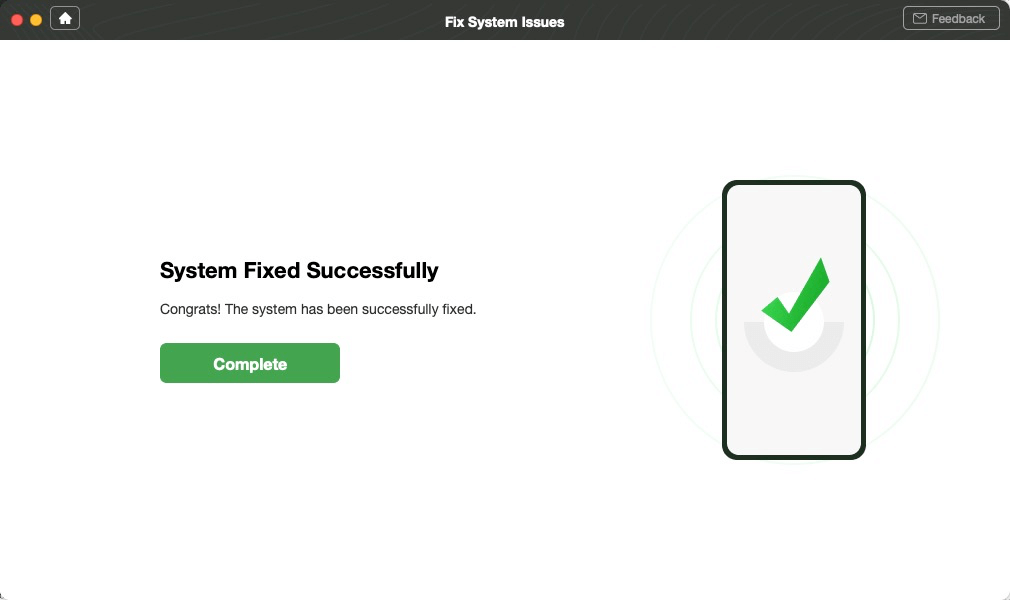
System Fixed Successfully
That’s all about using DroidKit to fix Android OS. It’s time to move ahead to the following practical fix.
Way 6. Reset Network Settings
You can effortlessly fix the issue of WiFi not working on a phone but working on other devices. To do this, you just need to reset your network settings. Here is how you can do it:
Steps to Reset Your Network Settings
The below steps will assist you in resetting your network settings.
Step 1. First, launch the Settings application, scroll down, and choose System.
Step 2. Secondly, tap the Reset options on the following screen.
Step 3. Finally, select the Reset Wi-Fi, mobile & Bluetooth options to reset your network settings.
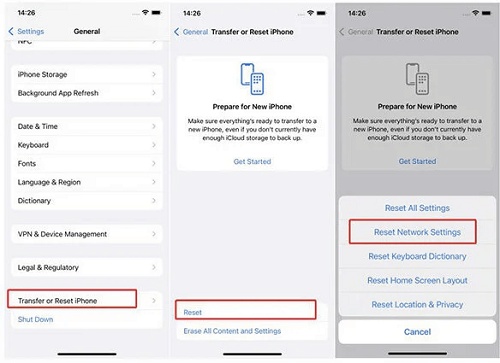
Check and Reset Network Connection
Now that we have discussed 06 easy fixes to resolve the issue. Let’s move to the next easy fix.
Way 7. Disabling Wi-Fi Networking Services
Another potential method is turning off WiFi networking services. To do this, open your phone’s networking services and follow the below steps.
- Open your mobile phone settings.
- Go to WiFi and tap the gear option or icon next to the network.
- Then, disable WiFi network services.
- Finally, check whether it is working or not.
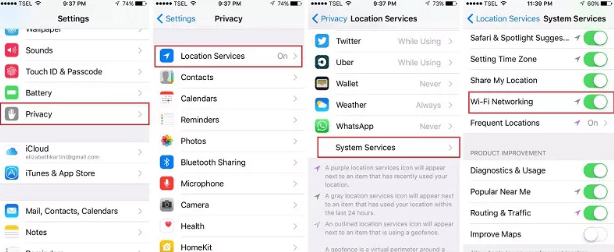
Disable WiFi Networking Service
We have covered everything about disabling WiFi networking services. Now, let’s move ahead to the next practical method to resolve the issue of WiFi not working on phones but working on other devices.
Way 8. Update iOS System
Are you an iPhone user, and is there an iOS update pending in your system? If yes, update your iOS system firsthand.
One of the main causes of WiFi not working on your phone but working on other devices is your iOS system not being updated.
Once you update your iOS, it will solve all the bugs that may cause WiFi problems.
Steps to Update the iOS System
- Below are the steps to update the iOS system.
- Open the Settings application on your iPhone and go to General.
- Click Software Update. If an update is available on iOS, download and install it.
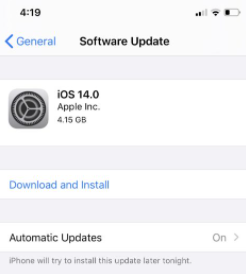
Update iOS System
4. Now, Tap on agree to accept the Terms and Conditions.
5. Finally, when the update is downloaded, tap on Install Now to install the update.
Let’s discuss the final solution to resolve the issue.
Way 9. Factory Reset iPhone
Sometimes, the best fix is to factory reset your iPhone. If you have tried each of the above solutions and they still don’t work, your best option is to factory reset your iPhone. Before you do that, recover your data first and then reset your phone.
Steps to Factory Reset Your iPhone
The following steps will help you reset your iPhone effortlessly.
Step 1. First, go to settings and hit the Rest option.
Step 2. Secondly, click on the factory reset option and proceed.
Step 3. After completely resetting your iPhone, connect it to Wi-Fi and check whether it still works.
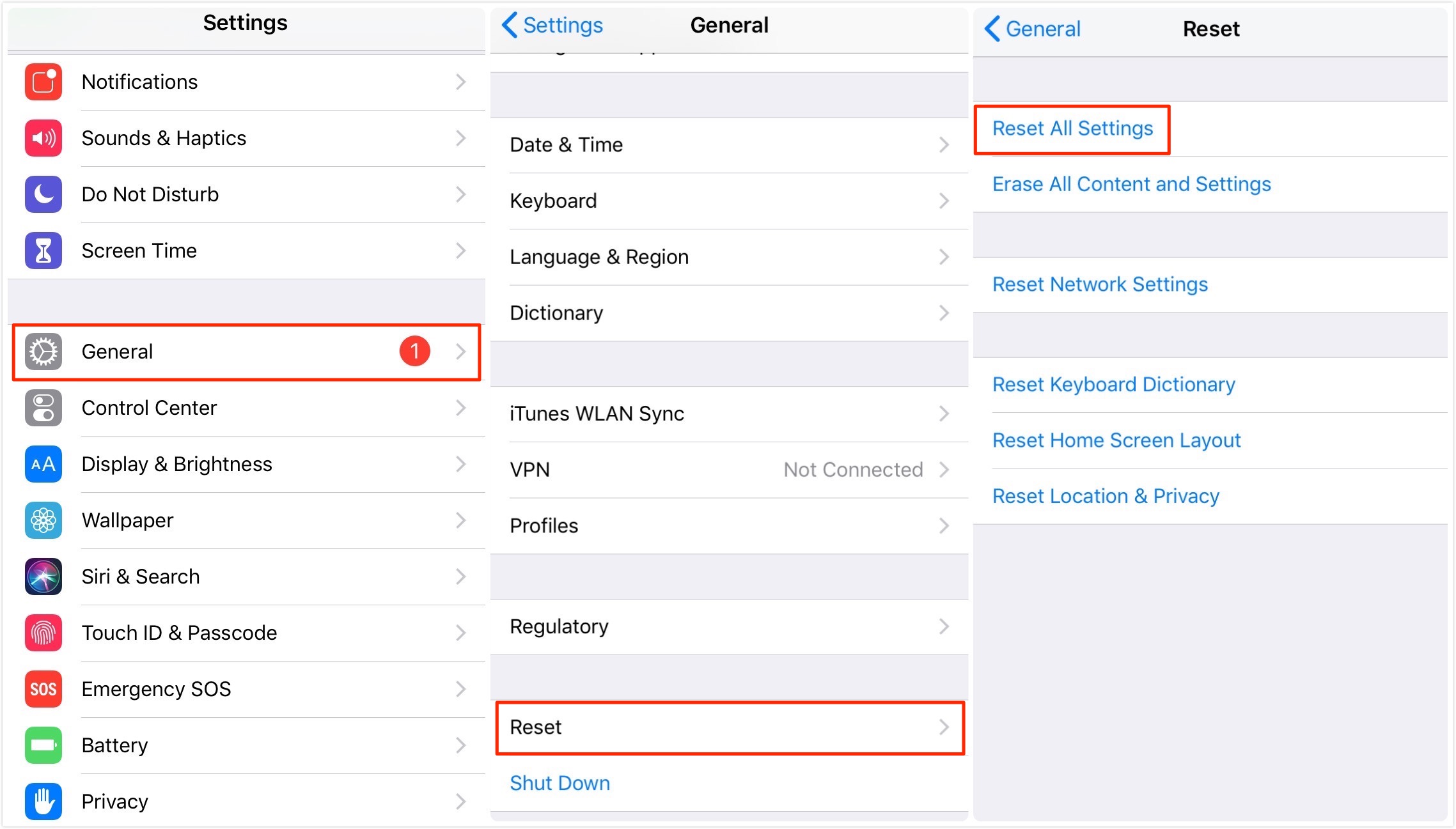
Reset All Settings on iPhone
So far, we have discussed all the 09 easy fixes. Next, let’s conclude our discussion.
Final Thought
WiFi is not working on phones but working on other devices can be annoying. These 9 easy fixes can help solve the issue, from forgetting the network to resetting your iPhone.
Consider using AnyFix for iPhone or DroidKit for Android for a more reliable solution.
These tools can quickly resolve WiFi connectivity problems and ensure your phone stays connected. Try these methods and enjoy uninterrupted internet on your phone again!
Free Download* 100% Clean & Safe
iOS System Repair
iPhone System Repair
- Latest Guide on Fixing iPhone Ear Speaker Not Working Issues
- How to Fix iPhone Keeps Turning On and Off [7 Ways]
- How to Fix iPhone Stuck on Hello Screen
- Your iPhone 12/11 Won’t Turn on – Here is What You Can Do to Fix It
- [Solved] iPhone Restore Error 1 in iTunes
- How to Fix iPhone Auto-Correct Not Working [7 Ways]
- 11 Quick Ways to Fix iPhone Freezing and Lagging [Solved]
- Why My iPhone Keeps Restarting & How to Fix It
- 9 Ways to Fix iPhone Screen Glitching and Flickering
- [Fixed] iPhone Stuck on Apple Logo Storage Full
- [Full Guide] How to Fix iPhone Update Stuck
- How to Fix iPhone Won’t Charge Past 80% [New!]
- Quick Fixes if your iPhone won’t Restore in Recovery Mode
- How to Renew Wi-Fi Lease on Your iPhone?
- How to Stop iPhone Camera from Shaking [New!]
- WhatsApp Keeps Crashing on iPhone? 7 Fixes
- Fix Apple ID Sign in Request Keeps Popping Up
- Fix Erase All Content and Settings Not Working
iPad System Repair
Other iOS System Recovery
- Why Is There a Blurry Square on My Screen?
- How to Solve Cannot Verify Server Identity Problem
- How to Downgrade iOS without SHSH Blobs [2026]
- How to Fix Weak Security Wi-Fi on iPhone
- Ultimate Guide to Fix Haptic Keyboard not Working
- How to Fix iMessage Waiting for Activation
- 8 Easy Ways to Fix iOS 16 Photo Cutout Not Working
- How to Fix iOS 17 Alarm Not Working [7 Ways]
- How to Fix “Last Line No Longer Available” Error
- How to Fix FaceTime Screen Share/SharePlay Not Showing
- 6 Ways to Fix Shared With You Not Showing
- [6 Way] Fix Unable to Complete Touch ID Setup
- [Solved] How to Fix Your SIM Sent a Text Message Issue on iPhone
- The Developer of This App Needs to Update It to Work? How to Fix



Senior writer of the iMobie team as well as an Apple fan, love to help more users solve various types of iOS & Android-related issues.
Product-related questions? Contact Our Support Team to Get Quick Solution >
