Lenovo Android 14 FRP Bypass: What to Do When TalkBack or OTG APK Fails
If your Lenovo tablet or phone is stuck on Google verification after a factory reset and TalkBack, OTG APK, or manual shortcuts no longer work on Android 14, your device may be blocked by a newer security patch. Here’s how to choose between official recovery, manual methods, and a supported PC-assisted workflow.
Quick Answer:
If TalkBack, OTG APK, or shortcut-based Lenovo FRP bypass methods fail on Android 14, your device is likely running a newer security patch that blocks older manual routes. Try official Google account recovery first. If you own the device and recovery is not possible, use a supported PC-assisted workflow instead of repeating risky APK or shortcut tricks.
Getting locked out of your own Lenovo tablet or phone after a hard reset can be frustrating. If your Lenovo device is stuck on the Google account verification screen after a factory reset, Factory Reset Protection (FRP) has been triggered. FRP is designed to prevent unauthorized access after a device is reset.
Many Lenovo users reach this page after they try to remove previously synced Google account from Android but cannot pass the setup screen. On Android 14, the process has changed significantly because many older TalkBack, OTG APK, and emergency shortcut methods have been patched.
This guide focuses on Lenovo Android 14 FRP bypass when TalkBack, OTG APK, or manual shortcut methods no longer work. For broader Lenovo models and general brand-level methods, you can also check the Lenovo FRP bypass guide.
Important: FRP bypass should only be performed on a device you legally own or have clear authorization to unlock. Standard FRP workflows may erase data or return the phone or tablet to a blank setup state.
- Check Official Google Account Recovery First
- Why TalkBack and OTG APK Methods Fail on Android 14
- What Should You Try Next?
- Manual OTG vs. Guided PC Workflow
- Lenovo Model Notes: Tab M10, Tab M11, K11 and More
- How to Use DroidKit for Supported Lenovo Devices
- What If Your Lenovo Device Is Not Recognized?
- Frequently Asked Questions
Step 1: Check Official Google Account Recovery First
FRP is not a normal screen lock. When you hard reset a Lenovo phone or tablet without first removing the previously synced Google account, Android asks for that same Google account during setup. This proves that the person setting up the device is the rightful owner.
Before looking for any bypass method, try the intended and safest route: recover the original Google account from another device.
Before-you-start checklist: official recovery options
- Step 1. Try the Google account and password that were previously synced to the Lenovo device.
- Step 2. Use Google’s account recovery page from a computer or another smartphone if you forgot the password.
- Step 3. Check whether the account is linked to a recovery email address or phone number.
- Step 4. If you bought a secondhand Lenovo tablet, ask the original owner to remove the device from their Google account.
- Step 5. If you have proof of purchase, contact Lenovo support, your carrier, or the seller for an official recovery route.
If you recently changed the Google account password, Android may require a waiting period before the Lenovo device accepts the new login details. If you still cannot login Google after factory reset, move through the next sections carefully instead of repeating random bypass tutorials.
Why TalkBack and OTG APK Methods Fail on Android 14
If you have spent hours watching videos about Lenovo FRP bypass, you may have seen methods using TalkBack, OTG cables, APK files, emergency call codes, or hidden settings shortcuts. These routes often worked only because older Android builds allowed users to jump from the setup screen into restricted system areas.
On Android 14, many of those loopholes are blocked. Lenovo tablets such as the Tab M10, Tab M11, K11, and similar models may refuse to open the required settings pages, block APK installation, or fail to trigger the shortcut shown in older tutorials.
Common signs that your manual method is patched include:
- TalkBack opens but cannot reach the needed settings or browser page.
- The OTG drive is detected but the APK cannot be installed.
- The emergency shortcut or code does nothing on your Lenovo model.
- The tutorial reaches a dead end because your Android 14 screen looks different.
- Free bypass tools online trigger virus warnings or fail to detect the device.
Manual tricks are not guaranteed to work because they depend on the exact Lenovo model, Android version, and security patch level. If you want to compare broader FRP routes before choosing a path, review the main Android FRP bypass methods guide.
What Should You Try Next?
If TalkBack, OTG APK, or emergency-code shortcuts no longer work, do not keep repeating the same tutorial. On Android 14, repeated failure often means your Lenovo security patch has already blocked that route. Use the table below to choose a safer next step.
| Your Situation | Recommended Next Step |
| You remember the original Google account. | Use official Google account recovery and sign in again after any required waiting period. |
| TalkBack shortcuts do not open the needed settings pages. | Stop repeating the TalkBack route. The shortcut is likely patched on your Android 14 build. |
| OTG APK installation fails or is blocked. | Avoid unverified APK downloads and move to official recovery or a supported PC-assisted workflow. |
| The device is a secondhand Lenovo tablet. | Ask the original owner to remove the device from their Google account or provide proof of purchase for support. |
| You own the Lenovo device but cannot recover the account. | Check whether a guided Android FRP tool supports your Lenovo model and security patch. |
Method Comparison: Manual OTG vs. Guided PC Workflow
Should you keep trying manual methods or switch to a computer-assisted workflow? The answer depends on your technical skill, device model, and security patch. For many Android 14 Lenovo users, a guided PC workflow is more structured than repeating outdated OTG or APK steps.
| Feature | Manual OTG / APK Methods | Guided PC Workflow |
| Complexity | High. Requires exact timing, OTG cable, and specific APK files. | Lower. Provides step-by-step instructions on a computer. |
| Prerequisites | OTG cable, USB drive, and APK files from third-party sources. | Windows or Mac computer and a standard USB data cable. |
| Best For | Older Lenovo builds with unpatched shortcut routes. | Users whose Android 14 manual methods are blocked. |
| Limitations | Often patched and may require risky APK downloads. | Requires confirmed device compatibility and a stable computer connection. |
| Risk Level | Higher if using unknown APK sources or outdated tools. | More structured, but still depends on model and security patch. |
For non-technical users who lack an OTG cable or are continuously blocked by Android 14 security patches, moving to a dedicated Android FRP bypass tool can be a more practical next step for a supported and authorized device.
How to Use DroidKit for Supported Lenovo Devices
If manual methods have failed and you have legal ownership of the device, using a dedicated PC toolkit can provide a more structured fallback. The DroidKit FRP Bypass module is designed for users who need guided instructions instead of risky APK downloads or complex manual shortcuts.
Prerequisites:
- A Windows PC or Mac.
- A working USB data cable.
- A stable internet connection.
- A Lenovo device you own or are authorized to unlock.
- Enough battery power to prevent disconnection during the process.
Data warning: FRP workflows may erase remaining data on the device or return it to a blank setup state. If the phone or tablet is already at the FRP screen after a factory reset, local data has usually already been wiped.
Step-by-step: how to use DroidKit for Lenovo FRP bypass
Step 1. Download and launch DroidKit on your Windows or Mac computer, then select the FRP Bypass module.
Step 2. Use a USB cable to connect your Lenovo Android 14 device to the computer.
Step 3. Follow the on-screen prompts to let DroidKit identify your device. Select the Lenovo brand and confirm the device family when prompted.
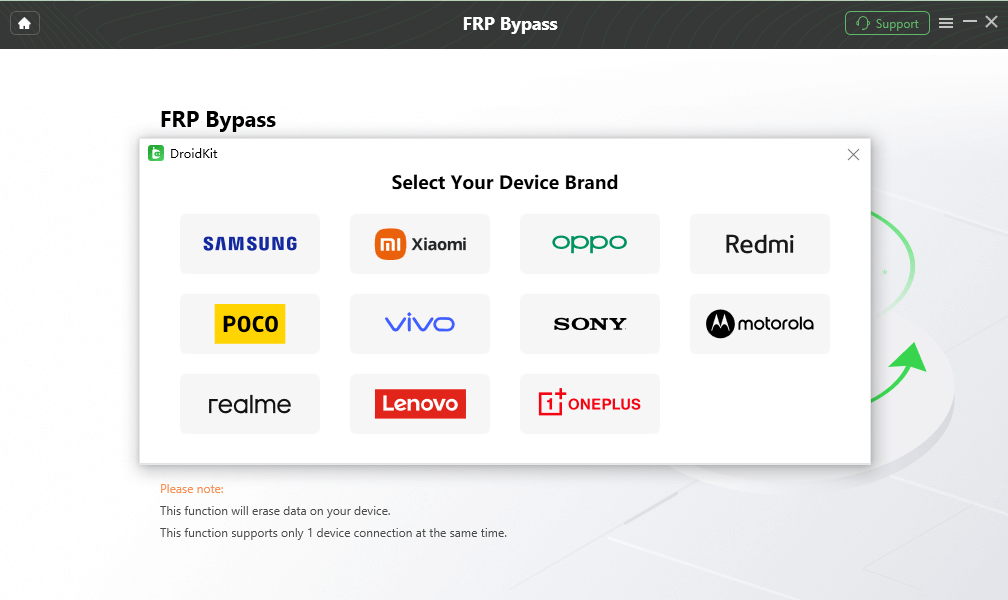
Step 4. Check whether your Lenovo model and Android 14 security patch are supported. Compatibility can vary, so do not assume every Lenovo device follows the same route.
Step 5. If supported, follow the guided instructions to put your device into the required mode and complete the FRP workflow.

Step 6. Wait for the process to finish. Your Lenovo device may restart and return to the setup screen so you can set it up again as a blank device.
Note: Success depends on the exact device model and Android security patch level. Always verify compatibility within the software first.
Troubleshooting: What If Your Lenovo Device Is Not Recognized?
Sometimes, your computer or FRP software may not recognize your Lenovo phone or tablet after you connect it. If you are stuck at the connection step while using a PC workflow, try these basic checks first.
- Check USB cable quality: Use a data transfer cable instead of a charging-only cable. The original Lenovo cable is usually the safest choice.
- Charge the device: Keep the Lenovo device above 50% battery before starting.
- Try another USB port: Plug the cable directly into a different USB port on your computer and avoid external USB hubs.
- Restart both devices: Restart the computer and reconnect the Lenovo phone or tablet.
- Check drivers: Make sure your computer has installed the required Lenovo USB drivers. Disconnecting and reconnecting the device may prompt the driver installation again.
- Confirm the mode: Follow the tool instructions carefully if it asks you to enter recovery, download, or another connection mode.
Frequently Asked Questions
How to bypass Google account on Lenovo Android 14 without PC?
Bypassing Lenovo Android 14 FRP without a PC is difficult because many TalkBack, OTG, and APK-based routes are patched. If the manual method fails, official recovery or a supported PC-assisted workflow is usually the safer next step.
Why is the TalkBack method not working on Lenovo Android 14?
The TalkBack method may fail because Android 14 blocks the shortcut routes older tutorials used to reach settings, browser pages, or hidden system activities during setup.
Why does the OTG APK method fail on Lenovo tablets?
The OTG APK method can fail if the Android 14 security patch blocks APK installation, hidden settings access, or file actions during the setup phase. Unknown APK sources may also be unsafe.
Does DroidKit support Lenovo FRP bypass?
DroidKit FRP Bypass supports many Android FRP scenarios, but Lenovo support depends on your exact model, Android version, and security patch. Check compatibility in the software before starting.
Will FRP bypass erase data on my Lenovo tablet?
FRP bypass workflows can erase remaining data or return the device to a blank setup state. If you are already stuck on the FRP screen after a factory reset, your local data has usually already been wiped.
What should I do if I bought a secondhand Lenovo tablet with FRP lock?
Ask the original owner or seller to remove the device from their Google account. If you have proof of purchase, contact Lenovo support, the carrier, or the seller for an official recovery path.
Do I need a computer to remove the Google account lock on Android 14?
Older Android versions sometimes allowed no-PC methods, but Android 14 often blocks those manual routes. A Windows or Mac computer is commonly needed for a supported PC-assisted workflow.
What is the safest first step for Lenovo Android 14 FRP?
The safest first step is official Google account recovery. Use bypass workflows only on devices you legally own or have authorization to unlock.
Final Verdict
Bypassing Google account verification on a Lenovo device running Android 14 is more difficult than on older Android versions. TalkBack, OTG APK, emergency shortcuts, and free APK tools may fail because Lenovo and Android security patches block the routes those tutorials depend on.
Your safest path is always official account recovery or support from the original owner, Lenovo, your carrier, or the seller. If those options are exhausted and you have authorized access to the device, a guided PC-assisted workflow can reduce the guesswork and help you avoid risky APK downloads.
For supported Lenovo models, DroidKit provides a structured FRP workflow with step-by-step instructions. Check compatibility first, then proceed only if the device is yours or you are authorized to unlock it.
More Related Articles


Roger Smith is a senior technical writer with years of experience in providing Android solutions. He loves to help users solve various problems such as Android unlock, Android data recovery, and Android system repair.
Product-related questions? Contact Our Support Team to Get Quick Solution >
