Tecno FRP Bypass 2026: MTK/Unisoc, No PC & Tool Guide
Tecno FRP bypass depends on your exact model, Android version, HiOS security patch, and chipset. This guide helps Tecno Spark, Camon and Pova users compare guided FRP tools, no-PC methods, VNROM/Open Direct routes, MTK/Unisoc advanced tools, and troubleshooting steps when older methods fail.
Being blocked by the Google account verification screen on your Tecno phone is frustrating, especially when you need access to your device quickly. This happens because of Factory Reset Protection, also known as FRP, which is designed to protect an Android phone after a factory reset.
This updated Tecno FRP bypass guide helps you choose the right method based on your Tecno model, Android version, HiOS security patch, and chipset. It covers Tecno Spark, Camon, and Pova phones, including MediaTek, Unisoc, no-PC methods, VNROM/Open Direct routes, advanced PC tools, and a guided FRP option when manual methods fail. Use these methods only on a device you own or are authorized to repair.
If you need a broader overview of FRP methods across different Android brands, start from this Android FRP bypass guide. If you are comparing tools before choosing one, see this best FRP bypass tool guide.
Table of ContentsHide
Quick Answer: Best Way to Bypass Tecno FRP
Tecno FRP Bypass Methods Compared
What You’ll Need Before You Begin
How to Check Your Tecno Phone’s Chipset: MTK vs. Unisoc
Method 1: Guided Tecno FRP Bypass Tool
Method 2: Tecno FRP Bypass Without a PC
- Guide 1: Android 14 or Latest HiOS Security Patch
- Guide 2: Android 12/13 XShare and Palm Store Method
- About VNROM and Open Direct for Tecno FRP
What If Tecno FRP Bypass Doesn’t Work?
Method 3: Advanced Tecno FRP Bypass Using PC Tools
Why Older Tecno FRP Bypass Methods Fail in 2026
Which Tecno FRP Method Should You Choose?
Conclusion
FAQs
Quick Answer: Best Way to Bypass Tecno FRP
The best Tecno FRP bypass method depends on your phone model, Android version, HiOS patch level, and chipset. Tecno phones may use MediaTek or Unisoc processors, and each chipset requires a different technical route.
| Your Situation | Best Method to Try | What to Know First |
| Tecno Spark, Camon, or Pova with a newer HiOS update | Guided PC-based FRP tool | Manual TalkBack, VNROM, or shortcut methods may already be blocked. |
| Older Tecno phone with Android 12/13 | XShare, Palm Store, or Activity Launcher route | May work only when the required app path is still available. |
| Tecno Android 14 or latest security patch | Try limited no-PC checks, then use a PC-based method if blocked | Most older no-PC tricks are unreliable on updated phones. |
| MediaTek Tecno phone | MTK driver and SP Flash Tool workflow | Advanced only; wrong scatter files or FRP addresses can damage the device. |
| Unisoc Tecno phone | SPD / Unisoc tool workflow | Requires correct drivers and model-specific firmware or tool package. |
Bottom line: Try official account recovery first. If that fails and you own the device, choose a method based on Android version and chipset instead of downloading random APKs or firmware files.
Tecno FRP Bypass Methods Compared
Use this comparison to avoid wasting time on a method that does not match your Tecno device.
| Method | Best For | Difficulty | Risk | Main Limitation |
| Guided FRP tool on PC | Most users with updated Tecno phones | Easy to Medium | Low to Medium | Requires a computer and supported device scenario. |
| No-PC manual methods | Older Android or less-patched HiOS versions | Medium to High | Medium | Often blocked by newer security patches. |
| VNROM or Open Direct route | Older devices where browser access still works | Medium | Medium to High | External APK or shortcut pages can be unsafe or patched. |
| MTK / SP Flash Tool | Advanced users with MediaTek Tecno phones | Hard | High | Needs exact scatter file, drivers, and FRP address. |
| Unisoc / SPD tools | Advanced users with Unisoc Tecno phones | Hard | High | Needs exact model files and correct connection mode. |
What You’ll Need Before You Begin
Before trying any Tecno FRP bypass method, prepare the basics. This reduces failure caused by wrong models, bad USB cables, or blocked app paths.
- Exact Tecno model number: For example, Tecno Spark 20, Spark 10, Camon 20, Camon 19, Pova 5, or Pova 6.
- Android version and HiOS version: Android 12, Android 13, Android 14, or newer versions may behave differently.
- Chipset information: Confirm whether the phone is MediaTek or Unisoc before using PC tools.
- A second unlocked Android phone: Required for some XShare or file-transfer routes.
- A Windows PC: Needed for advanced MTK/Unisoc tools and most guided FRP tools.
- A reliable USB cable: A poor cable is a common reason tools fail to detect the phone.
- Stable Wi-Fi: Needed during setup and many no-PC methods.
Safety reminder: FRP protects the previous Google account on the device. Continue only if the phone is yours or you have explicit repair authorization.
How to Check Your Tecno Phone’s Chipset: MTK vs. Unisoc
Tecno FRP bypass depends heavily on the processor. Tecno phones commonly use MediaTek or Unisoc chipsets, and the required tools are different. Using an MTK tool on a Unisoc model, or an SPD tool on an MTK model, will fail and may cause software problems.
| Tecno Series | Possible Chipset Type | What It Means for FRP |
| Tecno Spark series | MediaTek or Unisoc, depending on model and region | Check exact model before choosing MTK, SPD, or no-PC methods. |
| Tecno Camon series | Often MediaTek, but not always | MTK tools may apply only after confirming the chipset. |
| Tecno Pova series | Often MediaTek in many models | Advanced MTK workflows may require drivers and model-specific files. |
| Older Tecno entry models | May use Unisoc / Spreadtrum | SPD / Unisoc tools and drivers may be required for advanced methods. |
The easiest way to check is to search your exact model with “specs” or “chipset.” For example, search “Tecno Camon 20 specs” or “Tecno Spark 20 chipset.” Look for the “Platform” or “Chipset” section before choosing a method.
Method 1: Guided Tecno FRP Bypass Tool
If your Tecno phone is running a newer Android version, or if manual methods are missing key options, a guided PC-based FRP tool can be a practical next step. A tool like DroidKit provides on-screen instructions and avoids searching for random APK files, firmware packages, or unsafe mirrors.
This method is useful when:
- Your Tecno phone runs Android 13, Android 14, or a newer HiOS security patch.
- TalkBack, XShare, Palm Store, VNROM, or Open Direct routes fail.
- You want a guided workflow instead of chipset flashing.
- You do not want to guess which firmware or driver package is safe.
Free Download * 100% Clean & Safe
How to Bypass Tecno FRP with DroidKit
Step 1. Download and install DroidKit on your Windows or Mac computer.
Step 2. Launch the software and choose FRP Bypass mode from the dashboard.
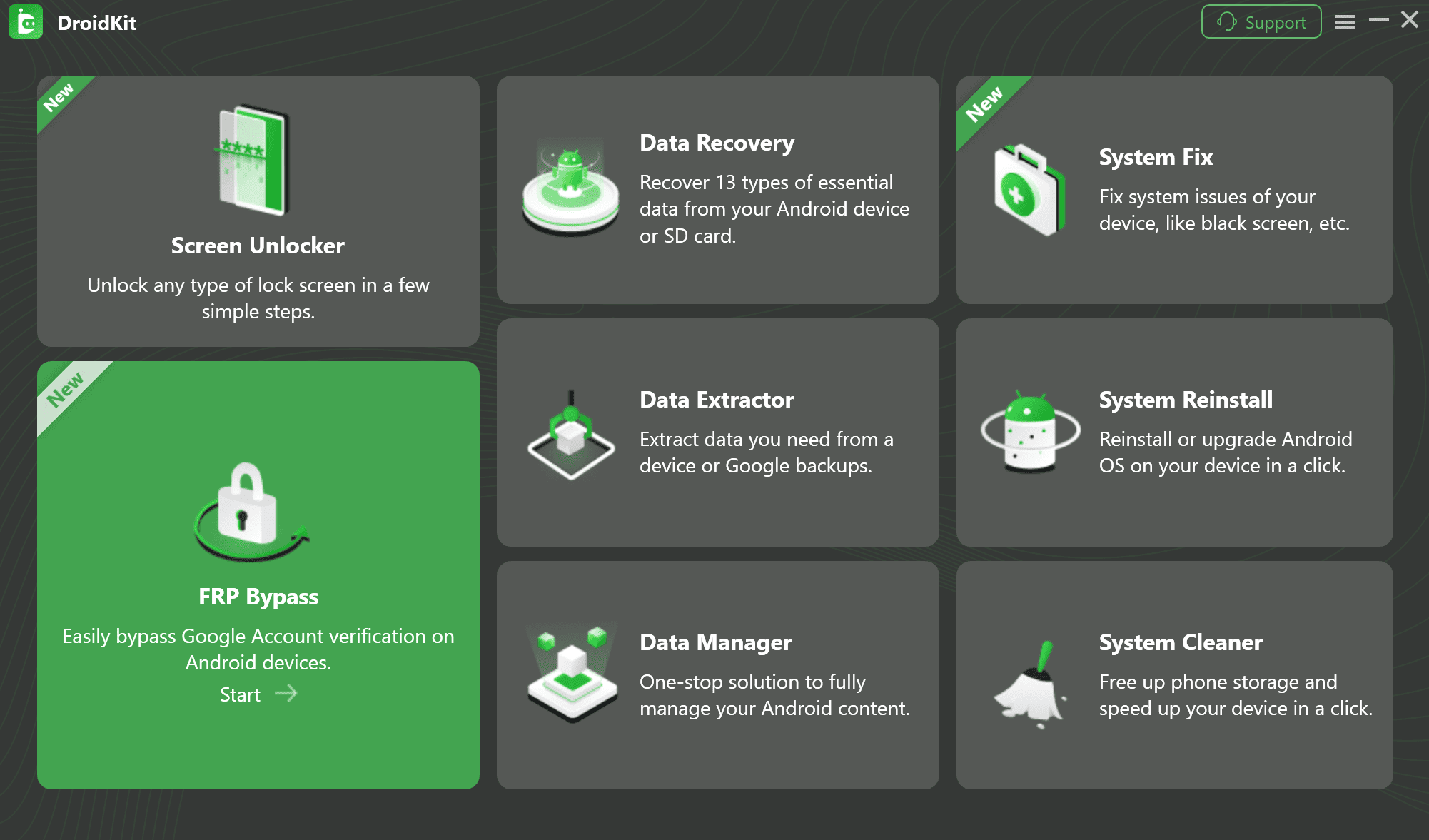
FRP Bypass Feature
Step 3. Connect your locked Tecno phone to the computer with a stable USB cable and click Start.
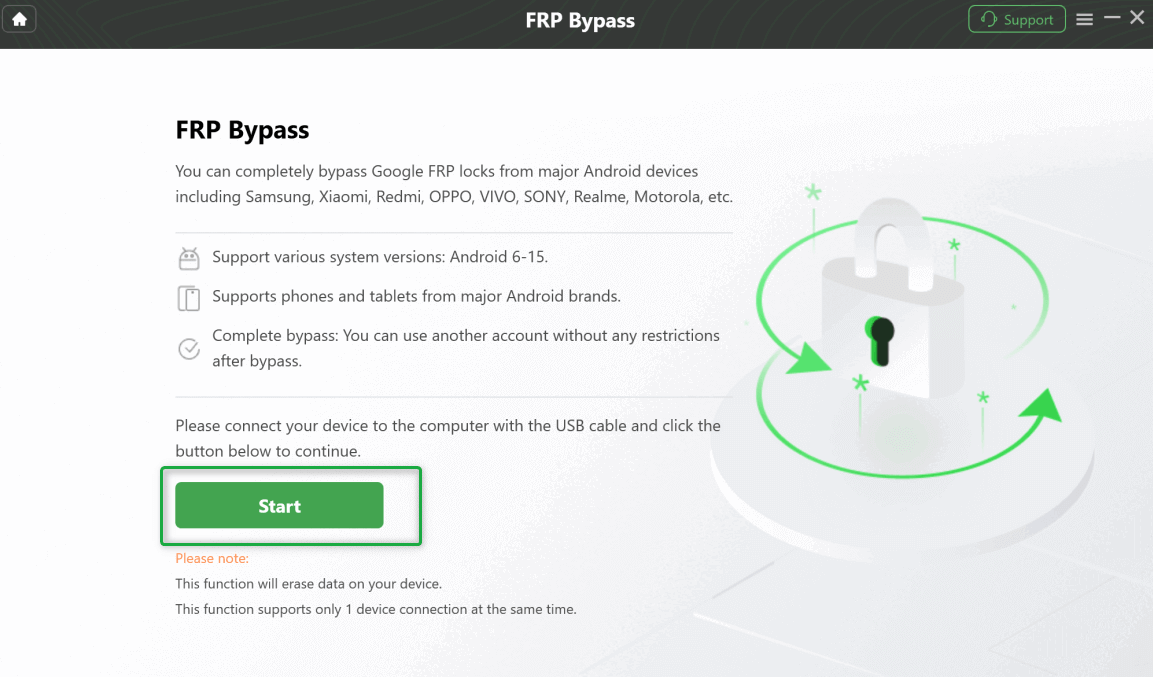
Connect Your Phone and Start the Process
Step 4. Let DroidKit prepare the required configuration file. Follow the on-screen instructions carefully to put your Tecno phone into the required mode.
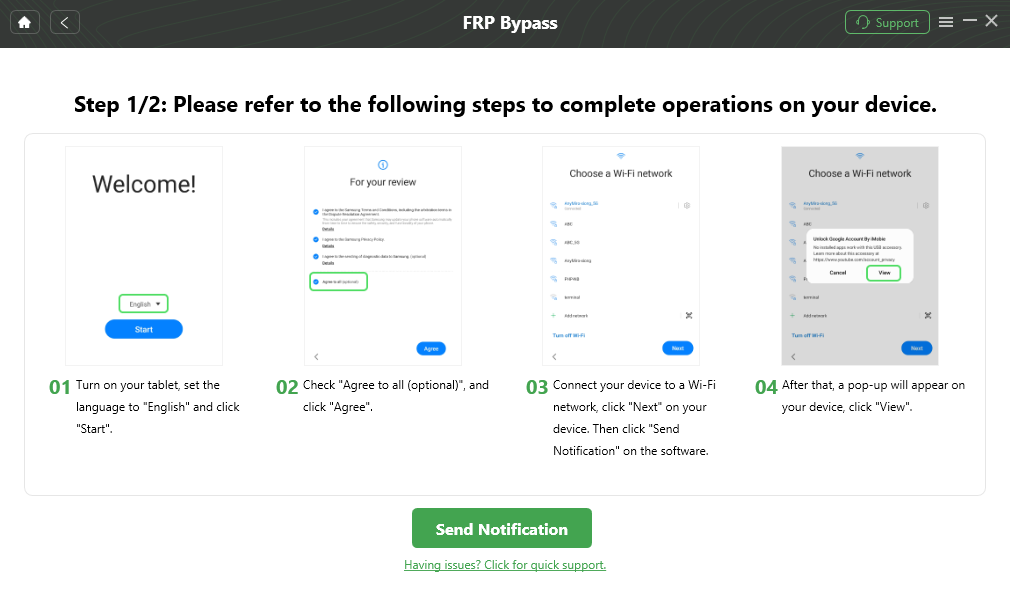
Follow the Instructions to Complete the Corresponding Settings
Step 5. Wait while the software completes the FRP workflow. When the process finishes, restart your Tecno phone and set it up again.
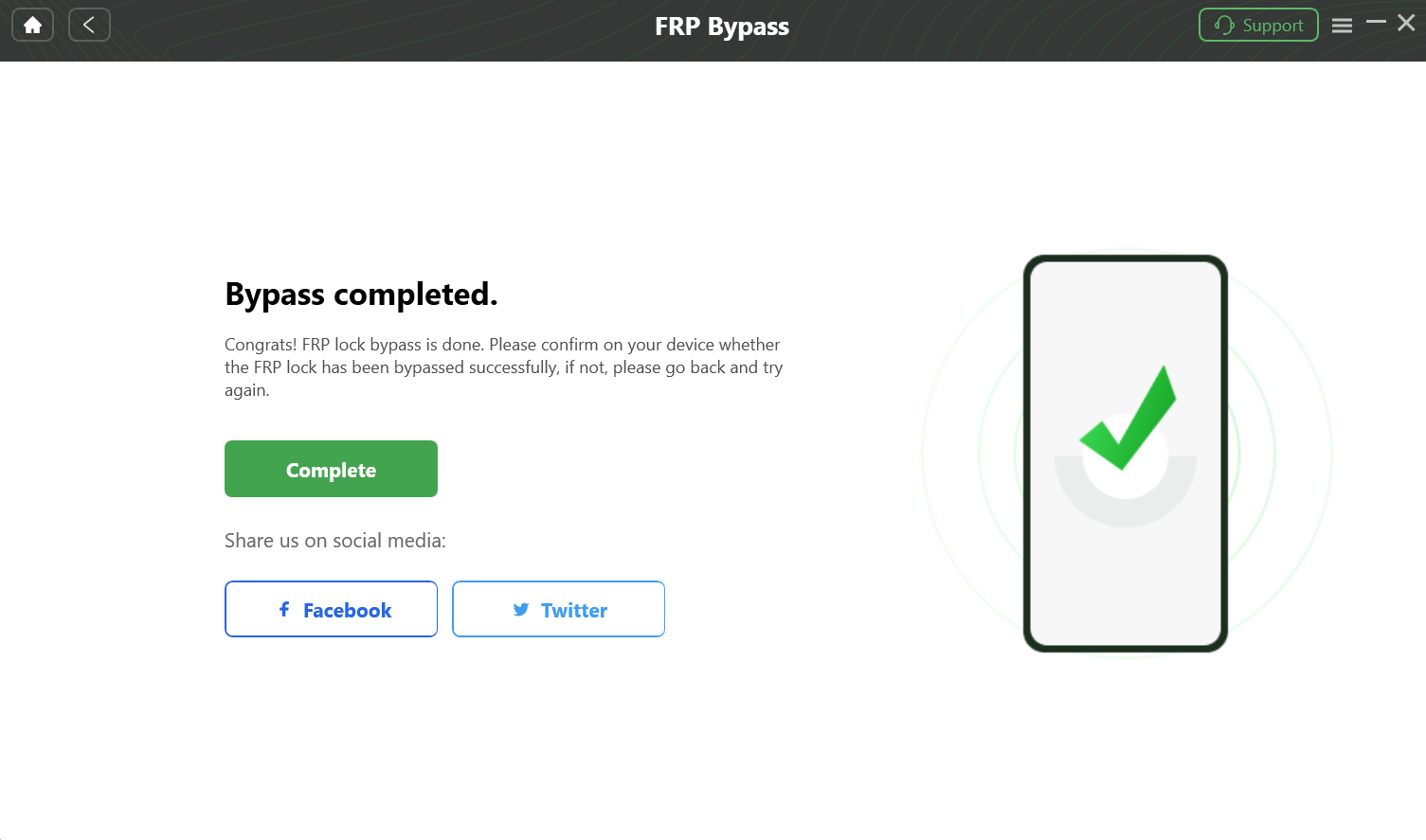
Complete the FRP Bypass
Method 2: Tecno FRP Bypass Without a PC
Tecno FRP bypass without a PC is possible in limited situations, but these methods are less stable because they depend on Android and HiOS loopholes. If a menu, app, or shortcut shown in a guide is missing on your phone, the method is probably patched.
Guide 1: Android 14 or Latest HiOS Security Patch
This route is often mentioned for newer Tecno Spark devices, but it is not guaranteed. Try it only if you can still access the required TalkBack or Assistant path.
Step 1. Connect the Tecno phone to Wi-Fi and return to the welcome screen.
Step 2. Press and hold Volume Up + Volume Down to try enabling TalkBack.
Step 3. If TalkBack opens, draw a reverse “L” gesture and choose the voice command option if available.
Step 4. Try saying Open Google Assistant, then Open Chrome.
Step 5. If Chrome opens, use only trusted pages. Avoid downloading random FRP APK files from unverified sources.
Step 6. If you can reach a screen lock or Smart Lock setup page, set a new PIN or pattern and restart the phone.
Step 7. If the phone still asks for the previous Google account, this route does not work for your patch level.
Guide 2: Android 12/13 XShare and Palm Store Method
Some Tecno users try the XShare, Palm Store, or Activity Launcher method on Android 12 or Android 13. This may work only when HiOS still allows app transfer and activity launch during setup.
Step 1. On the Wi-Fi screen, tap Add Network if available.
Step 2. Try using the share option to open XShare Mini or a similar Tecno sharing feature.
Step 3. On a second unlocked Android phone, install Activity Launcher from a trusted source.
Step 4. Send Activity Launcher to the locked Tecno phone through XShare if the transfer path is available.
Step 5. Open Activity Launcher on the locked Tecno phone and search for a setup-related activity.
Step 6. If the correct setup activity opens, continue setup carefully. If the app cannot install or launch, the method is likely blocked.
About VNROM and Open Direct for Tecno FRP
Queries like VNROM bypass Tecno Spark and Open Direct FRP Tecno usually refer to shortcut pages or APK-based routes used to open browser, settings, screen lock, or account screens during setup. These methods may work only when the locked phone can still open a browser and install or trigger the required shortcut.
| Route | When It May Work | Risk / Limitation |
| VNROM bypass page | Older Tecno phones where browser access is still available. | External pages and APK files may be unsafe or patched. |
| Open Direct / Open Settings shortcut | Devices where setup still allows hidden activity or settings access. | Often blocked by newer Android and HiOS patches. |
| FRP APK files | Legacy devices with unknown-source installation still available. | High file-safety risk and low reliability on newer versions. |
If you are considering APK-based methods, read this FRP bypass APK safety guide first. Do not install APKs from suspicious mirrors or files flagged by security tools.
What If Tecno FRP Bypass Doesn’t Work?
If Tecno FRP bypass does not work, do not keep repeating the same method. First identify why it failed.
| Problem | Likely Cause | What to Try Next |
| Browser cannot open | Setup Wizard blocks browser access. | Use a different method that does not rely on browser shortcuts. |
| XShare or Palm Store route is missing | HiOS update patched the loophole. | Stop using that method and check a PC-based option. |
| APK will not install | Unknown-source installation is blocked or the APK is incompatible. | Avoid random APK copies and compare safer FRP options. |
| PC cannot detect the Tecno phone | Wrong USB driver, bad cable, or wrong connection mode. | Install the correct MTK or Unisoc driver and try another USB cable. |
| SP Flash Tool or SPD tool fails | Wrong chipset, wrong firmware, or incorrect FRP address. | Verify exact model and chipset before trying again. |
| Google verification still appears after reboot | The method does not match the phone’s patch level. | Use a supported guided method or troubleshooting path. |
For a deeper failure diagnosis, see this FRP bypass not working guide.
Method 3: Advanced Tecno FRP Bypass Using PC Tools
Advanced Tecno FRP bypass methods are for experienced users only. They may require drivers, firmware files, scatter files, FRP addresses, PAC files, and chipset-specific tools. Using the wrong file can cause boot errors or make the phone unusable.
Warning: Do not use MTK or Unisoc flashing tools unless you know your exact model and chipset. These methods are not recommended for beginners.
For MediaTek Tecno Phones: SP Flash Tool
Step 1. Install the correct MediaTek USB or VCOM drivers on your Windows computer.
Step 2. Confirm your Tecno model uses a MediaTek chipset.
Step 3. Use a trusted flashing utility such as SP Flash Tool.
Step 4. Find the correct scatter file and FRP address information for your exact Tecno model.
Step 5. Follow only model-specific instructions. Do not guess FRP addresses or use files from another Tecno model.
For Unisoc Tecno Phones: SPD / ResearchDownload Tools
Step 1. Install the correct SPD / Unisoc USB drivers.
Step 2. Confirm the phone uses a Unisoc or Spreadtrum chipset.
Step 3. Prepare a trusted Unisoc servicing tool and, if required, the exact PAC firmware package for your model.
Step 4. Connect the powered-off Tecno phone in the required mode, often by holding a volume key while plugging in USB.
Step 5. Use only the FRP-related function that matches your tool and model. Avoid full flashing unless you understand the risk.
Why Older Tecno FRP Bypass Methods Fail in 2026
Older Tecno FRP bypass methods often fail because Google and Tecno continue to patch setup loopholes through Android and HiOS security updates. A tutorial may still look correct, but the menu path may no longer exist on your phone.
Common reasons include:
- Setup Wizard blocks access to Chrome, Settings, or app activities.
- TalkBack no longer opens the old voice command route.
- XShare, Palm Store, or Activity Launcher paths are restricted.
- FRP APK files are blocked by system security or Play Protect.
- USB debugging is unavailable after factory reset.
- MTK or SPD tools fail because the wrong chipset driver is installed.
When this happens, switching to another random copy of the same APK rarely helps. Choose a method based on your model, Android version, and chipset instead.
Which Tecno FRP Method Should You Choose?
Use this decision table to choose a realistic next step.
| User Type | Recommended Path | Why |
| Beginner who wants the clearest path | Guided FRP tool | Reduces driver, APK, and chipset guesswork. |
| User with an older Tecno phone and no PC | No-PC manual method | Worth trying if the required menus still appear. |
| User searching VNROM or Open Direct | Check browser access and APK safety first | These routes may be patched or unsafe on newer devices. |
| Advanced repair user with exact model files | MTK or Unisoc PC tools | Powerful but risky if the files or addresses are wrong. |
| Repeated failure after several methods | Troubleshooting + supported guided fallback | The security patch may have blocked the old method. |
Conclusion
Tecno FRP bypass in 2026 depends on your exact model, Android version, HiOS patch, and chipset. Tecno Spark, Camon, and Pova phones may require different methods, especially when MediaTek and Unisoc models are involved.
Manual no-PC methods, VNROM/Open Direct routes, and APK-based tricks can still be worth checking on older phones, but they often fail on updated devices. Advanced MTK and Unisoc tools are powerful but risky. For most users who want a clearer path, a guided FRP tool is the safer and more practical option when supported.
Free Download * 100% Clean & Safe
FAQs
Q1. How can I check if my Tecno phone uses MediaTek or Unisoc?
Search your exact Tecno model with “specs” or “chipset.” Look for the chipset name in the platform section. MediaTek models usually require MTK tools, while Unisoc or Spreadtrum models require SPD / Unisoc tools.
Q2. Can I bypass Tecno FRP without a PC?
Yes, but only in limited cases. No-PC methods depend on old setup loopholes, browser access, XShare, Palm Store, TalkBack, or Activity Launcher routes. These are often blocked on newer HiOS security patches.
Q3. Does VNROM bypass work on Tecno Spark?
It may work only on older Tecno Spark phones where browser access and shortcut routes are still available. On newer Android or HiOS versions, VNROM-style methods are often blocked.
Q4. What is Open Direct FRP on Tecno?
Open Direct usually refers to shortcut routes that try to open Settings, Smart Lock, or account-related screens during setup. These routes are highly patch-dependent and may not work on updated Tecno phones.
Q5. Why is the XShare method not working on my Tecno phone?
If XShare, Palm Store, or Activity Launcher paths are missing or blocked, your Tecno phone likely has a newer HiOS security update that closed the loophole.
Q6. Can I recover data after Tecno FRP bypass?
No. The factory reset that triggered FRP has already erased the data. FRP bypass restores access to the phone; it does not recover deleted files.
Q7. Are Tecno FRP APK files safe?
Not always. APK files from unknown mirrors may be outdated, modified, or unsafe. Scan files before opening them and avoid suspicious installers or forced download buttons.
Q8. Does Tecno provide an official FRP unlock tool?
Tecno does not provide a public FRP bypass tool. The official route is account recovery or visiting an authorized service center with proof of ownership.
More Related Articles


Roger Smith is a senior technical writer with years of experience in providing Android solutions. He loves to help users solve various problems such as Android unlock, Android data recovery, and Android system repair.
Product-related questions? Contact Our Support Team to Get Quick Solution >
