How to Organize iPhone App 2026-Stepwise Guide
If you’re facing difficulties managing apps on your iPhone, this post offers you some of the best organizer apps for iPhone so you can manage the content and apps on your iPhone in a much better and enhanced way. Read on to find out what those apps are.
If you are searching for an iPhone app organizer solution, first decide what you actually want to organize. For arranging installed app icons and Home Screen pages, Apple’s built-in tools are usually the best starting point. A desktop app manager becomes more useful when you want to organize a large Home Screen from a computer, preview layouts on a larger display, or back up and restore a Home Screen arrangement.
Quick answer:
Use App Library if you want automatic categories, folders if you want your own categories, and Focus + Home Screen pages if you want different layouts for work and personal use. If you prefer organizing a large number of app icons from a computer, AnyTrans Home Screen Manager is another option. Older tools such as iTunes app-layout management and AppButler should be treated as legacy methods rather than current iPhone organizer recommendations.
Further Reading: How to Fix Can’t Delete Apps on iPhone >
Part 1. Is there an iPhone App Organizer?
Yes, but “iPhone app organizer” can mean two different things. If you mean organizing the actual apps and icons on your iPhone Home Screen, iOS already provides system-level organization tools. Many App Store products described as “organizers” instead organize tasks, photos, calendars, or family schedules and cannot replace Apple’s Home Screen controls.
Which iPhone App Organizer Should You Use?
| Your Goal | Best Option | Computer Needed? | Main Limitation |
| Automatically categorize installed apps | App Library | No | You cannot fully customize Apple’s automatic categories. |
| Create your own app groups | Manual Folders | No | Requires manual setup and maintenance. |
| Show different app pages for work/personal contexts | Focus + Home Screen Pages | No | Best for context switching, not automatic sorting. |
| Organize many app icons from a larger computer screen | AnyTrans Home Screen Manager | Yes | Requires Windows/macOS and a device connection; compatibility should be checked first. |
| Arrange apps with old iTunes Apps/Home Screen view | Legacy iTunes only | Yes | Modern iTunes no longer provides the old app-layout workflow. |
| Use AppButler-style custom spacer/category icons | Legacy AppButler | No | Old third-party app; current App Store availability/support is unclear. |
1. The App Library
Best for: Automatically organizing and finding apps without installing anything.
App Library is Apple’s built-in app organizer. On current iOS versions, swipe left past your final Home Screen page to open it. iOS automatically sorts installed apps into categories such as Social, Utilities, and other groups, and frequently used apps can appear more prominently based on usage.
Pros:
- Automatically categorizes installed apps.
- Built-in search makes it easy to find apps even when they are not on the Home Screen.
- You can remove an app from the Home Screen without deleting it from the iPhone.
- You can choose whether newly downloaded apps appear on the Home Screen or only in App Library.
- Free and built into current iOS versions.
Cons:
- Apple controls the automatic App Library categories; you cannot fully redesign them yourself.
- It is designed for finding and decluttering apps rather than creating a custom visual Home Screen layout.
Step 1. Open App Library
From the Home Screen, swipe left until you reach the App Library.
Step 2. Find an App
Tap the search field at the top or browse the automatically generated categories.
Step 3. Declutter Your Home Screen
Touch and hold an app on the Home Screen, then use the removal option to keep it in App Library without deleting the app when that option is available.
Step 4. Choose Where New Apps Appear
Open Settings > Home Screen & App Library and choose whether newly downloaded apps should be added to the Home Screen or App Library only.
Step 5. Hide Unneeded Home Screen Pages
Enter Home Screen edit mode, tap the page dots, then select which Home Screen pages you want to show. This is useful when App Library already gives you access to apps you rarely use.
2. The Manual Folders
Best for: Users who want complete control over categories such as Work, Games, Finance, Travel, or Shopping.
Folders remain one of the simplest ways to organize iPhone apps because you decide exactly which apps belong together and where each folder appears.
Pros:
- Complete control over how apps are grouped.
- Easy to rename and reorganize as your needs change.
- Built into current iOS versions and requires no computer or third-party app.
Cons:
- Requires manual setup and ongoing maintenance.
- Large numbers of folders can become another form of clutter.
- App Library or Spotlight search may be faster when you have hundreds of installed apps.
Step 1. Enter Edit Mode
Touch and hold the Home Screen background until the apps begin to jiggle.
Step 2. Create a Folder
Drag one app onto another. iOS creates a folder containing the two apps.
Step 3. Add More Apps
Drag related apps into the folder.
Step 4. Rename the Folder
Open the folder and edit its name so the category is meaningful to you.
Step 5. Finish
Tap Done or otherwise exit Home Screen editing on your iPhone model.
Organization tip: Keep categories simple. Four to eight useful folders such as Work, Money, Travel, Media, Shopping, Health, and Utilities are usually easier to maintain than dozens of narrowly defined folders.
3. Using Focus Mode
Best for: Showing different Home Screen pages for work, personal time, sleep, fitness, or other contexts.
Focus does not automatically sort app icons. Its value as an app organizer is that you can associate a Focus with specific Home Screen pages, allowing you to show a work-oriented layout at work and a different set of pages during personal time.
Pros:
- Lets you use different Home Screen pages for different contexts.
- Works together with notification controls to reduce distractions.
- Uses Apple’s built-in iOS features instead of another organizer app.
Cons:
- Does not automatically move apps into folders.
- Requires some setup if you want separate Work and Personal pages.
Example: A Work Home Screen might contain Mail, Calendar, Notes, Teams/Slack, and business apps, while a Personal page might contain social, shopping, entertainment, and travel apps.
To set it up, open Settings > Focus, choose or create a Focus, and configure the Home Screen/pages shown for that Focus according to the options available on your iOS version.
4. Using AnyTrans – The Best App Organizer for iPhone
Best for: Users who want to organize a large Home Screen from a Windows PC or Mac rather than dragging icons one by one on the iPhone.
AnyTrans includes a Home Screen Manager with an Arrange Home Screen workflow. It can display your iPhone Home Screen on the computer, provide organization options, preview a proposed layout, and sync the chosen arrangement back to a supported device.
This makes it different from App Store productivity organizers: AnyTrans is a desktop iPhone-management application rather than an iPhone app that independently controls other apps.
Pros:
- Lets you work with the Home Screen from a larger computer display.
- Provides Arrange Home Screen and preview options for supported devices.
- Can organize apps using available layout/category options in Home Screen Manager.
- Also provides separate iPhone app/data management features outside Home Screen organization.
Cons:
- Requires a Windows PC or Mac and a connection to the iPhone.
- It is not an App Store app that reorganizes the Home Screen directly on the iPhone.
- Feature/device compatibility can differ by AnyTrans version and iOS version, so check current compatibility before downloading specifically for Home Screen Manager.
- Some AnyTrans functions can have free-version or licensing limits.
When AnyTrans makes sense: If you only have a few folders to create, Apple’s built-in Home Screen tools are simpler. AnyTrans is more relevant when you have many apps, prefer working from a computer, or also want Home Screen backup/restore and other iPhone-management functions.
Follow the steps below to organize iPhone apps on a computer:
Step 1: Download AnyTrans and launch it on your computer. Connect your iPhone, then open Home Screen Manager.
Get AnyTrans * Desktop required for Home Screen Manager
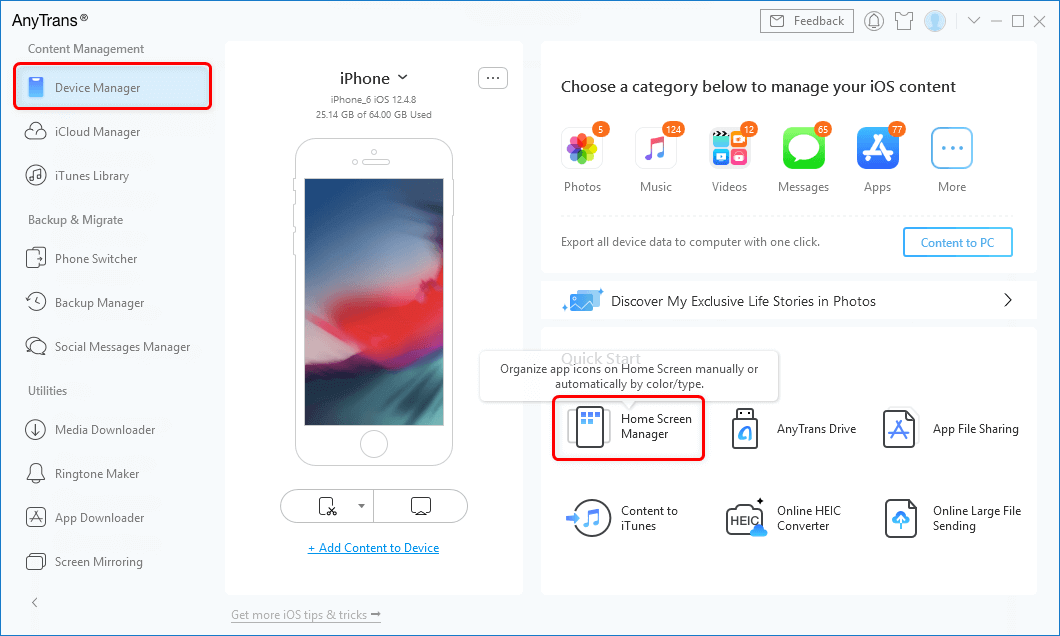
Open Home Screen Manager in AnyTrans
Step 2: Click Arrange Home Screen.
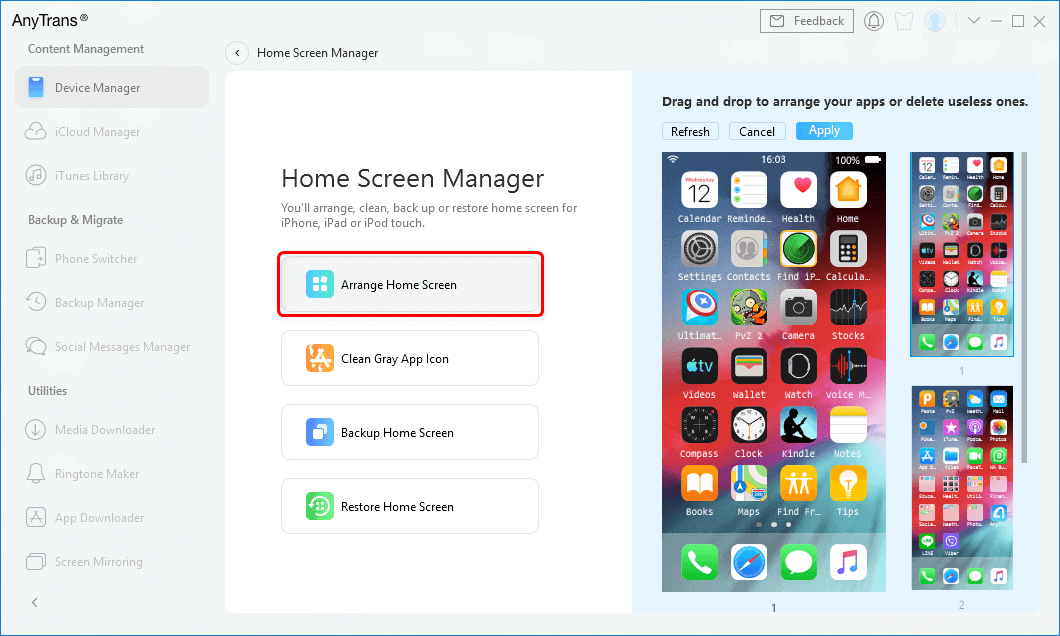
Click Arrange Home Screen
Step 3: Review the organization options available in your current AnyTrans version, preview the proposed Home Screen, and click Sync to Device only when you are satisfied with the arrangement.
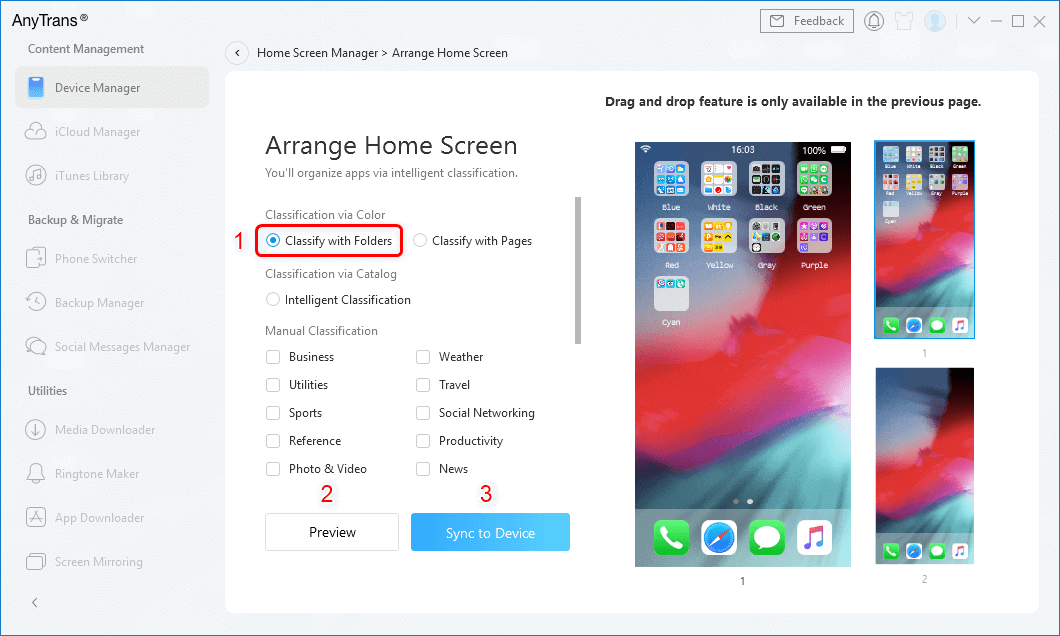
Preview the Home Screen Arrangement Before Syncing
Home Screen Manager also includes separate options for supported workflows such as Backup Home Screen and Restore Home Screen. These are more relevant to this article than unrelated content-management features.
5. iTunes – App Organizers for iPhone(for iTunes 12.7 and earlier)
Legacy option: Old versions of iTunes once allowed users to rearrange iPhone app icons and Home Screen pages from a computer. This is useful historical information because many older tutorials still describe that workflow, but it is not a current iPhone app-organizing method.
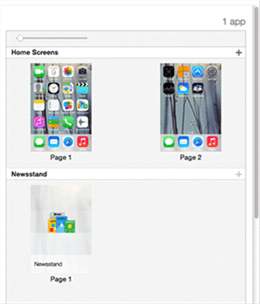
Legacy iTunes App Organization Interface
Pros of the old workflow:
- Allowed app icons and pages to be rearranged from a computer.
- Provided a larger-screen view of the Home Screen layout.
Cons:
- The Apps/App Store management workflow was removed from newer iTunes versions.
- Downloading the current iTunes version will not restore the old app-arranging interface.
- It should not be selected as a current organizer solution for an up-to-date iPhone.
Do not install current iTunes expecting to organize iPhone app icons. Use the built-in iOS methods above or a current tool that explicitly provides Home Screen management.
6. AppButler – An App Organizer for iPhone
Legacy option: AppButler appears in older iPhone organizer-app lists as a utility for creating category, number, spacer, and custom-style icons for Home Screen layouts. However, current reliable App Store availability and active maintenance are not clear. The available third-party listings point to an old version rather than a current iOS 26 app.
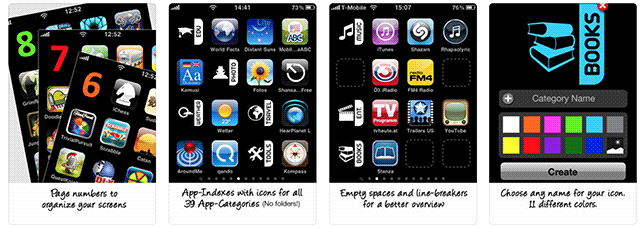
AppButler – Legacy iPhone Home Screen Organizer
Pros:
- Historically offered visual category and spacer-style tools for custom Home Screen layouts.
- Useful as an example of older Home Screen customization techniques.
Cons:
- Current App Store availability and active support are unclear.
- It should not be recommended as a primary organizer for a current iOS 26 device without first verifying availability.
- Its older icon-based workflow is not equivalent to modern system-level Home Screen management.
Can an App Automatically Organize Other Apps on iPhone?
Not in the way many users expect. An ordinary App Store productivity app does not get unlimited permission to rearrange every other app icon on your Home Screen. For automatic categorization, App Library is the main built-in iPhone solution. For custom icon placement and folders, use Home Screen editing. A desktop device manager can provide a separate computer-based workflow if it explicitly supports Home Screen arrangement.
Part 3. Further Reading: Other Organizer Apps for iPhone
The phrase “organizer app” is also used for task, photo, and family-planning apps. These are useful products, but they solve a different problem from the main query of this article: organizing installed iPhone apps and the Home Screen.
| If You Want to Organize… | Examples | What They Do |
| Tasks and reminders | Apple Reminders, Todoist, TickTick | Organize to-dos, projects, reminders, and routines—not app icons. |
| Photos | Apple Photos, Google Photos, Mylio, Slidebox | Organize or search photo libraries—not the Home Screen. |
| Family schedules | Cozi, FamilyWall, TimeTree | Coordinate calendars, lists, and family plans—not installed apps. |
If your goal is specifically to clean up your iPhone Home Screen, return to App Library, folders, Focus/Home Screen pages, or the computer-based option above instead of choosing a task or photo organizer.
Bonus Tip. Backup Apps on iPhone with AppTrans
This is a separate use case from arranging Home Screen icons. If by “app management” you actually mean backing up, restoring, or transferring supported apps/app data, AppTrans is designed for app backup and transfer workflows rather than Home Screen organization.
For this page’s main topic, use App Library, folders, Focus, or AnyTrans Home Screen Manager first. Consider AppTrans only when your goal changes from organizing the Home Screen to backing up or transferring apps.
Frequently Asked Questions and Answers
1. Is there an app organizer for iPhone without a computer?
Yes. You can organize iPhone apps without a computer using App Library, folders, Home Screen page controls, and Focus. App Library automatically categorizes apps, while folders give you manual control.
2. Can an app automatically organize apps on iPhone?
App Library automatically categorizes installed apps. A normal third-party App Store productivity app generally should not be treated as a system-level tool that can freely rearrange every other app icon on your Home Screen.
3. What is the best free app organizer for iPhone?
For most users, the best free options are the tools already built into iOS: App Library for automatic categories, folders for custom groups, and Focus/Home Screen pages for context-based layouts.
4. Can I organize iPhone apps from a computer?
Older iTunes versions once supported app-layout management, but modern iTunes no longer provides that workflow. AnyTrans currently documents a separate Arrange Home Screen feature for supported devices.
5. How do I organize hundreds of apps on iPhone?
Start by removing rarely used icons from the Home Screen while keeping the apps in App Library. Keep only your most-used apps on one or two Home Screen pages, use a small number of broad folders, and use App Library search for the rest. If you prefer a large-screen workflow, consider a current computer-based Home Screen manager.
6. Can I create different iPhone Home Screens for work and personal use?
Yes. Focus can be configured with specific Home Screen pages so that work-oriented pages are shown during a Work Focus and personal pages can be used in another context.
7. Does App Library automatically organize apps?
Yes. Apple automatically places apps into App Library categories. You can search and browse these categories, but you cannot fully customize the category structure yourself.
8. Can iTunes still organize iPhone apps?
Not with the modern iTunes workflow. The old Apps/Home Screen arrangement feature belongs to legacy iTunes versions and should not be recommended as a current method.
The Bottom Line
The best app organizer for iPhone depends on how much control you need. App Library is the easiest option for automatic organization, folders are best for custom categories, and Focus can show different Home Screen pages for different parts of your day. These built-in methods are free and should be the first choice for most users.
If you have many app icons and prefer arranging your Home Screen from a computer, AnyTrans Home Screen Manager is a different type of organizer worth considering. Check that the Home Screen Manager feature supports your current device/iOS setup before downloading it specifically for that purpose.
AppTrans
- Transfer all kinds of formats of photos from computer to your iPhone.
- With original size with no loss of picture quality and no compression.
- Lightning fast speed to transfer 100 photos in 3.4 seconds.
- No erase of previous photos on your iPhone, 100% clean & safe.
Free Download100% Clean & Safe
Free Download100% Clean & Safe
Free Download * 100% Clean & Safe
More Related Articles



Joy Taylor is a seasoned technical writer with over a decade of experience in mobile technology. At iMobie, she specializes in producing in-depth content on iOS data recovery, iPhone unlocking solutions, and iOS troubleshooting.
Product-related questions? Contact Our Support Team to Get Quick Solution >
