Stepwise Guide to Recover iPhone Permanently Deleted Photos-5 Ways
iPhone deleted photos can be recovered in the Recently Deleted folder within 30 days. If the photos are permanently deleted, you can recover them from an iCloud backup or iTunes backup. Without a backup, you can also try some iPhone data recovery tools to get back the lost photos. Check this article and learn how to recover iPhone photos with or without a backup.
Vital iPhone Data Recovery Tips
iPhone Contact Recovery
iPhone Message Recovery
iPhone Photos Recovery
PhoneRescue for iOS – Recover Permanently Deleted Photos on iPhone
PhoneRescue for iOS helps you recover deleted photos after deleting from the recently deleted, or recover permanently deleted photos on iPhone with/without backup. [iOS 26]

Where do Permanently Deleted Photos Go on iPhone?
I recently found that some of my photos on my iPhone disappeared, and I am wondering where permanently deleted photos go on an iPhone? Although I had deleted them from my “Recently Deleted” album, I still cannot find them in my Photos app or iCloud.
I am worried that they are gone permanently and cannot be recovered. I have tried searching for solutions online, but have not found a clear answer. I would appreciate any insight into where these photos may have gone and if there is any way to retrieve them.
-Apple Community User case
Accidentally deleting important photos and then finding they’re gone from the Recently Deleted folder is a common scenario. Many people ask: “Can Apple Support recover permanently deleted photos?” The short answer is: the iPhone keeps deleted photos in the Recently Deleted album for 30 days, during which you can restore them. After that 30-day window, the photos are removed from the device and the Recently Deleted album and are considered permanently deleted — Apple Support cannot directly restore them for you.
Don’t panic just yet. There are still several possible recovery methods depending on your situation (for example, whether you have backups). This guide walks you through step-by-step recovery options for permanently deleted iPhone photos with or without backup.
Part 1. Where Do Permanently Deleted Photos Go on iPhone?
When you delete a photo on iPhone, it first goes into the Recently Deleted folder for 30 days. But if you deleted photos from the Recently Deleted Folder, the photos go beyond user access but may still be retrievable in the iPhone’s internal storage until overwritten. If your photos were synced to iCloud, they might still exist in your iCloud accounts unless deleted there, too.
Even though these photos are marked as gone, they can often still be recovered before being fully overwritten. After that, the system will remove it permanently from your gallery. Technically, the file space is marked as “available,” but the data may still exist on your device until it’s overwritten by new content. That’s why many users turn to PhoneRescue for iOS — a professional iPhone data recovery tool that quickly scans and brings back permanently deleted photos.
Free Download * 100% Clean & Safe
Part 2. Can You Really Recover Permanently Deleted Photos on iPhone Without Backup?
The short answer is Yes — but only in certain conditions. Once you delete photos from your iPhone and remove them from the “Recently Deleted” album, they disappear from the Photos app completely. If you have an iCloud, iTunes, or Finder backup, you can restore it. But without a backup, your recovery options become very limited.
Many online guides can be confusing because they mix up “with backup” and “without backup” solutions. To make things clear, here’s how it actually works:
- If you have a backup:
You can restore the photos through iCloud, iTunes, or Finder. - If you don’t have a backup:
Your only possibilities are checking the Recently Deleted folder (within 30 days) or using a third-party recovery tool that scans the device’s internal storage directly.
Part 3. How to Recover Permanently Deleted Photos on iPhone Without Backup
If you don’t have an iCloud or iTunes backup, your best option is to scan the iPhone’s internal database before the deleted files are overwritten.
Method 1. Recover iPhone Deleted Photos in the Recently Deleted Albums
| ✅Best For: Photos deleted within the past 30 days and still in the Recently Deleted folder ❎Limitations: Photos deleted beyond 30 days or manually emptied from this folder can’t be restored this way |
In the Photos app, you can find the Recently Deleted folder under Albums. This folder will keep your deleted photos on your iPhone for 30 days. During this time, you can recover deleted photos directly without restrictions.
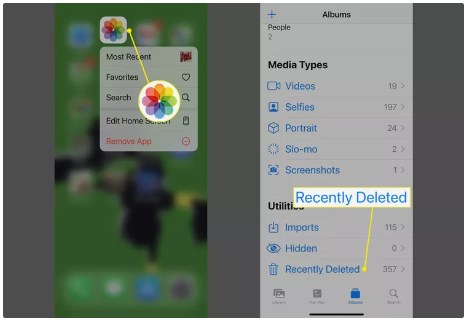
How to recover photos from “Recently Deleted” on iPhone
Once you click Restore, the photos will be restored to your gallery. Here are the steps:
Step 1. Open the Photos app on the iPhone. Then tap on Albums.
Step 2. Scroll down and choose the Recently Deleted folder.
Step 3. Tap Select in the upper-right corner. Then select Recover All, or select the individual photos you want to recover.
Method 2. Recover Permanently Deleted Photos on iPhone Easily-PhoneRescue
| ✅Best For: Users without iCloud or iTunes backups who need to recover photos deleted from the Recently Deleted folder. ❎Limitations: Requires third-party software; success depends on whether data has been overwritten. |
In the Recently Deleted folder, you can permanently delete the photos or videos on your iPhone. After that, you can use a backup or iPhone data recovery tool to recover permanently deleted photos on your iPhone. PhoneRescue for iOS, a powerful iPhone data recovery tool designed specifically to solve data backup and recovery problems. It uses advanced data recovery technology to efficiently retrieve photos that have been removed from the Recently Deleted folder.
Besides, PhoneRescue for iOS supports recovering multiple data types, including text messages, contacts, videos, application data, etc., to fully protect your data security and integrity.
Key features of PhoneRescue for iOS:
- Recover permanently deleted photos from iPhone even without a backup.
- No damage to existing data and no need to restore your iPhone.
- Adopt advanced scanning algorithms to quickly locate and recover deleted photos and other data.
- Preview and restore photos directly from iTunes or iCloud backup.
- After multiple iterations and optimizations, it has the highest success rate.
- It has helped millions of iOS users successfully recover lost data.
Free Download * 100% Clean & Safe
Detailed Steps to recover permanently deleted files from iPhone:
Step 1. Download PhoneRescue for iOS and run it on your computer > Connect your iPhone with a USB cable. Choose Recover from iOS Device and continue. It allows you to directly recover lost data from iPhone and iPad.
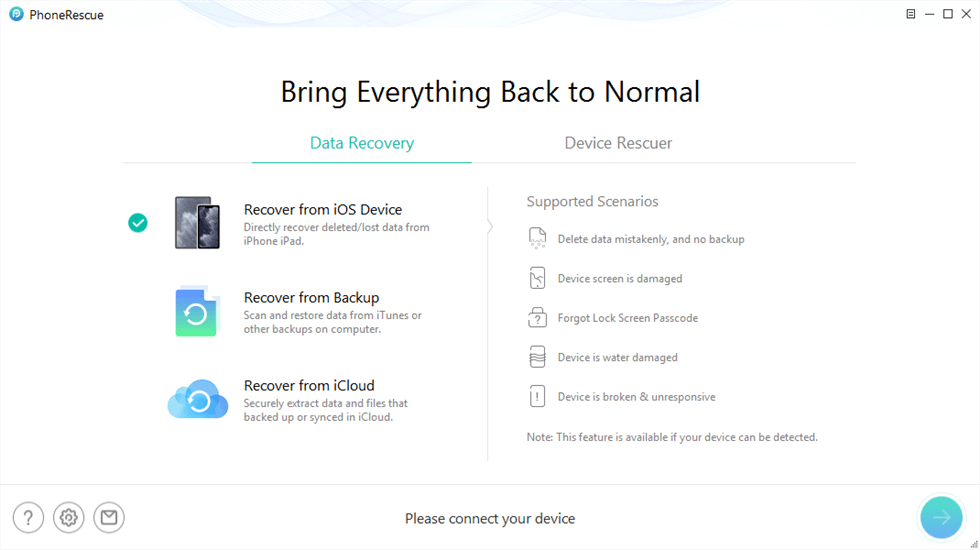
Recover from iOS Device without Backup
Step 2. Select Photos to scan and hit the Continue button to start the process.

Scan All the Photos on iPhone
Step 3. Preview what photos are deleted > Select photos > Click the To Device/Computer button to recover selected photos.
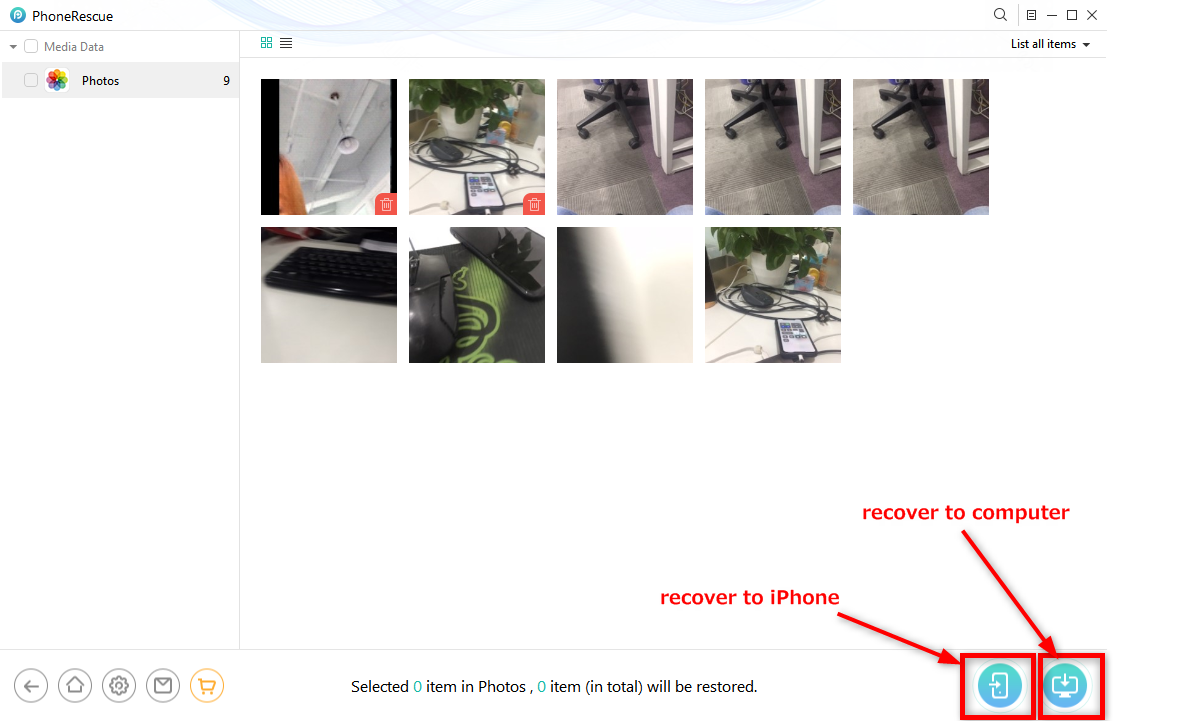
Recover Deleted Photos without Backup to Computer or iPhone
Preview and recover permanently deleted photos from backup with PhoneRescue:
What’s more, Phonerescue for iOS allows you to preview photos from iTunes backup or iCloud backup, so you can choose to recover what you need. For example, if you have iCloud backup, you can connect your iPhone and choose Recover from iCloud as below:
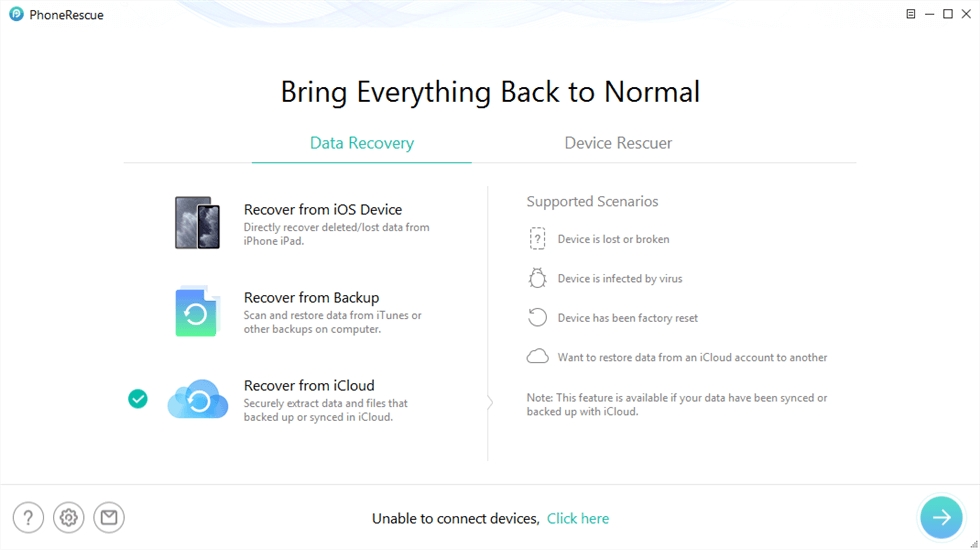
Click Recover from iCloud Function
Then select an iCloud backup > Check Photos only and click the OK button to download the backup.
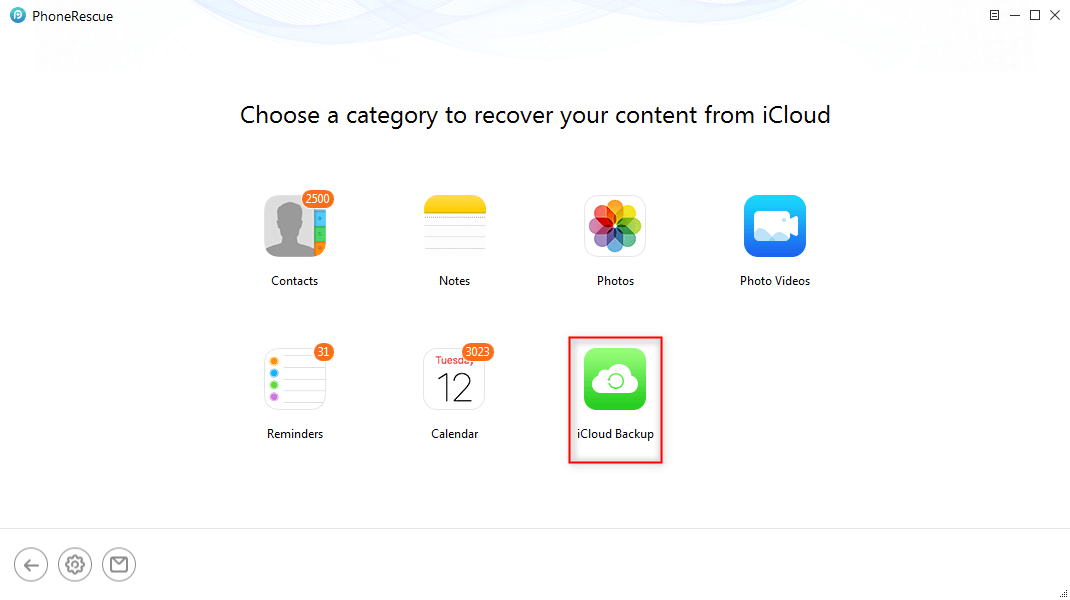
Select iCloud Backup
After the process is completed, access the iCloud backup to view the photos. Choose the photos you want to recover.
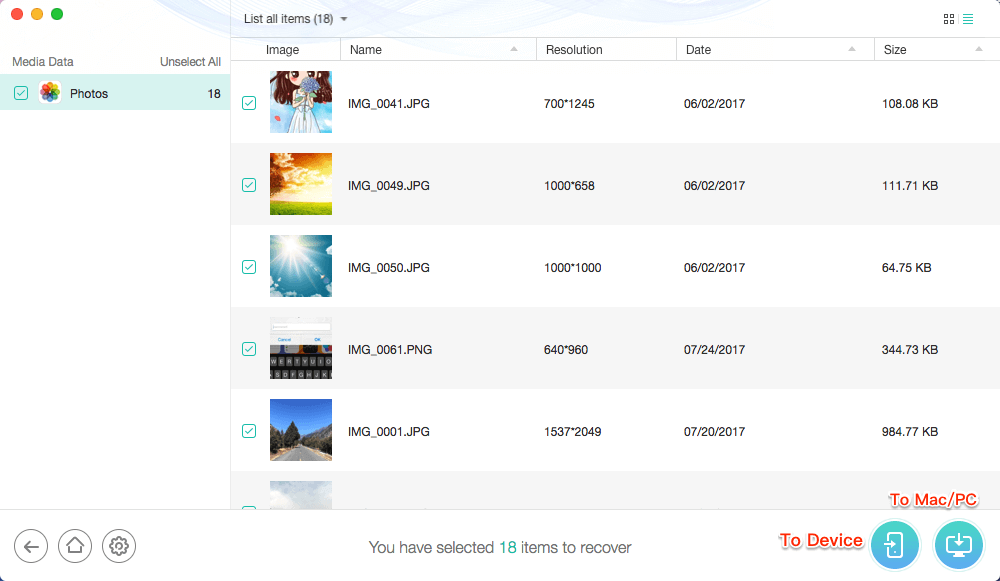
How to Retrieve Photos from iCloud Backup
Part 4. How to Recover Permanently Deleted Photos on iPhone with Backup
If you have the iTunes backup or iCloud backup, things will be much easier. You can recover the deleted photos on iPhone via the previous backup.
Method 1. Recover Permanently Deleted Photos from iTunes Backup
| ✅Best For: You have regularly backed up iPhone to iTunes before deleting photos ❎Limitations: Restoring from iTunes backup overwrites current iPhone data |
iTunes is a good choice for iOS users to do the backup. You can check if you have already backed up your deleted iPhone photos to iTunes before losing them. If you did, you can recover permanently deleted photos on iPhone using the iTunes backup. Check the steps below:
Step 1. Connect your iPhone to the computer and open iTunes. iTunes will open automatically if you have backed up your iPhone to this computer.
Step 2. Click on your iPhone icon.
Step 3. Click on the Restore Backup.
Step 4. Get the backup that contains the photo you want to recover and click on the Restore.
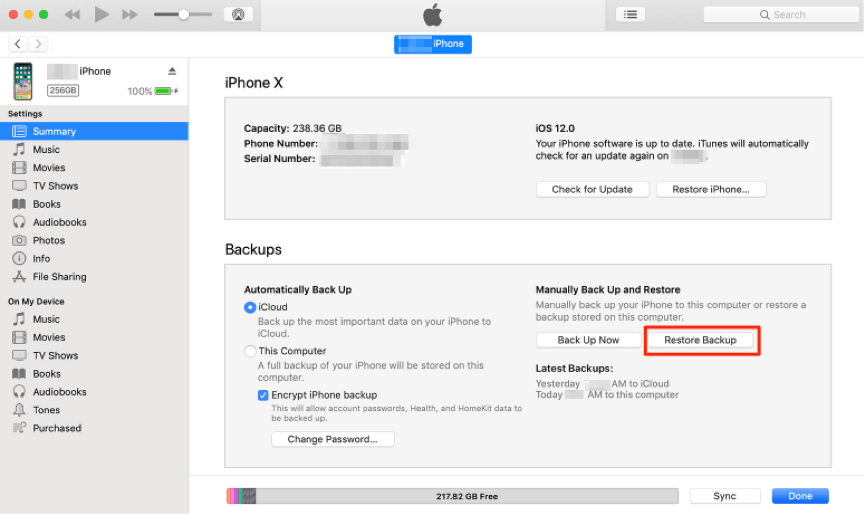
Restore Photos from iTunes Backup to iPhone
Method 2. Recover Permanently Deleted Photos from iCloud Backup
| ✅Best For: You have iCloud backups before photo deletion and iCloud Photos enabled ❎Limitations: Restoring iCloud backup erases current phone data; ensure important data is backed up separately |
Similar to iTunes, iCloud backup can help you get back the deleted photos on your iPhone. And it can be more straightforward. Here are the steps to restore permanently deleted photos from iCloud backup:
Step 1. Check iCloud Photos: Make sure you have iCloud Photos enabled. If so, your photos are automatically uploaded to iCloud and may be available there.
Step 2. Restore a backup: Go to Settings > General > Reset > Erase All Content and Settings, then choose to restore from iCloud backup after your device restarts.
Restoring a backup will erase all data currently on your device, so make sure you have backed up important data before doing this.
That’s how you can restore iCloud photos on an iPhone directly. If you’d like to download iCloud photos to a PC, you can go to the iCloud website and sign in with your Apple ID, then tap Photos to find and recover the deleted photos.
Method 3. Recover Permanently Deleted Photos with Finder [macOS Catalina and Later]
| ✅Best For: Mac users with backups and macOS Catalina+; prefer Finder syncing over iTunes ❎Limitations: Similar to iTunes, restoring backup overwrites device data |
On macOS Catalina and later, there is no iTunes, and you need to use Finder to sync your iPhone data. Here is how to use Finder to restore deleted photos to your iPhone:
Step 1. Connect your iPhone to your Mac.
Step 2. On your macOS Catalina 10.15 or above, open Finder.
Step 3. Click on your iPhone in the left-hand menu when it appears. Then Click “Restore Backup…”
Step 4. Choose a backup and click “Restore.”
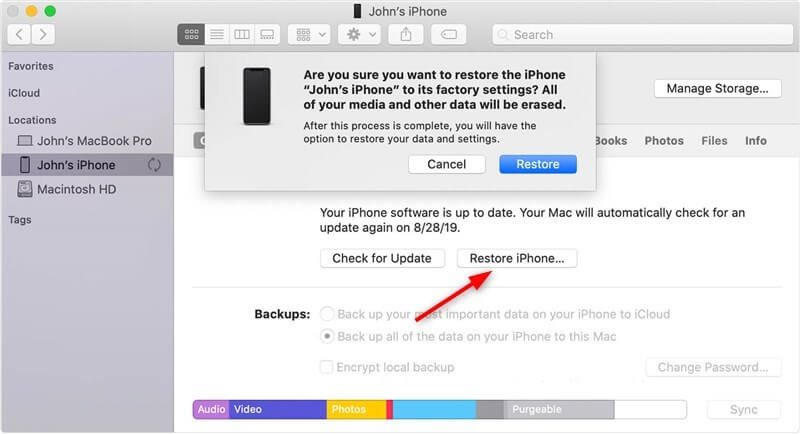
Restore iPhone Photos with Finder
However, recovering photos from iTunes backup will overwrite all the data you have on your iPhone now. So you are suggested to view and extract photos from iTunes backup using PhoneRescue for iOS.
Part 5. Bonus Tip. How to Find Hidden Photos on iPhone
Sometimes, your photos are missing because of a hidden status rather than a permanent deletion. As a result, you can try to find hidden photos on your iPhone and check if the photos are gone. Here are the steps to check hidden photos on iPhone:
Step 1. Open the Photos app, and go to the Albums tab.
Step 2. Tap Hidden under Utilities.
Step 3. Select the photo or video that you want to unhide.
Step 4. Tap the More button and choose Unhide.
Then the hidden photos or videos will show in your gallery. You can decide to keep or delete them at your convenience.
Part 6. Which Method Should You Choose?
| Method | Best Use Case | Limitations | Data Overwrite Risk? |
| Recently Deleted Folder Recovery | Deleted within the last 30 days | Must be within 30 days & not emptied | No |
| PhoneRescue for iOS | No backup & permanently deleted photos | Recovery success depends on the data state | No |
| iTunes Backup | Have iTunes backup | Overwrites current data | Yes |
| iCloud Backup | Have iCloud backup | Overwrites current data | Yes |
| Finder Backup | Mac users with Catalina+ | Overwrites current data | Yes |
If you don’t have any backups or want to avoid data loss risks, PhoneRescue for iOS is the top choice for iPhone permanently deleted photos recovery. It allows selective, safe recovery without affecting your existing files and works even after emptying Recently Deleted.
Free Download * 100% Clean & Safe
Part 7. FAQs About Permanently Deleted Photos on iPhone
1. Is it possible to recover permanently deleted photos from an iPhone?
You can’t recover permanently deleted photos from an iPhone directly, but you can use an iPhone photo recovery tool or a backup to get back the photos.
2. Are permanently deleted photos really deleted on iPhone?
It depends on where you make the deletion. If you delete the photos in the Recently Deleted folder, they are really deleted on iPhone. But if you have the photos backed up in iCloud, they are still available to restore. If you delete the photos in iCloud, they will be removed on other synced devices too.
3. How do I recover permanently deleted photos on iPhone?
You can use an iTunes backup, iCloud backup, or a third-party cloud backup such as Dropbox or Google Drive to retrieve permanently deleted photos on an iPhone. If you don’t have a backup, PhoneRescue for iOS is recommended to get back your permanently deleted photos on iPhone.
The Bottom Line
There are 5 methods available to recover deleted photos on iPhone. You can choose your preferred one to try, including how to recover permanently deleted photos on iPhone. Using iTunes, iCloud backup, or syncing data in Mac Finder will provide a chance to regain access to your permanently deleted photos. Moreover, PhoneRescue for iOS is more reliable if you don’t have any backups. Don’t hesitate to download and use PhoneRescue for iOS to recover lost iPhone photos in easy steps.
PhoneRescue – iPhone Photo Recovery
- Recover permanently deleted photos on iPhone without backup.
- No harm to the existing data and no need to restore your iPhone.
- Preview and recover photos from iTunes or iCloud backup directly.
- Support all iPhones and iOS versions, 100% clean & safe.
Free Download100% Clean & Safe
Free Download100% Clean & Safe
Free Download * 100% Clean & Safe



Joy Taylor is a seasoned technical writer with over a decade of experience in mobile technology. At iMobie, she specializes in producing in-depth content on iOS data recovery, iPhone unlocking solutions, and iOS troubleshooting.
Product-related questions? Contact Our Support Team to Get Quick Solution >
