Samsung Note 10 Plus FRP Bypass (Android 11/12) – Working Methods in 2026
Locked out of your Galaxy Note 10+? This 2026 guide provides verified no-PC FRP bypass methods for Android 11/12 and a guaranteed PC solution for fully updated devices
Table of ContentsHide
Quick Answer: Can You Bypass FRP on Note 10 Plus in 2026?
Before You Start: Check Your Note 10+ Android Version
Which Method Should You Choose?
How to Bypass Samsung Note 10 Plus FRP without PC
Why No-PC FRP Methods Fail on Updated Devices
Best PC Solution for Note 10 Plus FRP Bypass
FAQs: Samsung Note 10 Plus FRP Bypass
Conclusion
Getting locked out of your Samsung Galaxy Note 10+ due to Factory Reset Protection (FRP) after a reset can be incredibly frustrating—especially with outdated online guides that don’t work on updated devices. This guide explains which methods still work in 2026—and which don’t.
Disclaimer: These methods are for legitimate owners who’ve forgotten credentials. Bypassing FRP on stolen devices is illegal—use responsibly.
Quick Answer: Can You Bypass FRP on Note 10 Plus in 2026?
Yes — but it depends on your Android version and security patch:
- Android 11: Some no-PC methods may still work
- Android 12 (updated devices): Most manual methods are patched
- Best option: A PC-based FRP tool offers the highest success rate
If your device is not on Android 12, check the correct guide for your version:
Before You Start: Check Your Note 10+ Android Version
FRP bypass methods vary depending on your system version (Note 10+ officially supports up to Android 12). You can check your version using Recovery Mode:
Step 1. Power Off Your Note 10+: If it’s on, hold Volume Down + Power for 10 seconds to force shutdown.
Step 2. Optional USB Connection: For reliability (especially if buttons are unresponsive), connect to a PC, laptop, or another device via USB-C. This isn’t always needed but helps in some cases.
Step 3. Button Combo: Hold Volume Up + Power until the Samsung logo appears, then release.
Step 4. Navigate Recovery: In the menu, look at the top text for software info—e.g., “Android 12” or “Android 11” will be listed.
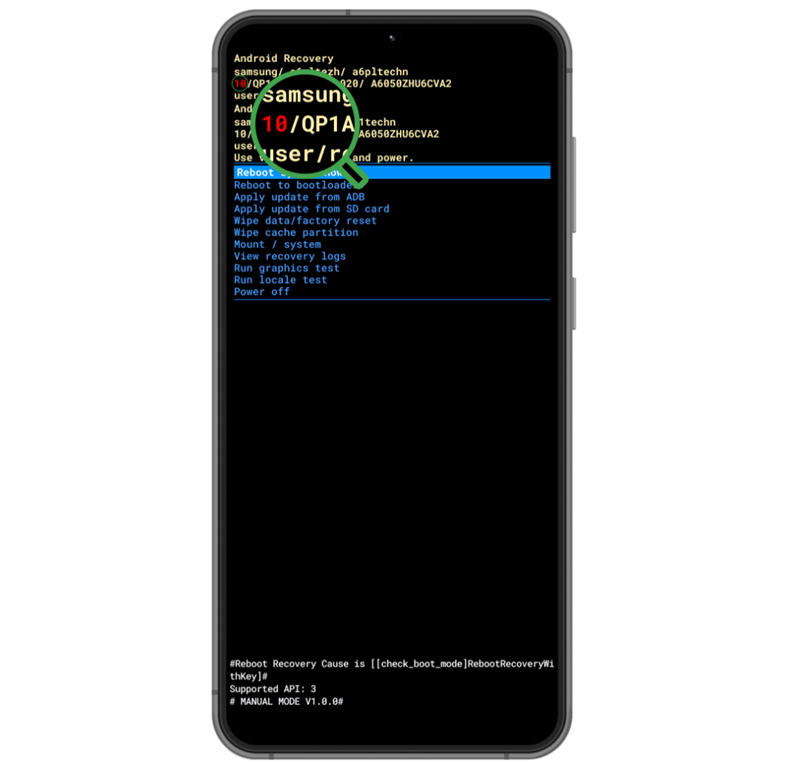
Check Android version in Recovery Mode
If unsuccessful, try holding Volume Up + Bixby + Power (older combo for some units). Proceed based on your version below.
Which Method Should You Choose?
- Want a free method → Try manual no-PC methods (low success rate)
- Want a fast & reliable unlock → Use a PC-based solution (recommended)
How to Bypass Samsung Note 10 Plus FRP without PC
Manual FRP bypass methods rely on system loopholes. These may still work on older firmware but are often patched on updated devices.
Method 1: Android 12 FRP Bypass (TalkBack Exploit)
- Note: Patched on devices with mid-2022+ security updates—test quickly.
- Success rate: ~30% on updated firmware per recent reports.
1. On Welcome Screen: Enable TalkBack by holding Volume Up + Power.
2. Open Menu: Swipe an inverted “L” (down then right), double-tap “Use voice command.”
3. Voice Activation: Say “Open Google Assistant,” then immediately “Open YouTube.”
4. Browser Access: In YouTube, tap profile > Settings > About > Terms of Service to launch browser.
5. Visit FRP Site: Search for “FRP bypass tools” (e.g., addrom.com/bypass) and follow links to open phone Settings.
6. Use Secure Folder: Go to Biometrics & Security > Secure Folder > Sign in with Samsung account > Add new Google account.
💡If this method fails:
It usually means your device has a newer security patch. In this case, manual methods are no longer reliable.
Method 2: Android 11 FRP Bypass (Braille Keyboard)
Exclusive to Android 11. This uses a Braille keyboard loophole—patched in later updates, but viable for older patches.
1. Connect Wi-Fi: On Welcome, join a network (required for exploits).
2. Enable TalkBack: Hold Volume Up + Volume Down.
3. Access Settings: Inverted “L” swipe > Double-tap “TalkBack Settings.”
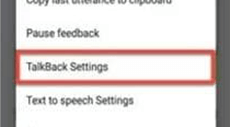
Tap on TalkBack Settings to Proceed
4. Braille Exploit: Two-finger scroll > Double-tap “Braille keyboard” > Setup > Settings.
5. Galaxy Store: Trigger update prompt > Sign in with Samsung account > Search/install launcher (e.g., S9 Launcher).
6. Bypass: Open launcher to skip verification > Settings > General Management > Reset > Factory Reset (removes FRP).
❓If Fails: Wi-Fi issues? Use a hotspot. Patched? Move to PC method.
Why No-PC FRP Methods Often Fail in 2026
Most no-PC methods depend on system vulnerabilities. However:
- Samsung has patched most accessibility exploits
- Google Play services block bypass attempts
- New firmware removes permission loopholes
If your device is updated, manual methods are unlikely to work.
👉 In such cases, it’s better to use a solution designed for modern security systems.
For a complete overview of working solutions, see:
FRP Bypass for All Android Versions
Best PC Solution for Note 10 Plus FRP Bypass
When you’ve confirmed that the manual exploits have been patched, a professional software tool is the most direct path forward. For a Samsung Note 10 Plus FRP bypass latest security patch, DroidKit offers a dedicated feature engineered for this exact problem.
Key Advantages of DroidKit:
- Broad Compatibility: Supports Android versions 6 through 15, ensuring it works on devices with the newest security patches.
- High Success Rate: Constantly updated by a professional team to work with the latest security from Google and Samsung.
- Simple, Guided Process: Turns a complex bypass into a series of clear, on-screen instructions.
- Secure and Private: Runs on your personal computer with SSL-256 encryption, keeping your data safe.
Free Download * 100% Clean & Safe
How to Use DroidKit for FRP Bypass
1. Download and Install: Get the official DroidKit software and install it on your Windows or Mac computer.
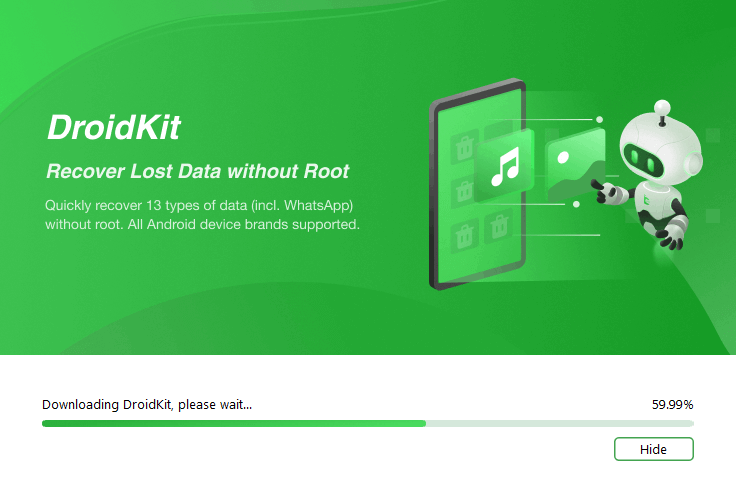
Install DroidKit on your Windows or Mac
2. Launch and Select: Open the program and choose the FRP Bypass module.
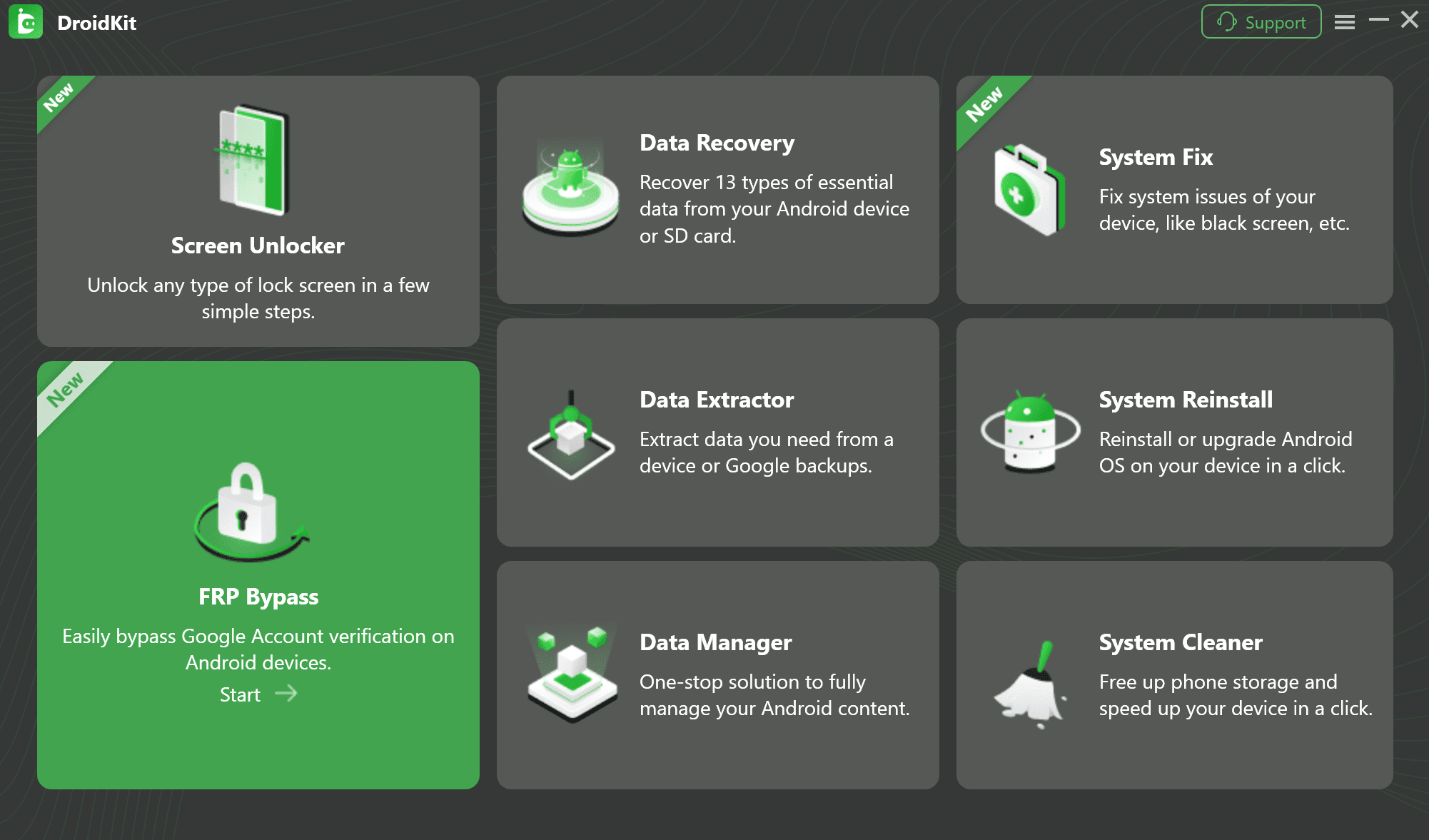
Select FRP Bypass from the home screen
3. Connect and Start: Connect your locked Galaxy Note 10+ to the computer via USB. Click “Start” and follow the tailored on-screen instructions to remove the lock.
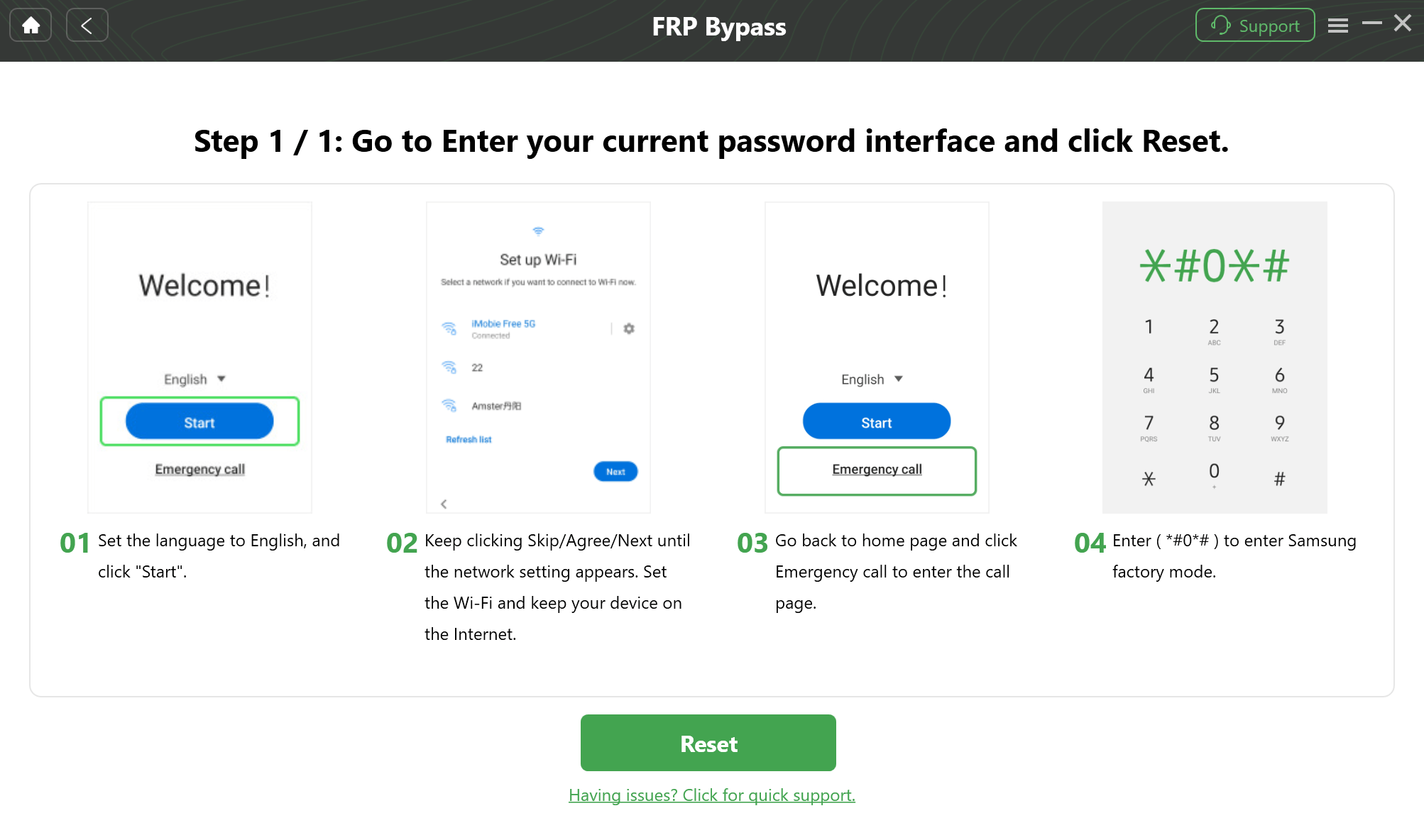
Follow the On-Screen Setup
FAQs: Samsung Note 10 Plus FRP Bypass
The ‘without PC’ method for my updated device didn’t work. What now?
For devices with the latest security patches, a PC-based solution like DroidKit is the most reliable option. It is kept up-to-date to handle new security threats from Samsung and has a very high success rate.
How do I check the Android version on my locked Note 10+?
Enter Recovery Mode. Power off the phone, connect it to a PC, then press and hold Volume Up + Power. The Android version is listed on the recovery screen.
Why did the Alliance Shield X method fail on my SM-N975?
Samsung patched the security loophole it used. Recent software updates on the Note 10+ now block apps from getting administrator permissions during the initial setup.
Can Samsung officially remove an FRP lock?
No. The only official method is to provide the correct Google account details. If you are the original owner with proof of purchase, Samsung support may be able to help, but this is a slow process with no guarantee.
Conclusion
Successfully performing a Samsung Note 10 Plus FRP bypass depends completely on your phone’s Android version and security patch. While manual “no PC” methods for Android 11 and early Android 12 exist, they are unreliable as Samsung continuously closes these loopholes.
For any fully updated Note 10+, manual exploits are no longer an option. If you want a faster and more reliable solution, using a professional tool is the most practical option. Start your FRP bypass with DroidKit
More Related Articles


Roger Smith is a senior technical writer with years of experience in providing Android solutions. He loves to help users solve various problems such as Android unlock, Android data recovery, and Android system repair.
Product-related questions? Contact Our Support Team to Get Quick Solution >
