Motorola FRP Bypass Android 14: Why Settings or Battery Usage Won’t Open
Settings, Battery Usage, or app info pages not opening during Motorola FRP bypass on Android 14 usually means your device security patch has blocked older manual shortcuts. Here’s why it happens, what not to repeat, and when official recovery or a guided PC-assisted workflow is the better next step.
Quick Answer:
If Settings, Battery Usage, or app info pages will not open during Motorola FRP bypass on Android 14, your phone is likely running a newer security patch that blocks older shortcut-based methods. Repeating TalkBack, browser, Emergency Call, or APK tricks is unlikely to help. Try official Google account recovery first. If that is not possible and you own the device or have authorization to unlock it, move to a supported PC-assisted workflow instead of repeating risky manual steps.
If your Motorola phone is stuck on the Google account verification screen after a factory reset, Factory Reset Protection (FRP) has been triggered. FRP is designed to stop unauthorized access to a wiped Android phone. But if you are the rightful owner and simply cannot remember the previously synced Google account, the lock can be frustrating—especially when Settings, Battery Usage, or app info pages refuse to open during setup.
This guide explains why manual Motorola FRP bypass methods often fail on Android 14, what the “settings not opening” problem usually means, and when official recovery or a guided PC-assisted option is the safer next step.
Important: FRP removal should only be performed on a device you own or are clearly authorized to unlock. Some workflows may erase data on the device.
- Why Settings or Battery Usage Won’t Open
- Why Without-PC Methods Often Fail
- What to Try Next
- When to Use a PC-Assisted Workflow
- How to Bypass Motorola Android 14 FRP with DroidKit
- Frequently Asked Questions
Why Settings or Battery Usage Won’t Open During Motorola FRP Bypass
When trying to bypass the Google lock after factory reset manually, many users reach the same dead end: tapping Settings, Battery Usage, App Info, or similar shortcuts does nothing. In most cases, your Motorola phone is not broken. The shortcut route is blocked by the Android security patch.
Older FRP tutorials often depended on small loopholes in accessibility menus, app info pages, browser actions, or Battery Usage screens. These shortcuts sometimes allowed users to jump from the setup screen into system settings, disable certain services, or add a new account. On Android 14, many of these routes are patched.
That is why Settings or Battery Usage may not open even when a tutorial tells you to tap them. The device is preventing lateral access to system settings during the setup phase. This is also why another hard reset usually does not help. A second reset simply brings the phone back to the same Google verification screen.
If you need a broader brand-level reference, see the updated Motorola FRP bypass guide for Moto G, Moto E, and Edge models.
Why Without-PC Motorola FRP Methods Often Fail on Android 14
Without-PC Motorola FRP bypass methods are not completely impossible on every phone, but they are highly dependent on the Android version, the exact security patch, and the model. A YouTube method that worked on an older Moto G device may fail immediately on an Android 14 build.
Common manual routes include TalkBack, Emergency Call, browser shortcuts, app cloning, APK installation, and Battery Usage shortcuts. These methods have three major problems on updated Motorola phones:
- They rely on loopholes that may already be patched.
- They often require unverified APK files from unknown websites.
- They may get blocked by Play Protect or fail when Settings will not open.
If you want to compare broader FRP routes before choosing a next step, you can review the main Android FRP bypass methods guide.
| Manual Method | PC Needed | Best For | Main Limitation on Android 14 |
| TalkBack shortcut | No | Older Android builds with unpatched accessibility routes | Often cannot reach Settings or browser actions |
| Emergency Call method | No | Older Motorola devices with old security patches | Usually patched on updated Android 14 devices |
| FRP bypass APK | No | Advanced users who understand APK risks | Unknown APKs may be unsafe or blocked by Play Protect |
| Battery Usage / App Info shortcut | No | Older tutorials that depend on settings shortcuts | Settings may not open at all during setup |
| Guided PC-assisted workflow | Yes | Users whose manual methods are blocked | Requires a Windows PC or Mac and model compatibility |
What Should You Do When Settings Will Not Open?
If Settings or Battery Usage fails to open more than once, do not keep repeating the same shortcut. It usually means your Motorola security patch has already blocked that route. At that point, the safest order is: try official Google account recovery, check whether you have proof of purchase for Motorola or carrier support, and only then consider a guided PC-assisted FRP workflow for a device you own or are authorized to unlock.
| Your Current Scenario | Recommended Next Step |
| You just reset your Motorola phone and still know the Google account. | Use the original Google account or recover it through Google first. |
| You forgot the previously synced Google account. | Try official account recovery from another device before attempting FRP removal. |
| Settings, Battery Usage, or App Info will not open. | Stop repeating shortcut methods. Your Android 14 security patch may have blocked them. |
| FRP bypass APKs are blocked by Play Protect. | Avoid unknown APK downloads and move to official recovery or a PC-assisted workflow. |
| You have proof of purchase. | Contact Motorola, your carrier, or the seller for an official unlock path. |
| Manual methods failed and you own the phone. | Use a supported Android FRP bypass tool with a guided desktop process. |
When to Use a PC-Assisted Motorola FRP Workflow
A PC-assisted workflow is most useful after free manual methods have already failed. Instead of relying on hidden shortcuts or unsafe APK downloads, a desktop tool gives you a more structured process and on-screen instructions.
For users who own their Motorola device or have permission to unlock it, DroidKit FRP Bypass can be a practical option when Android 14 security patches block manual access to Settings. It is designed to guide users through the FRP process from a Windows PC or Mac instead of forcing repeated taps on inaccessible menus.
Keep in mind that support depends on your exact Motorola model, Android 14 build, and security patch level. Always check compatibility before starting, and be prepared for data loss because standard FRP workflows may involve a reset.
How to Bypass Motorola Android 14 FRP with DroidKit
Using DroidKit shifts the process from confusing manual screen taps to a guided desktop workflow. If you have confirmed that your Motorola device is authorized and supported, here is how the process generally works.
Before You Begin
- A Windows PC or Mac.
- A working USB cable compatible with your Motorola device.
- A stable Wi-Fi or internet connection.
- At least 50% battery life on your locked phone.
- Permission to unlock the device.
Steps to Bypass FRP with DroidKit
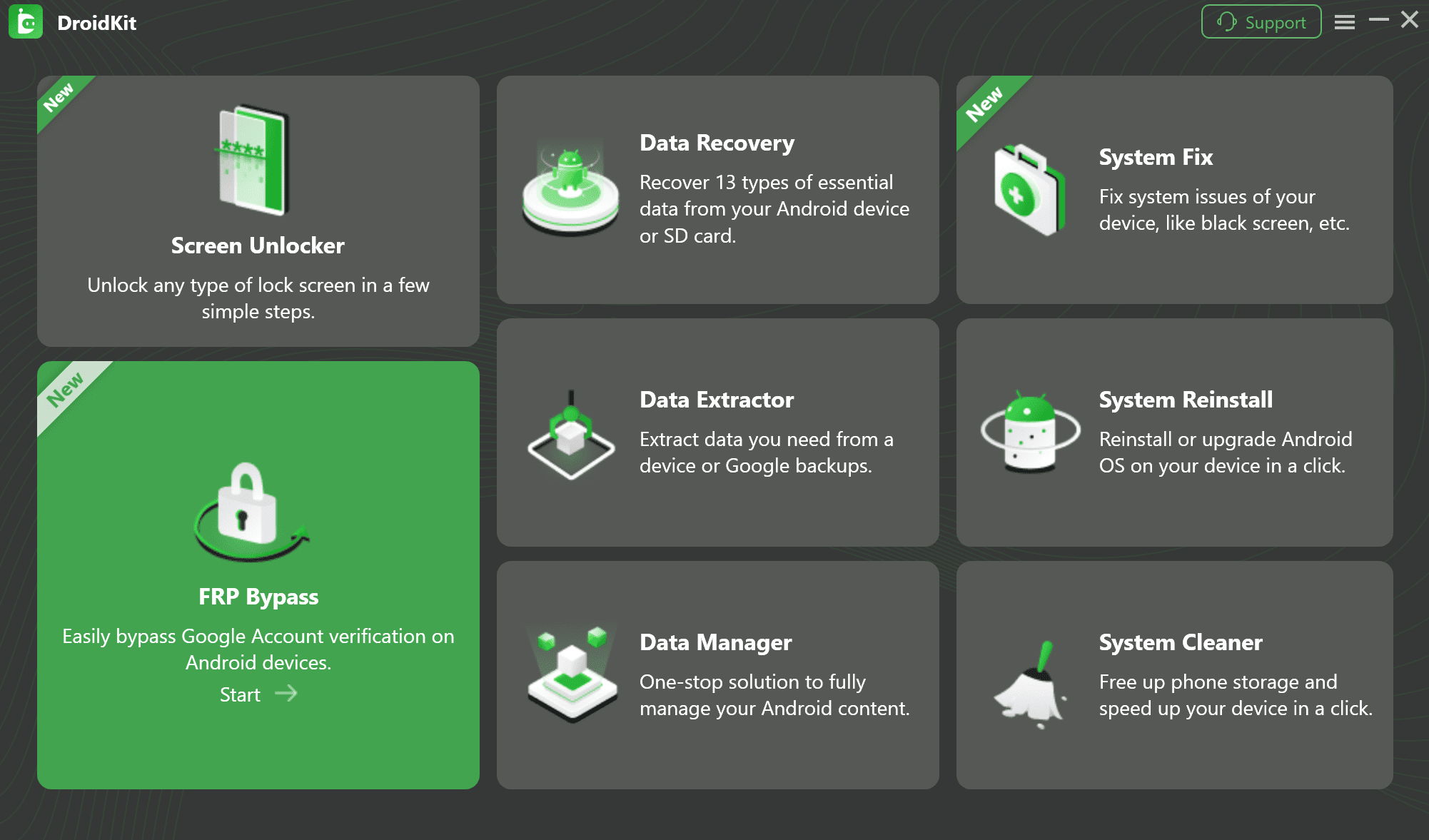
Step 1. Open DroidKit on your PC or Mac, connect your locked Motorola device with a USB cable, and select the FRP Bypass module from the main menu.
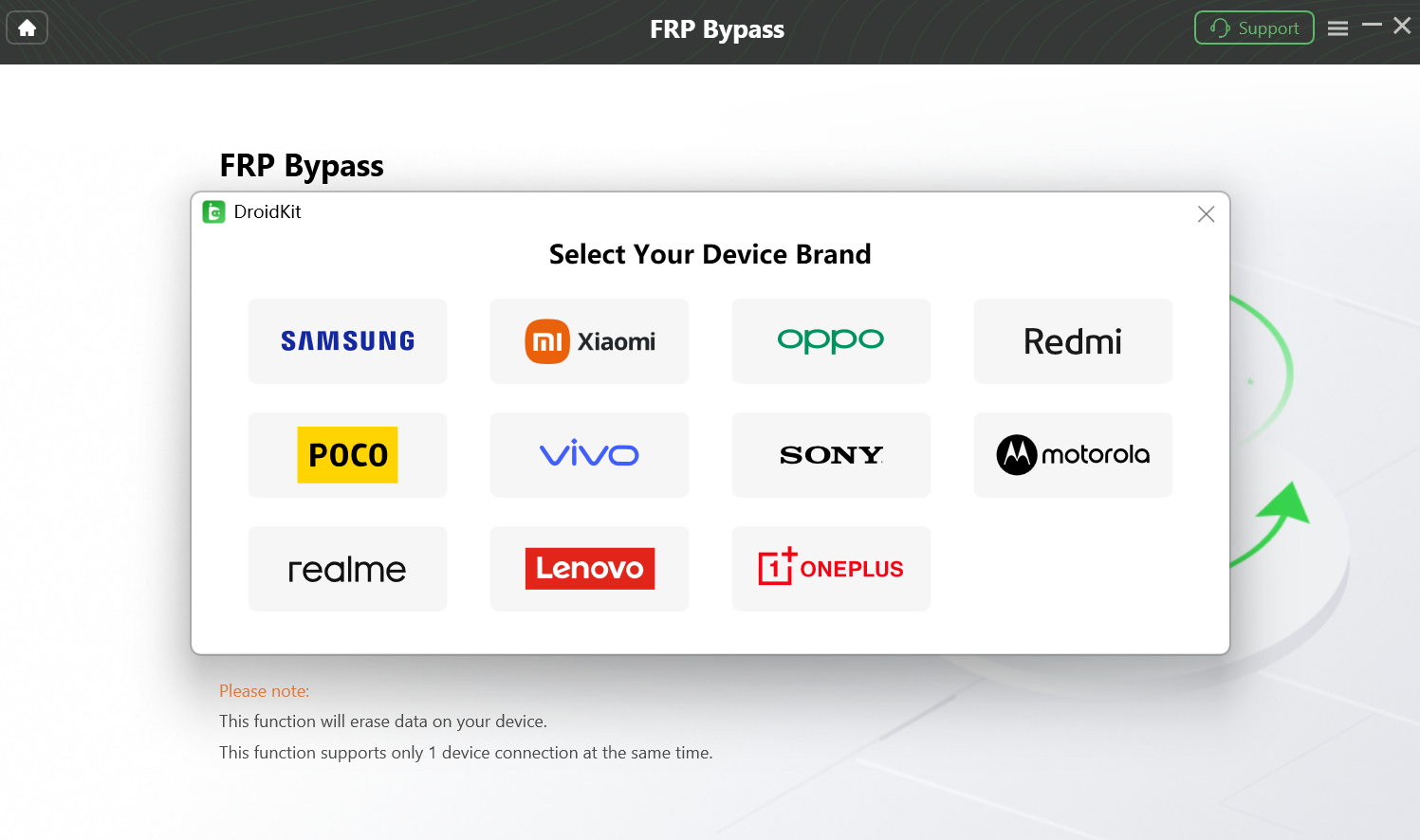
Step 2. Allow DroidKit to detect your device status. Then choose the correct device brand so the software can prepare the configuration needed for your phone.
Step 3. Follow the on-screen instructions carefully. The exact route may vary depending on your Motorola model, Android version, and security patch level.
Step 4. Allow the software to complete the FRP workflow. After the process finishes, your Motorola phone may restart and return to setup.
Note: As with most FRP bypass procedures, this workflow may involve a factory reset and can result in a complete data wipe on the device.
Frequently Asked Questions
How do I bypass Motorola FRP without a PC?
Bypassing Motorola FRP without a PC usually depends on accessibility menus, Emergency Call screens, browser shortcuts, or APK installation. On Android 14, these methods often require older, unpatched security builds and may fail when Settings or Battery Usage will not open.
Why is Settings not opening during Motorola FRP bypass?
Settings may not open because the Android 14 security patch blocks shortcut-based access to system settings during setup. This prevents older FRP bypass routes from jumping into the Settings app.
Why does Battery Usage not open during Motorola FRP bypass?
Battery Usage was used by some older tutorials as a shortcut to reach app or system settings. On many Android 14 Motorola phones, that shortcut is blocked, so tapping it may do nothing or return you to the setup flow.
Can I bypass Motorola Android 14 FRP with TalkBack?
TalkBack-based methods only work on limited older builds. If TalkBack opens but cannot lead to Settings, Chrome, App Info, or other required pages, the method is likely patched on your device.
Does DroidKit work on Motorola Android 14?
DroidKit supports FRP bypass for many Motorola models, but compatibility depends on the exact device model and Android 14 security patch level. Check the official compatibility details before starting.
How do I bypass Google lock on Moto G 5G?
For a model-specific guide, see the Moto G 5G FRP bypass guide. If Android 14 security patches block manual shortcuts, official recovery or a guided PC-assisted workflow is usually the better next step.
Are free Motorola FRP bypass APKs safe to use?
Not always. Downloading unverified APKs from unknown websites can expose your phone or computer to malware. Android 14 may also block many unofficial bypass apps through Play Protect.
Does a hard reset remove the Google lock on Android 14?
No. A hard reset is often what triggers FRP after a device has been reset without removing the previously synced Google account. Resetting the phone again usually returns it to the same Google verification screen.
Why is Play Protect blocking my FRP bypass app?
Play Protect is designed to flag apps that may exploit system vulnerabilities or come from unsafe sources. If it blocks an FRP bypass APK, avoid forcing the installation and use official recovery or a safer guided workflow instead.
What should I do if the TalkBack method fails on Motorola?
If the TalkBack method fails or the required settings screens will not open, your device’s security patch has likely blocked that route. Stop repeating the same steps and move to official recovery, Motorola support, or a supported PC-based workflow.
Final Thoughts on Motorola Android 14 FRP
Getting stuck at the Google account verification screen is stressful, especially when Settings or Battery Usage will not open. On Android 14, this usually means your Motorola phone is blocking older shortcut-based FRP methods by design, not because the phone is glitching.
Start with official Google account recovery whenever possible. If you own the device, cannot recover the account, and manual methods keep failing, a guided PC-assisted workflow can help you avoid unsafe APK downloads and repeated failed shortcuts. For broader comparisons, you can also review the latest FRP tool options and Google verification guides below.
More Related Articles


Roger Smith is a senior technical writer with years of experience in providing Android solutions. He loves to help users solve various problems such as Android unlock, Android data recovery, and Android system repair.
Product-related questions? Contact Our Support Team to Get Quick Solution >
