Remote GSMEdge APK Download & FRP Bypass Guide (2026)
Our 2026 guide to safely downloading Remote GSMEdge APK. Get step-by-step FRP bypass instructions, understand the risks, and discover safer alternatives.
Being locked out of your own Android phone by Google’s Factory Reset Protection (FRP) is a common and frustrating experience. Remote GSMEdge APK is a well-known tool in the tech community for bypassing these FRP locks, especially on older Samsung devices.
This guide explains what Remote GSMEdge APK is, how it works, and whether it still works in 2026. We will also show step-by-step instructions and discuss safer alternatives if the tool fails.
Quick Answer: Does Remote GSMEdge APK Still Work?
Remote GSMEdge APK can sometimes bypass FRP on older Samsung devices running Android 6–10, but its success rate on modern Android versions is very low because Google has patched the vulnerabilities it relies on.
If the method does not work on your device, many users choose a dedicated FRP removal tool such as DroidKit, which supports newer Android versions and automates the unlocking process.
What is Remote GSMEdge APK?
Remote GSMEdge APK is a small Android application designed to help users bypass the Google account verification screen that appears after a factory reset. It’s not an official app and works by exploiting certain vulnerabilities in the Android setup process to grant you access to the phone’s settings or a web browser.
Key Features:
- Primarily used for Samsung FRP bypass.
- Most effective on older Android versions (6.0 Marshmallow to 10)
- It can sometimes be installed directly on the device without a PC.
- Very small file size.
IMPORTANT DISCLAIMER
Bypassing Factory Reset Protection (FRP) should only be performed on a device you legally own or have explicit permission to unlock. Using these tools on a device that does not belong to you may be illegal. Furthermore, downloading APK files from unverified sources carries significant security risks, including malware and data theft. Proceed with caution and at your own risk.
How Remote GSMEdge APK Works
When FRP is enabled, your phone requires the original Google account credentials to proceed with setup. Remote GSMEdge works by creating a “backdoor” to circumvent this screen. It typically does this by:
1. Opening an Access Point: The app exploits a function (like accessibility settings or emergency call features) to open a web browser or a direct link to the phone’s Settings menu.
2. Modifying Accounts: Once inside Settings, you can access the “Accounts” section.
3. Removing the Lock: By removing the Google account linked to the device, you effectively disable the FRP lock, allowing you to complete the setup process.
However, its success heavily depends on the device’s specific model and, crucially, its security patch level. Google and manufacturers regularly patch the vulnerabilities these apps rely on.
How to Use Remote GSMEdge APK for FRP Bypass (Full Steps)
This process requires technical skill and patience. The first step—accessing a browser—is often the most challenging part.
Requirements:
- A stable Wi-Fi connection.
- The Remote GSMEdge APK file (downloaded to a computer or another device).
- A way to access a browser on the locked phone.
Step 1: Accessing a Browser on the Locked Device (The Hard Part)
This is the biggest hurdle. You cannot simply “open a browser.” You must use a workaround. Here are a few standard methods (these vary greatly by device and Android version):
- TalkBack Method: Enable the TalkBack accessibility feature, draw a gesture on the screen to open its settings, and find a way to access a “Help & Feedback” page that contains a YouTube link, which can then open the browser.
- Emergency Call Method: On some older models, you can enter a specific code or access contact information from the emergency call screen, which can lead to an option to share via a web service, thereby opening a browser.
- SIM Card PIN Lock: Use a SIM card with a PIN lock. Insert it, enter the wrong PIN several times, and use the subsequent “unlock” or “contact carrier” options to find a web link.
This step is complex. You will likely need a specific guide for your phone model and Android version, such as Bypass the FRP Lock on Moto G Play Android 10 or Bypass FRP on Samsung A12 Without PC.
Step 2: Download and Install the APK
Once you have a browser open on the locked device:
1. Navigate to the trusted source where you found the Remote GSMEdge APK file.
2. Download the APK directly onto the locked phone.
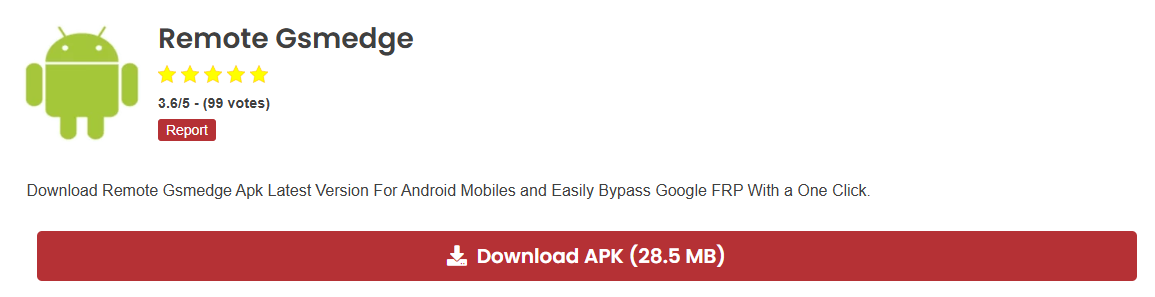
Download the Remote GSMEdge APK
3. Open the downloaded file from the browser’s “Downloads” section or a file manager app (which you may also need to install).
4. When prompted, go to Settings and enable “Install from Unknown Sources” for your browser.
5. Proceed with the installation.
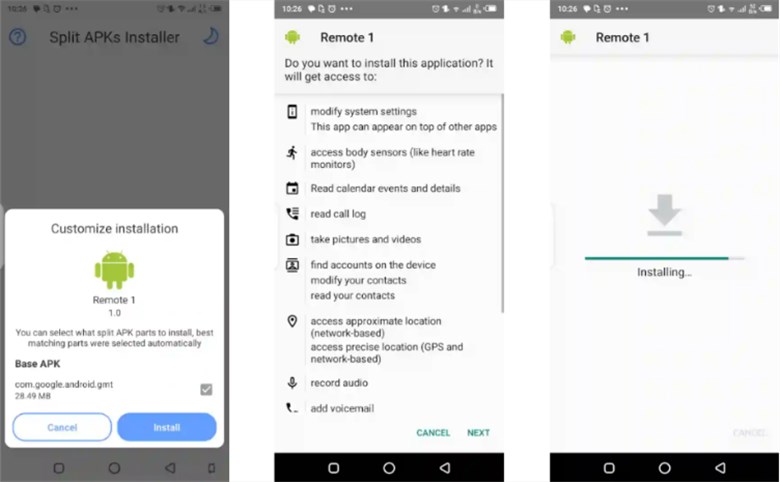
Install Remote Gsmedge APK on Phone
Step 3: Bypass the FRP Lock
1. Open the newly installed Remote GSMEdge app.
2. The app should automatically redirect you to the phone’s Settings menu.
3. Navigate to Accounts & Backup > Accounts.
4. Find the Google account that is causing the lock and select Remove Account.
5. Once the account is removed, restart your phone. You should now be able to complete the setup process without the Google verification screen.
Key Limitations & Risks of Remote GSMEdge
- Firmware Restrictions: Very low success rate on devices with recent security patches.
- Limited Compatibility: Primarily designed for Samsung devices and may not work on other brands like Xiaomi or Huawei
- Outdated: The tool has not been updated to handle modern Android security (Android 11 and newer).
- High Security Risk: The risk of downloading a malware-infected file is exceptionally high.
Remote GSMEdge Not Working? (Common Reasons)
Many users report that Remote GSMEdge fails on newer devices.
Common reasons include:
- Newer Android security patches
- Unsupported phone models
- Updated FRP protection methods
- APK files modified by third-party websites
If this happens, you may need to try another FRP bypass method.
FRP Bypass Success Rate Comparison
| Method | Android Support | PC Required | Difficulty | Success Rate |
|---|---|---|---|---|
| Remote GSMEdge APK | Android 6–10 | No | Medium | Low |
| TalkBack Method | Android 8–11 | No | Hard | Medium |
| Professional FRP Tools | Android 6–14 | Yes | Easy | High |
Because newer Android versions have stronger security protections, many users prefer automated FRP bypass tools designed for modern devices.
Best Alternatives to Remote GSMEdge APK
If Remote GSMEdge does not work on your phone, these alternatives may help.
| Tool | Supported Devices | Pros | Cons |
| Remote GSMEdge APK | Mainly Samsung (Android 6-10) | Free, no PC needed (sometimes) | Low success rate, major security risks, and outdated |
| DroidKit | Samsung, Huawei, Xiaomi, and more (Android 6–14) | High success rate, supports the latest systems, user-friendly, secure, official support | Paid software requires a PC (Windows & macOS) |
| Easy Samsung FRP Tool | Samsung devices (various Android versions) | Free, simple for older models | Samsung-only, often flagged by antivirus, less effective on new firmware |
| Samsung FRP Helper Tool | Primarily Samsung | Simple interface, removes the account directly | Outdated, supports limited Android versions |
| FRP Hijacker by Hagard | Samsung (wide coverage) | Powerful, advanced features | Requires high technical skill, complex interface, not for beginners |
Which Alternative Should You Choose?
- For the Highest Success Rate & Safety: DroidKit is the best choice for beginners and supports the latest devices and Android versions.
- For a Free Option on Older Samsung: Easy Samsung FRP Tool is worth a try, but be prepared for it to fail on newer models.
- For Expert Technicians: FRP Hijacker offers granular control but has a steep learning curve.
Frequently Asked Questions (FAQ)
Q1: Does Remote GSMEdge work on Android 13 or 14?
In most cases, no. The vulnerabilities used by the tool were patched in newer Android versions.
Q2: Does using Remote GSMEdge erase my data?
The tool itself does not erase data, but the FRP lock only appears after a factory reset, which has already erased all data on the device.
Q3: Is Remote GSMEdge APK free?
Yes, the tool itself is free to download. However, be wary of websites that ask for payment, as they are likely scams.
Tips to Avoid FRP Lock in the Future
- Always Remove Your Account: Before factory resetting, go to Settings > Accounts and manually remove your Google account.
- Save Your Credentials: Use a password manager to store your Google account login information securely.
- Use the Official Reset Method: When selling or giving away your phone, use the “Factory Data Reset” option from within the Settings menu, not from recovery mode.
Conclusion
While Remote GSMEdge APK was once a valuable utility for older Samsung devices, it is now essentially an outdated and risky solution. The high chance of failure on modern devices, combined with the serious threat of malware, makes it difficult to recommend in 2026.
For a reliable, safe, and user-friendly solution to bypass FRP, investing in a professional tool like DroidKit is a much wiser choice. It guarantees a higher success rate and protects your device and data from unnecessary risks.
More Related Android FRP Bypass Articles



Jeremy Feron is a writer for iMobie with a deep passion for Android. He specializes in creating clear guides on Android tips and the latest updates, helping users navigate their devices and get the most out of new features.
Product-related questions? Contact Our Support Team to Get Quick Solution >
