Vivo Android 15 FRP Bypass: What to Do When EasyShare or Activity Launcher Fails
If your Vivo phone is stuck on Google verification after a factory reset and EasyShare or Activity Launcher no longer works on Android 15, the method may be blocked by a newer security patch. Here’s how to choose between official recovery, manual methods, and a supported PC-assisted workflow.
Quick Answer:
If EasyShare, Activity Launcher, or APK-based Vivo FRP bypass methods fail on Android 15, your device is likely running a newer security patch that blocks older setup-screen shortcuts. Try official Google account recovery first. If you own the device and recovery is not possible, use a supported PC-assisted workflow instead of repeating unstable manual tricks.
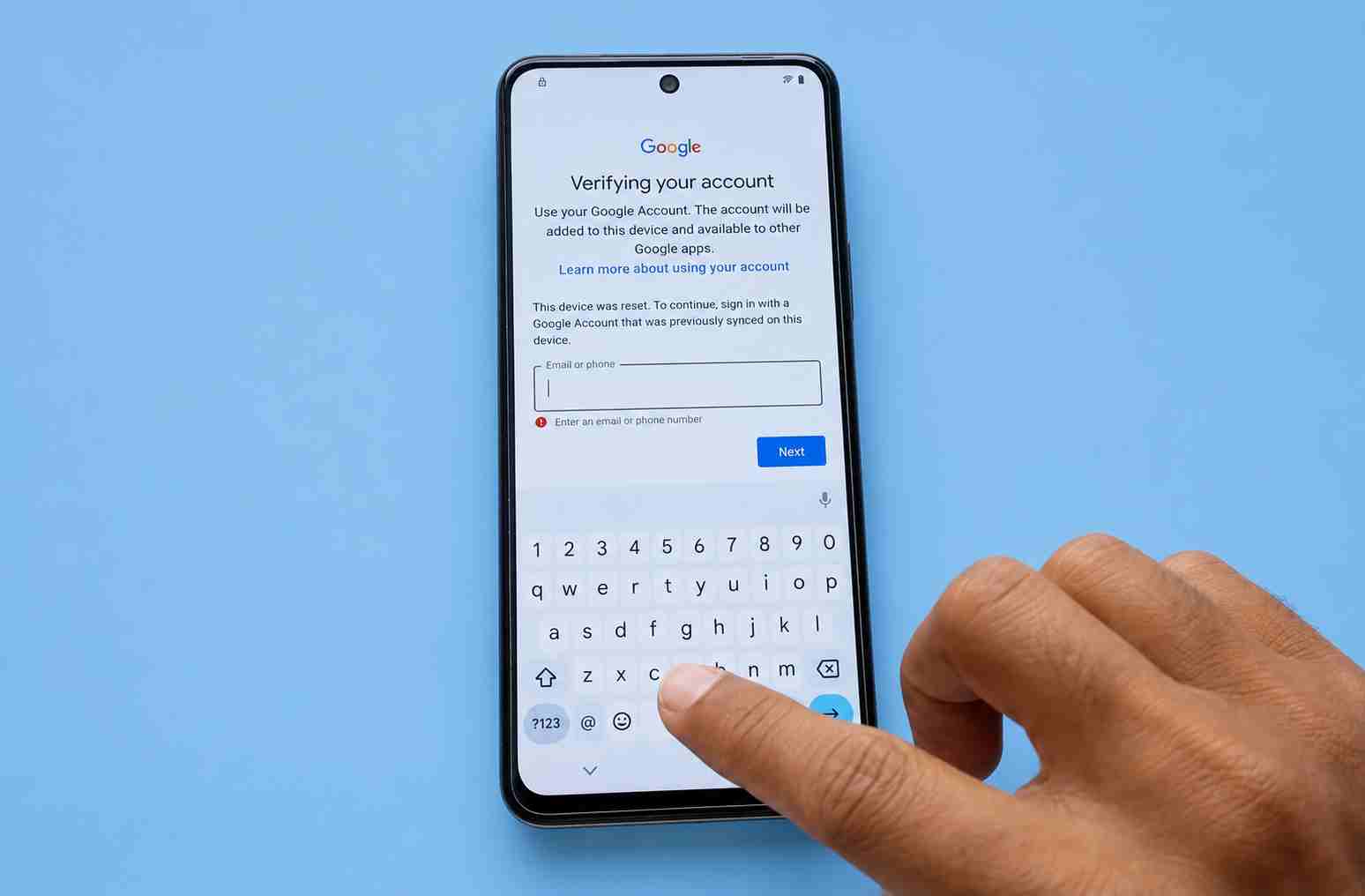
Getting locked out of your own Vivo phone after a factory reset can be frustrating. If your phone is stuck on the Google account verification screen, Factory Reset Protection (FRP) has been triggered. This Android security feature is designed to prevent unauthorized access after a device is reset.
Many Vivo users reach this page after they cannot login to Google after a factory reset. Some try EasyShare, Activity Launcher, or APK-based tutorials from YouTube, only to find that the method no longer works on Android 15. In many cases, this happens because Android 15 security updates have patched the shortcuts those older methods depend on.
This guide focuses on Vivo Android 15 FRP bypass when EasyShare, Activity Launcher, or APK-based shortcuts fail. For broader Vivo models and general brand-level methods, you can also check the Vivo FRP bypass guide.
Important: FRP bypass should only be performed on a device you legally own or have clear authorization to unlock. Standard FRP workflows may erase data or return the phone to a blank setup state.
- Try Official Google Account Recovery First
- Why EasyShare and Activity Launcher Fail on Vivo Android 15
- What Should You Try Next?
- Vivo Model-Specific FRP Guides
- Prerequisites Before Using a PC FRP Tool
- A Guided PC Alternative for Supported Vivo Android 15 Devices
- Frequently Asked Questions About Vivo Android 15 FRP
Step 1: Try Official Google Account Recovery First
FRP is not a normal screen lock. When you hard reset a Vivo phone without first removing the previously synced Google account, Android asks for that same Google account during setup. This proves that the person setting up the phone is the rightful owner.
Before using any bypass method, try the intended and safest route: recover the original Google account from another device.
How to officially recover your Google account:
- Step 1. Use a computer or another smartphone and open Google’s official account recovery page.
- Step 2. Enter your Gmail address or the phone number linked to the Google account.
- Step 3. Follow the recovery prompts, such as recovery email, phone verification, or other available identity checks.
- Step 4. Reset the password if Google allows it.
- Step 5. Wait if needed. After a recent password change, Android may require a waiting period before the Vivo phone accepts the new login details.
Do not skip this step. If you can recover the original account, you may be able to complete setup without any third-party tool. For a broader explanation of this lock, you can also read the guide on how to remove a previously synced Google account.
Why EasyShare and Activity Launcher Fail on Vivo Android 15
If official recovery is not possible, you may have already tried popular manual tutorials using EasyShare, Activity Launcher, browser shortcuts, or FRP bypass APKs. On Android 15, these methods are much less reliable than they used to be.
The reason is simple: many older Vivo FRP bypass tutorials depend on shortcuts that jump from the setup screen into hidden system activities, file transfer pages, browser windows, or settings menus. Android 15 security patches are designed to block exactly these routes.
That is why you may see problems such as:
- EasyShare fails to connect or transfer files.
- Activity Launcher opens and then crashes during setup.
- Hidden settings pages refuse to open.
- Downloaded FRP APKs cannot be installed or do not work.
- The tutorial works on an older Vivo model but fails on your Android 15 device.
Manual tricks are not guaranteed to work because they depend on the Vivo model, Android version, and security patch level. If you want to compare broader FRP routes before choosing a path, review the main Android FRP bypass methods guide.
What Should You Try Next?
If EasyShare will not connect or Activity Launcher keeps crashing, do not keep repeating the same tutorial. On Android 15, repeated failure usually means the shortcut has already been patched on your Vivo model. Use the table below to choose a safer next step.
| Your Situation | Recommended Next Step |
| You remember the original Google account or recovery email. | Use official Google account recovery first and sign in again after any required waiting period. |
| EasyShare fails to connect or transfer files. | Stop repeating the EasyShare route. Your Android 15 security patch may have blocked it. |
| Activity Launcher crashes during setup. | Avoid forcing hidden settings access. Move to official recovery or a supported PC-assisted workflow. |
| You are asked to download unknown FRP APKs. | Avoid unverified APK sources because they may be unsafe or blocked by Android security. |
| You have proof of purchase. | Contact Vivo support, your carrier, or the seller for an official recovery route. |
| You own the Vivo phone but cannot recover the account. | Check whether a guided Android FRP tool supports your Vivo model and security patch. |
For supported Vivo models, DroidKit FRP Bypass provides a guided PC-assisted process when Android 15 blocks manual shortcut methods. Always check your model and security patch compatibility before starting.
Vivo Model-Specific FRP Guides
Vivo FRP behavior can vary by model, Android version, and security patch. If your phone belongs to the Vivo Y, V, or S series, a model-specific guide may help you compare common manual routes, patch limitations, and PC-assisted fallback options.
- Vivo Y15 FRP bypass guide
- Vivo Y22 FRP bypass guide
- Vivo Y91 FRP bypass guide
- Vivo V20 FRP bypass guide
If your exact model is not listed, use these Vivo series guides as references only. Android 15 security patches can change the available route even within the same brand family.
Prerequisites Before Using a PC FRP Tool
If official recovery is impossible and manual methods are patched, a PC-based FRP workflow can be the next logical step. Before connecting your Vivo phone, make sure you meet these requirements.
Pre-bypass checklist:
- Legal ownership: Use FRP workflows only on devices you legally own or are clearly authorized to unlock.
- A computer: You need a working Windows PC or Mac.
- A reliable USB cable: Use an original or high-quality data cable to prevent disconnections.
- Stable internet: Keep both the computer and the locked Vivo phone connected to a stable network where required.
- Enough battery: Charge the Vivo phone to at least 50% before starting.
- Compatibility check: Support depends on the Vivo model, Android 15 build, and security patch level.
A PC-based workflow does not mean every Vivo Android 15 device is automatically supported. It simply gives you a more structured route than repeated manual shortcuts and risky APK downloads.
A Guided PC Alternative for Supported Vivo Android 15 Devices
For users struggling with broken EasyShare transfers or Activity Launcher crashes, DroidKit FRP Bypass offers a guided desktop workflow. It is designed for users who need step-by-step instructions instead of advanced ADB commands or trial-and-error setup tricks.
How the DroidKit FRP Bypass workflow operates:
Step 1. Download and install DroidKit on your computer. Open the software and select the FRP Bypass module.
Step 2. Connect your locked Vivo Android 15 phone to the computer with a stable USB cable and click the start button in the FRP workflow.
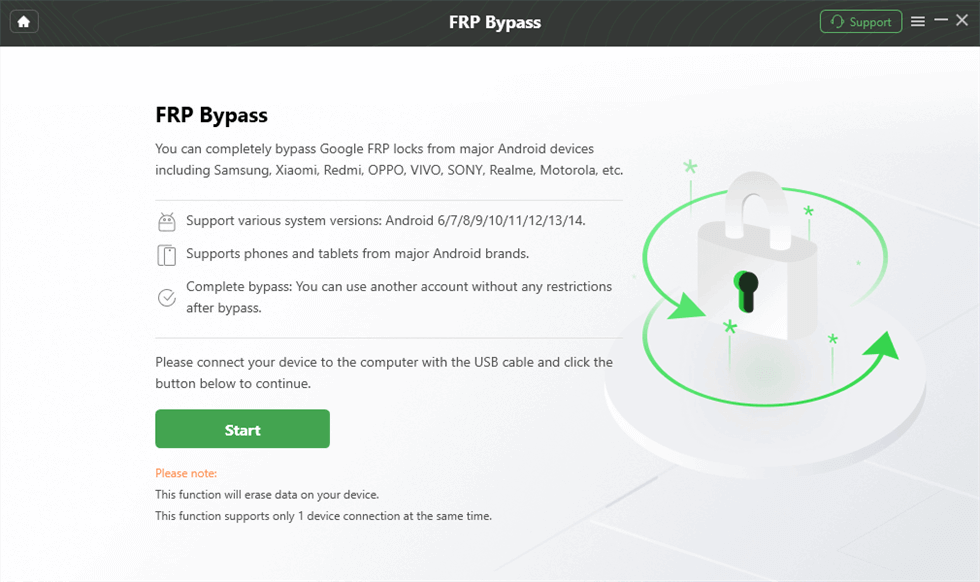
Step 3. Check whether your Vivo model and Android 15 security patch are supported. Compatibility can vary, so do not assume every device will follow the same route.
Step 4. Follow the on-screen prompts carefully. If your device is supported, DroidKit will guide you through the required steps and prepare the configuration for the FRP workflow.
Step 5. Wait for the process to finish. Your Vivo phone may restart and return to the setup screen so you can set it up again as a blank device.

By moving the process to your PC, DroidKit can help reduce the frustration of crashing apps, broken EasyShare transfers, and unstable APK routes on the locked device itself. It should be used only for your own or authorized Vivo device, and only after checking compatibility.
Frequently Asked Questions About Vivo Android 15 FRP
How can I bypass FRP on Vivo Android 15 without a PC?
Bypassing FRP without a PC on Android 15 is increasingly difficult because security patches often close the shortcuts used by manual APK, EasyShare, or Activity Launcher methods. If these routes fail, official recovery or a supported PC-assisted workflow is usually the better next step.
Why is EasyShare not working during Vivo FRP bypass?
EasyShare may fail because Android 15 security patches block file transfer or shortcut access during the setup stage. If it cannot connect or transfer the needed file, the method is likely patched on your Vivo device.
Why does Activity Launcher crash on Vivo Android 15?
Activity Launcher may crash because Android 15 restricts hidden system activities during setup. This prevents older tutorials from jumping into settings pages that were previously accessible.
Does a hard reset remove the Google account from a Vivo phone?
No. A hard reset through recovery mode usually triggers FRP if the previously synced Google account was not removed before the reset. To avoid FRP before resetting, remove the Google account from the phone’s Settings menu first.
Will FRP bypass tools delete my data on Android 15?
If you are already stuck on the FRP screen after a factory reset, your local data has usually already been wiped. A bypass workflow helps you regain access to the reset device, but it should still be treated as a data-loss scenario.
Is DroidKit compatible with every Vivo Android 15 phone?
No. Compatibility depends on the specific Vivo model, Android version, and security patch level. Always check compatibility before starting the FRP workflow.
Are Vivo FRP bypass APKs safe?
Not always. FRP APKs from unknown websites can be risky, may be blocked by Android security, and may not work on updated Android 15 devices. Avoid unverified downloads when official recovery or a guided PC workflow is available.
What should I do if all Vivo Android 15 manual methods fail?
Stop repeating the same failed tutorial. Try official Google account recovery first. If that is not possible and the device is legally yours, check official support options or use a supported PC-assisted FRP workflow.
Summary: Regaining Access to Your Vivo Phone
Getting locked out by Google account verification on a Vivo phone running Android 15 can interrupt setup completely. Your first action should always be official Google account recovery from another device. If you can recover the original account, that is the safest and intended way to regain access.
If EasyShare fails, Activity Launcher crashes, or APK methods no longer work, your Vivo device may be running a security patch that blocks older manual routes. For a legally owned or authorized device, using a guided Android FRP bypass tool can be a more stable alternative to repeated trial-and-error methods.
Ready to try a structured workflow? Connect your authorized Vivo device to a PC or Mac and check whether DroidKit supports your model.
More Related Articles



Jeremy Feron is a writer for iMobie with a deep passion for Android. He specializes in creating clear guides on Android tips and the latest updates, helping users navigate their devices and get the most out of new features.
Product-related questions? Contact Our Support Team to Get Quick Solution >
