Top 7 iPhone to PC Transfer Software 2026
AnyTrans
#1 iPhone transfer software to put your data into right place
- Transfer photo, music, video, etc. from iPhone to PC/Mac, and vice versa
- Export messages, contacts, call logs and more as printable document files
- Backup iPhone flexibly: Full Backup, Incremental Backup, and Air Backup
When it comes to iPhone data transfer, especially when you need to transfer data from iPhone to computer, iTunes might be the first solution coming to your mind. But annoyingly, iTunes sync works from computer to iPhone, and if you start to sync your iPhone, it will erase your current contents on your iOS device.
That’s why you may need a much easier-to-use iPhone transfer software to easily back up, export, and transfer selected photos, music, and so on, from iPhone to your laptop. There’re many iPhone data transfer software available in the market. In the post, we collect 7 best iPhone to PC transfer software for you, which is available to copy data from iPhone to PC/Mac, from iPhone to iPhone, or other locations with ease and great efficiency.
Further Reading:
How to Backup iPhone/iPad to Computer >
How to Transfer Contacts from iPhone to New iPhone >
# 1: AnyTrans
AnyTrans is acknowledged as a must-have full-way iPhone transfer software, which enables you to transfer from iPhone to PC/Mac and migrate data from Android/iPhone to new iPhone. With AnyTrans, you can also manage your iPad, iPod, and even iTunes/iCloud contents all around, and further to achieve the full-way transfer, complete backup, and other tech solutions on it. The powerful data transferability makes it one of the best iPhone to PC transfer apps, which is compatible with the latest iOS/iPadOS and iPhone 14. Now have a check on its main advantages and disadvantages.
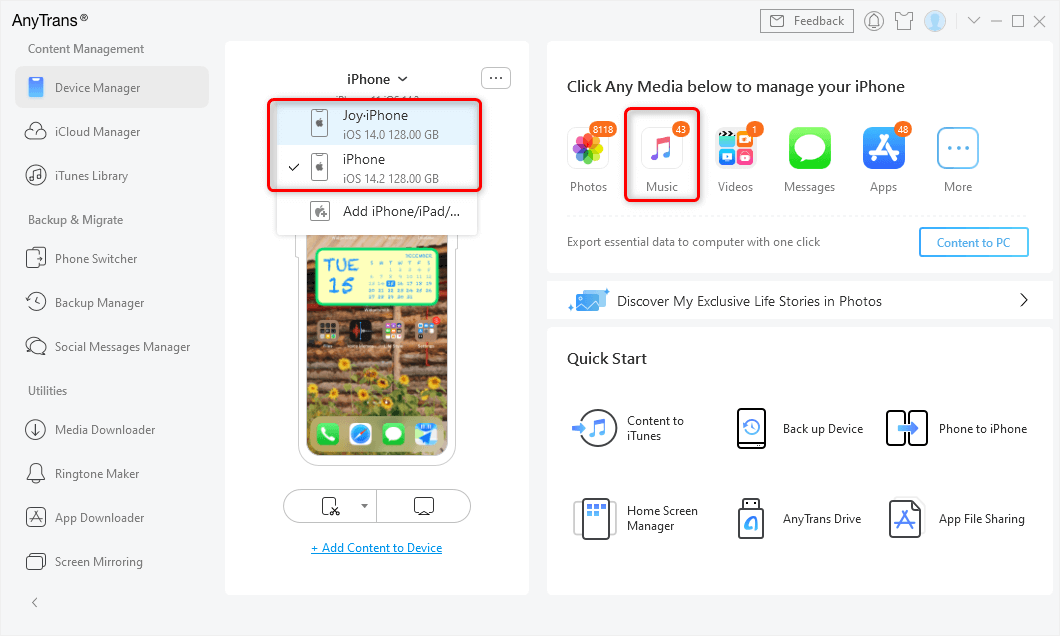
Connect Two iPhones and Choose Music
Advantages:
- It supports 1-click transfer data from iPhone to PC/Mac and vice versa, or selectively transfer with a preview of all your content.
- Also, AnyTrans enables you to easily migrate data from your old phone to your new iPhone.
- Various file types supported – 24+ types of iOS files, like photos, videos, music, contacts, messages, even some data that are not supported to be backed up via iTunes/iCloud, such as non-purchased music, ringtones, movies.
- Also, it allows users to manage their backups with full backup, incremental backup, and wireless backup to keep precious data safe and private.
- Great Stability and 100% Safe & Security – created by Apple certificated developer and it is now Norton and McAfee secured. No data loss and information leakage would occur.
- Most iOS & Android device types Supported, and you can check its system requirements and other specs.
Disadvantages:
- Free to deeply scan your iPhone data, to transfer data from iPhone to iPhone, you need to pay. But the payment version brings you the 60 Days Money Back and Lifetime FREE Updates and 24/7 Customer Service.
Just get AnyTrans free trial downloaded to your Mac/PC to have a try. For detailed instructions, please follow the guide here to transfer iPhone data.
Free Download * 100% Clean & Safe
# 2: PhoneTrans
PhoneTrans is the best and all-around Phone transfer app, which provides you 4 transfer panels, which will help you backup iPhone to computer, transfer from iPhone to iPhone, restore data from iPhone backup, and backup iPhone apps. PhoneTrans is a phone transfer tool that is designed to send data from phone to phone and it enables you to migrate everything you need across iOS/iPadOS and Android phones & tablets. If you need to find an app to backup your iPhone to your computer, then PhoneTrans will be a nice best choice.
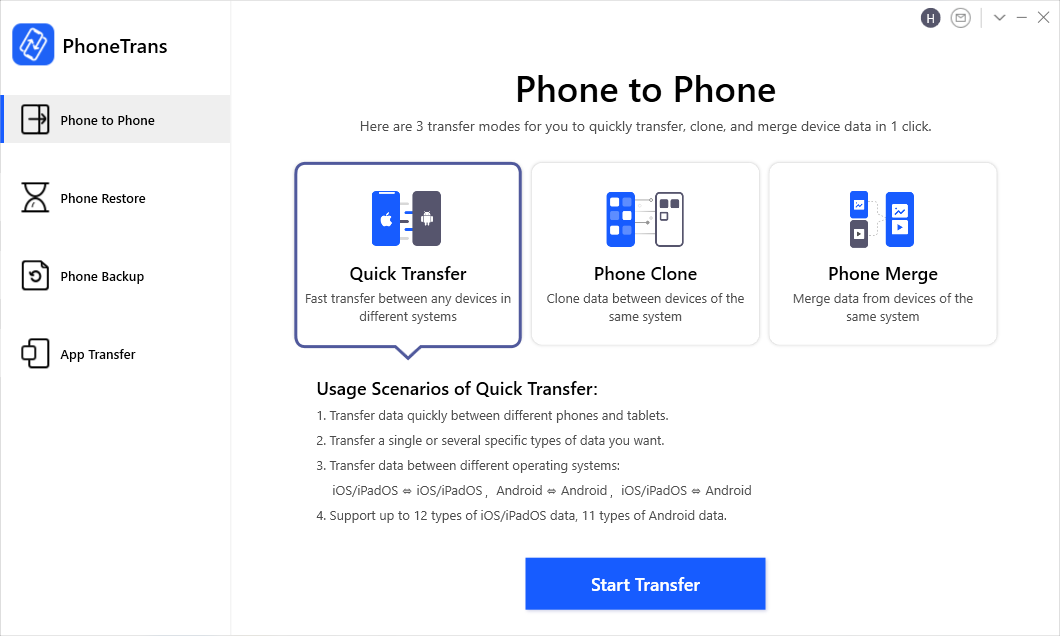
Phone to Phone – Quick Transfer
Advantages:
- Phone Backup helps you easily backup your important data from iPhone to computer.
- Three phone to phone transfer modes are provided: Quick Transfer, Phone Clone, and Phone Merge.
- Quick Transfer allows you to move data from iPhone to iPhone faster and more flexibly, saving time and phone storage. Besides, Android to iPhone, Android to Android are supported for this mode.
- Phone Clone can clone almost all device data from old iPhone to new iPhone or between Android phones.
- Phone Merge enables you to 1-click merge data iPhone to iPhone or Android to Android, without data overwriting.
- What’s more, App Transfer supports you to transfer WhatsApp, Line, Viber data, and more apps iPhone to iPhone.
- Free to Full Backup or Selective Backup your iPhone, iPad, and Android.
- 100% Clean & Secure and 60-Day Money-Back Guarantee.
Now get PhoneTrans to try this best app to transfer data from iPhone to iPhone:
Disadvantages:
- Quick Transfer can only support transferring 5 items of each type for free。
- And Phone Clone, Phone Merge, App Transfer need to pay to use.
# 3: iSkysoft iTransfer
iSkysoft iTransfer is an ultimate Phone Manager that allows you to transfer Music, Photos, Contacts& SMS, and more without iTunes. Backup Photos to PC helps you transfer all photos to your computer, and it also helps your export songs, videos, music from iPhone to the computer.
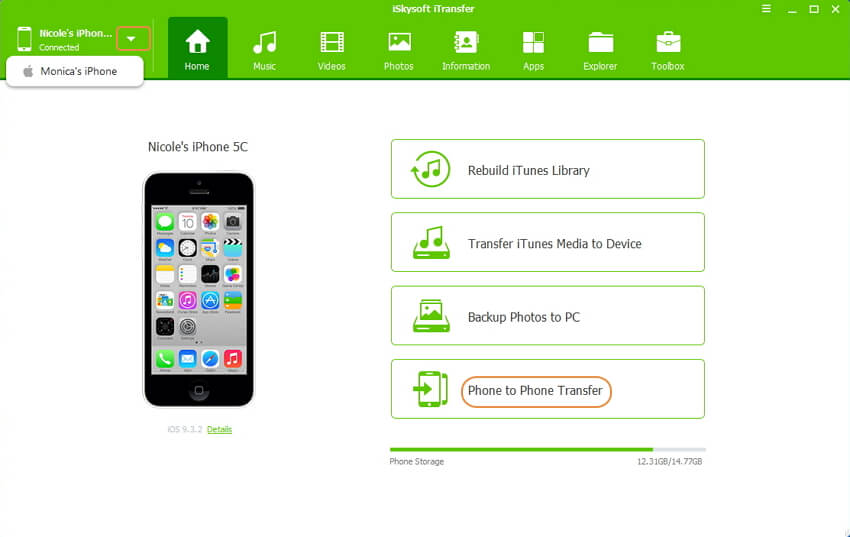
iSkysoft iTransfer for Windows
Advantages:
- It supports you to transfer files between iOS and Android devices, as well as the original iPods.
- Transfer music, videos, playlists, contacts, and photos between any two phones, also from iPhone to computer
- Simple and Easy-to-use.
Disadvantages:
- It only supports transferring of music, videos, playlists, contacts, and photos.
# 4: iMazing
iMazing is simply the best iPhone, iPad, and iPod manager for Mac and PC. It can help you safely transfer your data from your iOS devices to your computer. And also provides you a quick transfer method to easily put data back to your mobile device.
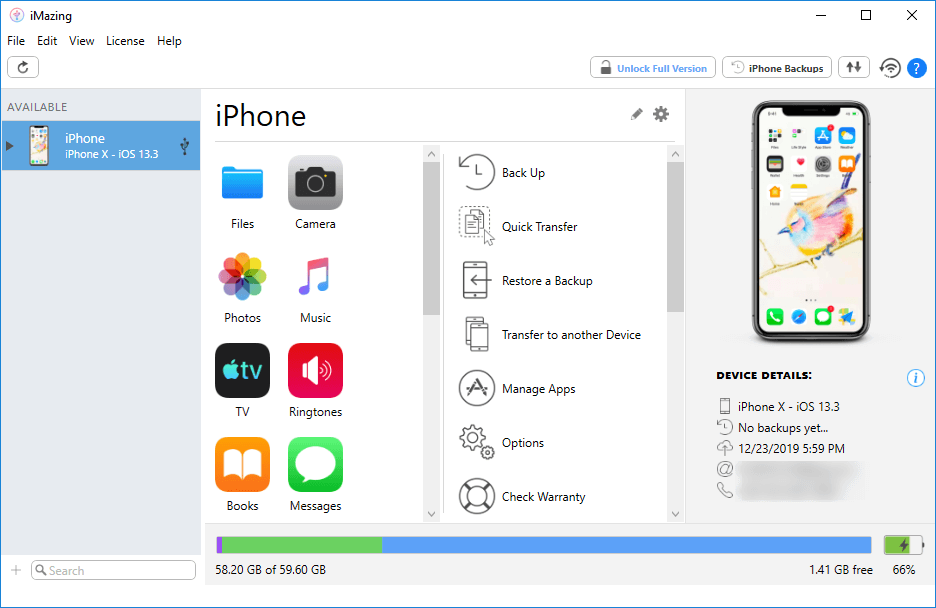
iMazing
Advantages:
- iMazing gives you full control over your iPhone data transfer. It supports you to sync pictures, videos, Messages, Contacts, Calendars, Notes, Voice memos, etc.
- Fast and easy.
- Friendly UI design.
Disadvantages:
- You can only check and manage your data only after a full backup.
# 5: dr.fone – Phone Transfer
dr. fone – PhoneManager lets you transfer data from a phone, including iOS and Android, to a computer with a few clicks, which is a reliable tool that can use to save your data from your smartphone to Windows and Mac computers.
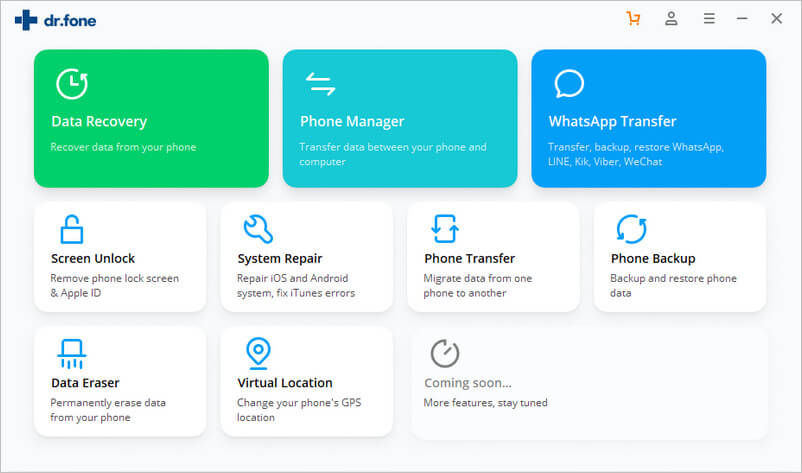
dr.fone – Phone Transfer
Advantages:
- It supports 15 file types, like photos, videos, contacts, messages, call history, bookmarks, calendars, and others.
- Safe and fast.
Disadvantages:
- No auto-renewal for a 1-year license.
- Installation requires an active Internet connection.
# 6: Syncios Data Transfer
As a combination of iPhone Manager, PC to iPhone Transfer, iPhone Music Transfer, iPhone to PC Transfer, iPhone to iPhone Transfer, and iPhone to iTunes Transfer, Syncios is able to transfer files among your computer, iPhone, and iTunes.
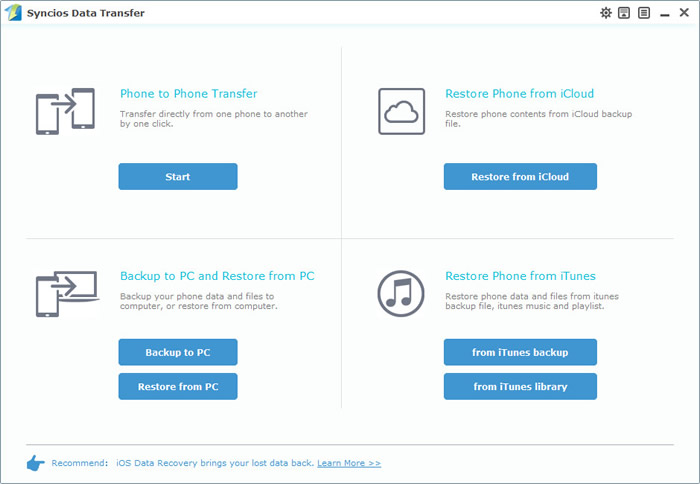
Syncios Data Transfer
Advantages:
- You can have your app, music, photos, movie, eBooks, iTunes U, voice memo, contacts, and other iPad data perfectly transferred without Wi-Fi in one click.
- Multiple OS supported: multiple phones run Android and iOS, compatible with the latest Android 11 and iOS 14.
Disadvantages:
- No preview and you can’t selectively transfer data from iPhone to iPhone.
- The Mac version is currently not available.
- Not free and you can only get the 30 Days Money Back Guarantee.
# 7: ApowerManager
As a Phone Manager for Android & iOS and one-stop management for Phones. ApowerManager allows you to freely import, export, or delete the media files stored on your mobile device.
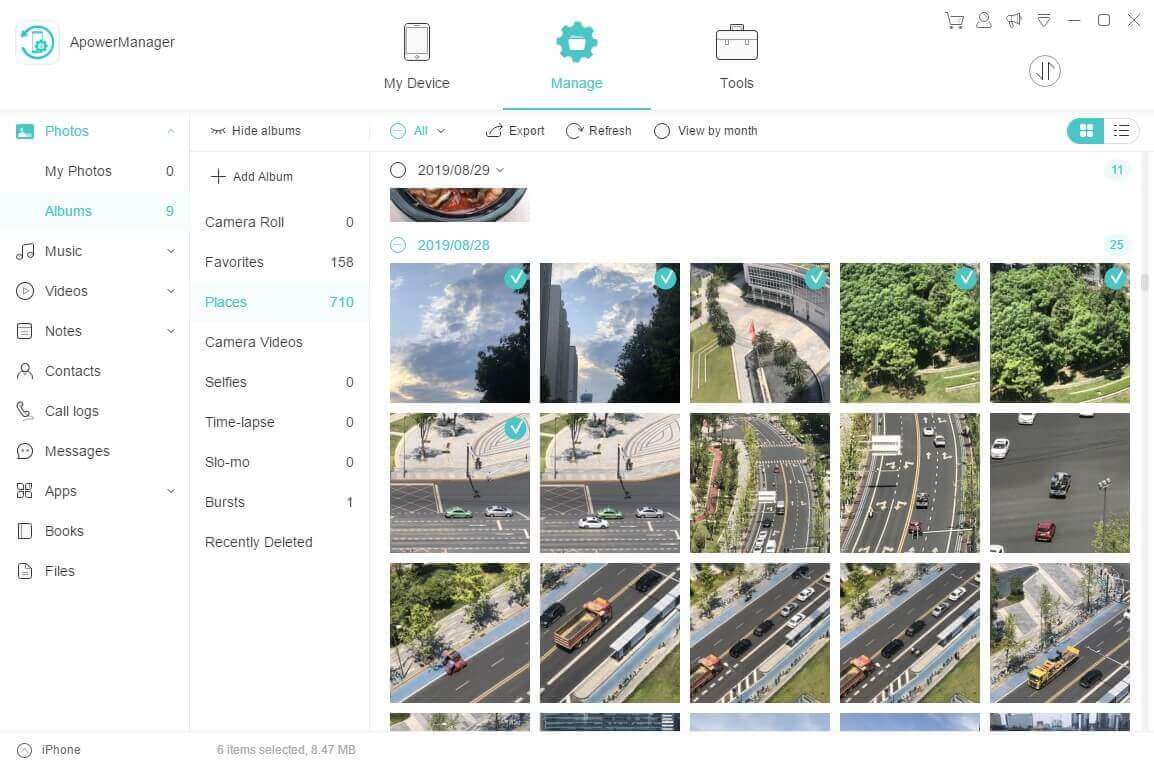
ApowerManager
Advantages:
- It supports moving Music, Photos, Videos, Contacts, Messages, Call logs and so on.
- Support Windows 10/8/7, Mac OS 10.9 and higher, Android 4.0 and higher, iOS 8.0 and higher.
- It can be used through a USB cable or wirelessly.
Disadvantages:
- Since it was built to transfer files from PC to phone and vice versa, it cannot be used to directly transfer files from one phone to another. (A PC intermediate needed)
- Limited media files can be transferred.
The Bottom Line
That’ll be for the details of the 6 best iPhone to computer transfer apps in 2023. As you can see, AnyTrans proves to be much more powerful. With it, you can not only transfer all data from iPhone to the computer in one click but also selectively choose what you really want to transfer. Within 60 days, if AnyTrans fails to satisfy your needs, you could require a full refund. Just download the iPhone transfer software to give it try right now >
More Related Articles


Work for iMobie team for 5 years as well as an Apple fan, love to help more users solve various types of iOS or Android related issues.
Product-related questions? Contact Our Support Team to Get Quick Solution >
