Download AnyTrans to Start Your iOS Contents Management Experience!
How to Use AnyTrans
Welcome to AnyTrans Online Guide. Here you can find all detailed tutorials about how to manage your iOS contents between iOS devices, iOS device & computer, iOS device & iTunes, iOS device & iCloud as well as data stored on iTunes and iCloud backups, and even move Android device data to iTunes, iCloud and iOS device directly. If you still have questions after reading this guide, please do not hesitate to contact our Support Team, and you will receive reply within 24 hours.
 Basic Information
 One-Click Quick Transfer
 Photos
 Audio
Audio
 Videos
 Personal Data
 iCloud Manager
 iTunes Library
 Phone Switcher
 Backup Manager
-
 Social Messages Manager
-
 Image Converter
 -
 Ringtone Maker
 -
 App Downloader
 -
 Screen Mirroring
 FAQs
FAQs Need Further Help
Air Backup
To avoid losing important data, it is necessary to back up your device periodically. Now, AnyTrans Air Backup feature provides you with the best way to backup your iOS device. It will backup your device within Wi-Fi or when you connect device to computer. At the same time, you can choose the path to store the backups and view the histories of your backups. Please refer to the following guide to make good use of AnyTrans.
Differences between iTunes/iCloud Backup & Air Backup
| Function | iTunes | iCloud | Air Backup |
| Schedule | No | No | Yes |
| Choose Location | No | No | Yes |
| Backup History | No | No | Yes |
| Automatic Backup | No | Yes | Yes |
Step 1. Preparations.
- Launch AnyTrans on your computer
- Connect your iOS device to computer with the USB cable
- Click
 button to enter Air Backup function
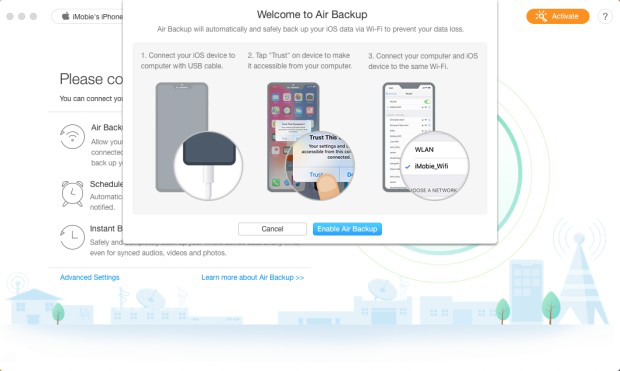
If it is the first time that you have used Air Backup function, you need to connect your iOS device to computer to enable this function.
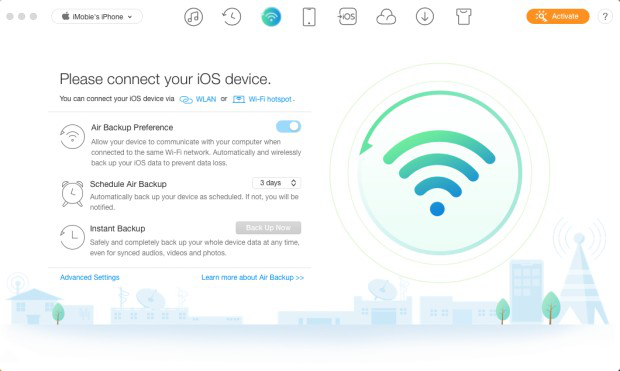
And then please click Trust This Computer option. Once your device is detected, you can see the device name in the interface.
Step 2. Backup.
- Disconnect your device
- Connect your device and computer to the same Wi-Fi
It provides two ways to let your iOS device and computer work with the same Wi-Fi. One is to connect your iOS device and computer to the same WLAN.
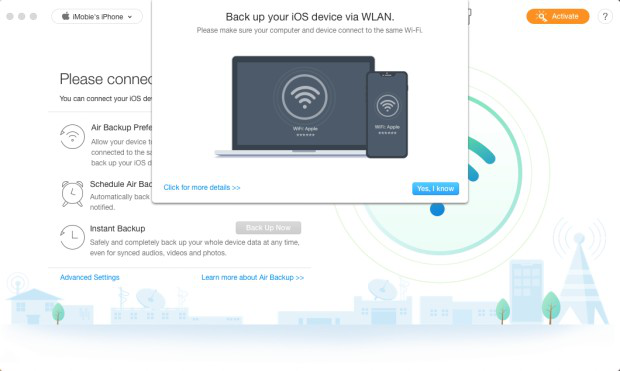
To connect iOS device and computer to the same Wi-Fi, please refer to this post.
The other is to connect your iOS device and computer to the same Wi-Fi hotspot.
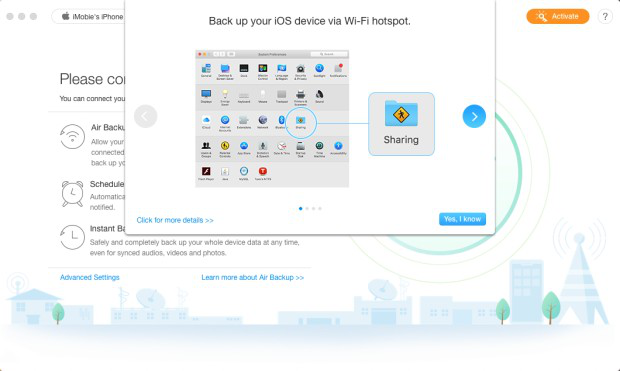
To turn on Wi-Fi hotspot on you computer, this article provides you with the detailed instructions.
At the first time, the Air Backup Preference is launched by default. Once your iOS device and computer are connected to the same Wi-Fi, it will back up your device automatically. The time to backup varies based on the size of your data. Please keep patient.
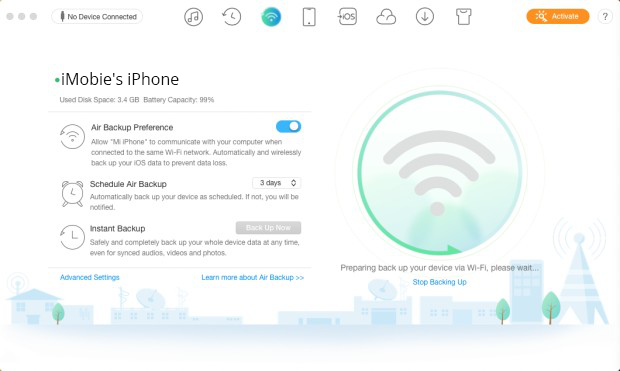
And you can also set up Air Backup Preference, Schedule Air Backup (from one day to a month) and Instant Backup (Back Up Now) based on your need. At the same time, you can change the backup path and adjust the battery in Advanced Settings.

Step 3. Management.
- Manage Air Backup page
- View the scanning result
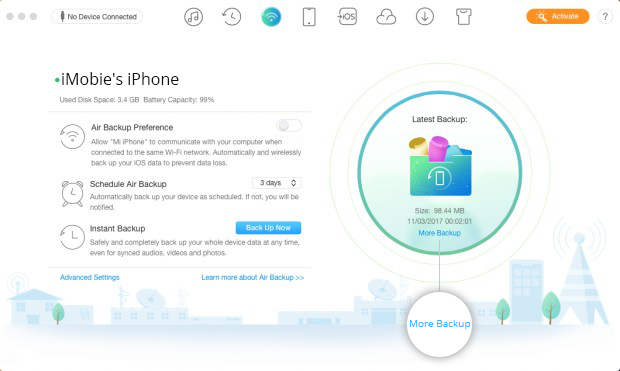
Once the backing up process is completed, you will see the interface as below. Please click More Backup (s) option to view the details of this backup, like the date of the backup, the size of the backup and so on. If you want to deactivate Air Backup Preference, please switch the blue switch to grey.