How to Transfer Music between Windows Media Player and iTunes with Ease
Part 1 – How to add Windows Media Player music to iTunes library; Part 2 – How to convert iTunes music to Windows Media Player.
iTunes Backup & Transfer Tips
Transfer from iTunes
Transfer to iTunes
iTunes Backup Password Issues
iTunes Backup Content
For iOS devices, you need to import music from computer to iPod with iTunes. For Zune, Windows Media Player is the management tool. Here’s a solution to transfer music between Windows Media Player and iTunes.
Don’t Miss: Put Music on iPhone to iTunes
Part 1: Import Windows Media Player Music to iTunes
- Browse to your Windows Media Player music folder, which can be found by: Right-click on the songs > Open file location:
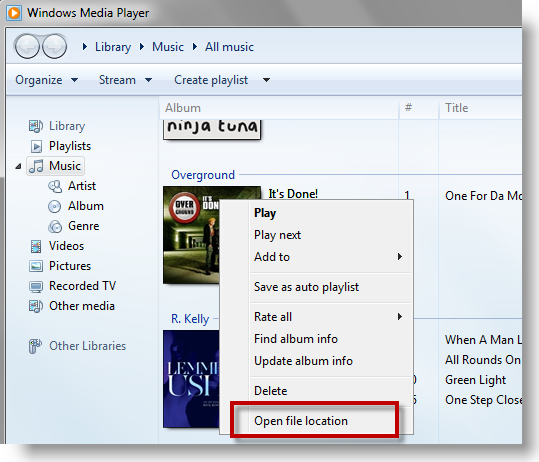
Find Windows Media Player Music Location
- Open iTunes > File > Add Folder to iTunes > Follow the same directory as where Windows Media Player saved the music:
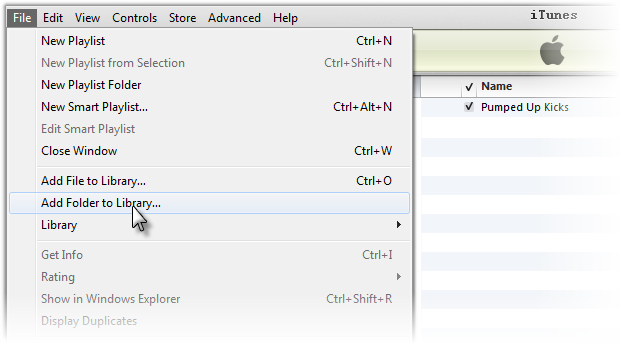
Add Folder to iTunes
- If you have files in WMA format, you will be prompted to convert those WMA files to AAC. This is a necessary step if you want those tracks available to play on your iPod or iPhone.
Part 2: Transfer iTunes music to Windows Media Player
- Open Windows Media Player > Organize > Manage libraries > Music:
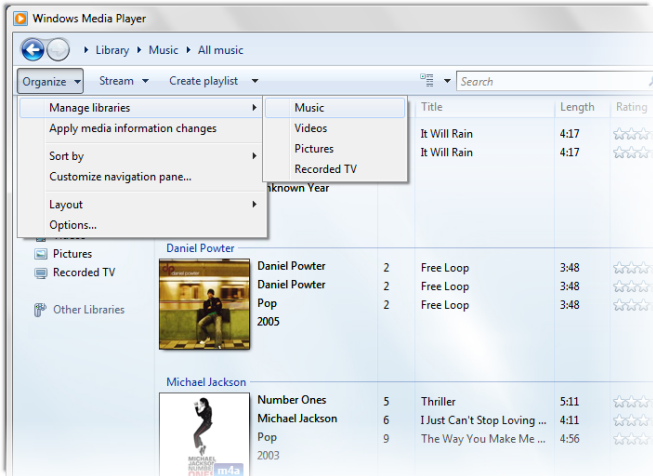
Open Windows Media Player
- Click Add to browse the file folder location of your iTunes library. And Click OK.
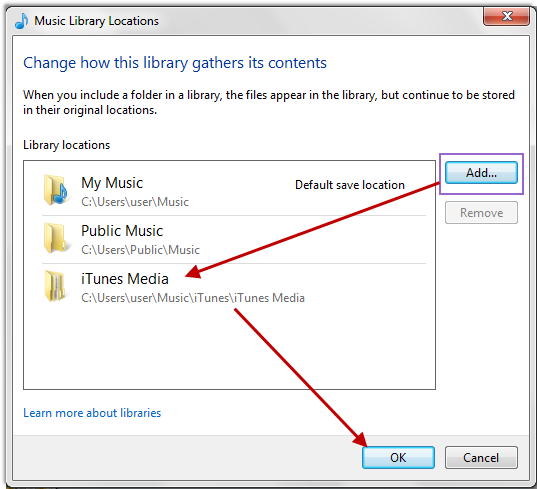
Click Add to browse the file folder location
You May Also Like: How to Transfer Music from Computer to iPhone 7 >
The Bottom Line
Both Microsoft and Apple provide an effective pathway for syncing media content from computer to device. But whenever you feel uncomfortable with iTunes or WMP, for instance, you just want to transfer iPod music onto the computer, then you should find a way alternative.



Joy Taylor is a seasoned technical writer with over a decade of experience in mobile technology. At iMobie, she specializes in producing in-depth content on iOS data recovery, iPhone unlocking solutions, and iOS troubleshooting.
Product-related questions? Contact Our Support Team to Get Quick Solution >
