How to Transfer Apps from Computer to iPhone or iPad
Want to install apps from a PC or Mac on your iPhone or iPad? Learn what still works in 2026, including App Store re-downloads, installing local IPA files with AnyTrans, Apple Configurator use cases, and why the old iTunes Apps tab no longer works.
If you want to transfer an app from a PC or Mac to an iPhone or iPad, first check what you actually have on the computer. Installing a local .ipa file, re-downloading an app you previously obtained from the App Store, and transferring documents into an existing app are three different tasks.
The old method of opening iTunes, choosing Apps, clicking Install, and syncing the app to an iPhone is no longer a current iTunes workflow. For most users, App Store apps should be downloaded directly on the iPhone or iPad. If you already have a compatible IPA file on your computer, an iOS app manager such as AnyTrans provides a separate installation workflow.
Quick answer: If the app is still available from Apple, re-download it directly from the App Store. If you specifically have a local IPA file on your PC or Mac, AnyTrans currently supports adding IPA files through Device Manager > Apps. The old iTunes Apps tab should not be used as a current app-installation method.
Can You Transfer Apps from Computer to iPhone?
Yes in some situations, but the method depends on the source of the app.
| What You Want to Do | Best Current Method | Important Limitation |
| Install an app that is currently available in the App Store | Download or re-download it directly on the iPhone or iPad | The app must still be available and compatible with the device |
| Install a local .ipa file stored on your computer | Use a compatible IPA installation/management workflow such as AnyTrans | Not every IPA package can necessarily be installed on every iPhone |
| Install organization-managed or in-house apps | Apple deployment tools such as Apple Configurator | Designed mainly for managed and organizational deployment scenarios |
| Copy documents into an app already installed on the iPhone | Use app file sharing | The destination app must support file sharing |
| Use the old iTunes Apps tab | Not a current method | Modern iTunes no longer provides the old app-installation sync workflow |
What Is an IPA File?
An IPA is an iOS or iPadOS application package. Having an IPA file on a computer is different from seeing an app in your App Store purchase history.
Also, a file ending in .ipa is not automatically guaranteed to install successfully on every iPhone or iPad. App compatibility, iOS version and the way the app package was distributed can affect whether the device accepts it.
If you simply want an App Store app you previously downloaded, do not look for an IPA first. Re-downloading the app through your Apple Account is the simpler official path.
Method 1. Install an IPA from Computer with AnyTrans
If you already have a local IPA file on a Windows PC or Mac, AnyTrans currently includes an Apps Management feature for adding IPA files from a computer to an iPhone or iPad.
Its current user guide lists Add IPA file from the computer to the iOS device among the available app-management actions. AnyTrans also lets users view installed apps, update or remove apps, and save supported apps to its App Library.
AnyTrans – Install and Manage iPhone Apps from a Computer
- Add local IPA files from a Windows PC or Mac to a compatible iPhone or iPad.
- View and manage installed apps from Device Manager.
- Update or remove multiple apps from the computer interface.
- Store supported app packages in the AnyTrans App Library.
- Current AnyTrans documentation lists support for iOS devices running iOS 5 or later.
How to Install an IPA on iPhone with AnyTrans
Step 1. Launch AnyTrans on the Windows PC or Mac.
Step 2. Connect the iPhone or iPad to the computer with a USB cable and allow the computer to recognize the device.
Step 3. Open Device Manager and choose Apps.
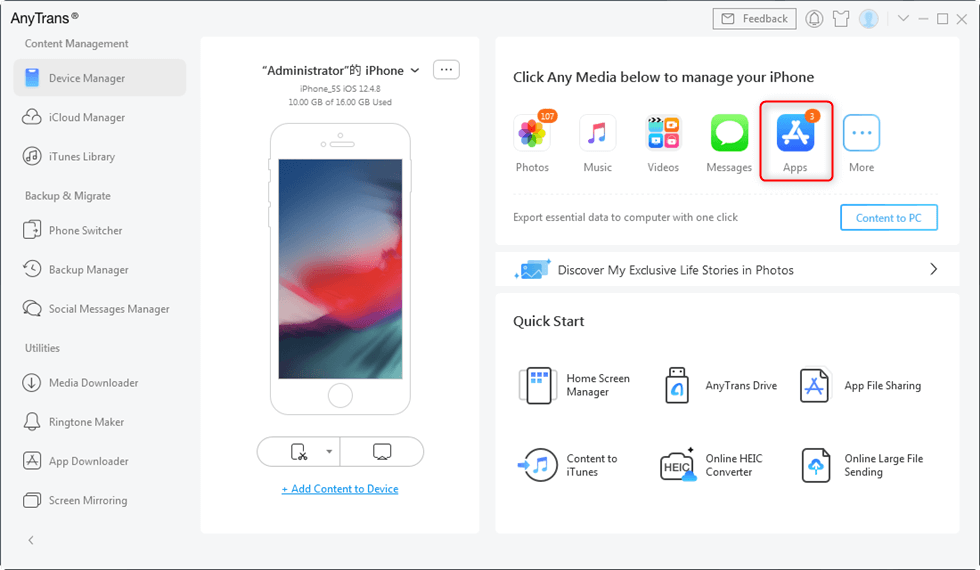
Open the Apps category for the connected iPhone or iPad.
Step 4. Click the Add button in the Apps management interface.
Step 5. Browse to the local IPA file stored on the computer and select it.
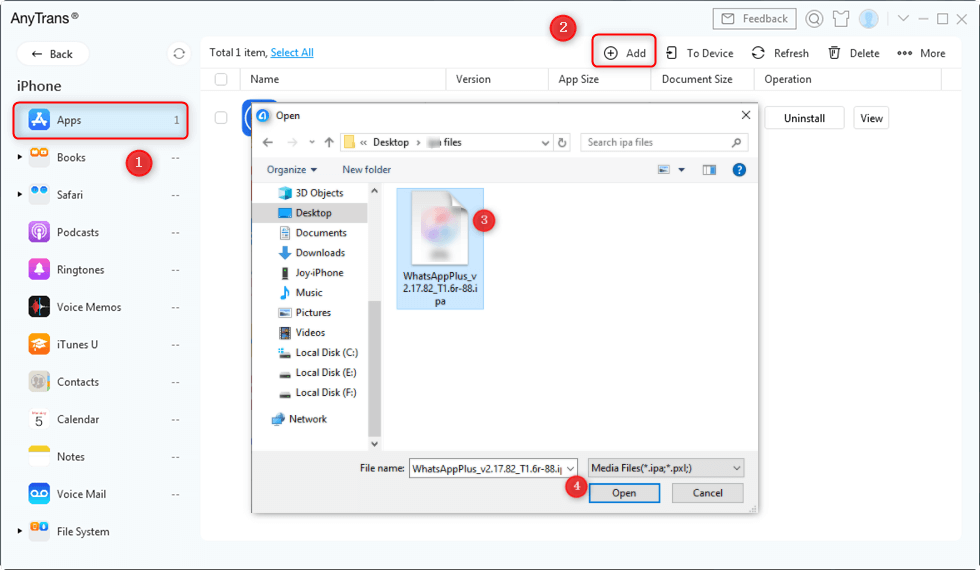
Select the local IPA file you want AnyTrans to add to the iOS device.
Step 6. Follow the current AnyTrans prompts and keep the iPhone or iPad connected until the installation process finishes.
AnyTrans’s local app-install workflow is intended for IPA files. A Windows .exe, Android APK or macOS application cannot simply be renamed and installed as an iPhone app.
What If the IPA Will Not Install?
If the IPA is rejected, check whether:
- the app supports the iOS or iPadOS version on the device;
- the IPA is actually an iOS application package;
- the package came from a legitimate source you are authorized to use;
- the app or its distribution authorization is still valid;
- the iPhone has enough free storage;
- AnyTrans recognizes the connected device correctly.
Do not assume that every old IPA saved on a computer can always be reinstalled on a current iPhone.
Method 2. Re-download Apps from the App Store
If the app was previously obtained with your Apple Account and is still available, Apple’s official method is to re-download it directly on the iPhone or iPad rather than transfer an old copy from a computer.
Step 1. Open the App Store.
Step 2. Tap your account photo or account button.
Step 3. Tap Apps & Purchase History, then Your Apps.
Step 4. Choose Not on this iPhone or Not on this iPad.
Step 5. Find the app and tap the Redownload button.
If the app no longer appears as downloadable, it may have been removed from the App Store, hidden from your purchase list, purchased with another Apple Account, or no longer be compatible with the device.
Do App Store Purchases Need to Be Transferred from the Computer?
No. For currently available apps, your Apple Account purchase history is usually more useful than an old iTunes library.
This is one of the biggest differences between current iPhone app management and the older iTunes-era workflow.
Method 3. Use Apple Configurator for Managed Apps
Apple also provides Apple Configurator on Mac for device configuration and managed deployment scenarios.
Apple documents Configurator as a tool that can install apps, configuration profiles and documents on iPhone and iPad. It is particularly relevant to supervised or organization-managed devices.
Apple also documents installation of proprietary in-house apps through Configurator under supported deployment conditions.
Apple Configurator is not a general replacement for the consumer App Store and should not be presented as a universal way to sideload any arbitrary IPA downloaded from the internet.
When Is Apple Configurator the Better Choice?
Consider it when you are:
- an IT administrator managing company or school devices;
- configuring supervised iPhones or iPads;
- deploying organization-authorized apps;
- working with an Apple-supported device-management workflow.
For an ordinary personal iPhone and a normal App Store app, downloading from the App Store remains simpler.
Can iTunes Still Install Apps on iPhone?
No, not through the old Apps tab described in older tutorials.
The former iTunes workflow looked like this:
Connect iPhone → Apps → Install → Sync
That workflow belongs to an older version of iTunes. Apple’s current iTunes syncing documentation lists media, photos, contacts and calendars, but it no longer lists iOS app installation as a normal sync category.
This means the older steps in this guide should not be preserved simply because the query contains “computer to iPhone.”
What Can Current iTunes Still Do?
On supported Windows environments, iTunes can still sync content such as:
- music and playlists;
- movies and TV content;
- podcasts and audiobooks;
- photos and videos;
- contacts and calendars.
It can also use File Sharing to copy documents between a computer and certain apps that are already installed on the iPhone or iPad.
File Sharing is not app installation. It transfers documents into or out of a compatible installed app; it does not install the app itself.
Transfer Files into an iPhone App Instead of Installing the App
Sometimes a user says “transfer an app from PC to iPhone” when the actual goal is to transfer a PDF, video, document, project or other file into an app that is already installed.
In that case, use app file sharing rather than trying to install an IPA.
Using Apple’s File Sharing Workflow
On supported Windows iTunes setups:
Step 1. Connect the iPhone or iPad to the computer.
Step 2. Select the device.
Step 3. Open File Sharing.
Step 4. Select an installed app that supports file sharing.
Step 5. Click Add and choose the document you want to transfer.
The file will then be available to the selected app, provided that app supports the file type.
AnyTrans App File Sharing
AnyTrans also provides an App File Sharing workflow for supported apps. This is useful when you want to move documents between an iPhone/iPad and a computer without installing another copy of the app itself.
FAQs About Transferring Apps from Computer to iPhone
1. Can I transfer apps from a PC to an iPhone?
Yes in certain situations. If you have a compatible IPA file, a tool such as AnyTrans currently provides a computer-to-iPhone installation workflow. If the app is still available from Apple, re-downloading it directly from the App Store is usually simpler.
2. Can I install an IPA file on iPhone from a PC?
AnyTrans currently supports adding local IPA files through Device Manager > Apps. Whether a particular IPA can actually be installed depends on the app package, device and current iOS compatibility.
3. Can iTunes install apps on iPhone in 2026?
The old iTunes Apps > Install > Sync workflow is no longer part of Apple’s current iTunes syncing process. Current iTunes primarily syncs media, photos, contacts and calendars and supports file sharing for compatible installed apps.
4. Can I install an iPhone app from a Mac?
For normal App Store apps, download them directly on the iPhone or iPad. For a compatible local IPA, a third-party iOS app manager can provide an installation workflow. Apple Configurator is another option for supported managed or organizational deployment scenarios.
5. Can I re-download an app I bought before?
Yes if it is still available and compatible. Open the App Store, go to Apps & Purchase History > Your Apps, choose Not on this device, and tap the Redownload button.
6. Can I reinstall an app that was removed from the App Store?
Not through Apple’s normal re-download process if it is no longer available for download. A previously saved compatible app package may present a different situation, but successful installation should not be guaranteed.
7. Can I transfer an Android APK to an iPhone?
No. APK files are Android application packages and cannot be installed as native iPhone apps. iOS uses its own app formats and distribution requirements.
8. Is transferring files to an app the same as installing the app?
No. File Sharing moves documents into an app that is already installed. Installing an app adds the application itself to the device.
9. Can AnyTrans manage apps already installed on my iPhone?
Yes. AnyTrans’s current Apps Management documentation includes viewing apps, adding IPA files, updating apps, deleting apps and saving supported apps to its App Library.
10. Do I need AppTrans and AnyTrans for this?
No. Both products currently provide app-installation functionality, but you do not need two separate tools for the same basic computer-to-iPhone IPA installation task. This guide focuses on AnyTrans as the primary iOS management workflow.
The Bottom Line
Transferring apps from a computer to an iPhone is no longer an iTunes-sync task. If the app is available from Apple, re-download it directly from the App Store. If you specifically have a local IPA file, AnyTrans currently provides an Apps Management workflow for adding IPA files from a PC or Mac.
For managed organization-owned devices, Apple Configurator may be the appropriate deployment tool. And if you only want to move documents into an app that is already installed, use File Sharing instead of trying to reinstall the app.



Joy Taylor is a seasoned technical writer with over a decade of experience in mobile technology. At iMobie, she specializes in producing in-depth content on iOS data recovery, iPhone unlocking solutions, and iOS troubleshooting.
Product-related questions? Contact Our Support Team to Get Quick Solution >
