How to Transfer Contacts from iPhone to iPhone | 7 Proven Ways
Got a new iPhone 16/17, but do not know how to transfer contacts from the old iPhone to the new iPhone? This guide will show you 7 ways to transfer contacts from one iPhone to another with ease, all iPhone models supported.
iPhone to iPhone Transfer Tips
Transfer/Sync iPhone
Transfer Media Data
AnyTrans – Full-way iOS Data Manager
Free download AnyTrans to quickly transfer your contacts from iPhone to iPhone (iPhone 17 series included) in just 1 click.

The new iPhone 17 has been released 2025, bringing plenty of excellent features with the brand new iOS 26. It’s awesome to upgrade to the new iPhone 17. When switched to a new iPhone, the first thing you may need to do is sync the important info, especially contact,s on your old iPhone to the new iPhone. And here in this guide, we will show you some ways to do the task.
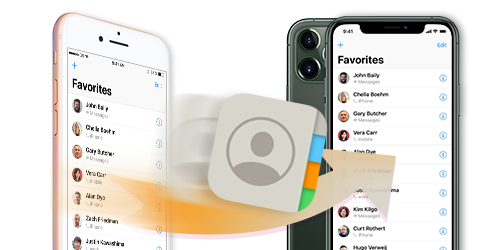
Transfer Contacts to New iPhone
Since transferring contacts with iCloud/iTunes will erase all existing data on iPhone, here we will not only show you how to transfer contacts from iPhone to iPhone via iTunes/iCloud but also share with you other quick ways to transfer contacts from one iPhone to another without wiping any data. Keep reading and choose one way that suits you most.
Comparison of the Methods
| Method | Best For | Time Required | Ease of Use | Data Integrity |
| Method 1: iCloud Sync | Users logged into the same Apple ID who only need to sync contacts | 2–10 mins | Very Easy | Excellent (Merges contacts, no data wipe) |
| Method 2: AnyTrans (No iCloud / iTunes) | Selective contact transfer without erasing existing data | 1–5 mins | Easy | Excellent (No overwrite, precise transfer) |
| Method 3: iCloud Backup Restore | Brand-new iPhone or users OK with full data reset | 20–60+ mins | Moderate | Excellent (Full device restore) |
| Method 4: iTunes Sync / Restore | Desktop users who rely on local backups | 30–60+ mins | Moderate–Hard | Excellent (Overwrites existing data) |
| Method 5: AirDrop | Transferring only a few contacts | < 1 min per contact | Easy | Good (Manual and inefficient for bulk transfer) |
| Method 6: SIM Card Import | Contacts already stored on SIM card | 1–5 mins | Easy | Limited (SIM contacts only) |
| Method 7: PhoneTrans (Phone-to-Phone Tool) | One-click migration when upgrading to a new iPhone | 5–15 mins | Very Easy | Excellent (Complete, integrated transfer) |
How to Transfer Contacts from iPhone to iPhone-7 Methods
Method 1. Transfer Contacts from iPhone to iPhone 16/17 with iCloud Sync
iCloud is a great tool for iPhone users. It does not require you to operate through the computer; you only need your Apple ID to easily realize the transfer contacts from iPhone to iPhone desire! But first, you should ensure that your contacts are backed up to iCloud from your old iPhone. If not, you can, on your old iPhone, go to Settings > your username > iCloud > iCloud Backup > tap “Back up Now“. Then follow the steps below to transfer contacts to a new iPhone:
1. Connect both of your iPhones to the Wi-Fi.
2. Log in to the same Apple ID on your two iPhones.
3. On both iPhones, go to Settings > Tap on your Apple ID > Click iCloud > Select Contacts.
4. Tap on it to turn it on > Select Merge when it asks if you want to merge contacts.
5. Wait for the contacts on the old iPhone syncing to the new iPhone.
Contacts will sync between iPhones as long as you log in with the same Apple ID on your iPhones and the Contacts syncing option is turned on.
Method 2. Transfer Contacts from iPhone to iPhone 15/16/17 without iCloud or iTunes
AnyTrans is a professional and easy-to-use iPhone data manager that helps you transfer contacts from iPhone to iPhone without wiping any previous data. You can transfer data between iPhones without iCloud easily. Also, it enables you Get it to have a try after checking its top features:
- No data erase and selective transfer – Unlike iCloud or iTunes, no data will be erased when transferring contacts. And you can preview and choose the contacts you want to transfer without full restore.
- Preview and Transfer contacts between iPhones selectively or wholly – You can preview your contacts before transferring and select to copy or check the Select All option to transfer all contacts in 1 click.
- Super fast transferring speed – You can transfer over 3000 contacts between iPhones within 32 SECONDS.
- Support all iOS device models and iOS versions – AnyTrans supports the latest iPhone 17, as well as iOS 26.
Now, Free Download AnyTrans on your computer, and then follow the steps below to move contacts to your new iPhone 17.
Free Download * 100% Clean & Safe
Steps to Transfer Contacts to a New iPhone from an Old iPhone
Step 1. Run AnyTrans on your computer > Connect your two iPhones to the computer with USB cables.
Step 2. Click on the “Device Manager” mode > Choose your source device > Click on “More” to get contacts on your source iPhone.
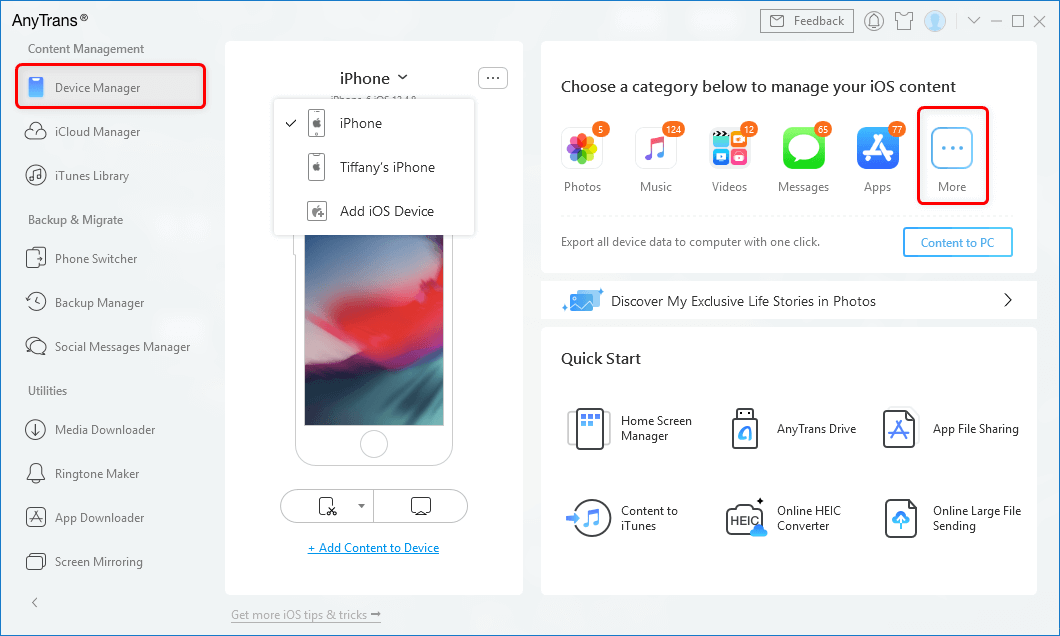
Click More Tab under Device Manager of AnyTrans
Step 3. Select the contacts you want to transfer (you can click the “Select All” button to check all the contacts) > Click on the “To Device” button at the top-right corner to transfer the selected contacts to your target iPhone.
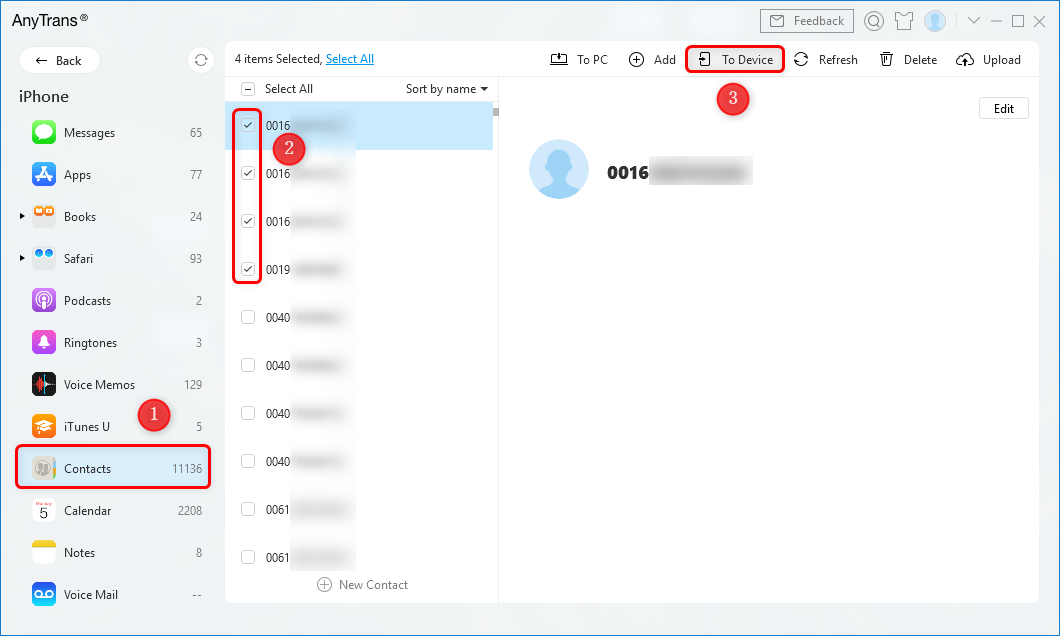
Select Contacts and Click To Device
Method 3. Transfer Contacts from iPhone to iPhone via iCloud Backup
If you have backed up your contacts with iCloud, then you can transfer the contacts to your new iPhone by restoring them from the iCloud backup you made before.
1. On your Old iPhone, go to Settings > [your name] > iCloud > iCloud Backup.
2. Turn on “iCloud Backup” if it is closed > Tap on Back Up Now.
3. On your new iPhone, Settings > General > Reset > Erase All Content and Settings > Erase iPhone.
4. Set up your new iPhone until you access the Apps & Data screen and choose to Restore from iCloud.
5. Select the backup you just created to restore.
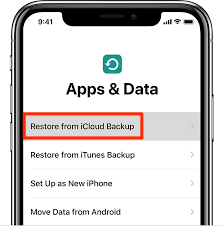
Restore from iCloud Backup
Method 4. How to Transfer iPhone Contacts to a new iPhone with iTunes
1. Connect your old iPhone to a computer and open iTunes.
2. Choose your iPhone and click Info, and then select the Sync Contacts option.
3. Click Apply to sync your iPhone as well as the contacts with your computer.
4. After the sync, unplug your old iPhone and plug in your new iPhone.
5. Choose your new iPhone in iTunes and click Info.
6. Make sure that the Sync Contacts option is checked.
7. Scroll down to the Advanced menu.
8. Check Contacts under Replace information on this iPhone.
10. Finally, click Apply to sync contacts to your new iPhone.
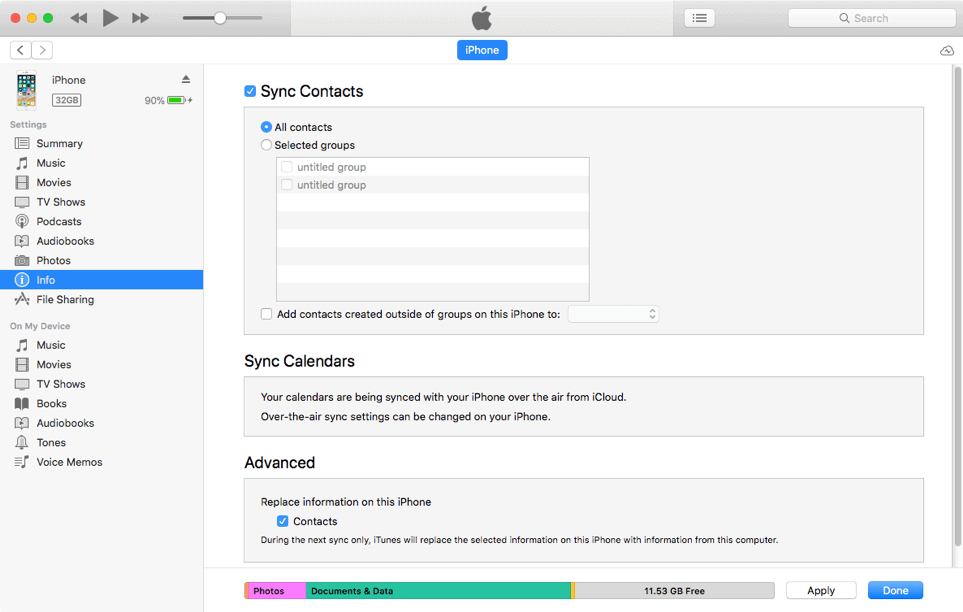
Transfer Contacts from iPhone to iPhone with iTunes
Some tutorials also advise you to restore your new iPhone with the old iPhone’s iTunes backup. But you must be clear that your contacts will be transferred to the new iPhone as well as all the other data on your old iPhone. This means all the existing data and files on the new iDevice will be replaced by the contents in the backup, and the contents in the backup you may not want to restore also will be transferred to your new iPhone.
If you want to keep all your contacts safe, please move to Method 1 to get the solution. Next, we will show you how to transfer contacts from iPhone to iPhone with iTunes.
Method 5. Share Contacts from iPhone to iPhone Using AirDrop
AirDrop is a feature that lets iOS users share files wirelessly between Macs and iOS devices. So, you can AirDrop contacts to a new iPhone:
1. Swipe up from the bottom of the screen or swipe down from the top-right corner of the screen on iPhones to launch Control Center.
2. Press and hold on to the wireless control box on the upper left side of the Control Center and tap AirDrop.
3. Tap the AirDrop button to reveal the permissions: Receiving Off, Contacts Only, or Everyone.
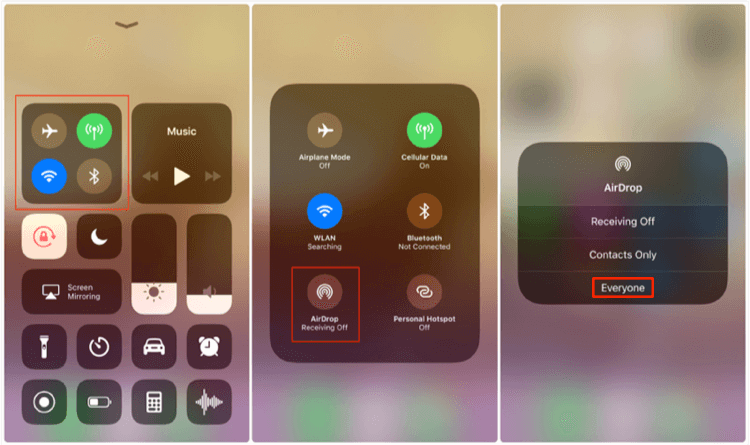
Turn on Airdrop
4. Open the Contacts app on your old iPhone.
5. Find the contact that you want to transfer to the target iPhone.
6. Tap on the Share Contacts button and tap AirDrop.
7. Choose your new iPhone > Hit the Accept button on your target iPhone to receive the shared contacts.
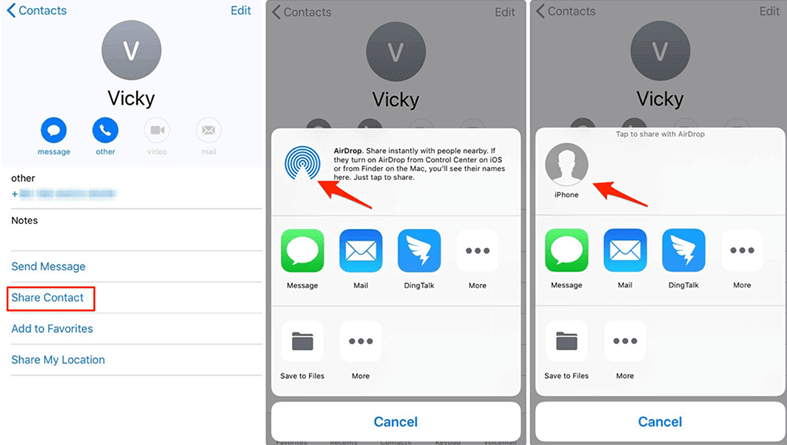
AirDrop Contacts from iPhone to iPhone
However, AirDrop only allows you to transfer one contact at a time. When you want to move all the contacts from iPhone to iPhone via AirDrop, there would be a lot of weary and tiresome duplication. To transfer all your contacts at a time from iPhone to iPhone quickly, jump to Method 1.
The most magical trick to speed up your PC is to migrate OS from HDD to SSD. Although moving Windows to an SSD is not an easy task, AOMEI Backupper Standard helps you remove the hassle in minutes. And check this guide to learn how to transfer Windows 10 from HDD to SSD >
Method 6. How to Move Contacts from iPhone to iPhone through the SIM Card
If you have stored your contacts in the SIM card on your old iPhone, then you can transfer contacts to your new iPhone by removing the SIM card from the old iPhone.
1. Insert the SIM card into the new iPhone.
2. Go to Settings, tap on Contacts.
3. You will see the Import SIM Contacts option.
4. After the process completes, the contacts on your old iPhone should be transferred to the new iPhone.
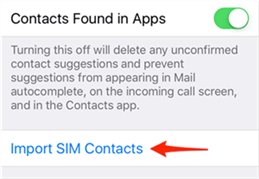
Import SIM Contacts
However, the iPhone iPad iPod touch don’t allow users to backup contacts to SIM, and contracts have to be stored in the iPhone’s memory. So, if there’s no contact on your SIM card, refer to the other ways in this article to move contacts to the new iPhone.
If you need to transfer contacts from iPhone to Mac/PC, from computer to iPhone, or from iPhone to iTunes, it also helps you make it easier.
Besides contacts, AnyTrans also supports transferring up to 25 types of data from iPhone to iPhone, like messages, photos, videos, music, voice memos, etc.
Method 7. Sync Contacts to New iPhone with Phone to Phone Transfer Tool
Another way to transfer all contacts from your old iPhone to a new iPhone, PhoneTrans will be a perfect choice for you. PhoneTrans is a professional phone-to-phone transfer tool, which is designed to make iOS/iPadOS to iOS/iPadOS, Android to Android, and iPhone and Android transfer easier and faster.
- With PhoneTrans, you can sync contacts to a new iPhone with one click.
- To make a smooth upgrade to a new iPhone, you can transfer more data to your new iPhone, including messages, photos, videos, music, notes, books, and more.
- PhoneTrans will save a huge amount of data transfer time and precious phone storage with Quick Transfer mode.
- Besides, you can transfer WhatsApp/Line/Viber data and other apps to your new iPhone.
Now, you can get the latest version of PhoneTrans on your computer and move all contacts to the new iPhone with ease:
Step 1. Open PhoneTrans and tap on Phone to Phone, then choose Quick Transfer mode and click Start Transfer button.
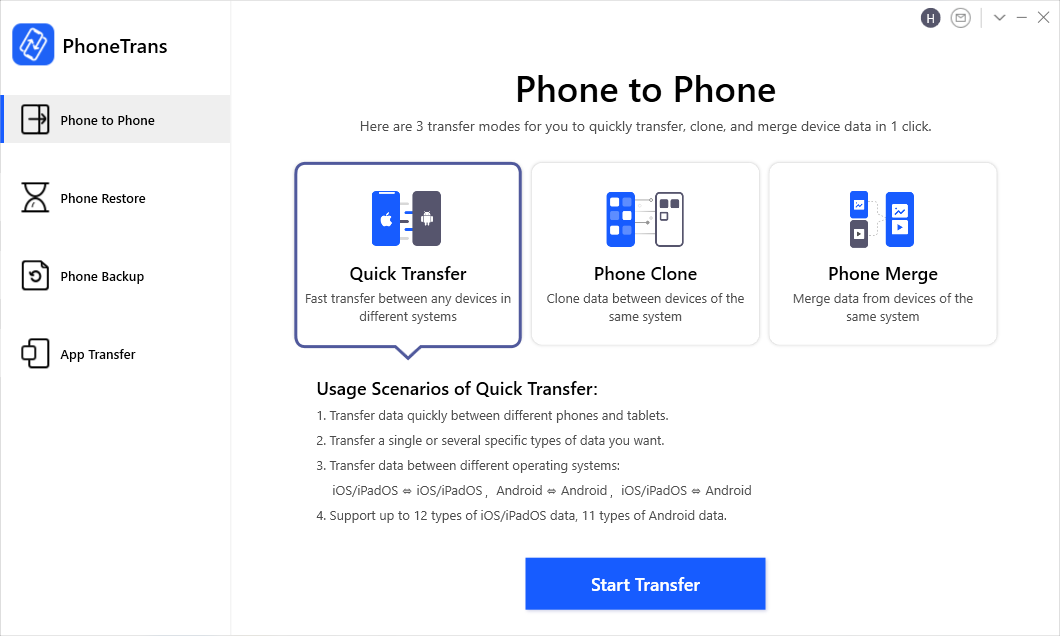
Choose the Quick Transfer Mode
Step 2. Connect your old iPhone and new iPhone with USB cable. Confirm the source device and new device. Then click Transfer button to continue.
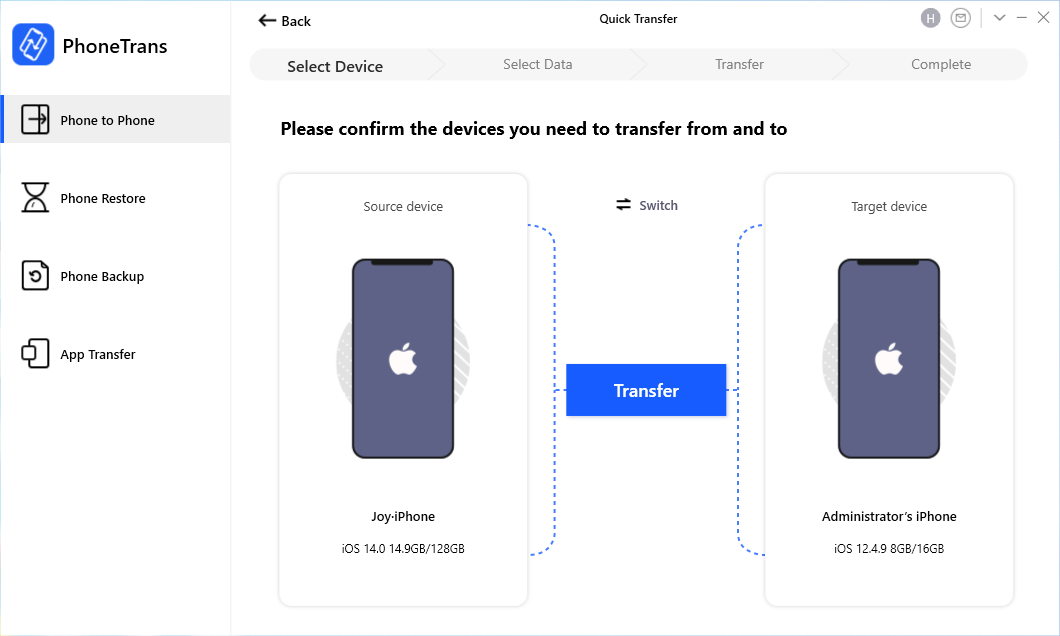
Confirm Your iPhones
Step 3. All the data including calendar, voice memos, photos, etc. on the old iPhone will be listed here. Select contacts or other data to transfer now.
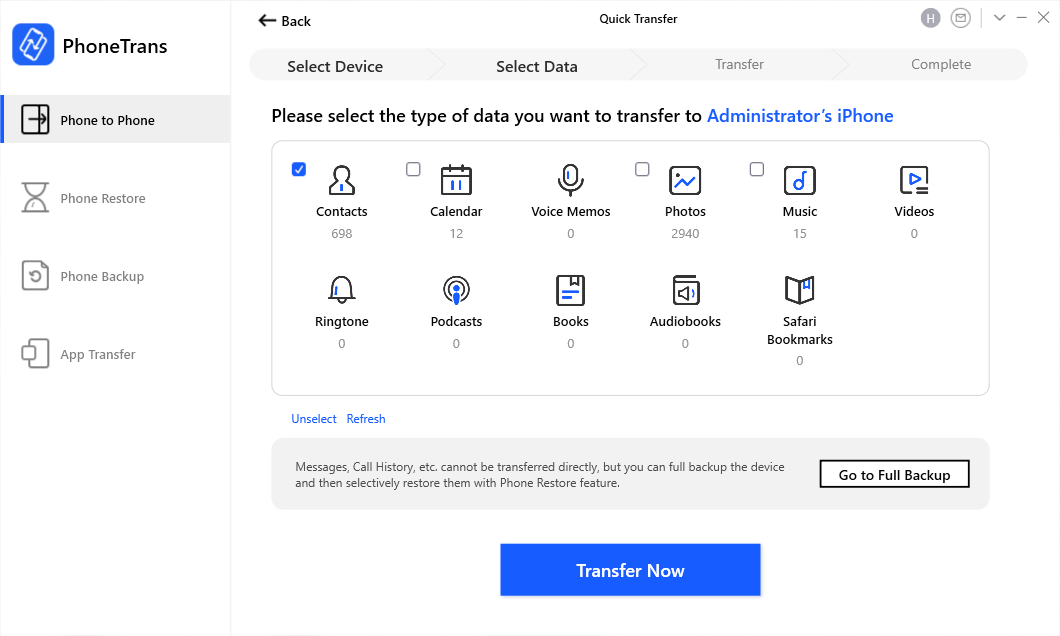
Select Contacts to New iPhone
Troubleshooting: What to Do If Contacts Are Missing or Not Syncing
Even with these proven methods, you might face issues. These problems are typically caused by simple configuration errors, not data loss. The most common reason for missing contacts is that they were originally saved to a third-party account (like Google or Outlook) instead of iCloud.
If your contacts aren’t transferring correctly, follow these steps to resolve the issue.
- 1. Double-Check Your Apple ID: This is the number one cause of sync failures. Go to Settings > [Your Name] on both iPhones and verify you are logged into the same Apple ID. A single typo can prevent the sync.
- 2. Confirm Your Internet Connection: iCloud requires a stable Wi-Fi connection. Try loading a webpage to ensure your internet is working. If it’s slow, connect to a different network and try again.
- 3. “Reboot” the iCloud Sync: A simple but powerful fix is to toggle the sync off and on. On both devices, go to Settings > [Your Name] > iCloud, turn the Contacts toggle off. When prompted, choose “Keep on My iPhone.” Wait 30 seconds, then toggle it back on and select “Merge.”
- 4. Set the Correct Default Account: Ensure new contacts are being saved to the right place. Go to Settings > Contacts > Default Account and make sure it is set to iCloud. If it was set to another account, any contacts you added recently might be stored there.
- 5. Force Restart Both iPhones: If other solutions don’t work, a force restart can clear software glitches that may be blocking the transfer. [Internal Link Suggestion: Link the preceding phrase to ‘/how-to-force-restart-any-iphone-model’]
Frequently Asked Questions
Here are direct answers to the most common questions about transferring iPhone contacts.
Q1. What is the easiest way to transfer contacts from iPhone to iPhone?
For a brand-new, un-configured iPhone, Quick Start is the easiest method. It’s a guided, on-screen process during the initial device setup. For an iPhone that is already in use, enabling iCloud Contacts sync is the easiest, as it works automatically in the background once enabled.
Q2. After using Quick Start, should I also turn on iCloud sync? Will it create duplicates?
Yes, you should absolutely enable iCloud sync after using Quick Start. Think of it this way: Quick Start is a one-time move, while iCloud sync is the ongoing service that keeps your contacts up-to-date everywhere. Enabling it will not create duplicates. iCloud is smart enough to recognize that the contacts are the same and will simply merge them, ensuring any future changes you make are saved across all your devices.
Q3. Do I need iCloud to transfer contacts?
No. While iCloud is the most common syncing solution, the Quick Start method uses a direct device-to-device connection (Wi-Fi or Bluetooth) and does not require iCloud. You can also use the Computer Backup method with Finder or iTunes, which is an entirely offline procedure.
Q4. Can I transfer contacts without resetting my new iPhone?
Yes. If your new iPhone is already set up, use the iCloud sync method detailed in Method 2. As long as you are signed in to the same Apple ID on both devices, simply enabling the “Contacts” toggle in your iCloud settings will merge your address books without resetting your device.
Q5. How long does contact sync take?
An iCloud contact sync is typically very fast, often completing in under two minutes. The exact time depends on the number of contacts you have and the speed of your Wi-Fi connection.
Q6. Why are some of my contacts missing after transfer?
The most likely reason is that the missing contacts were saved to a different account, such as Gmail or Microsoft Exchange, instead of iCloud. On your old iPhone, go to Settings > Contacts > Accounts to see which accounts are syncing contacts. You may need to add that same account to your new iPhone.
Q7. Will syncing contacts merge or overwrite my existing ones?
iCloud is designed to merge your contacts. It intelligently combines the contact lists from your devices and iCloud account. It will not overwrite or delete contacts unless you manually delete them yourself on one of the synced devices.
Q8. Can I use AirDrop to send all my contacts?
While you can AirDrop contacts, it is highly impractical for transferring your entire address book. AirDrop is designed for sharing single items, meaning you would have to select and send hundreds of contacts one by one. For a bulk transfer, Quick Start or iCloud Sync are the correct solutions.
The Bottom Line
That’s all about how to transfer contacts from iPhone to iPhone. As you can see, if you prefer a quicker way to make it, then AnyTrans is a better choice, as it lets you just transfer all the needed contacts directly. It would also be the best answer to “how do I transfer my contacts from my old phone to my new one?”
AnyTrans – Transfer Data to New iPhone 17
Free download AnyTrans to start moving data from your old iPhone to your new iPhone 17, including contacts, messages, photos, apps, etc.
Free Download100% Clean & Safe
Free Download100% Clean & Safe
Free Download* 100% Clean & Safe
More Related Articles



Joy Taylor is a seasoned technical writer with over a decade of experience in mobile technology. At iMobie, she specializes in producing in-depth content on iOS data recovery, iPhone unlocking solutions, and iOS troubleshooting.
Product-related questions? Contact Our Support Team to Get Quick Solution >
