iPhone Text Messages or iMessages Disappeared? How to Get Them Back
Did text messages, iMessages, or pictures suddenly disappear from your iPhone? Check Recently Deleted, message retention, iCloud syncing, storage, and backup options, then learn what to do if the messages were actually deleted.
If text messages or iMessages suddenly disappeared from your iPhone, do not assume they are permanently gone. A conversation can appear missing because it was deleted recently, older messages were removed by the Keep Messages setting, Messages in iCloud has not finished syncing, a new iPhone is still loading message history, or an attachment has not downloaded correctly.
Start with the checks that do not erase or replace anything on your iPhone. If the messages were actually deleted and are no longer available in Recently Deleted, you can then look at backup and data-recovery options.
Quick Answer: First open Messages and check Recently Deleted. Then check the Keep Messages setting, Messages in iCloud sync status, available storage, network connection, and iOS updates. If the missing conversation was actually deleted, choose a recovery method based on whether you still have a usable backup.
Table of ContentsHide
Why Did My iPhone Messages or iMessages Disappear?
Fix 1. Check Recently Deleted First
Fix 2. Check the Keep Messages Setting
Fix 3. Let Messages in iCloud Finish Syncing
Fix 4. Check Storage and Network
Fix 5. Restart and Update Your iPhone
Why Did Pictures Disappear from iPhone Messages?
How to Recover Messages That Were Actually Deleted
- Method 1. Recover Recently Deleted Messages or Check a Backup
- Method 2. Scan for Recoverable Messages without a Backup
- Method 3. Recover Messages from a Computer Backup
Messages Disappeared After an iOS Update
Messages from One Person Disappeared
Old Messages Missing on a New iPhone
FAQs About Missing iPhone Messages
Why Did My iPhone Messages or iMessages Disappear?
The fastest way to troubleshoot missing messages is to match what you see with the likely cause. A missing attachment, one vanished conversation, and an entire old message history usually need different checks.
| What You See | Possible Cause | First Check |
| An entire conversation disappeared | Recent deletion, retention setting, or sync issue | Recently Deleted and Keep Messages |
| Messages from one person are missing | Conversation deleted, filtered, or not fully synced | Search Messages and check Recently Deleted |
| Older messages disappeared | Keep Messages is set to 30 Days or 1 Year, or message history has not fully synced | Keep Messages and Messages in iCloud |
| A new iPhone does not show old messages yet | Message history is still syncing or transferring | Wi-Fi, power, Apple Account, and sync status |
| Pictures are missing but text is still visible | Attachment download, network, MMS, storage, or sync issue | Network, storage, MMS, and attachment status |
| Messages disappeared after an iOS update | Syncing, indexing, restart, or update-related issue | Wait for sync, restart, and check for a newer update |
| You know you deleted the conversation | Actual deletion | Recently Deleted, then backup or recovery options |
Fix 1. Check Recently Deleted First
If you deleted a conversation recently, check Recently Deleted before restoring a backup or using recovery software. On current iOS versions, deleted messages can remain recoverable there for a limited period.
- Open the Messages app.
- From the conversation list, tap Filters or Edit, depending on your iOS version.
- Open Recently Deleted.
- Select the conversation or messages you want back.
- Tap Recover, then confirm the recovery.
Check this first: Restoring from Recently Deleted is less disruptive than replacing your iPhone data with an older device backup.
Fix 2. Check the Keep Messages Setting
If older text messages or their attachments keep disappearing, check how long your iPhone is configured to retain message history.
- Open Settings.
- Go to Apps > Messages.
- Find Keep Messages under Message History.
- Check whether it is set to 30 Days, 1 Year, or Forever.
- If you do not want messages automatically removed after a set period, choose Forever.
If the previous setting had already removed old conversations after the selected retention period, changing it to Forever prevents future automatic removal but does not by itself restore messages that are already gone.
Fix 3. Let Messages in iCloud Finish Syncing
Messages can appear incomplete when Messages in iCloud is still syncing, especially after setting up a new iPhone, signing back into an Apple Account, restoring the device, or installing an iOS update.
Before changing the sync setting repeatedly, try these checks:
- Connect the iPhone to a stable Wi-Fi network.
- Connect it to power if a large message history is still loading.
- Confirm that the iPhone is signed in to the Apple Account you normally use for Messages.
- Check the Messages iCloud status in Settings and allow time for syncing to finish.
- Keep enough free local and iCloud storage for normal syncing behavior.
If your old messages begin appearing gradually, leave the iPhone connected and allow synchronization to continue instead of turning Messages in iCloud off and on repeatedly.
Fix 4. Check iPhone Storage and Network Connection
Low storage or an unstable connection can interfere with message syncing, attachment downloading, indexing, or display. This is especially noticeable when text remains visible but photos, videos, or older attachments are missing.
Go to Settings > General > iPhone Storage and check whether the device has very little free space. Remove content you no longer need without deleting the Messages history you are trying to recover.
Then connect to a reliable Wi-Fi or cellular network and reopen the conversation. If an attachment shows a download control, try downloading it again after the connection improves.
Fix 5. Restart and Update Your iPhone
If message history looks incomplete after an update or restart, give the iPhone time to finish background syncing and indexing. Then restart the phone once and check Messages again.
You can also go to Settings > General > Software Update and check whether Apple has released a newer iOS update for your device. Installing a later update can help when the missing-message behavior is related to a software issue, but an update should not be treated as a guaranteed way to recover data that was actually deleted.
Why Did Pictures Disappear from iPhone Messages?
If the text conversation is still there but photos or other attachments are missing, the problem may be different from a deleted message thread.
| Possible Reason | What to Check |
| The picture has not finished downloading | Use a stable network and reopen the conversation. |
| The picture was shared through a temporary link | The sender may need to share the original photo again after the link expires. |
| Messages in iCloud is still syncing | Allow the device time to finish syncing attachments. |
| The iPhone is low on storage | Free some space and check the conversation again. |
| MMS is disabled for a non-iMessage picture message | Check the Messages settings available from your carrier and iOS version. |
| The whole conversation was deleted | Check Recently Deleted before moving to backup recovery. |
Important: Invisible Ink is an iMessage screen effect; it does not automatically delete the message. It is not the same as a disappearing-message feature.
How to Recover Messages That Were Actually Deleted
If you have completed the checks above and confirmed that the text messages or iMessages were actually deleted, choose the recovery route that matches what you still have available.
| Your Situation | Best Starting Point | Main Consideration |
| Deleted recently | Recently Deleted | Use this before restoring any backup. |
| You have an older backup containing the messages | Evaluate backup recovery | A full backup restore can replace current device data. |
| You want to inspect recoverable messages before a full restore | Use a selective recovery workflow | Preview what is available first when possible. |
| No usable backup is available | Evaluate a direct device scan | Recovery is not guaranteed and depends on what data remains recoverable. |
| Messages only appear missing while syncing | Wait for sync to finish | Do not start recovery until you confirm deletion. |
Method 1. Recover Recently Deleted Messages or Check an Available Backup
Recently Deleted should always come first. If the messages are no longer there but you know you created a backup before the messages disappeared, check the backup date and whether it is likely to contain the conversation you need.
Be careful with a traditional full-device restore. Restoring an older backup can replace current information on your iPhone. If you have newer photos, messages, notes, or other files that were created after that backup, make sure you understand what will happen before restoring the entire device.
Method 2. Scan for Recoverable Messages without a Backup with PhoneRescue
If no usable backup contains the missing conversation, PhoneRescue for iOS includes a Recover from iOS Device workflow that can scan for message data and let you preview items it finds.
Whether a deleted message can still be found depends on the device state and whether the underlying data remains recoverable. A direct scan should therefore be treated as a recovery attempt, not a guaranteed result.
PhoneRescue for iOS – Check Recoverable Messages
- Scan an iOS device for message data that may still be recoverable.
- Preview messages found by the scan before choosing what to recover.
- Check iCloud or computer backups through separate recovery modes.
- Export selected recoverable data to a computer when that option is available.
Step 1. Connect the iPhone
Install and open PhoneRescue for iOS on a Windows PC or Mac, then connect your iPhone with a USB cable.
Step 2. Choose Recover from iOS Device
Select Recover from iOS Device and continue to the data-type selection screen.
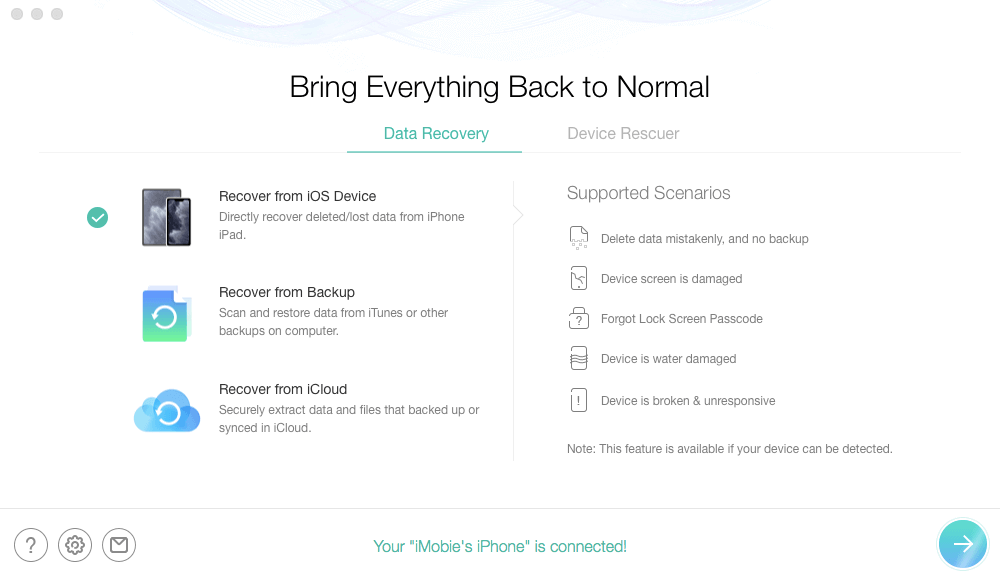
Choose Recover from iOS Device
Step 3. Scan Messages
Select the Messages category and let PhoneRescue scan the connected device.
Step 4. Preview What the Scan Finds
Review the messages or message attachments shown in the results. Select only the items you need if the missing conversation appears.
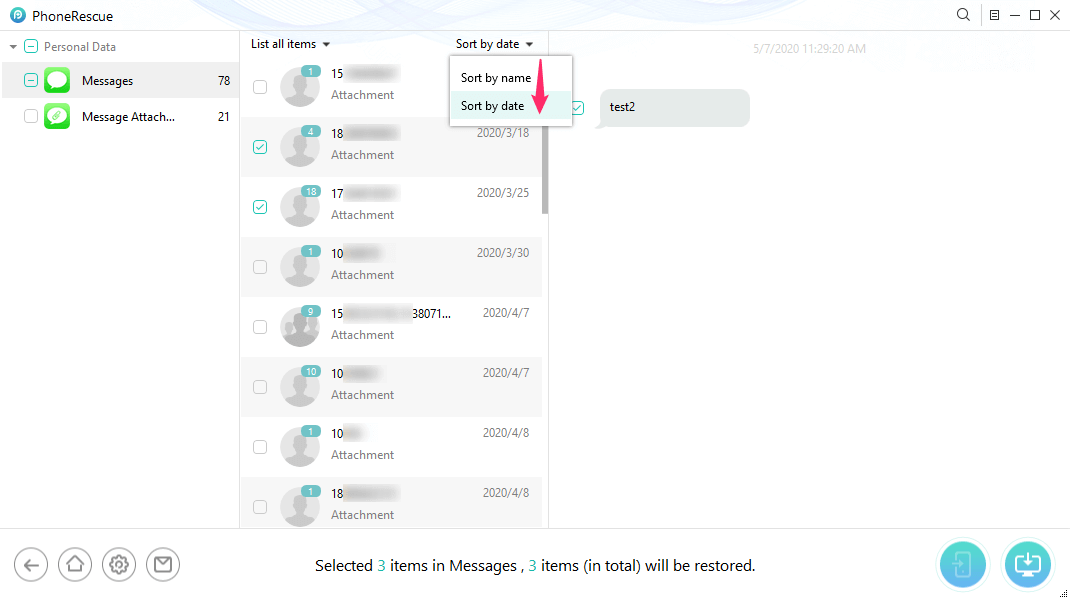
Preview Message Data Found by the Scan
Recovery depends on what is still available: A scan may not find every deleted message. If the missing data is no longer recoverable from the device, check whether an older backup contains it instead.
Method 3. Recover Messages from a Finder, Apple Devices, or iTunes Backup
If you previously backed up the iPhone to a computer, the backup may contain Messages data from the time it was created. On current Macs this is generally managed through Finder, while current Windows systems can use Apple Devices; older supported setups may still use iTunes.
PhoneRescue also provides a computer-backup recovery mode that can inspect available backup data before you decide what to recover.
- Open PhoneRescue and connect the iPhone if the software requests it.
- Choose the recovery mode for an existing computer backup.
- Select the backup that was created before the messages disappeared.
- Choose Messages as the data category to scan.
- Preview the available messages and select the items you need if they are present.
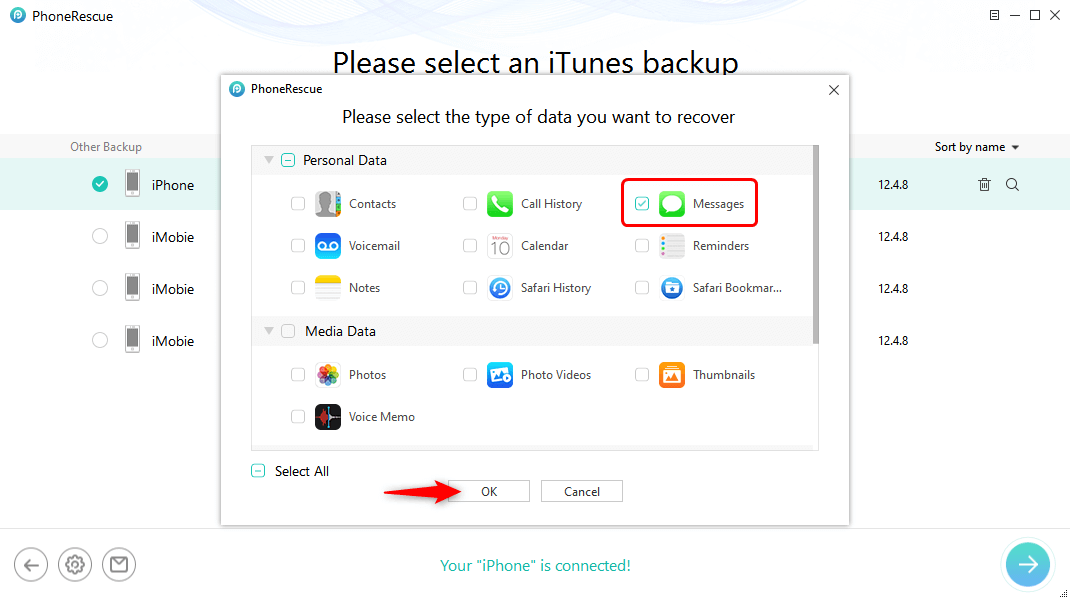
Choose Messages to Scan in the Backup
Messages Disappeared After an iOS Update
If texts or iMessages appear missing immediately after an iOS update, do not assume the update permanently deleted them. First let the iPhone finish background syncing and indexing.
- Keep the phone connected to Wi-Fi.
- Connect it to power if a large message history is being restored or synced.
- Restart the device after the update finishes completely.
- Confirm that you are signed in to the expected Apple Account.
- Check Messages in iCloud status.
- Check Recently Deleted if one specific conversation is gone.
- Install a newer iOS update if one is available and addresses a software problem affecting your device.
Only move to backup or data recovery after you have given the message history time to load and confirmed that the missing content is not returning.
Messages from One Person Disappeared
If only one person’s conversation is missing, search for the contact or phone number in Messages before assuming the thread was deleted.
Then check:
- Recently Deleted for that conversation;
- whether you are viewing a filtered Messages list;
- whether the conversation exists on another Apple device using the same Messages in iCloud account;
- whether the thread is still syncing after a device change or update.
If the conversation was deliberately deleted and is no longer recoverable from Recently Deleted, move to the backup or recovery options above.
Old Messages Missing on a New iPhone
A new iPhone may not display the entire message history immediately. Large iMessage histories and attachments can take time to appear after setup.
Before changing settings, confirm that:
- the new iPhone is signed in to the same Apple Account;
- Messages in iCloud is enabled as expected;
- Wi-Fi is stable;
- the iPhone has sufficient storage;
- the device remains connected to power long enough for background syncing to continue.
If old conversations gradually return, allow the process to finish. If nothing returns and the source iPhone or backup still exists, verify that the missing messages are actually present there before starting a restore.
FAQs About Missing or Disappearing iMessages
1. Why did my text messages suddenly disappear from my iPhone?
Common possibilities include recent deletion, the Keep Messages retention setting, incomplete Messages in iCloud syncing, a new-device transfer that has not finished, low storage, or a software issue. Check Recently Deleted and your message settings before assuming the data is permanently lost.
2. Why did messages from one person disappear?
The thread may have been deleted, filtered, or not fully synced. Search the contact in Messages, check Recently Deleted, and confirm whether Messages in iCloud is still syncing.
3. Why are my old iMessages missing?
Check whether Keep Messages is set to 30 Days or 1 Year instead of Forever. If you recently changed phones or updated iOS, also give Messages in iCloud time to finish syncing.
4. Why are old messages missing on my new iPhone?
A large message history may still be syncing. Keep the new iPhone on Wi-Fi and power, confirm the correct Apple Account and Messages in iCloud settings, and allow time for the history and attachments to appear.
5. Why did pictures disappear from Messages but the texts are still there?
The attachments may not have downloaded, Messages in iCloud may still be syncing, storage may be limited, the network may be unstable, or the picture may have been shared through an expired temporary link. If the entire conversation was deleted, check Recently Deleted.
6. Can I recover deleted iMessages without a backup?
You may be able to check Recently Deleted first. If the messages are no longer there and no backup is available, a recovery tool can scan the device for message data that may still be recoverable, but recovery is not guaranteed.
7. Will Messages in iCloud bring old messages back?
If the messages still exist in your synced iCloud message history, they may appear as synchronization finishes. Messages in iCloud is not a separate archive of messages that were already permanently deleted across your synced devices.
8. Where is Recently Deleted in Messages?
Open Messages and use Filters or Edit from the conversation list, depending on your iOS version, then choose Recently Deleted. Select the conversation you want and use Recover if it is still available there.
The Bottom Line
When iPhone text messages or iMessages disappear, first determine whether the content is truly deleted or simply hidden, filtered, or still syncing. Recently Deleted, Keep Messages, Messages in iCloud, storage, network status, and software updates are the safest places to start.
If the conversation was actually deleted, use Recently Deleted while it is still available, check whether an older backup contains the messages, or evaluate a device scan when no usable backup exists. PhoneRescue can provide device, iCloud, and computer-backup recovery workflows, but the result depends on what message data is still recoverable.
More Related Articles



Wanda Norris is a junior author in iMobie specializing in iOS tips and solutions. She keeps a close eye on every iOS update to provide practical, easy-to-understand guides that help users solve problems and master their Apple devices.
Product-related questions? Contact Our Support Team to Get Quick Solution >
