5 Ways to Factory Reset iPad Without Apple ID Password
Explore how to reset iPad withour Apple ID password with the below 5 methods. You can reset iPad via Settings, Recovery Mode, AnyUnlock, iTunes/Finder and iCloud.
Explore how to reset iPad without Apple ID password with the 5 methods below. The right method depends on whether you still know the iPad passcode, can access the Apple Account, have a computer, and whether Find My/Activation Lock is enabled.
If you forgot the Apple Account password, bought a used iPad, or are locked out by a screen passcode, “factory reset” and “remove Apple ID” are not the same task. You can often erase an iPad without knowing the Apple ID password by using recovery mode and a computer, but if Activation Lock remains linked to an Apple Account, the iPad can still ask for that account during setup.
Quick answer:
If you only forgot the iPad screen passcode, use Recovery Mode with Finder or the Apple Devices app to erase the iPad. If you forgot your own Apple Account password, recover or reset that password first when possible. If the iPad belongs to a previous owner’s Apple Account, ask that owner to remove the device from Find My. A factory reset alone does not transfer ownership or guarantee that Activation Lock will disappear.
Part 1. Can you factory reset an iPad without Apple ID Password?
Yes, but the answer depends on what you mean by “without Apple ID password.” You can erase local content and reinstall iPadOS without signing in to the Apple Account by using Recovery Mode on a computer. However, if Find My is enabled and Activation Lock is still associated with an Apple Account, the device may still require that account when you set it up again.
Factory Reset vs. Apple ID Removal vs. Activation Lock
| Action | What It Does | What It Does Not Guarantee |
| Factory Reset / Restore | Erases local data and reinstalls/resets iPadOS. | Does not automatically remove Activation Lock. |
| Sign Out / Remove Apple Account | Removes an Apple Account from the device when the required credentials or account access are available. | Does not mean every other device lock is removed. |
| Remove Activation Lock | Removes the Find My/Activation Lock association through the Apple Account owner, Apple support with proof of purchase, or another supported workflow. | Is not the same as simply erasing the iPad. |
If the Apple Account is yours, Apple’s official password-reset/account-recovery path should be the first choice. If the iPad is second-hand, the previous owner can remove it from their Apple Account/Find My. Apple also provides an Activation Lock support request path when valid proof of purchase is available.
How to Reset iPad Without Apple ID Password
Which Method Should You Use?
| Your Situation | Recommended Method | Apple Account Password Needed? | Main Limitation |
| You can access Settings and know the iPad passcode | Method 1: Settings | May still be requested by iPadOS, especially when Find My/security features are involved | Not a reliable “no Apple ID password” method in every case |
| You forgot the iPad passcode or the iPad is unavailable | Method 2: Recovery Mode | Not required to start the restore | Activation Lock can remain after erase |
| You need an Apple ID-removal workflow supported by a desktop tool | Method 3: AnyUnlock | Depends on device state and feature requirements | Compatibility, data loss, Find My state, and iOS version matter |
| You want an official computer restore | Method 4: Finder / Apple Devices / iTunes where applicable | Not required to initiate a recovery-mode restore | Does not remove Activation Lock by itself |
| You still have access to the Apple Account and Find My | Method 5: iCloud Find Devices | Yes, account access is required | This is not truly a “without Apple ID password” method if you cannot sign in |
What If Your iPad Says “iPad Unavailable”?
If the iPad shows iPad Unavailable or Security Lockout after repeated wrong passcodes, you generally need to erase the device before you can use it again. Apple currently supports a computer-based Recovery Mode restore for this situation. If the on-device reset option is available, it can also require your Apple Account password.

Method 1. Reset iPad Without Apple ID on the Device
Best for: Users who can still unlock the iPad and access Settings.
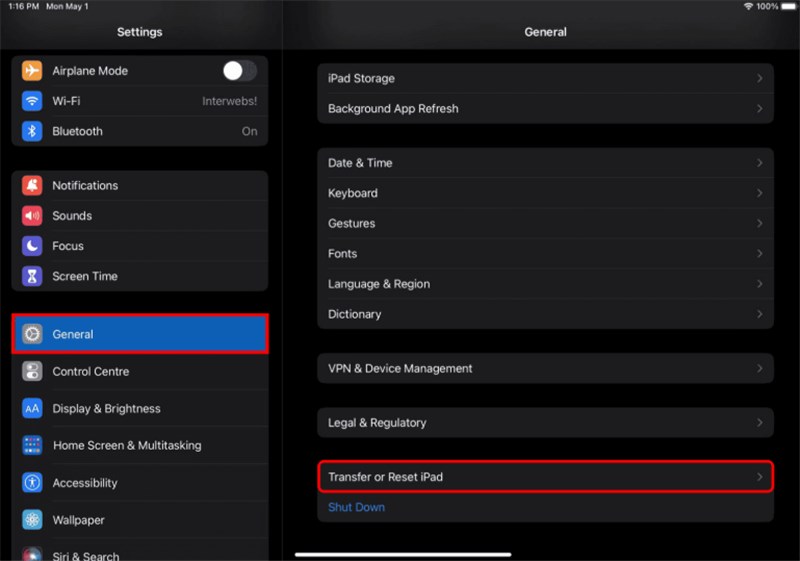
This is the simplest reset path, but it should not be described as universally working without the Apple Account password. Apple’s current erase instructions say iPadOS may ask for the device passcode or Apple Account password during Erase All Content and Settings.
Step 1. Open Settings > General.
Step 2. Tap Transfer or Reset iPad.
Step 3. Tap Erase All Content and Settings.
Step 4. Follow the onscreen prompts. Enter the iPad passcode and, if requested, the Apple Account password.
If you forgot your own Apple Account password: Before looking for a bypass, try Apple’s password reset flow from a trusted Apple device or through account recovery. If the device is still yours and signed in, the device passcode can help you reset the Apple Account password in supported situations.
Method 2. Factory Reset iPad via Recovery Mode
Best for: A locked, disabled, unavailable, or passcode-forgotten iPad when you have access to a Mac or Windows PC.
Recovery Mode is the clearest official way to erase an iPad when you cannot unlock it normally. Apple currently instructs users to connect the iPad to a computer, enter Recovery Mode, and choose Restore in Finder or the Apple Devices app.
Important: Recovery Mode erases the device, but it does not automatically remove Activation Lock. If Find My was enabled, setup may still require the Apple Account previously linked to the iPad.
Step 1. Turn off the iPad.
Step 2. Connect the iPad to the computer. On a current Mac, use Finder. On current Windows systems, use the Apple Devices app when available. iTunes may still be used in supported older setups.
Step 3. Put the iPad in Recovery Mode.
For an iPad without a Home button:
- Press and quickly release the Volume button closest to the Top button.
- Press and quickly release the other Volume button.
- Press and hold the Top button until the Recovery Mode screen appears.
For an iPad with a Home button:
- Use the Home/Top (or Side) button combination required for that model and keep holding until the Recovery Mode screen appears.
Step 4. When Finder or Apple Devices offers Restore or Update, choose Restore.
Step 5. Wait for the software download and restore to finish. If the iPad exits Recovery Mode during a long download, let the download finish and then enter Recovery Mode again.
Method 3. How to Unlock iPad Without Apple ID-AnyUnlock
Best for: Users who need an Apple ID-removal workflow and whose device state is supported by AnyUnlock’s Unlock Apple ID feature.
AnyUnlock provides a desktop Apple ID-removal feature for supported iPhone/iPad/iPod touch devices. It should not be described as a universal way to “fully bypass both passcode and Activation Lock” because Apple ID removal, screen-passcode removal, and Activation Lock bypass are separate functions with different compatibility and data-loss conditions.
Check compatibility before starting: According to the current AnyUnlock guide, Apple ID removal behavior changes depending on whether Find My is on, the iOS/iPadOS version, screen passcode status, and two-factor authentication. Some workflows erase device data. If the iPad is already on the Activation Lock screen, use the dedicated Activation Lock information/workflow rather than assuming Unlock Apple ID is the same feature.
Get AnyUnlock * Review compatibility first
Steps to Factory Reset/Remove Apple ID with AnyUnlock:
Step 1. Download and launch AnyUnlock on a Windows PC or Mac. Connect the iPad with a USB cable and choose Unlock Apple ID.
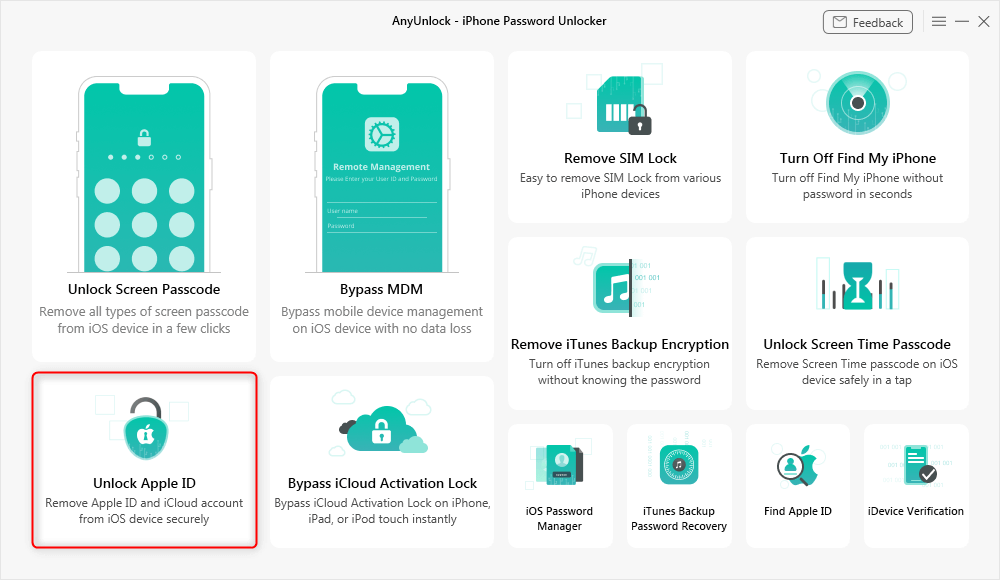
Choose Unlock Apple ID
Step 2. Let AnyUnlock detect the device and review the status/requirements shown on screen before selecting Unlock Now.
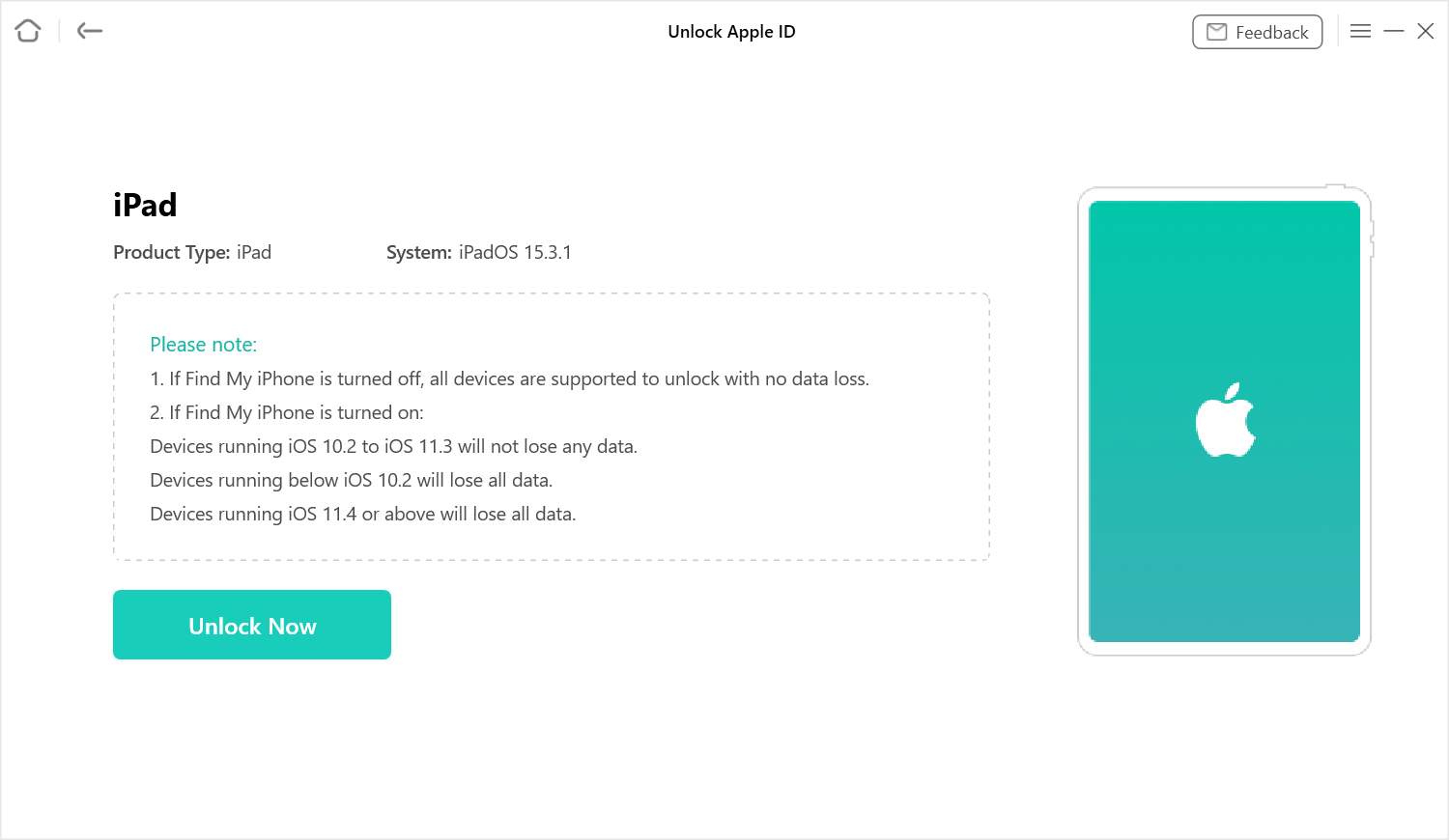
Review the Device Status Before Unlocking
Step 3. Follow the device-specific instructions. The required steps can differ when Find My is enabled or when two-factor authentication is involved.
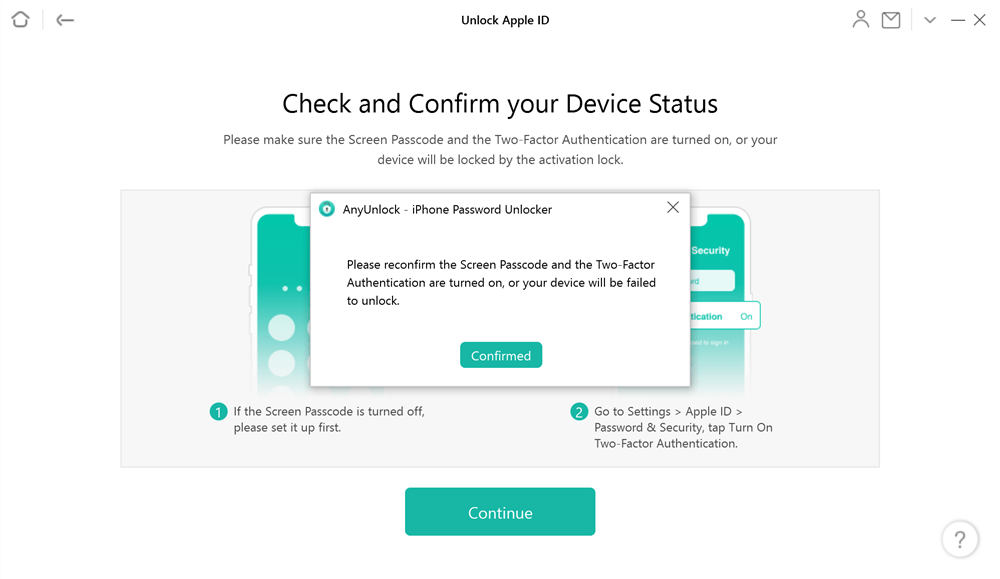
Check and Confirm Your Device Status
Step 4. If the workflow requires firmware or additional setup, follow the onscreen prompts and keep the iPad connected until AnyUnlock reports that the process has finished.
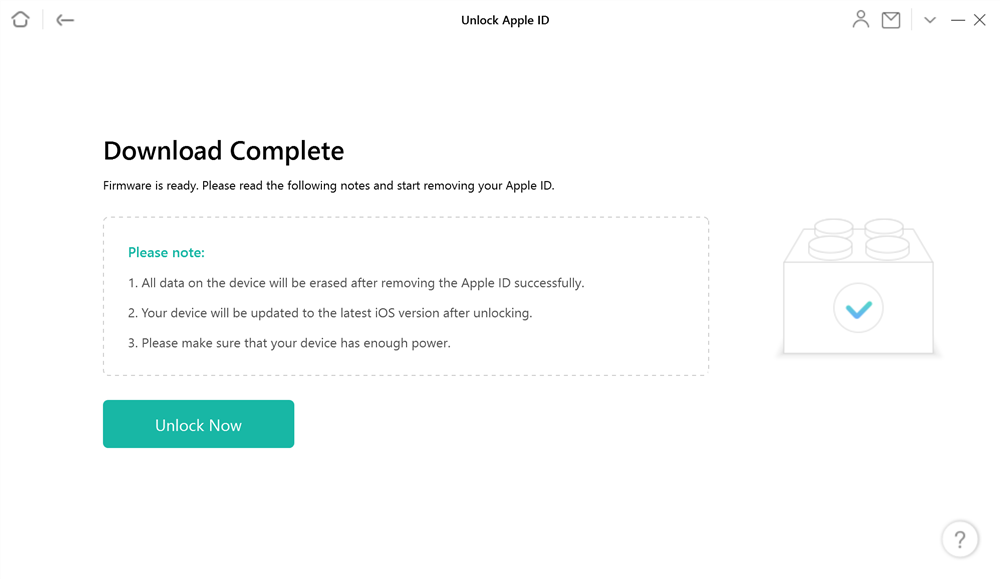
Follow the On-screen Unlock Process
Do not assume the iPad can always be activated with a different Apple Account immediately afterward. The result depends on the exact AnyUnlock function, device state, and whether Activation Lock remains associated with the device.
Bonus: If your actual problem is a forgotten screen passcode rather than the Apple Account password, AnyUnlock’s Screen Unlocker is a separate function. Screen-passcode removal normally involves erasing the iPad, so back up accessible data first when possible.
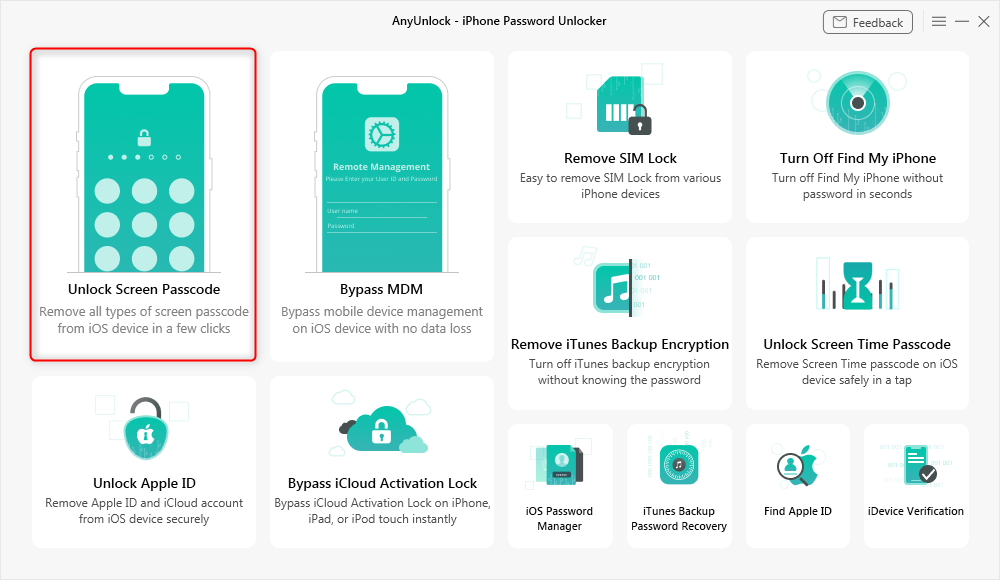
Choose Unlock Screen Passcode Mode
Method 4. Reset iPad without Apple ID Using Computers ( iTunes/Finder)
Best for: Users who want an official computer-based restore and do not mind erasing all local data.
This method overlaps with Recovery Mode because a locked iPad normally must be placed into Recovery Mode before the computer can restore it. On current macOS, use Finder. On current Windows, Apple documents the Apple Devices app. iTunes remains relevant mainly for older Windows setups.
- A restore erases the iPad.
- Activation Lock may remain and require the linked Apple Account during setup.
- If you still have access to important data, back it up before erasing.
Step 1. Open Finder on a Mac or Apple Devices/iTunes on a supported Windows setup.
Step 2. Connect the iPad with a USB cable.
Step 3. Put the iPad into Recovery Mode using the button steps for your model.

Put iPad into Recovery Mode
Step 4. Choose Restore when the computer offers Restore or Update.
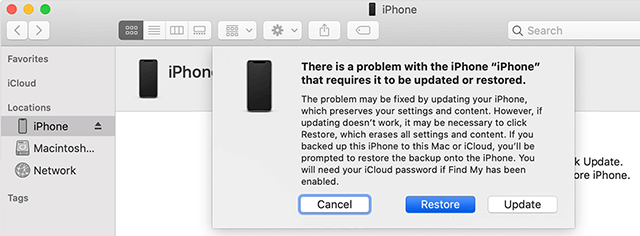
Restore the iPad from a Computer
After the restore, the iPad returns to the setup screen. If Activation Lock is still enabled, enter the Apple Account previously linked to the device or use Apple’s legitimate account/ownership recovery options.
Method 5. How to Reset iPad Without Apple ID via iCloud
Important correction: iCloud/Find Devices is useful for remotely erasing an iPad, but it is not a method for someone who cannot access the Apple Account. Apple requires you to sign in to the Apple Account associated with the device before you can remotely erase it.
This method is therefore best for users who know the account or can recover access to it but do not have physical access to the iPad.
Step 1. Go to iCloud.com/find and sign in to the Apple Account.
Step 2. Select the iPad from the device list.
Step 3. Choose Erase This Device and follow the onscreen prompts.
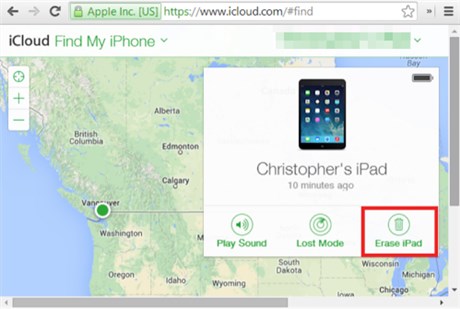
Erase iPad with Find Devices
If you cannot sign in because you forgot your Apple Account password, reset/recover that password first. If the account belongs to a previous owner, ask that person to remove the iPad from their account instead.
Frequently Asked Questions
Q1. Does factory resetting iPad remove Apple ID?
No. A factory reset erases local data and settings, but an iPad can remain linked to the Apple Account through Activation Lock. If Find My was enabled, setup can still request the associated Apple Account afterward.
Q2. How to reset a locked iPad without Apple ID?
If you forgot the screen passcode, use a Mac or PC to put the iPad in Recovery Mode and restore it. You do not need the Apple Account password to initiate the restore, but Activation Lock may still require the linked account during setup.
Q3. How do I get rid of someone else’s Apple ID on my iPad?
If the iPad is linked to a previous owner, ask that owner to remove the device through their Apple Account/Find My. If you are the legitimate owner and have valid proof of purchase, Apple provides an Activation Lock support request path. Do not rely on a factory reset alone to transfer ownership.
Q4. How to unlock iPad without Apple ID or password?
First identify which password is missing. A forgotten iPad screen passcode can be handled by erasing/restoring the device. A forgotten Apple Account password should be reset through Apple’s account-recovery process. An Activation Lock tied to another owner’s account is a separate ownership/account issue.
Q5. Can I factory reset iPad without Apple ID password and without a computer?
Only in limited situations. If you can access Settings, iPadOS may still request the Apple Account password during Erase All Content and Settings. If you are locked out and cannot use Apple’s on-device reset flow, Apple recommends using a computer or getting help from an Apple Store/Apple Authorized Service Provider.
Q6. Will Recovery Mode remove Activation Lock?
No. Recovery Mode can erase and reinstall iPadOS, but Activation Lock is separate and may remain tied to the Apple Account that enabled Find My.
Q7. What should I do if I forgot my own Apple Account password?
Use Apple’s password-reset or account-recovery process first. On a trusted Apple device, you may be able to change the Apple Account password using the device passcode. Apple also provides account recovery through its official recovery website.
The Bottom Line
You can often factory reset an iPad without entering the Apple ID password, especially by using Recovery Mode and a computer. But erasing the iPad and removing the Apple Account/Activation Lock are different tasks. If Find My is enabled, the iPad may still request the linked Apple Account when you set it up again.
Use Apple’s official password recovery, previous-owner removal, Recovery Mode, and proof-of-purchase support paths first where applicable. If your situation instead matches a supported AnyUnlock Apple ID-removal workflow, check the exact device, Find My state, iOS/iPadOS version, data-loss conditions, and feature compatibility before proceeding.
AnyUnlock – iPhone Password Unlocker
- Transfer all kinds of formats of photos from computer to your iPhone.
- With original size with no loss of picture quality and no compression.
- Lightning fast speed to transfer 100 photos in 3.4 seconds.
- No erase of previous photos on your iPhone, 100% clean & safe.
Free Download100% Clean & Safe
Free Download100% Clean & Safe
Free Download * 100% Clean & Safe



Joy Taylor is a seasoned technical writer with over a decade of experience in mobile technology. At iMobie, she specializes in producing in-depth content on iOS data recovery, iPhone unlocking solutions, and iOS troubleshooting.
Product-related questions? Contact Our Support Team to Get Quick Solution >
