5 Ways to Back Up iPhone Contacts with/without iCloud
You have 5 ways to back up contacts on iPhone, including syncing with iCloud, transferring to your computer with iTunes or Finder, exporting iPhone contacts and saving. You can also use an iPhone contacts transfer tool to back up selectively or wholy. Check the detailed instructions for each method and back up iPhone contacts now.
iPhone Backup Tips
Backup iPhone Data
iPhone Backup Locations
AnyTrans – Easiest Contacts Backup Tool
Free download AnyTrans to back up iPhone contacts to your computer effortlessly. With the help of AnyTrans, contact backup is no longer a hassle. No omissions of data, no invasion of your privacy.

It’s vital to keep a habit of backing up data on the iPhone to avoid losing information, especially contacts. Performing this task keeps your contacts safe even if you get your iPhone broken, lost, or stolen. Speaking of iPhone data backup, most users would think about iTunes or iCloud. However, neither of them will support backup contacts on your iPhone separately.
If you want to back up iPhone contacts only, fortunately, some iTunes/iCloud alternatives can do it. In this guide, we illustrated 5 ways to back up contacts on iPhone via iTunes, iCloud, and using easy third-party tools.

Tools to Backup Contacts on iPhone
1. Sync iPhone Contacts with iCloud
iCloud sync is the most straightforward way to back up your contacts on iPhone. It helps to keep your contacts up to date automatically. To enable iPhone contacts sync on iCloud:
Step 1. Go to the Settings app and access your Apple ID.
Step 2. Navigate to iCloud and tap on it.
Step 3. Go to the Apps Using iCloud section, then tap on Show All.
Step 4. Scroll through the list of apps and find Contacts. Toggle it on to enable sync on iCloud.
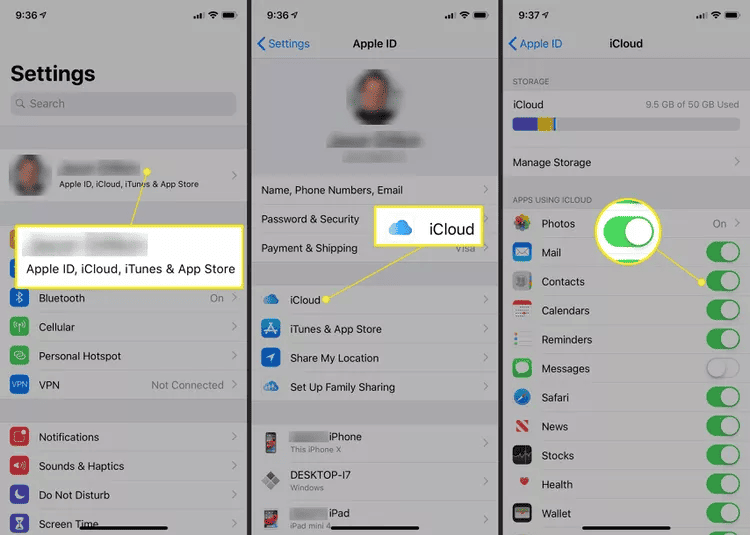
Sync iPhone Contacts with iCloud
If you are turning this feature on for the first time, you may be asked if you want to merge your existing local contacts with iCloud. Select Merge to combine the contacts on your iPhone with any contacts already stored in your iCloud account. This action ensures all your contacts are consolidated in one place. You can also check what to do if iCloud contacts sync is not working.
2. Export iPhone Contacts
iPhone allows you to export contacts directly from the Contacts app, which can be saved as a backup. To export iPhone contacts with the app:
Step 1. Open the Contacts app and tap on the > icon (for iOS 26 devices). For iOS 18 and older versions, tap on the List button.
Step 2. Press and hold the contact list you wish to export. If you want to export all contacts, you can typically use the All Contacts list. Then, tap on Export.
Step 3. It will prompt you to send the exported contacts in a message or email. Choose the path you want to save.
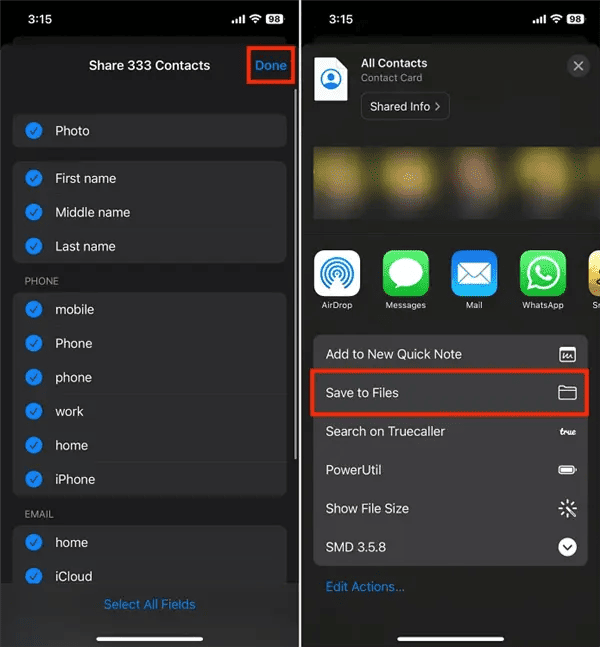
Export iPhone Contacts
iPhone contacts can be exported in multiple ways. You can learn how to export contacts from iPhone with the comprehensive guide.
3. Back Up iPhone Contacts in a Customized Way
The easiest and most customized way to back up iPhone contacts is using AnyTrans. It is a user-friendly iPhone transfer tool that allows you to back up contacts entirely or partially. With just one click, your selected contacts can be backed up on your computer. Moreover, you don’t need to restore all data if you want to recover the contacts only. AnyTrans is absolutely easy to use.
AnyTrans – iPhone Contacts Manager
- Backup iPhone contacts entirely or selectively.
- Supports restoring contacts only if necessary.
- No harm to iPhone existing data when restoring the backup.
- Supports the latest iPhone 17 and iOS 26.
Free Download100% Clean & Safe
Free Download100% Clean & Safe
Free Download * 100% Clean & Safe
Here is detailed guidance on how to back up contacts on iPhone with AnyTrans:
Step 1. Download AnyTrans and launch it on your computer > Connect your iPhone to the computer > Go to Device Manager > Choose the More option.
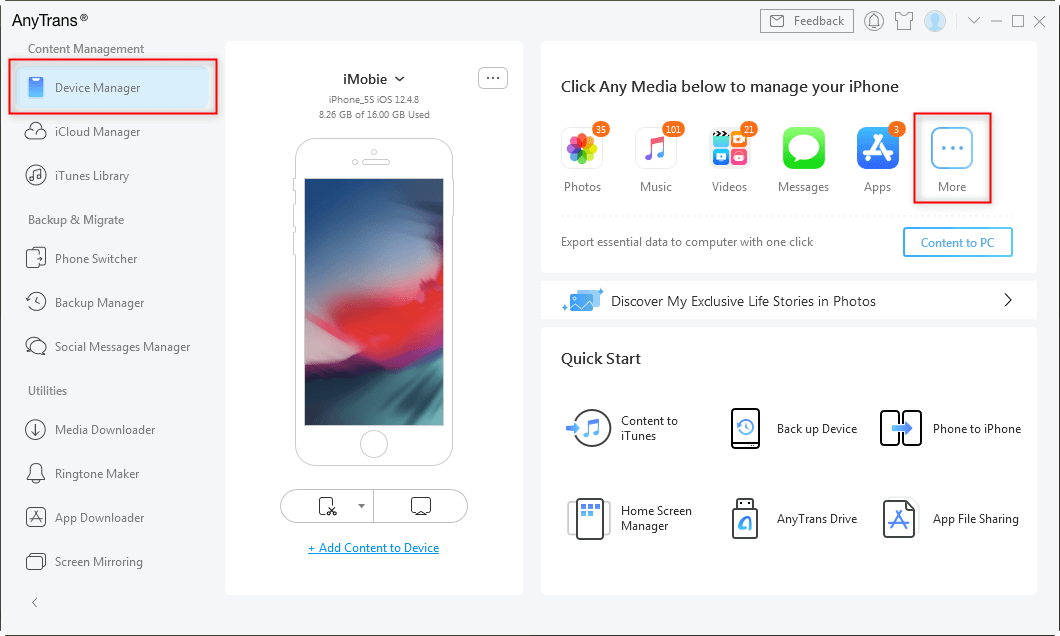
Choose Device Manager and Click on More
Step 2. Scroll the left panel screen down and choose Contacts > Choose the Contacts you want to back up > Tap the To Computer button and set up the exporting format of the iPhone contacts.
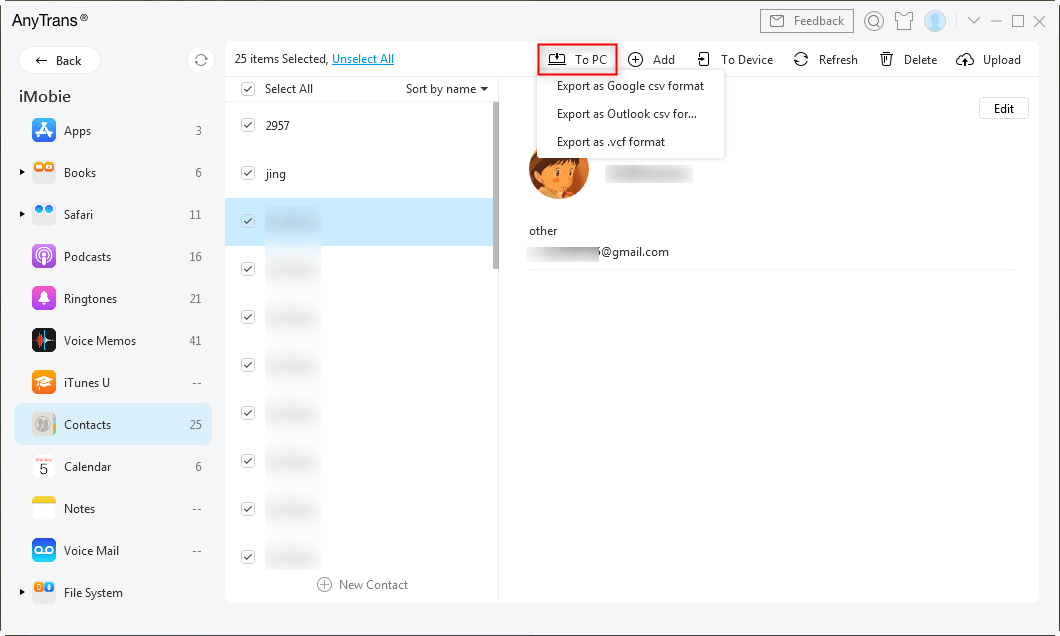
Click on To Computer Button to Back up Contacts
Seconds later, you will see a Transfer Complete on the screen. That’s what AnyTrans does to back up contacts on iPhone without iTunes. This tutorial can also be applied to backing up contacts on an iPad/iPod touch. Additionally, besides backing up contacts, it also supports another 20 types of iOS data and files, including Photos, Videos, Music, Messages, Notes, etc.
4. Back Up Contacts on iPhone with iTunes/Finder
iTunes or Finder can create a backup for almost all your iPhone content, as well as contacts. If you want to back up all your data on iPhone, follow the steps below to finish backing up your iPhone with iTunes/Finder:
Step 1. Download and launch the latest version of iTunes/Finder.
Step 2. Run iTunes on your Windows computer or Finder on a Mac.
Step 3. Wait for iTunes or Finder to detect your iPhone once you connect it to the computer.
Step 4. Tap on your device. It will display your device information.
Step 5. Click on the Summary option, and then you will see some choices. You can just click Back Up Now to start backing up the iPhone data and settings to the computer.
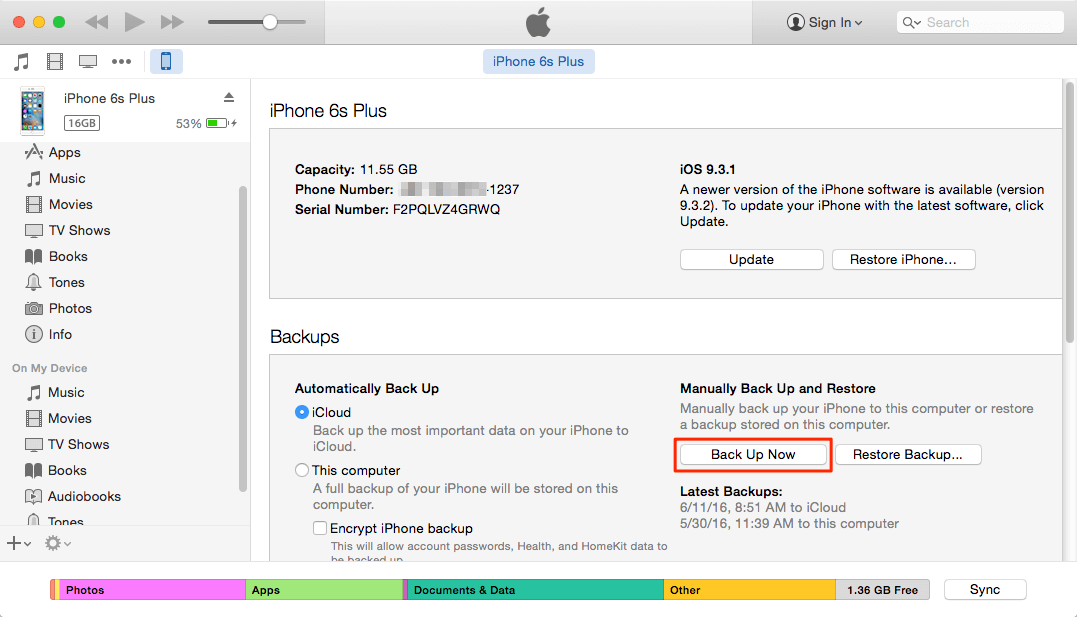
Back up Contacts on iPhone with iTunes
It will take some time to complete an iPhone data backup with iTunes or Finder. Wait until the process is finished and all your data, including the contacts, should have been backed up on your computer.
Restoring iTunes backup will erase the existing content on your iPhone first. That is to say, after restoring your iPhone with iTunes backup, it is possible for you to find that although the contacts are retrieved, some other iPhone files and data are lost.
5. Create a Full iPhone Backup on iCloud
Besides syncing iPhone contacts to iCloud automatically, you can also create a full backup on iCloud, including the contacts. This method is similar to iTunes and Finder backup. It doesn’t require a computer. The detailed steps to create a full iCloud backup are as follows.
Step 1. On your iPhone, go to Settings.
Step 2. Tap on your Apple ID’s part > Select iCloud > Select iCloud Backup.
Step 3. Tap on it to turn it on if it is closed > Click Back Up Now.
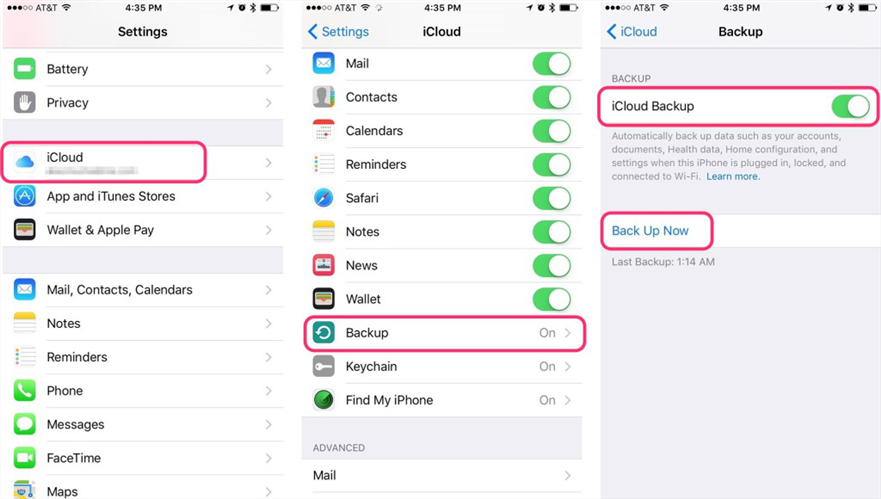
Create iCloud Backup
Step 4. Then contacts on your iPhone will be backed up to the iCloud server, as well as other iPhone content.
This method will back up all your iPhone contents to iCloud. The only way for you to get backed-up contacts to your iPhone via this method is by restoring your device with your iCloud backup. During this process, the contents in the backup will replace the existing data and files on your iPhone.
You should make sure your iCloud storage is enough to back up all data, or it will cause failure when the space is used up. iCloud provides 5GB free storage for data backup. After running out of it, you can upgrade to the iCloud+ plan and get more storage.
FAQs About iPhone Contacts Backup
1. How do I copy all Contacts from my iPhone?
You can choose all your contacts in the Contacts app and export them to a message or email. You can also copy all contacts in AnyTrans and send them to others or save them as a backup.
2. How to back up contacts in iPhone without iCloud?
You can use the Settings app. In Settings, go to Contacts > Accounts > Add Account. Sign in to an account like Gmail or Outlook and turn on the Contacts toggle to enable syncing.
3. How do I transfer all contacts from my iPhone to my laptop?
You can use iTunes or Finder to transfer all contacts from your iPhone to your laptop. It will transfer all data rather than just the contacts. If you want to transfer contacts only, try AnyTrans.
The Bottom Line
That’s all about how to back up contacts on an iPhone. You can use iCloud sync, iPhone export, iTunes, or Finder to create an iPhone contacts backup. For a more customized way, AnyTrans provides the choice to back up contacts selectively, which saves much time waiting for the process. With this powerful tool, you can back up contacts within a few minutes. No need to back up all content, no privacy worries. Free download AnyTrans and try it now!
Free Download * 100% Clean & Safe
More Related Articles


Roger Smith is a senior technical writer with years of experience in providing Android solutions. He loves to help users solve various problems such as Android unlock, Android data recovery, and Android system repair.
Product-related questions? Contact Our Support Team to Get Quick Solution >
