How to Fix the iOS 27 Update Issues [Quick Fixes]
Excited to upgrade to iOS 27, only to find your iPhone stuck on ‘Preparing Update’ or, even worse, trapped on the dreaded Apple logo? You’re not alone. While major iOS updates bring exciting new features, they often come with frustrating bugs, overheating, and rapid battery drain. In this guide, we’ve rounded up the most common iOS 27 update issues and provided proven, step-by-step fixes to get your iPhone back to normal in less than 5 minutes.
iOS Update Tips & Problems
AnyFix – Quickly Fix iOS Update Issues
With AnyFix – iOS System Recovery you can get your iPhone back to normal from iOS update issues like iPhone stuck on Apple Logo, iPhone won’t turn on, or bricked loops. It also helps quickly upgrade and downgrade your iOS environment in clicks.
Free Download100% Clean & Safe
Free Download100% Clean & Safe
Free Download* 100% Clean & Safe
Now you can download the iOS 27 version to have a try on your iPhone. Although we all know that every newer iOS version will not only bring fresh features to make our life more fun but also update fixes for bugs occurring in the previous versions. However, this does not mean iOS 27 is perfect and bugless. According to our data collection from many mainstream forums, and our user’s emails and feedback, many problems and issues occur during iOS 27 updating, and use afterward such as iPhone stuck on preparing update. Also, when you update to the public iOS 27 Developer Beta version, you may also meet some iOS update problems, so to help all users solve these annoying troubles, we list them one by one, with quick and practical solutions, in the following.
Common iOS 27 Beta Bugs Reported
If you can’t wait for the official public release of iOS 27 later this year, the iOS 27 Developer Beta 1 is available right now. But you should know, it is unstable and not perfect. Here are some iOS 27 Beta bugs reported by global users and forums.
- Finder problem: Mac Finder might become unresponsive if you attempt to flash the iOS 27 Beta using local Restore Images.
- X (formerly Twitter) issue: The X app keeps crashing frequently during runtime threads under the early iOS 27 Beta ecosystem.
- Camera issue: Live Text or Apple Intelligence visual features may be lagging, and if your iPhone is in Low Power mode, high-res processing modes “might produce unexpected results”.
- Notification problem: Users have reported UI glitches where they have no way to clear a notification banner while the phone is unlocked.
- Safari problem: The Extension UI or smart search container may fail to adjust properly when the native virtual keyboard layout pops up.
- HomeKit Ecosystem: Standard restrictions might limit new-gen smart home accessories pairing configurations during early builds.
- CarPlay Problem: Wireless CarPlay protocol synchronization may drop if you actively stream high-bandwidth screen sharing via SharePlay.
- Advanced SharePlay APIs have been temporarily scaled back in early iOS 27 builds and won’t fully settle until a later Beta iteration.
38 Common iOS 27 Update Issues You May Meet with Quick Fixes
1. iOS 27 Issue: Software Update Failed
“Software Update Failed. An error occurred downloading iOS 27”, or “Software Update Failed. An error occurred installing iOS 27”.
Tip 1. Check if your devices support iOS 27 because Apple drops older device generational platforms with new iOS system rollouts. iOS 27 requires newer iPhone models (e.g., iPhone 13 / 14 and later models). Old legacy layers like iPhone 11 or below cannot run iOS 27.
Tip 2. Reset Network Settings. Go to Settings > General > Transfer or Reset iPhone > Reset > Tap on Reset Network Settings.
Tip 3. Force a Restart on Your Device. For modern iPhones, press and quickly release the Volume Up button, press and quickly release the Volume Down button, then press and hold the Side/Power button until the Apple logo appears.
Tip 4. Turn Off Wi-Fi and Switch to the Cellular Data if the routing block occurs.
Tip 5. Apply Mac Finder or iTunes on a computer to update iOS 27 via physical wire connections.
2. iOS 27 Problem: Verifying Update Issue
After downloading iOS 27 updating files, there will be a verifying update step. But sometimes iDevices would be stuck on this verifying update screen, or even notice unable to verify update due to server congestion.
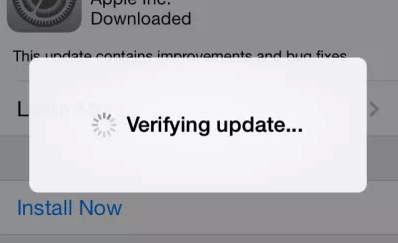
iOS Update Problems – Verifying Update Issue
Method 1. Make sure your network connection remains completely steady all the time.
Method 2. Hard reset or force reboot your iPhone to clean temporary storage lines.
Method 3. Flash the iOS 27 update safely with Mac Finder or computer assistance.
View the details of each step to fix verifying update issue, please refer to this guide: How to Fix iPhone Stuck on Verifying Update >
3. iOS 27 Problem: Insufficient Space For Download
This iOS 27 update requires large installer footprints. The most direct solution is to transfer our bulk files from iPhone to another storage layer or PC to clear room.
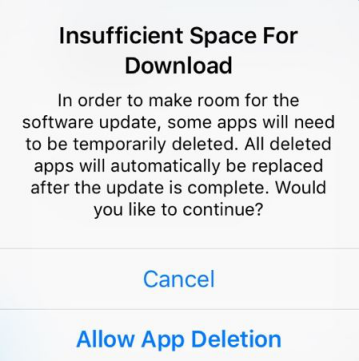
iOS Update Problem – Insufficient Space For Download
Normally we can use cloud services or local backups. But if the number of your 4K videos, live photos, or high-fidelity music is extremely large, it would cost too much time. We recommend an alternative utility tool – AnyTrans to selectively transfer data and make room for iOS 27 updating instantly.
Surely, you can also refer to this tutorial to clean up space: How to Clean up iPhone iPad iPod for iOS updating >
4. iOS 27 Problem: Battery Fast Draining
Almost every time a new iOS beta drops, indexing processes consume power largely and fast. iOS 27 is not an exception due to intense system optimizations background threads running early on.
iOS Update Problem – Battery Fast Draining
Tip 1. Restart Your Device to flush erratic system daemons.
Tip 2. Manage Dynamic Lock Screen Widgets. Scroll down your widgets, select Edit, and remove non-essential real-time data pulling layers.
Tip 3. Use Low Power Mode. Go to Settings > Battery > Low Power Mode > toggle it On to minimize background refresh frequencies.
Tip 4. Disable Always-On Display or Raise to Wake if necessary via Settings > Display & Brightness layout.
Tip 5. Turn off Background App Refresh under Settings > General.
Tip 6. Reset All Settings if battery drain persists unusually. Go to Settings > General > Transfer or Reset iPhone > Reset > Reset All Settings.
5. iOS 27 Problem: Charging Issue
After upgrading to iOS 27, your iPhone may encounter charging speed fluctuations or not recognizing smart delivery adapters.
Solution 1. Use an authentic Apple MFi certified Type-C or Lightning wire, avoid low-quality uncertified accessories.
Solution 2. Ensure your charging port layout is structurally clean and free from packed pocket lint.
Solution 3. Try force restarting your device to realign power delivery firmware logs.
Solution 4. Verify if Clean Energy Charging settings are affecting your charging schedules dynamically.
Solution 5. Use an iPad Charger or high-watt USB-PD power delivery brick to maximize speeds.
View these solutions in detail, please check the full guide: How to Fix: iPhone iPad Not Charging or Charging Slowly >
6. iOS 27 Problem: iPhone Overheating
Some beta users reported that heavy asset compilation routines during iOS 27 installations forced a temperature high warning alert screen.
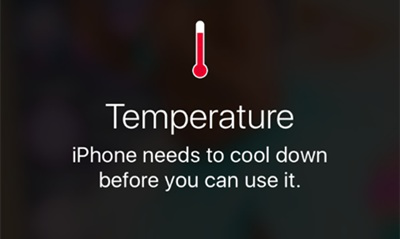
iOS Update Problem – Overheating Issue
Solution 1. The easiest way is to let the device sit in a cool environment until background thermal thresholds normalize before continuing.
Solution 2. Temporarily take off thick structural protective case shells to optimize heat dissipation pathways.
Solution 3. Manage High-Drain Location Services. Turn off excessive GPS tracking under Settings > Privacy & Security > Location Services.
You can also follow this guide: Why Does My iPhone Get Hot and How to Fix It to get more.
7. iOS 27 Problem: Cellular Data / 5G Issues
If your 5G or advanced cellular link drops or slows down significantly right after flashing iOS 27, run these diagnostic steps.
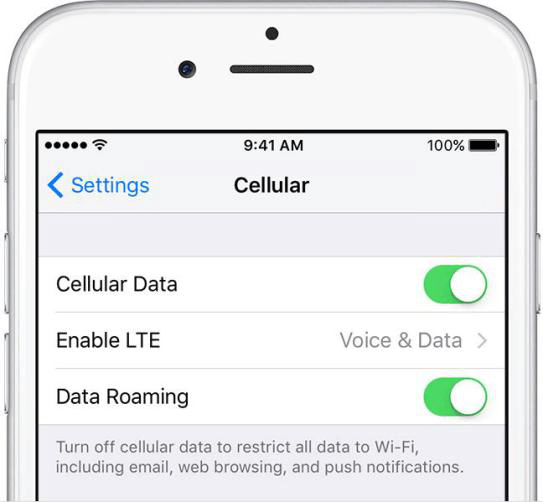
iOS Update Issue – Cellular Problem
Step 1. Check with your mobile carrier to see if baseband profile requirements changed for iOS 27.
Step 2. Force reboot your phone to re-initialize modern radio configurations.
Step 3. Check for updated carrier settings bundles by accessing Settings > General > About menu.
Step 4. Toggle Cellular Data off, wait several seconds, and reactivate it.
Step 5. Trigger Airplane mode for 30 seconds via Control Center to force network tower re-association.
Step 6. Reset Network Settings completely to wipe corrupted cellular parameters.
8. iOS 27 Issue: Wi-Fi Problems
iOS 27 deployment can sometimes cause erratic wireless link tracking, causing dropping connections, slow throughput speeds, or grayed-out toggles.
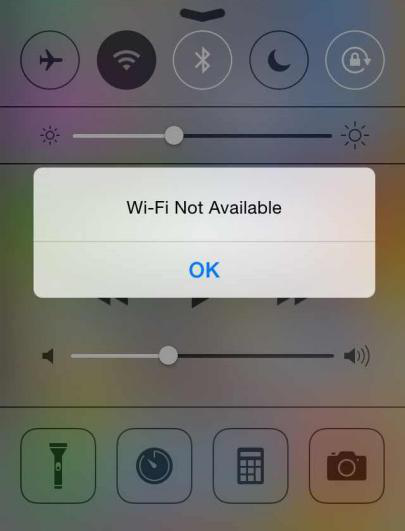
iOS Update Issues – Wi-Fi Problems
Solution 1. Rule out local router structural faults by rebooting your access points.
Solution 2. Forget and reconnect the network under Settings > Wi-Fi > tap info bubble > Forget This Network, then input the passcode fresh.
Solution 3. Reset network configuration maps via standard Settings panels.
9. iOS 27 Issue: Bluetooth Problems
If Bluetooth matching arrays fail with accessories or vehicle hubs under the iOS 27 core layout, use these steps:
1. Unpair and clean the link profiles: Settings > Bluetooth > tap info bubble > Forget This Device, then attempt pairing configurations from scratch.
2. Wipe wireless registry caches using standard Network Settings Reset procedures.
3. If standard fixes fail, a Reset All Settings step can realign broken core system pairing daemons.
4. For vehicle integration errors, check if your car console system requires a corresponding firmware upgrade to match iOS 27 specifications.
Read this guide to get more solutions to fix iOS Bluetooth Issues >
10. iOS 27 Issue: Wallpaper & Lock Screen Glitch
Occasionally, advanced depth-effect layouts on iOS 27 can render black screens or misaligned asset parameters. A quick force restart generally re-indexes the lock screen UI asset rendering frameworks smoothly.
You can also visit this page for more info: How to Fix: iPhone Live Wallpaper Not Working >
11. iOS 27 Issue: AirPods Won’t Connect
If specialized sound accessories fail to link after upgrading to iOS 27, put both AirPods back inside their smart charging module case, seal it for 10 seconds, then reopen near your terminal device to re-trigger the sync animation sequence.

iOS Update Problems – AirPods issue
Or, you can visit this guide of ours, finding more solutions to AirPods not connecting to iPhone iPad: How to Fix AirPods Won’t Connect to iPhone/iPad >
12. iOS 27 Issue: iPhone Sound Problems
If core spatial audio pathways throw unexpected audio cuts when shifting applications in early iOS 27 builds, check these items:
1. Force restart the system device to clear temporary rendering audio loops.
2. Disconnect/re-engage Bluetooth toggles to flush any rogue background sound channels.
3. Ensure conflicting apps receive corresponding store updates to adapt to the new framework APIs.
4. Check physical hardware openings to prevent debris blockages.
13. iOS 27 Issue: iPhone Ringtone not Working
When localized ringtone behaviors behave unexpectedly post-update, follow these routines:
Method 1. Verify sound level configurations under Settings > Sounds & Haptics page.
Method 2. Ensure the physical mute switch or software Action Button state hasn’t engaged silent profiles unintentionally.
Method 3. Perform a basic device system restart.
Method 4. Contact authorized Apple Support channels if hardware speaker routing blocks occur.
For the details of each method, please follow this guide: How to Fix iPhone Ringtone Not Working >
14. iOS 27 Issue: iPhone Touchscreen Problems
If intensive background re-indexing protocols on early iOS 27 system files lead to temporary display digitizer lag or sudden unresponsive freezing states, apply these steps:
Solution 1. Clean the outer screen surface. If you use a non-standard thick screen protector, try removing it to maximize dynamic response vectors.
Solution 2. Perform a standard system power cycle.
Solution 3. Apply physical force restart button combos to drop dead active RAM sequences immediately.
Solution 4. Restore system layers using computer-assisted Finder utilities if the UI remains frozen.
15. iOS 27 Problem: Biometric Security (Face ID / Touch ID) Not Working
If advanced sensory scanning arrays or Touch ID modules fail to process secure authentication routines under iOS 27, access Settings > Face ID & Passcode, toggle off App Store authorization features, execute a standard system reboot, and reactivate the setting to refresh underlying security daemons cleanly.
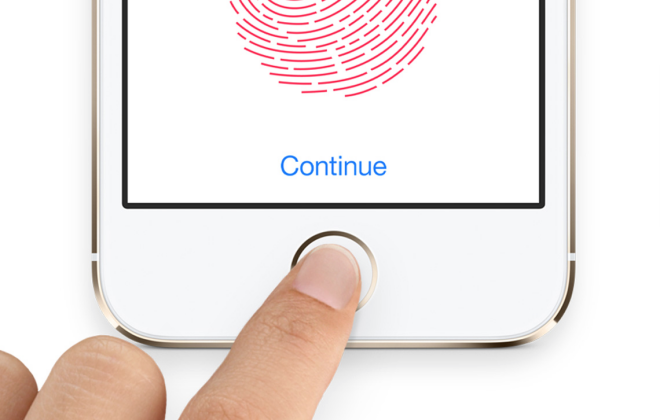
iOS Update Problems – Touch ID Not Working
For more useful solutions, please read How to Fix iPhone Touch ID Not Working >
16. iOS 27 Problem: iMessage Not Working
Database table changes during iOS 27 installation can occasionally offset underlying communication threads, leading to cloud activation delays or crashing message apps.
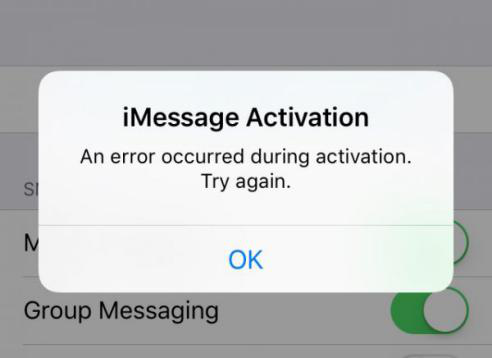
iOS Update Problems – iMessage Not Working
1. Check if core Apple Server arrays face standard rollout downtime.
2. Ensure internet connectivity lanes are stable.
3. Toggle iMessage off and on via Settings > Messages layout to prompt server updates.
4. Clear heavy, ancient chat attachment blocks to reduce local database weights.
To get more info on iMessage/message issues in iOS 27, refer to this quick guide >
17. iOS 27 Problem: App Store is Down / Connection Errors
If your device fails to link up with content catalog nodes right after installing iOS 27, leverage these tricks:
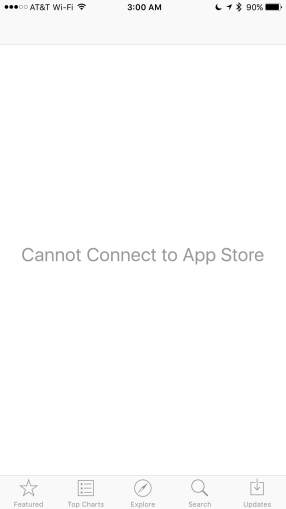
iOS Update Problems – Cannot Connect to App Store
1. Double-check that mobile data permissions are checked for the App Store inside Settings.
2. Access your Apple Account inside Media & Purchases, sign out, and login fresh.
3. Force network sync protocols by toggling Set Automatically inside Date & Time settings lines.
Read more tips to Fix App Store Not Working on iPhone iPad iPod >
18. iOS 27 Problem: App Download Freezing
If store downloads hang on installation cycles due to system change configurations, close the App Store app completely, restart, and try initiating the download profile queue again.
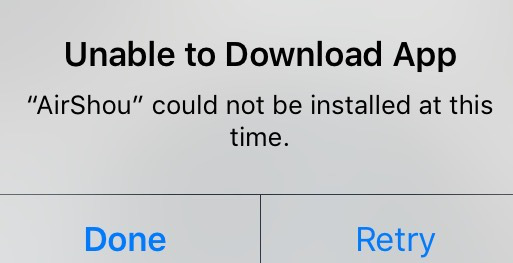
iOS Update Problems – Unable to Download App
19. iOS 27 Problem: iPhone Data Lost after Updating
Major operating system rewrites pose minor risks of user file loss if interrupted. If you forgot to secure a local backup before flashing iOS 27, utilizing target file scanning software like PhoneRescue for iOS remains a strong pathway to attempt missing metric restorations.
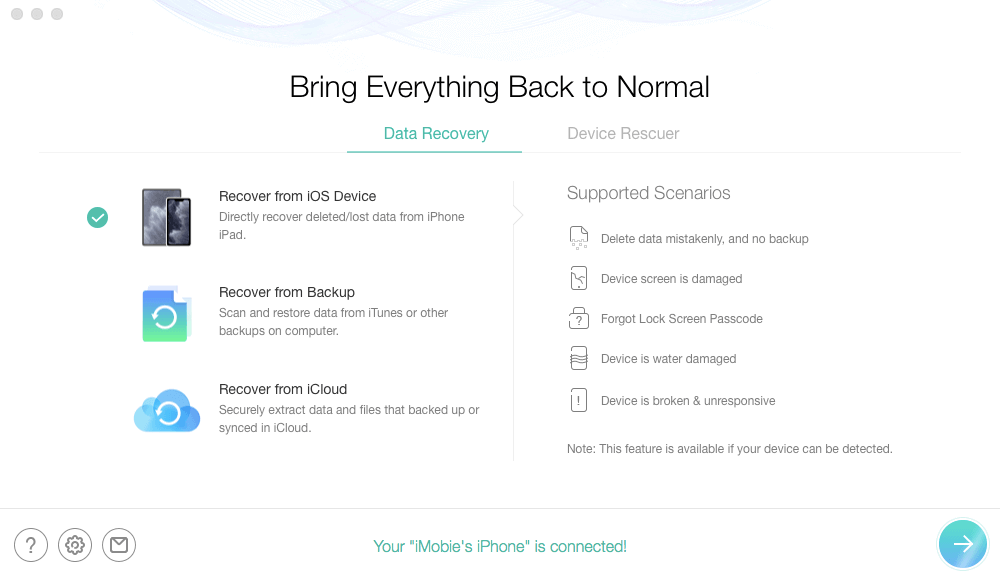
Recover from iOS without Backup
Free Download * 100% Clean & Safe
For detailed information, please refer to how to recover lost data due to upgrading >
20. iOS 27 Problem: Siri & Apple Intelligence Not Available
The integrated conversational engine model lines or deep localized AI intelligence layers can display loading faults if cloud-processing lines are jammed right after the update.
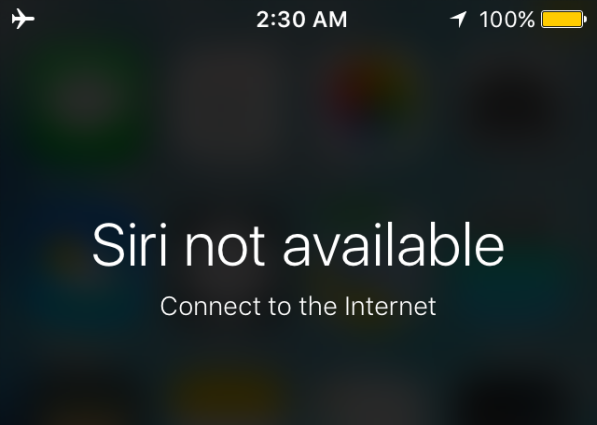
iOS Update Problems – Siri not Available
Solution 1. Ensure internet data transmission paths are fully clear.
Solution 2. Verify that “Listen for Hey Siri” features are fully checked inside Settings > Siri & Apple Intelligence configuration tabs.
Solution 3. Reset all device settings profiles to clear conflicting localized voice caching parameters smoothly.
To get more suggestions on solving Siri problems, please refer to this guide >
21. iOS 27 Problem: Safari Breaking Down
Underlying browser sandbox architectures can face site rendering blocks or cache reading conflicts due to upgraded layout engine guidelines inside iOS 27.
Step 1. Check Wi-Fi/Cellular connectivity status lines.
Step 2. Force close the Safari app thread or perform a general device reboot cycle.
Step 3. Access Settings > Apps > Safari > Clear History and Website Data to flush broken caching blocks.
If you want to get more detailed information, refer to our tutorial: How to Fix iPhone iPad Safari Not Working >
22. iOS 27 Issue: iPhone iPad Activation Failed
When vast numbers of users flash developer beta profiles concurrently, security check nodes can get congested, leading to activation failure warnings.
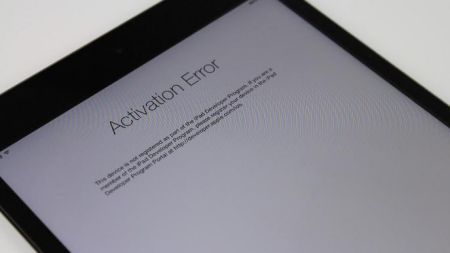
iOS Update Issues – iPhone iPad Activation Failed
1. Restarting your terminal device clears basic pipeline handshake locks instantly.
2. Verify physical SIM structural placement or modern eSIM profiling parameters inside settings.
3. Always favor secure local private Wi-Fi lanes rather than public internet hubs during activations.
4. Try using Mac Finder desktop workflows to push authorization structures safely.
If you want to learn more details, you can check: How to Fix Can’t Activate iPhone iPad iPod touch >
23. iOS 27 Issue: iPhone iPad Reboot Loop Problem
If code script updates trigger internal runtime execution failures, the firmware might crash repeatedly during boot cycles.
iOS Update Issues – iPhone Reboot Loop
1. Ensure clean, obstruction-free physical connectivity across the input ports.
2. Utilize authentic high-watt power units to provide steady current lines to the battery framework during indexing steps.
3. Execute forced physical hardware restarts to terminate corrupted runtime loops instantly.
Besides the above methods, there are some other simple tips you can have a try, read this tutorial: How to Fix iPhone iPad Keeps Restarting >
24. iOS 27 Issue: Various Finder / iTunes Errors
Desktop synchronization configurations can flag tracking alerts like Error 9 or 14 when validating files against the new iOS 27 target platform structures.
iOS Update Issues – Various iTunes Errors
1. Check your physical wire bridges, switching to verified authentic Type-C lines.
2. Ensure your macOS or desktop software builds are updated to support newest generation iOS profiling parameters.
We also write many topic pages about these iTunes errors, you can directly visit them to look for more possible solutions:
How to Fix iTunes Error 9 via 5 Efficient Ways >
25. iOS 27 Issue: iPhone Won’t Turn On
If your device gets locked on a dark screen state following the completion of data compilation steps, deploy these steps:
iOS Update Issues – iPhone Won’t Turn On
1. Hook up your device to an authorized fast charger for at least 30 minutes continuous lines.
2. Perform manual forced device hardware restart combo sets.
3. Link up with desktop systems to let Finder detect the device infrastructure states.
4. Push the device logic board configuration into standard Recovery Mode paths manually.
5. Engage dedicated system restoration repair suites like AnyFix to rebuild structural iOS 27 file layers safely without data loss.
Get a more detailed tutorial, please visit: How to Fix iPhone iPad Won’t Turn On >
26. iOS 27 Issue: Notifications Appearing Incorrectly
If dynamic push widgets or messaging banners overlay awkwardly on new dynamic lock screens post-update, clear out active notifications and force reboot your unit to properly align UI asset engines.
27. iOS 27 Issue: Stuck on Swipe up to Upgrade Screen
This layout hang happens if post-installation wizard threads lock up. Running a backup deployment via desktop computer bridges is a safe route to bypass the lock.
Step 1. Launch current desktop management hubs on your Mac/PC and link your unit.
Step 2. Locate your hardware interface profiles inside the navigation panel.
Step 3. Trigger a local archive restore map to bypass setup wizard dead ends securely.
28. iOS 27 Issue: iPhone Cannot Make or Receive Calls
Advanced baseband radio definitions changes inside iOS 27 can generate temporary carrier registration failures.
Tip 1. Flush corrupted network registry maps using standard Network Configuration Reset operations.
Tip 2. Check for matching carrier update configs under General > About dashboard manually.
Tip 3. Confirm focus mode configurations or advanced call filtering options are not blocking incoming lines accidentally.
Tip 4. If using physical SIM modules, remove and clean contact boards before reseating them.
29. iOS 27 Bug: Software Update Server Could Not Be Contacted
If remote server synchronization paths fail through desktop checking structures, use these alternatives:
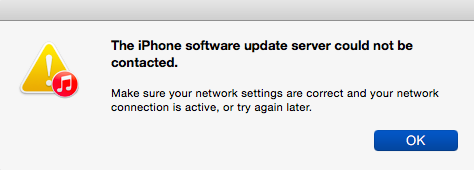
iPhone Software Update Server Could Not Be Contacted
Tip 1. Verify your local system DNS server entries or try again later when server traffic stabilizes.
Tip 2. Bypass desktop software setups completely by performing updates directly using Over-the-Air (OTA) routes inside settings.
30. iOS 27 Bug: Stuck on Apple Logo / Brick Loop
Core kernel frameworks corruption during flash distributions can brick your system, forcing frozen Apple logo loops.
Tip 1. Trigger structural forced device reboots to split basic configuration hangs.
Tip 2. Connect the phone to Finder on a computer and initiate safe Recovery Mode restoration procedures.
Tip 3. Use specialized firmware utility programs like AnyFix to rewrite damaged underlying components without erasing existing personal databases.
31. iOS 27 Not Showing Up in Settings
If you face “Unable to Check for Update” warnings when querying for the iOS 27 build lines over the air:
Step 1. Ensure the target phone is attached to reliable local power blocks and high-speed Wi-Fi links.
Step 2. Clean out old lingering beta configurations or profile structures inside Settings > General > VPN & Device Management.
Step 3. Switch the dynamic toggles under Beta Updates inside Software Update menu options to fetch developer pathways fresh.
32. iOS 27 Bug: Apple Music Issues
Advanced real-time spatial library synchronization tools inside iOS 27 can occasionally show skipped audio tracks or playback halts during first boot states.
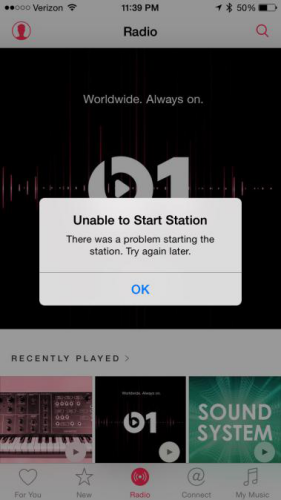
Apple Music Problem -Unable to Play Music
Tip 1. Cycle Airplane Mode off/on to clean wireless data paths.
Tip 2. Force close the Apple Music app layer completely inside the app switcher view and relaunch.
Tip 3. Reset network configuration entries to purge outdated structural streaming cache blocks.
33. iOS 27 Bug: Mail App Issues
Database table alterations can disconnect external IMAP/Exchange authentication maps, throwing wrong credentials prompts or empty screen views.

iPhone Mail Problems
1. Mail App Cannot Receive Emails or Throws Password Flags
Step 1. Open the Settings app rules and navigate down to Mail or Apps groups.
Step 2. Select Accounts, choose the faulty line, and tap sign out to drop registration records.
Step 3. Re-authenticate account credentials fresh to build secure synchronization maps.
34. iOS 27 Bug: System Lag / Interface Freezing
Heavy localized metadata indexing blocks and machine learning assets compiling post-installation can saturate memory buffers, generating minor UI stutters. Allowing the device to finish optimization tasks overnight generally eliminates surface lag cleanly.
iPhone Slowing Down
35. iOS 27 Bug: Social Apps & Chat Client Crashes
If customized sandbox container adjustments inside early iOS 27 developer builds make chat programs crash right upon opening, verify app updates via the App Store or attempt a clean application reinstall loop.
36. iOS 27 Problem: iPhone Screen Recording Not Working
Upgraded privacy handling features inside iOS 27 can halt media daemons if security permissions aren’t properly mapped. Turn the screen recording toggle off and back on under Control Center parameters, then hard reboot the device to reset background hooks.
37. iOS 27 Problem: App Needs to Be Updated Warning
As Apple progresses architectural APIs inside iOS 27, apps that haven’t adopted recent structural platform framework optimizations are completely restricted from initialization paths, requiring manual app updates from developers.
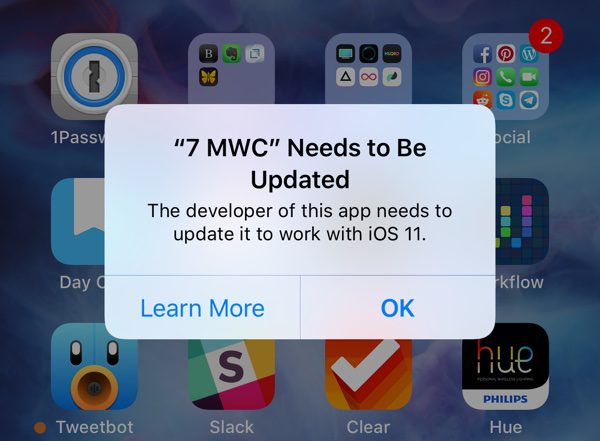
App Needs to Be Updated
38. iOS 27 Problem: iPhone Could Not Be Restored
If your desktop management software flags dynamic linking errors when deploying firmware files onto your device, check out our comprehensive matrix roadmap layout for core workarounds: how to fix iPhone iPad won’t restore >
People Also Ask About iOS Update Issues
Q1: Will installing old legacy system architectures cause severe errors on modern iOS 27 environments?
Yes. If you attempt to port legacy app packages engineered for ancient frameworks directly into cutting-edge modern runtime blocks like **iOS 27 Beta**, application code breaks immediately. This is because modern environments use advanced, real-time responsive rendering structures and strict, updated secure sandbox containers. Outdated script engines attempting legacy base hooks are forcefully shut down by security daemons, producing immediate crashing loops.
Q2: Why do multi-display UI bugs occasionally manifest on foldable or advanced panel form factors?
Foldable or dynamic scaling device configurations require explicit asset definitions to translate scaling data across shifting interface aspects fluidly. If application build metrics do not carry native responsive multi-window APIs, transitioning between differing active displays fails to map runtime link blocks correctly, resulting in interface freezing bugs.
Q3: How does deeper operating system layer corruption complicate standard verification loops?
When system firmware files are broken during data transmission phases, key boot registry elements become corrupted and unreadable. Standard superficial button restarts cannot solve these structural database system defects. Employing a deep programmatic restoration tool like AnyFix is highly recommended to safely rewrite broken framework layers via official secure pathways without compromising user data metrics.
The Bottom Line
While upgrading into latest generation environments like iOS 27 brings excellent feature advantages, early build iterations can leave unexpected layout variations or minor bugs in their wake. Running regular background clearing routines or optimizing memory allocations generally straightens out surface glitches. However, if structural firmware corruption halts regular usage, deploying AnyFix remains the safest and most efficient choice to align system registries without losing user records. If you lose metrics when upgrading, jump here: How to Fix “iPhone iPad Data Lost/Disappeared” After iOS Update >



Joy Taylor is a seasoned technical writer with over a decade of experience in mobile technology. At iMobie, she specializes in producing in-depth content on iOS data recovery, iPhone unlocking solutions, and iOS troubleshooting.
Product-related questions? Contact Our Support Team to Get Quick Solution >
